Progress bar in a table
A progress bar shows a value as a share of a target. This template draws one in every row of a table. For example, for each product, it shows delivered orders against all orders.
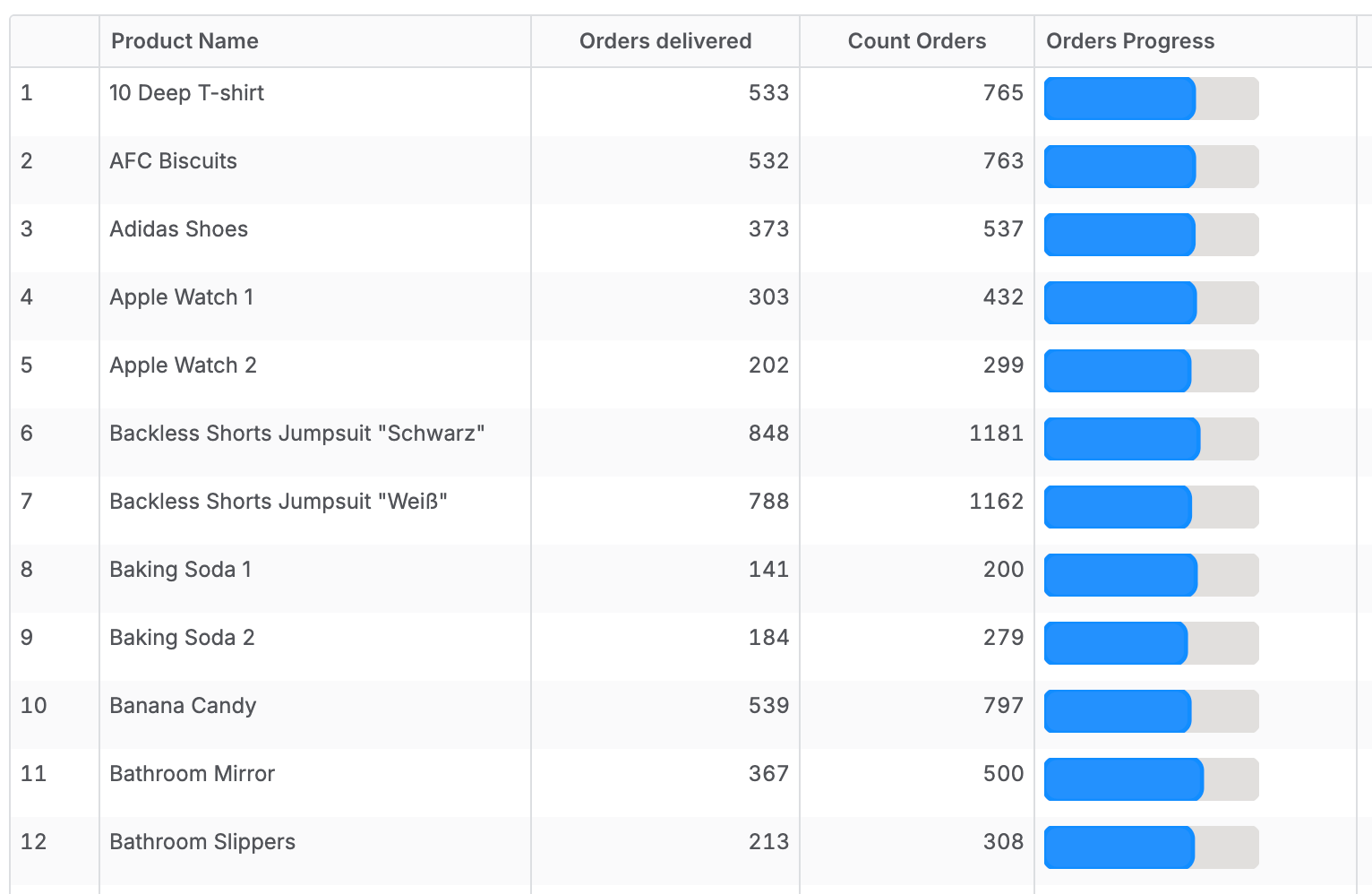
Add the function library and import it into your dataset first. See SVG charts in tables.
Add the metrics
Define the value and the target as metrics, then call SVG.Viz.ProgressBar from a metric of type text. Wrap it in SVG.Html.Box to fix the size in the cell.
metric count_orders {
  label: 'Count Orders'
  type: 'number'
  definition: @aql count(orders.id) ;;
}

metric orders_delivered {
  label: 'Orders Delivered'
  type: 'number'
  definition: @aql count_orders | where(orders.status == 'delivered') ;;
}

metric orders_progress {
  label: 'Orders Progress'
  type: 'text'
  definition: @aql
    SVG.Html.Box(
      120, 48,
      SVG.Viz.ProgressBar(
        orders_delivered,
        count_orders,
        null,
        null,
        50,
        10
      )
    )
  ;;
}
Parameters
SVG.Viz.ProgressBar
SVG.Viz.ProgressBar takes these parameters in order.
| Parameter | Type | What it is |
|---|---|---|
pValueRefExpr | number | The value, such as orders_delivered. |
pTrackRefExpr | number | The target the value is measured against, such as count_orders. |
pColor | text | Bar color. null uses the default blue. |
pOrientation | text | 'Horizontal' or 'Vertical'. null uses horizontal. |
pWidth | number | Width of the chart's drawing grid. Sets the proportions, not the display size. null uses 120. |
pHeight | number | Height of the chart's drawing grid. Sets the proportions, not the display size. null uses 48. |
The bar fills to the value divided by the target. A value above the target fills the whole bar, and a value below zero shows an empty bar.
SVG.Html.Box
SVG.Html.Box sets how big the chart looks in the table cell. Without it, the chart stretches to the full width of the cell.
| Parameter | Type | What it is |
|---|---|---|
pWidth | number | Display width in pixels. |
pHeight | number | Display height in pixels. |
pContents | text | The chart to show, such as the result of SVG.Viz.ProgressBar. |
The chart scales to fit this box and keeps its proportions. Use the same width-to-height ratio as the chart's pWidth and pHeight, or the chart leaves empty space around it.
Use it in a table
explore {
  dimensions {
    product_name: products.name
  }
  measures {
    orders_progress: orders_progress
  }
}