Administration
Everything you need to set up, secure, and operate your Holistics workspace.
This section covers the work administrators do in Holistics. Most teams pick up these tasks in roughly the order below, but each area stands on its own once you know which problem you're solving.
What admins do in Holistics
Admin work spans six areas, from configuring the workspace to managing users, security, day-to-day operations, and billing.
Configure your workspace
Workspace-level settings: row limits, maintenance mode, and your hosting region.
The Admin Settings panel
Most workspace-level configuration lives under Settings in the in-product menu (top-right gear icon, or Menu → Settings).
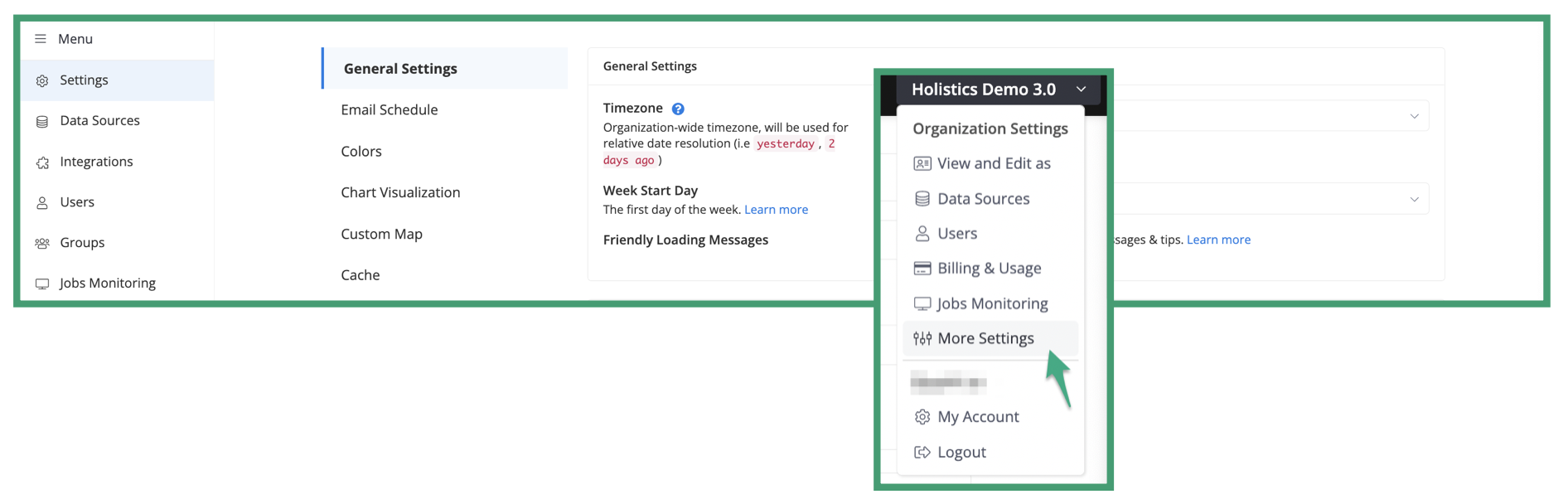
The panel groups settings into:
- General Settings: organization timezone, week start day, color palettes, data delivery sender/failure recipients, and miscellaneous UI toggles.
- Cache: default cache duration for reports and dashboards.
- Persistence: pre-aggregate persistence TTL.
- Job Queuing: unused job timeout and report jobs per user limit.
- Maintenance Mode: see Maintenance mode.
- Security: login mechanism, support impersonation, enforce 2FA.
- Single Sign-On: see SAML/SSO.
- IP Whitelisting: see IP whitelisting.
Common starting points
The settings admins reach for most often.