Custom homepage content
Custom homepage is under development and expected to release in October 2026. Details on this page may change before launch.
Introduction
By default, Home looks the same in every organization. But teams use Holistics differently: Some want everyone to start from a curated dashboard, like a report glossary or a KPI overview; others just want to hide sections their users don't need, or move the most useful ones to the top.
Custom homepage lets admins tailor what appears on Home, so everyone in the organization lands on what matters most.
How it works
With custom homepage, admins can:
- Pin dashboards to Home, shown in full view or as link buttons
- Choose which sections appear on Home, and in what order
Home keeps its usual URL (/home) and nav item, so users still find it in the same place.
Pin dashboards to Home
Pin your team's key dashboards, like a report glossary or a KPI overview, to the Pinned dashboards section. Each pinned dashboard appears in one of two views:
| View | How many | Dashboard types | What users see |
|---|---|---|---|
| Full view | One | Canvas only | The whole dashboard, right inside Home. Users can filter, drill, explore, and open it on its own page to edit, share, or favorite it. |
| Link button | Any number | Canvas and Quick | A button that opens the dashboard on its own page. |
A dashboard can only be in one view at a time. Dashboards you pinned before custom homepage was available show as link buttons.
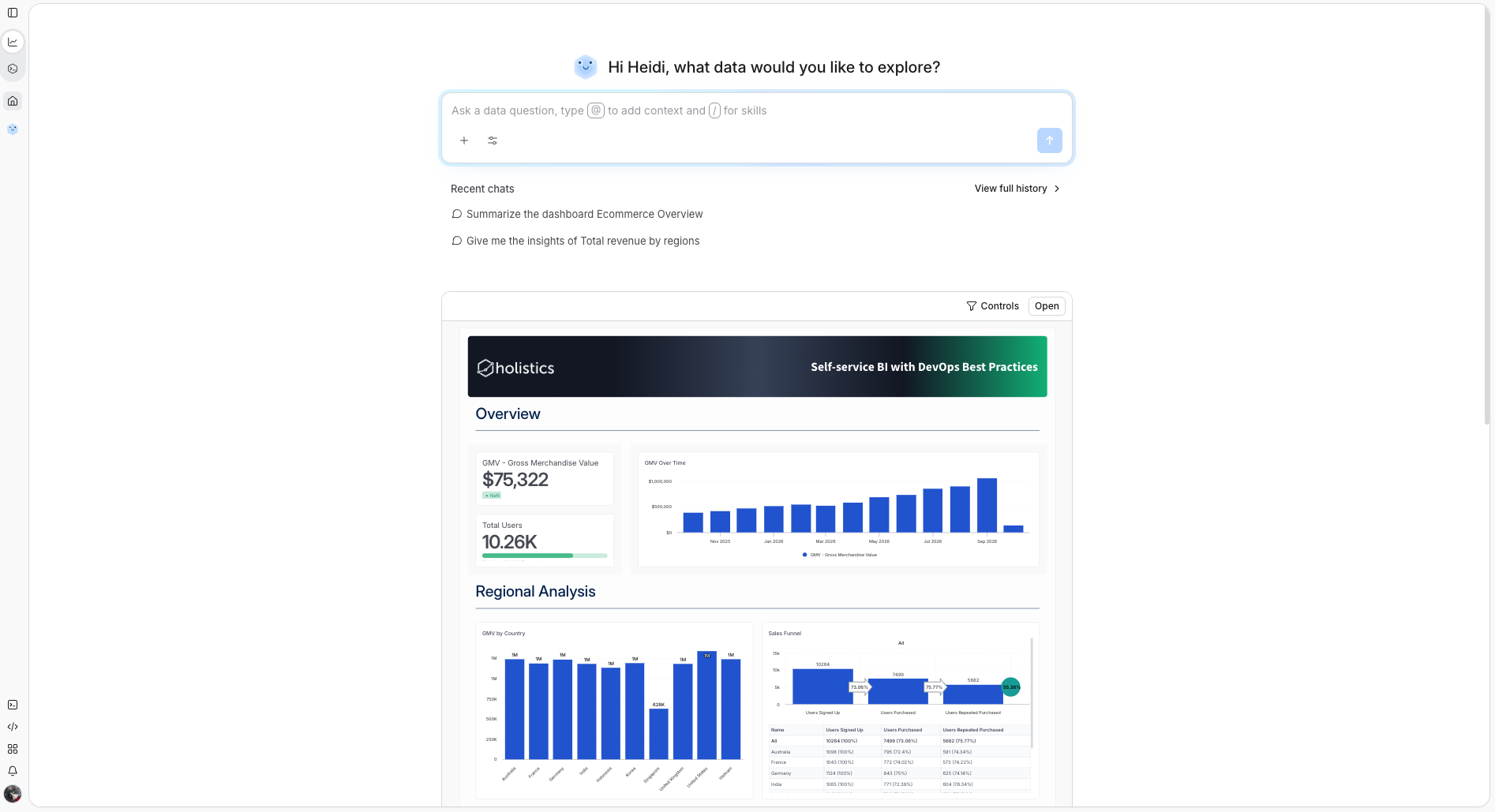
- Only admins can pin and unpin dashboards.
- Pinned dashboards must be in the Public Workspace. To pin a Shared or Personal dashboard, move it to the Public Workspace first. If a pinned dashboard is later deleted, or moved out of the Public Workspace, it no longer appears on Home for anyone.
- Users who don't have access to a pinned dashboard won't see it, so make sure it's shared with everyone who should see it. For example, if a dashboard is only shared with the Singapore user group, users in other groups won't see it on Home.
- Each user sees data based on their own permissions and row-level permissions.
Choose and order sections
Turn off any section your users don't need, and drag the rest into the order you want, so the most important content is the first thing users see.
Here are the sections on Home:
| Section | On by default | What it shows |
|---|---|---|
| Ask AI or Search | Always on | Ask AI if your organization has AI enabled, otherwise a search box |
| Pinned dashboards | Yes | Dashboards that admins pinned to Home, in full view or as link buttons |
| Recents and favorites | Yes | Each user's recently viewed and favorited items |
| Browse | Yes | Your organization's content, to browse by workspaces |
Hidden sections don't appear on Home for anyone. Users can still reach their recents, favorites, and folders from the left navigation, so they don't lose them when you hide those sections.
The top section of Home is Ask AI when AI is enabled, and Search otherwise. Either way, it can't be hidden or moved, so users can always ask a question or find content when the sections below don't have what they need.
Set up a custom homepage
Admins can customize Home by going to Admin settings → Custom homepage. From there:
- Use the toggle on each row to show or hide a section, and drag rows by the handle to reorder them.
- Under Pinned dashboards, pick a dashboard in Show full view, and add the dashboards you want in Show as buttons, in the order you want them to appear. Drag these two rows to choose which one appears first.
- Click Save custom homepage.
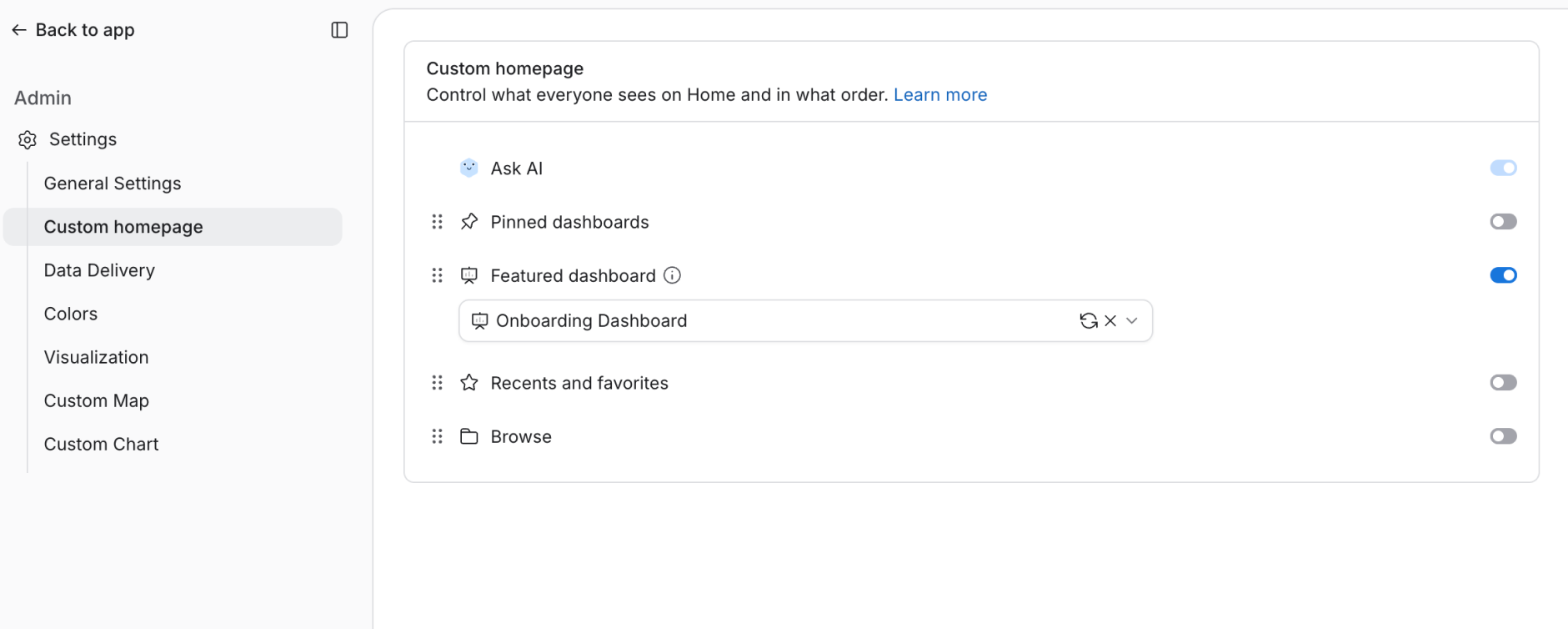
The layout you set applies to everyone in your organization the next time they load Home.
Pin from a dashboard
You can also pin a dashboard as a link button without leaving it: click the ellipsis (…) button and select Pin to Org homepage as button. Full view can only be set in Admin settings, since it changes the top of Home for everyone and replaces the current full view dashboard.
If the dashboard isn't shared with everyone, Holistics shows the Edit User Access dialog, so you can share it with more users before pinning.

Limitations
Custom homepage currently doesn't support:
- Per-user Home layouts (one layout applies to everyone, set by admins)
- More than one full view dashboard, or Quick dashboards in full view
- Embedded analytics
- Previewing changes before saving
Need any of these? Let us know at [email protected].