Dashboard Themes
Themes give you full control over how your dashboards look: typography, colors, spacing, and visualization styling. Define them once to enforce consistent branding across your workspace, apply them ad-hoc to a single dashboard, or set them to switch automatically between light and dark mode.
You can customize:
- Typography: Font family and size for text and data labels
- Colors: Dashboard backgrounds, borders, and other UI elements
- Canvas & block styling: Padding, shadows, and background images
- Visualization styling: Tables, KPI metrics, and chart color palettes
High-level concepts
Theme components
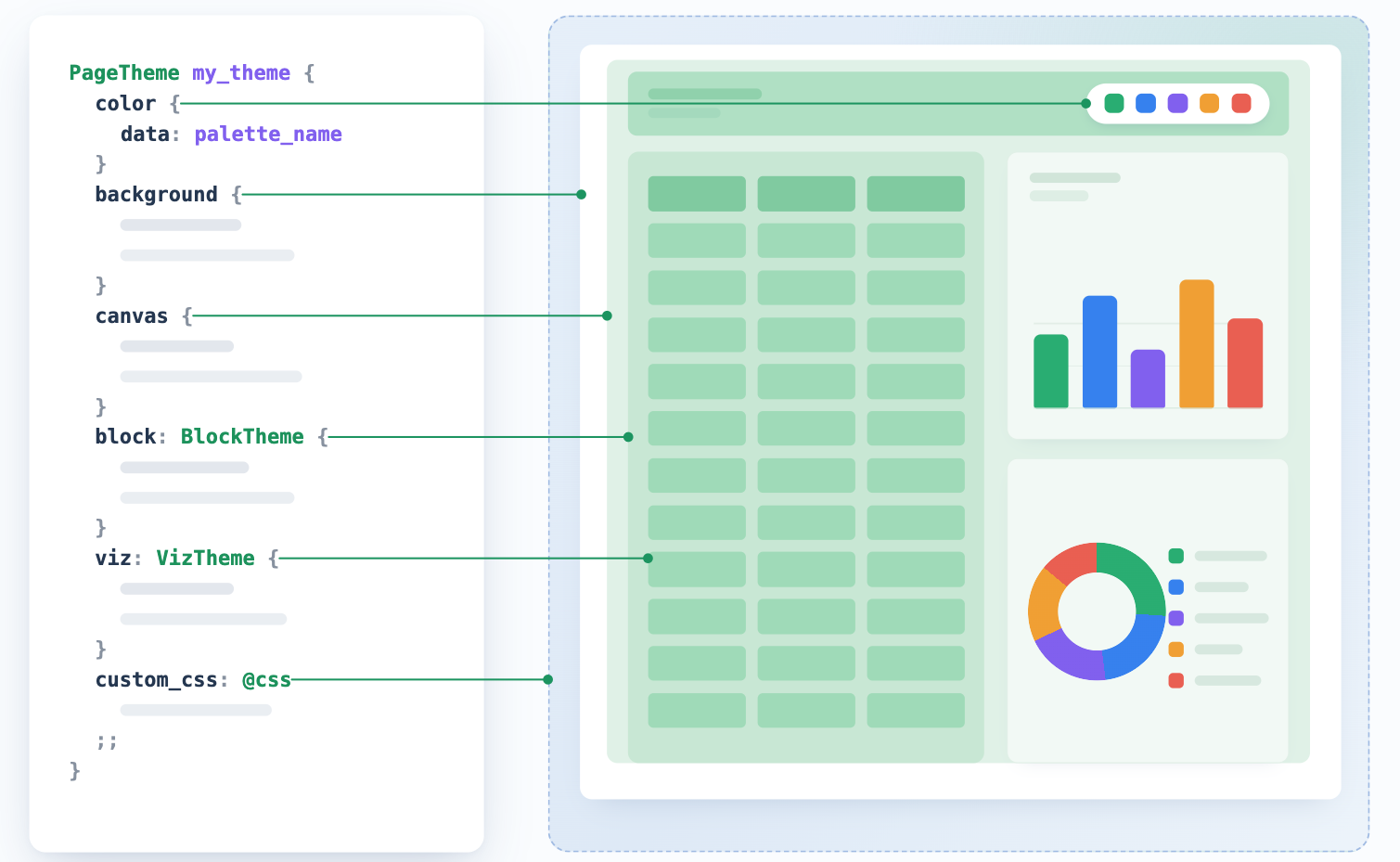
Dashboard theme controls the following visual sections of your dashboard:
| Section | Description |
|---|---|
color | Default color palette for all charts in the dashboard |
background | Background of the outermost page viewport |
canvas | Styling for the main canvas area: background, border, shadow, opacity |
block | Default styling for all blocks: label, text, border, background, shadow, padding, opacity |
viz | Default styling for data visualizations |
custom_css | Custom CSS injected into the dashboard |
See AML Theme Reference for full syntax details.
Theme types
There are two types of themes in Holistics: reusable themes, and local themes. Each serves different use cases:
| Name | Description |
|---|---|
| Reusable themes | Themes that can be applied across multiple dashboards, providing consistency and efficiency. There are two sub-types:
These themes can be selected from a dropdown menu when styling any dashboard. |
| Local themes (or ad-hoc themes) | Local customizations applied directly to a specific dashboard that cannot be reused elsewhere. Perfect for:
|
Apply a theme
Each viewer sees Holistics in either light or dark mode, depending on their user settings. When you assign a theme to a dashboard, you choose whether that setting changes what they see:
- One theme for both modes (static): Everyone sees the same theme, regardless of their app mode.
- A theme per mode (dynamic): Each viewer gets the theme matching their mode.
Both work with reusable and local themes. Apply either using the GUI or code approach below.
Apply a static theme
-
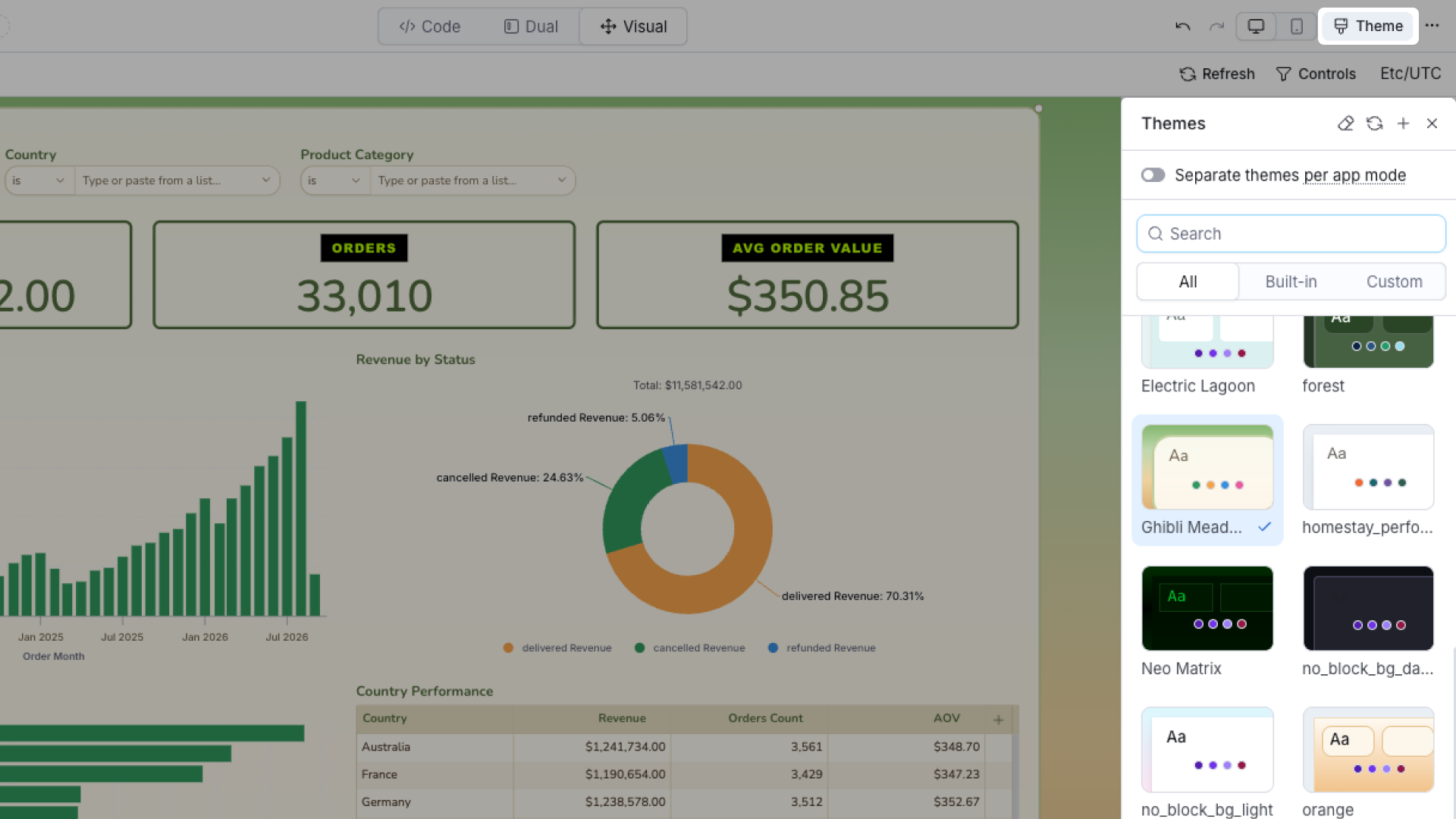
GUI: Open Themes setting at the top right corner of your dashboard and choose from either built-in or custom themes:
-
Code: Reference the theme by name directly in your dashboard code in Development:
Dashboard ecommerce_dashboard {theme: theme_name}
Apply a dynamic theme
-
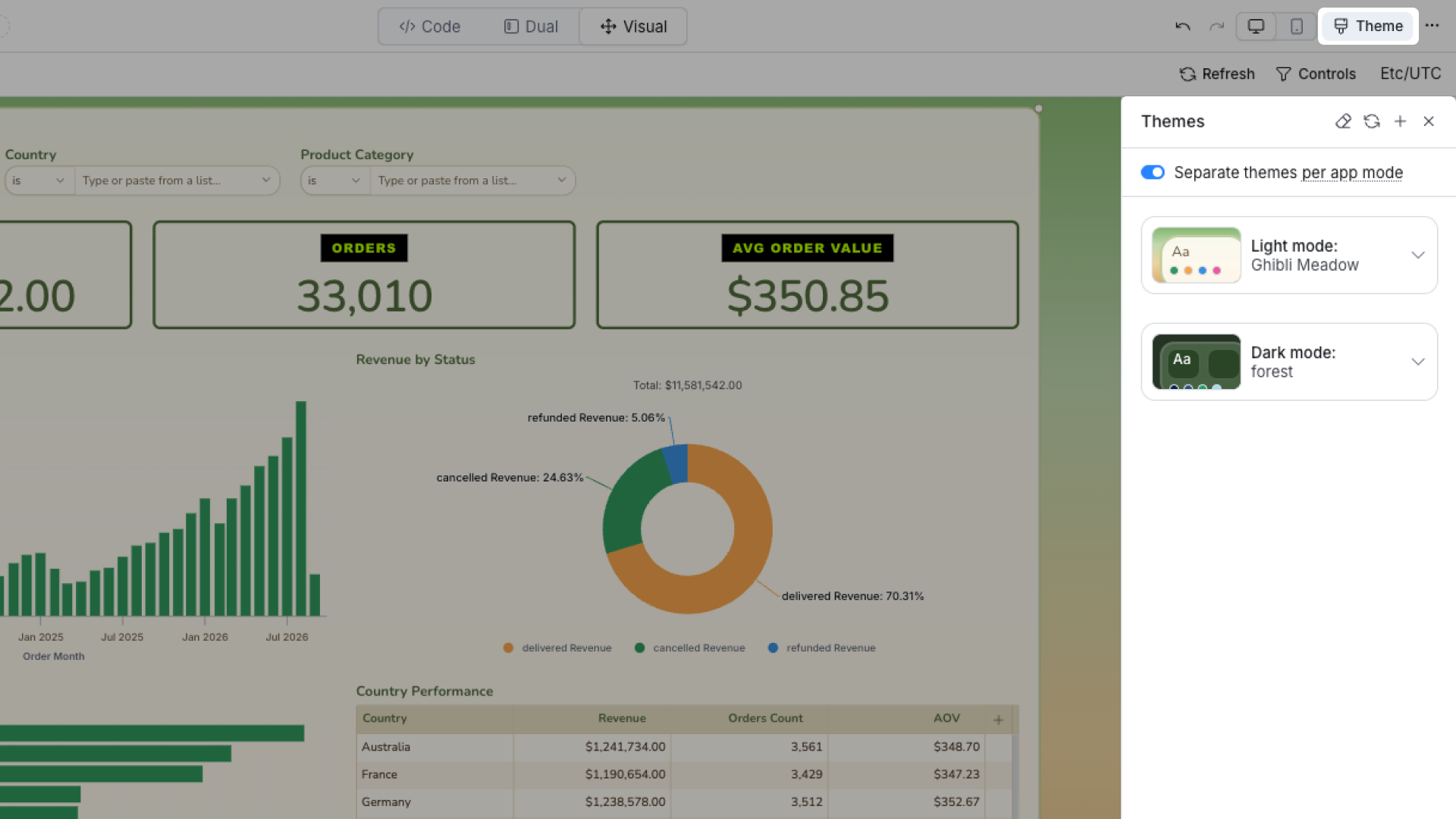
GUI: In the Themes panel, turn on Separate themes per app mode, then pick a theme for the Light card and another for the Dark card.
-
Code: There are two ways to set up a dynamic theme:
-
Assign separate themes per mode directly on the dashboard (recommended):
Dashboard ecommerce_dashboard {theme: DynamicPageTheme {light: theme_a,dark: theme_b,}} -
Define a reusable
DynamicPageTheme, then reference it by name:// themes.amlDynamicPageTheme theme_name {light {},dark {},}// dashboard fileDashboard ecommerce_dashboard {theme: theme_name}infoStoring the light/dark pairing inside a reusable theme locks every dashboard that references it into the same pairing. Use the 1st approach above if dashboards need different pairings.
-
Assigning themes per mode through the GUI always uses the direct, per-dashboard assignment from the 1st approach, not a reusable named theme.
Create a theme
Themes are defined in AML code - there's no visual editor in Holistics yet. To avoid writing one by hand, you can:
- Ask Holistics AI to generate a theme for you
- Design one in the external Theme Builder, an interactive sandbox for designing and previewing themes, then copy the generated AML code into your project
Create a reusable theme
To create a reusable custom theme, simply follow these steps:
- Go to Development > Library > Themes and create a new
.theme.amlfile. - Define the theme with a
PageThemedefinition:PageTheme classic_blue {background {bg_color: '#FFFFFF'}block {border {border_color: '#4896EA'}}}
Once created, you can apply it to your dashboards.
Create a local theme
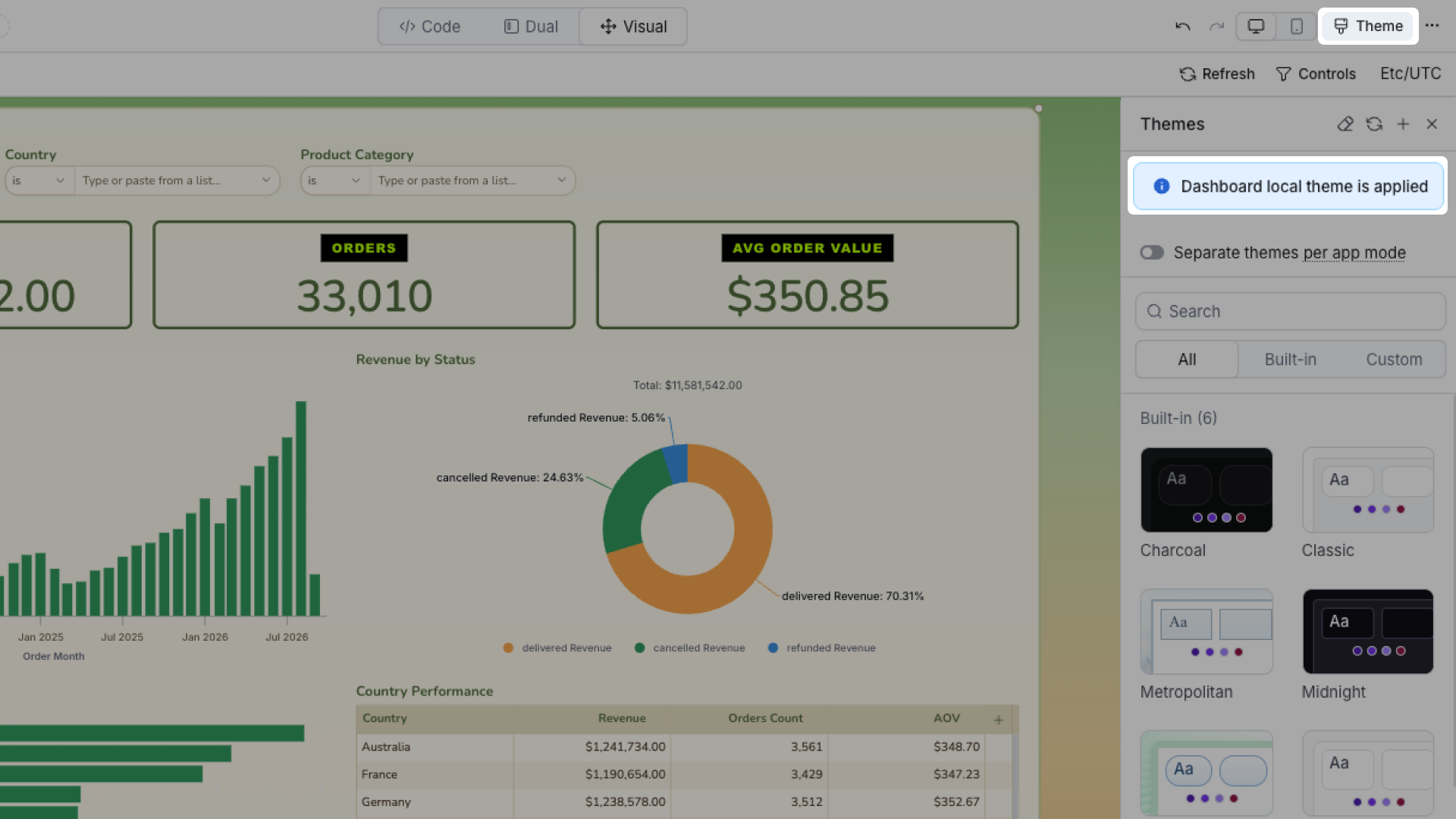
Local themes are defined directly within your dashboard code. When your dashboard uses a local theme, you'll see a local theme indicator in the Theme Settings panel:
A local theme can be static or dynamic, same as any theme:
Static local theme:
Dashboard ecommerce_dashboard {
  theme: PageTheme {}
}
Dashboard ecommerce_dashboard {
  theme: theme_name.extend({}) // local theme created by extending a reusable theme
}
Dynamic local theme:
Dashboard ecommerce_dashboard {
  theme: DynamicPageTheme {
    light {}
    dark {}
  }
}
Set a chart color palette
You can set a default color palette for all charts in a dashboard by referencing it in your theme:
PageTheme my_theme {
  color {
    data: palette_name
  }
}
The palette priority order is: viz-level palette > theme palette > project default palette. If no palette is set at a given level, it falls through to the next.
Add custom CSS
You can include CSS snippets directly in your theme using the custom_css parameter and reuse it across dashboards. Read more for details and examples.
PageTheme classic {
  // existing theme properties
  custom_css: @css
    /* your custom CSS rules here */
  ;;
}
Customize individual blocks
Block and viz styling works at two levels:
- Theme level: Define inside a
PageThemeto set defaults for any dashboard using that theme:block {}applies to all block typesviz {}applies only to Viz blocks
- Block level: Define overrides on a specific block in your dashboard file using
BlockTheme(for block container styling) orVizTheme(for viz content inside a Viz block) to customize that specific block only.
Override block styling
Dashboard ecommerce_dashboard {
  block text_block: TextBlock {
    ...
    theme: BlockTheme {
      background {
        bg_color: 'transparent'
      }
    }
  }
}
Override viz styling
Currently, viz-level styling is supported across all built-in Holistics visualizations (except maps) using three specific theme properties:
- Table styling: Supported for Table, Pivot table, Metric table, Conversion funnel breakdown table.
- Metric KPI styling: Supported for KPI metric.
- Color palette: Supported for Line chart, Area chart, Bar chart, Column chart, Combination chart, Pie & Donut chart, Scatter chart, Bubble chart, Pyramid & Funnel chart, Radar chart, Word cloud.
See this guide to override color palettes at the chart or series level.
- Table
- KPI Metric
- Color palette
Dashboard ecommerce_dashboard {
  block table_name: VizBlock {
    ...
    viz: PivotTable {
      ...
      theme: VizTheme {
        table {
          general {
            bg_color: 'white'
          }
        }
      }
    }
  }
}
Dashboard ecommerce_dashboard {
  block kpi_name: VizBlock {
    ...
    viz: MetricKpi {
      ...
      theme: VizTheme {
        metric_kpi {
          alignment: "center"
          value {
            font_color: "#1357A0"
            font_weight: "bold"
          }
          trend {
            positive {
              background { bg_color: "#DCFCE7" }
            }
            negative {
              background { bg_color: "#FEE2E2" }
            }
          }
        }
      }
    }
  }
}
Dashboard ecommerce_dashboard {
  block chart_name: VizBlock {
    ...
    viz: LineChart {
      ...
      theme: VizTheme {
        color {
          data: palette_name
        }
      }
    }
  }
}
Reuse theme values
Theme definitions often repeat the same values - the same color code or font family appearing across block, canvas, and viz sections. You can use AML reusability features to define these values once and reference them throughout, so a single change updates the whole theme.
Use constants for reusable values
const classic_blue_border_color = "#4896EA"
const classic_blue_font_color = "#1357A0"
const classic_blue_font_family = "Inter"

PageTheme classic_blue {
  // other properties omitted...
  canvas {
    border {
      // other properties omitted...
      border_color: classic_blue_border_color
    }
  }
  block {
    // other properties omitted...
    label {
      // other properties omitted...
      font_family: classic_blue_font_family
    }
    text {
      // other properties omitted...
      font_family: classic_blue_font_family
    }
    border {
      // other properties omitted...
      border_color: classic_blue_border_color
    }
  }
}
Use AML Dict to avoid namespace pollution
// Instead of separate constant for each variable
// const classic_blue_border_color = "#4896EA"
// const classic_blue_font_color = "#1357A0"
// const classic_blue_font_family = "Inter"

// You can use an AML Dict instead
const classic_blue_vars = {
    border_color: "#4896EA"
    font_color: "#1357A0"
    font_family: "Inter"
}
// then use it like this
PageTheme classic_blue {
  // other properties omitted...
  canvas {
    border {
      // other properties omitted...
      border_color: classic_blue_vars("border_color")
    }
  }
}
Syntax Reference
For a full parameter reference for PageTheme, DynamicPageTheme, BlockTheme, and VizTheme, see the AML Theme and Colors.
Hover over PageTheme, DynamicPageTheme, BlockTheme, or VizTheme in the code editor to see suggestions for available parameters.
FAQs
1. What does "previous default light themes" mean, and what happens if I update?
Previously, a dashboard could only be assigned one theme, so new dashboards defaulted to a Vanilla or Classic theme, both of which are designed for light mode only. These dashboards didn't have a dark-mode equivalent, so they still render in light even when a viewer switches their app mode to dark.
Clicking the banner updates these dashboards to use a separate theme for each mode:
- Vanilla → Vanilla (light) and Charcoal (dark)
- Classic → Classic (light) and Midnight (dark)
This only affects dashboards still using a single Vanilla or Classic theme. For other dashboards, you'll need to create and apply the dark theme yourself.