Permission system
Holistics enforces permissions in layers. When a user opens a dashboard, runs a query, or browses content, several checks run in sequence, with each one deciding what the user can see and do.
This page explains the model. For the specific configuration steps, follow the cross-links to each layer's dedicated doc.
The permission model
Permission decisions in Holistics happen in this order:
- Authentication & role: Is the user signed in? What role do they hold (Admin / Analyst / Explorer / Viewer)? Roles control what features a user can use.
- Workspace boundary: Which workspace area is the content in? Personal workspaces are private to the owner, the Public workspace is shared across the org, and "Shared with me" surfaces what others have shared.
- Object-level access: Does the user have access to this specific data source or dashboard? Admins assign these explicitly.
- Data-level access: Within an accessible dataset, which rows and columns is the user allowed to see? This is enforced by row-level permissions, column-level permissions, and date-based access.
A user must pass every layer that applies. A higher layer's deny short-circuits the lower ones.
Workspace types
Holistics organizes content into three workspace areas, each with its own visibility rules:
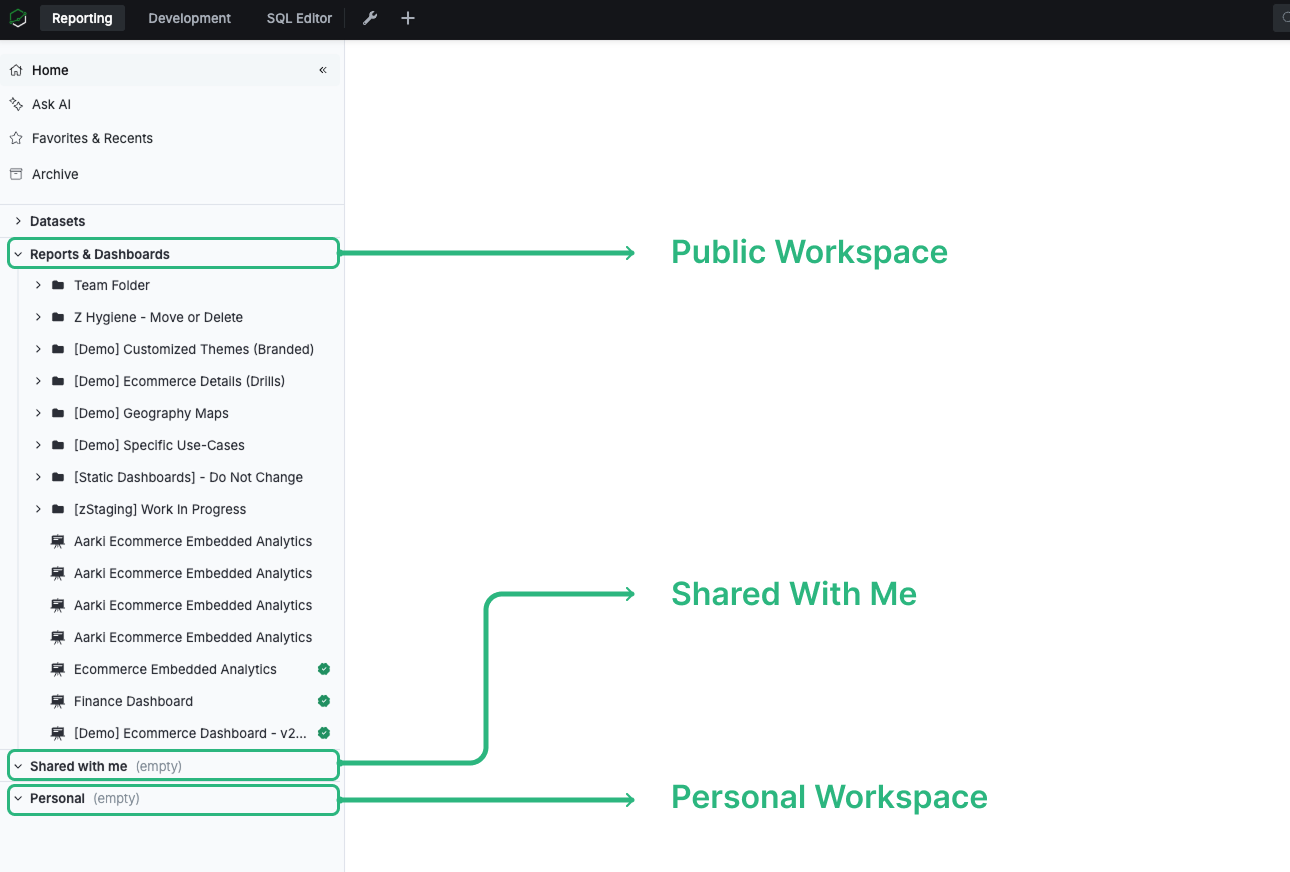
Public workspace
Your company's shared workspace. Certain accounts within your tenant/organization have access.
Shared with me
Personal folders, dashboards, and reports that other users have shared with you.
- Non-admin users: view-only access.
- Admins: extra management rights. See Manage users' personal content.
Personal workspace
Where you keep your own folders, dashboards, and reports for experimenting. Items here are visible only to you and to admins, until you share them. Other users you share with can view but not modify.
Data source-level permission

Administrators share data sources to specific analysts from the Manage Data Sources page.
Data Analysts can't view or modify the database credentials of any data source.
Behind the scenes, the database user used to query the data source is the one Holistics has on file. So an analyst can only run queries against the schemas and tables allowed for that database user. Holistics enforces access by leveraging your database's own access control.
Dashboard-level permission
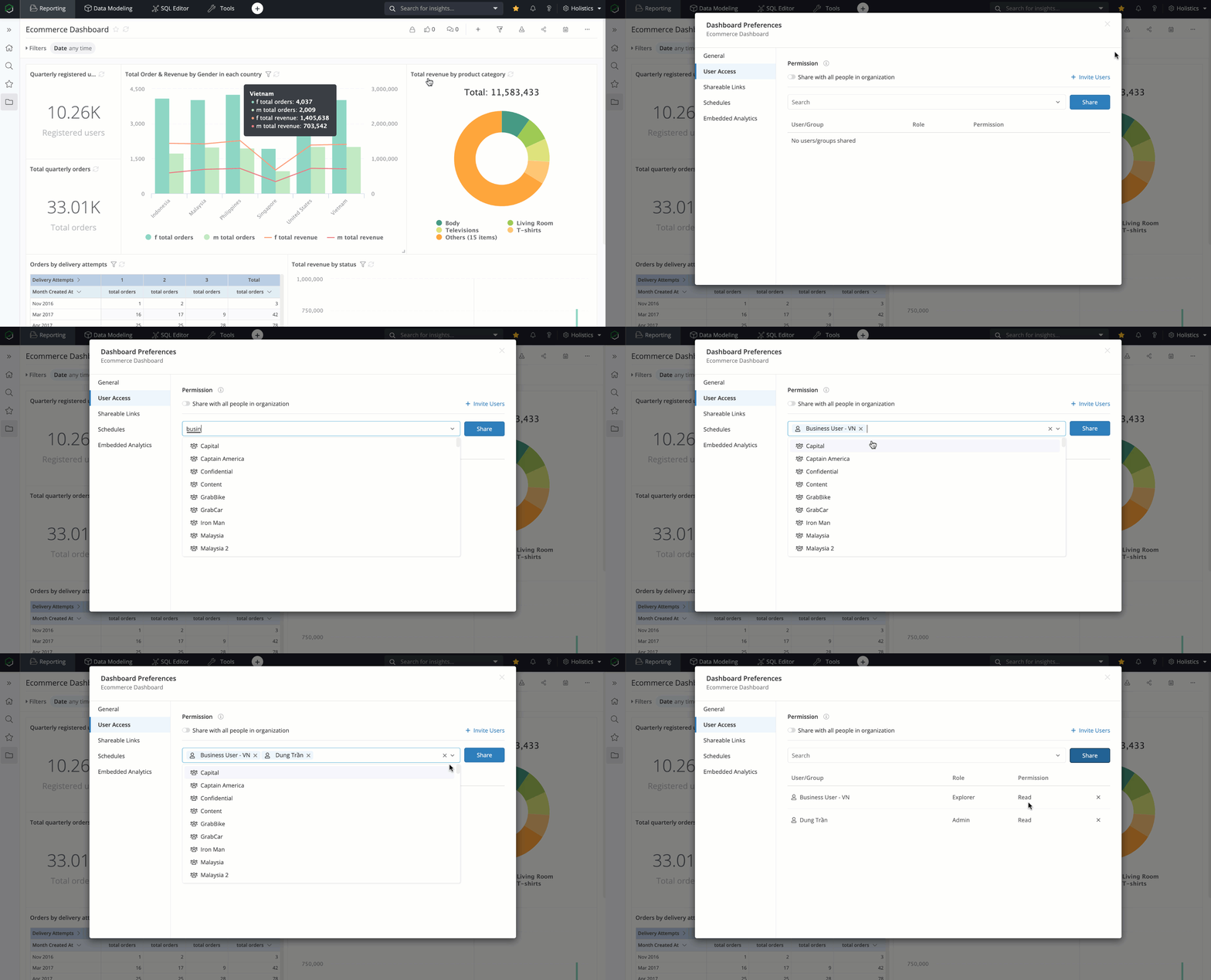
With User Access, you can share reports, dashboards, and folders with specific users or groups.
For example, to share the Ecommerce Dashboard with a particular user or group, click Share → Share by Users/Groups:
To publish a dashboard to all users in your org, add the All users tag instead:

Data-level permissions
For controlling which rows and columns each user sees within a dataset, see the Data Access Control section: