AI Block on dashboard
What is an AI Block?
An AI Block is a dashboard block that generates written content from your dashboard's data, based on a prompt you write.
It uses existing dashboard visualizations as its data source, staying in sync as that data changes, whether from a viewer interacting with a chart (such as filtering or drilling down) or the dashboard reloading. See Refresh behavior for when it updates automatically versus asks for confirmation.
Example use cases
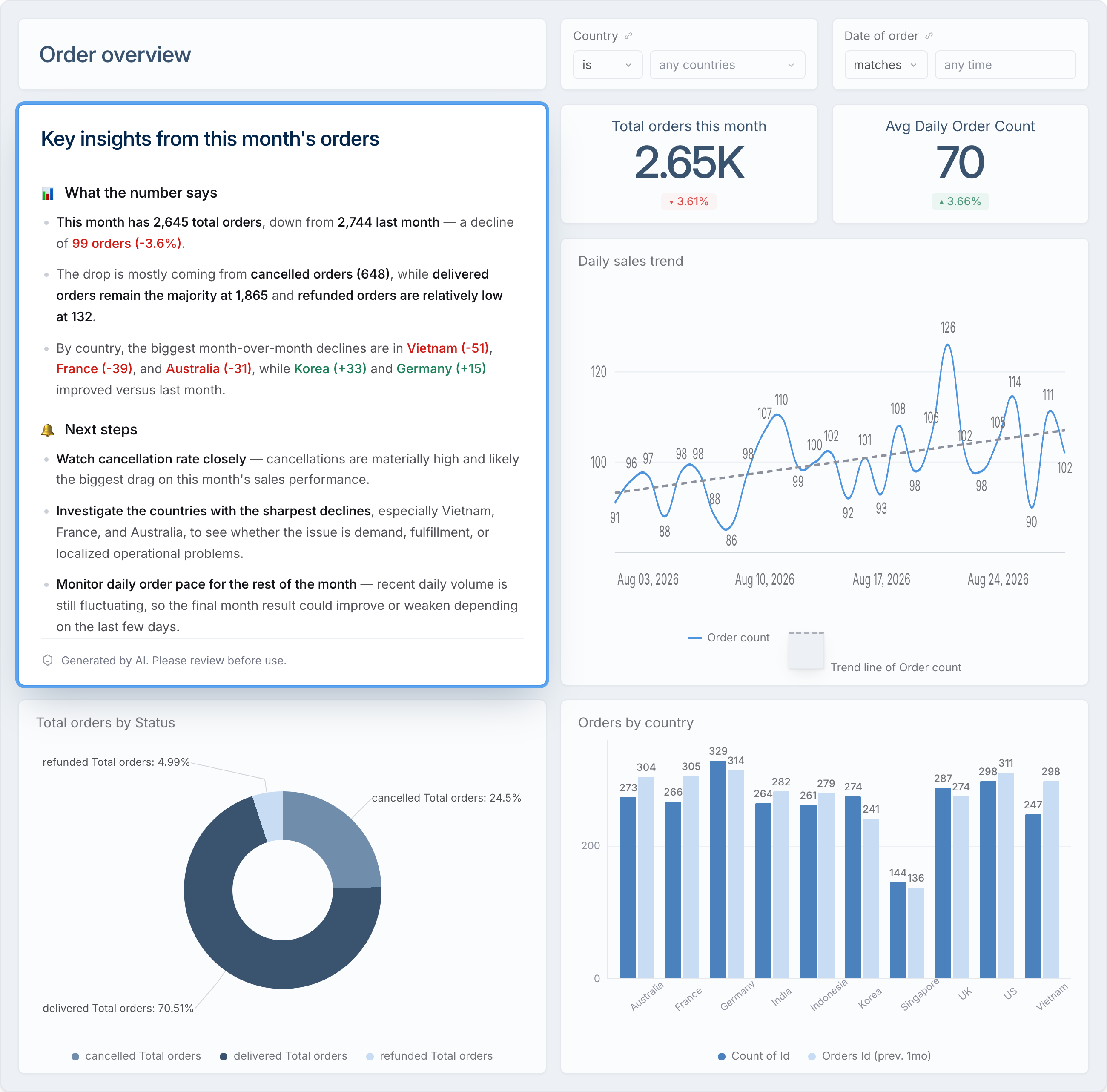
Summarize a dashboard
Turn your data into insights instead of leaving viewers to interpret the numbers themselves.
- Prompt: Summarize this dashboard and call out key insights.
Analyze customer reviews
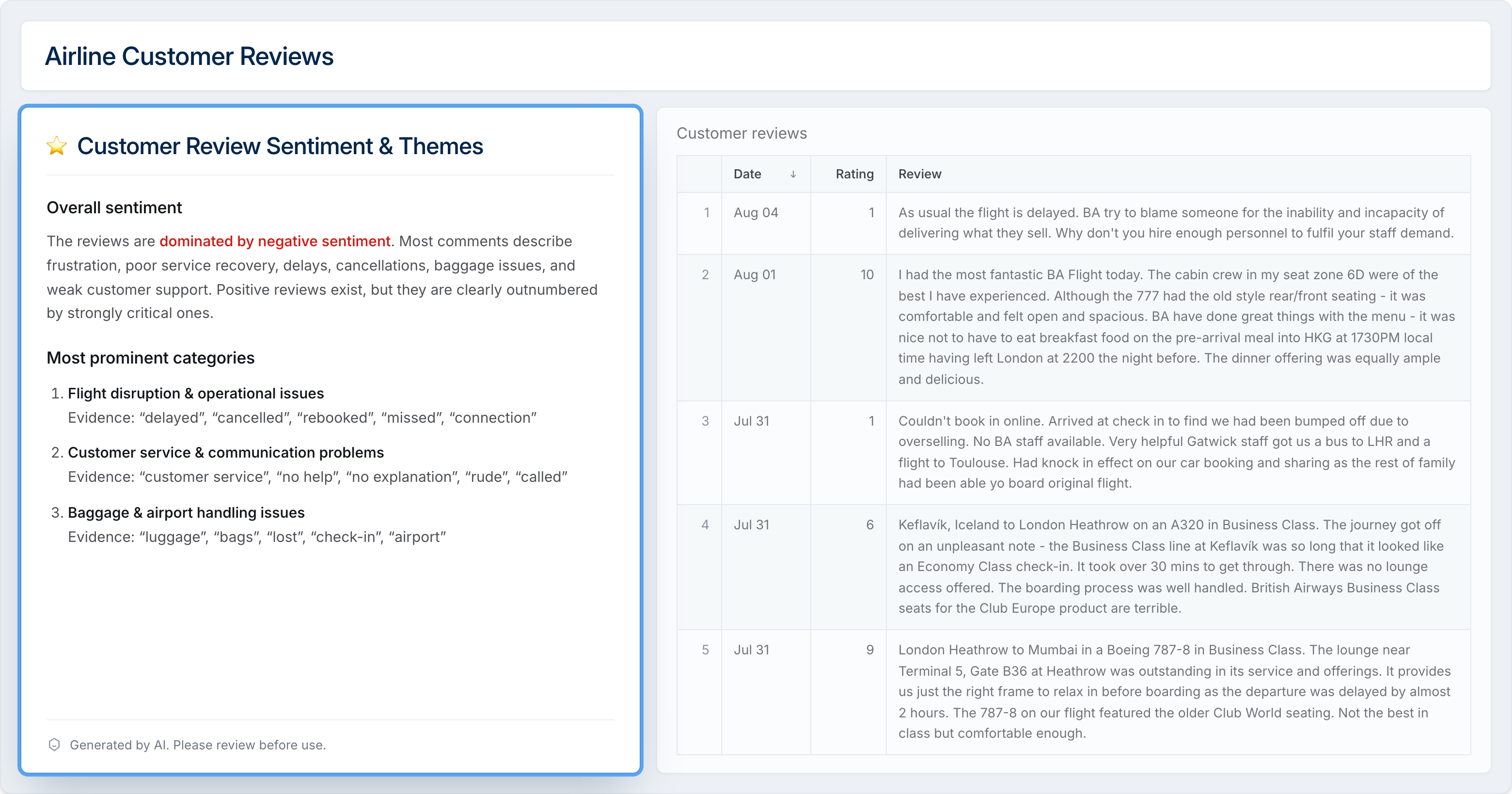
Turn open-ended reviews into sentiment and themes, instead of reading through every one yourself.
- Prompt: Analyze these customer reviews. Report whether sentiment is trending positive or negative, and group the feedback into common themes.
Support tickets brief by viewer
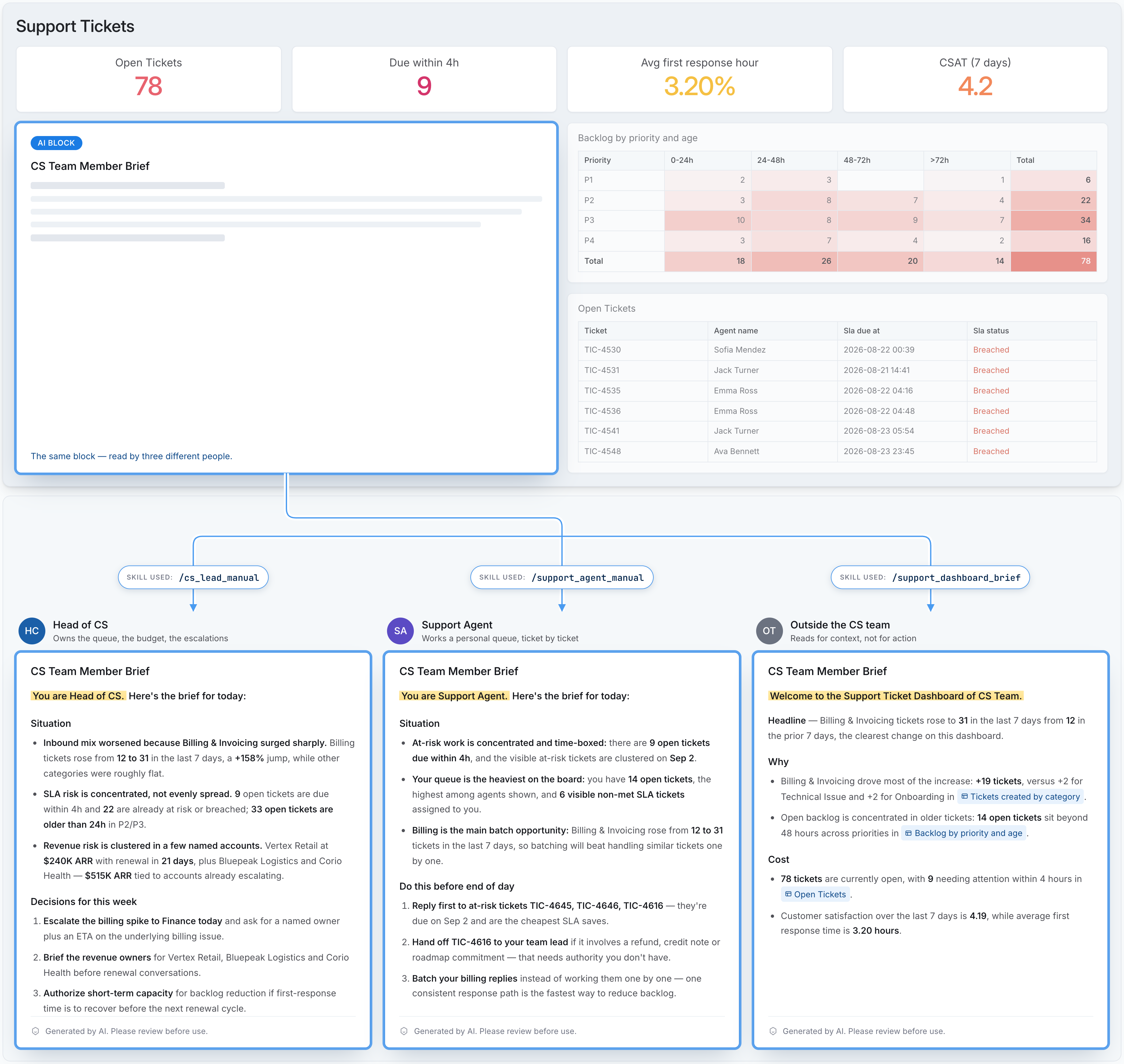
Give each viewer the brief that's relevant to their role, instead of one summary everyone has to translate for themselves.
-
Prompt: Use
/support_agent_manual,/cs_lead_manual, or/support_dashboard_briefdepending on the dashboard viewer's attribute. -
Each skill is scoped to a viewer attribute using AI Skills:
Skill Available to What it does /cs_lead_manualHead of CS Turns the dashboard into a brief on the pattern, the revenue it threatens, and this week's cross-functional decision. /support_agent_manualSupport Agents Turns the dashboard into an ordered work list: what to reply to first, what to batch, what to hand off. /support_dashboard_briefEveryone else Summarizes what changed, why, and what it's costing.
Create an AI Block
Where to create an AI Block
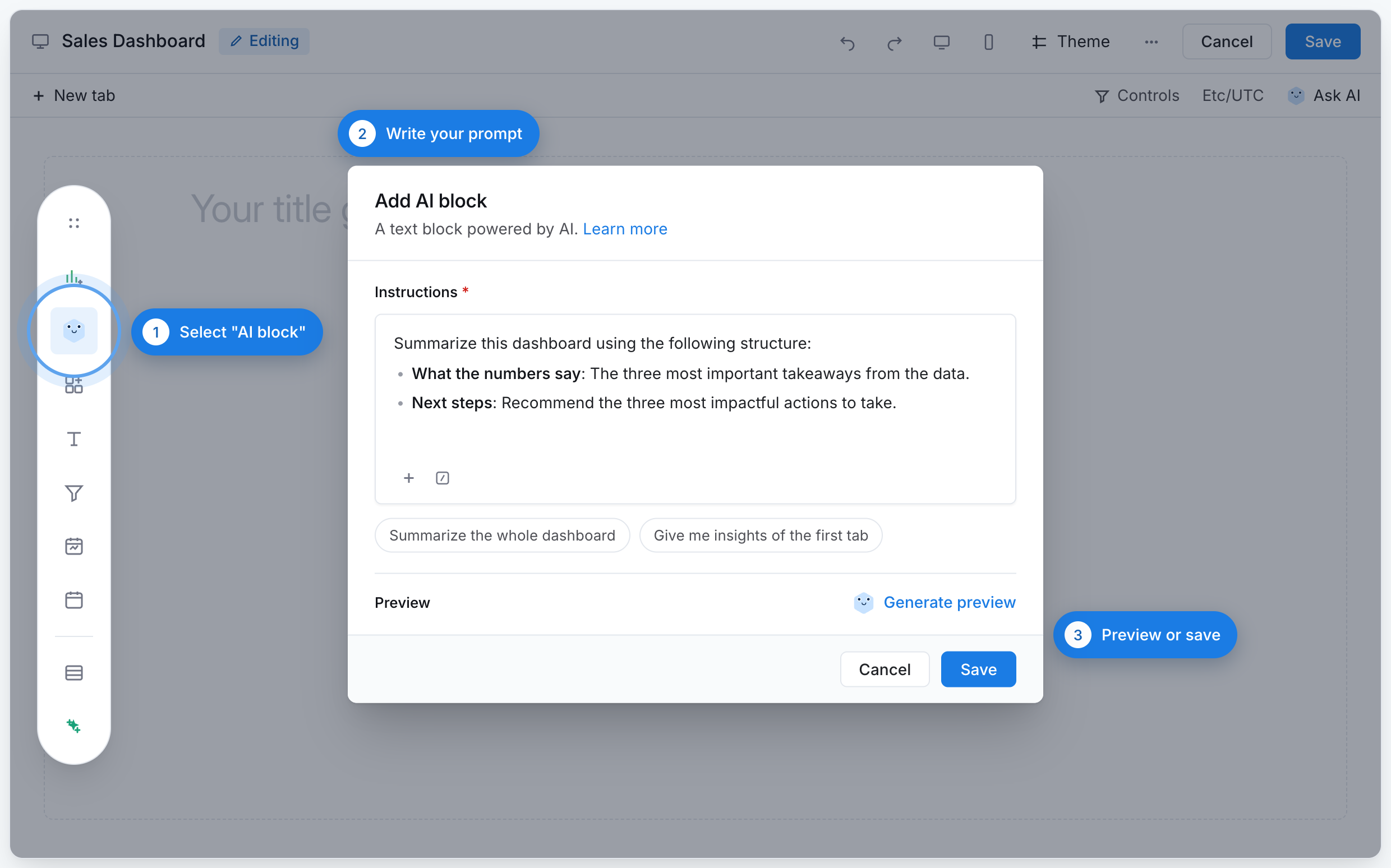
You can create an AI Block in either Development or Reporting. From a dashboard's edit mode, there are three ways:
- UI: click AI Block in the toolbar.
- AI chat panel:
- Ask freeform, e.g. "Add an AI Block to summarize this dashboard."
- Or call our built-in skill
/create_ai_block.
In Development, you can also create one in code by adding an AiBlock to your dashboard file. See How it works in code.
What goes into an AI Block
- Prompt (required): What you want the AI to generate, and how.
- Reference the whole dashboard implicitly (e.g. "summarize this dashboard"), or point to a specific visualization or tab by
@mentioningit. - You can also call on AI Skills to guide how the AI writes it, e.g. which template to follow or factor in business context like marketing campaigns.
- Reference the whole dashboard implicitly (e.g. "summarize this dashboard"), or point to a specific visualization or tab by
- Label (optional): The block title displayed to dashboard viewers.
Scope of data source
An AI Block uses the visualizations it detects in your prompt, all from the same dashboard, as its source data. It only works from what's already shown in those visualizations; it doesn't run a new query against the underlying dataset.
An AI Block cannot be a source for another AI Block.
Refresh behavior
An AI Block is aware of changes in its data source, but it follows different rules depending on whether the dashboard is just opening or a viewer changes something afterward.
- On open: if the dashboard's Auto-run on open setting is enabled, the AI Block refreshes automatically along with its source visualizations.
- After a change: whenever a change affects a source visualization (e.g. a filter, a drilldown, an ad-hoc refresh), a confirmation always pops up asking whether to refresh the AI Block.
You can also refresh an AI Block anytime on demand, using its Refresh button.
Permissions
Permission to create or view an AI Block follows a user's role and access to AI. See Who Can Use AI for which roles have access to AI, and how admins control it.
How it works in code
An AI Block is defined as an AiBlock inside a dashboard's definition:
block <name>: AiBlock {
  label: 'Block Label' // optional
  prompt: 'Your prompt here' // or @md Heredoc;;
  theme: BlockTheme { ... } // optional
}
For example:
Dashboard ecommerce_demo {
  title: 'Ecommerce Demo'
  description: ''

  block v_xgoq: AiBlock {
    label: 'Summary of Ecommerce Dashboard'
    prompt: @md Summarize the whole dashboard;;
  }
}
Export AI Block with your dashboard
We're building export support for AI Block.
Today, an AI Block's content doesn't appear when you export or schedule an export of its dashboard. Soon, AI Block content will be included in dashboard exports, so a recurring report (like a weekly summary emailed to your team) can include the AI-generated narrative alongside your charts, using the same export and scheduled export feature you already use today.