Claude Web
Overview
Here's what you'll do to connect Claude.ai to Holistics:
- Turn on MCP Server - a one-time step in your Holistics workspace, done by an admin. If it's already on, skip ahead.
- Get your connection URL: choose the environment you want to work with
- Reporting: published Holistics objects - those on the Reporting tab.
- Development: unpublished Holistics objects in your current AMQL project branch - those on the Development tab.
- Connect Claude.ai: Claude.ai connects via OAuth - you log in with your Holistics account, no API key needed.
Step 1: Turn on MCP Server
This is a one-time setup done by a workspace admin. Go to AI Settings and enable both Holistics AI and the MCP Server.

Step 2: Get your connection URL
Your connection URL depends on your data center region and the Holistics environment you want your AI to work with.
Select your data region
Select your working environment
Let your AI work with published Holistics objects — those on the Reporting tab.
Get your connection url
https://mcp-apac.holistics.io/reporting/mcp
Let your AI work with unpublished Holistics objects in your current AMQL project branch — those on the Development tab.
Get your connection url
https://mcp-apac.holistics.io/development/mcp
Select your working environment
Let your AI work with published Holistics objects — those on the Reporting tab.
Get your connection url
https://mcp-us.holistics.io/reporting/mcp
Let your AI work with unpublished Holistics objects in your current AMQL project branch — those on the Development tab.
Get your connection url
https://mcp-us.holistics.io/development/mcp
Select your working environment
Let your AI work with published Holistics objects — those on the Reporting tab.
Get your connection url
https://mcp-eu.holistics.io/reporting/mcp
Let your AI work with unpublished Holistics objects in your current AMQL project branch — those on the Development tab.
Get your connection url
https://mcp-eu.holistics.io/development/mcp
Get your connection url
Please contact [email protected] for your MCP server address.
URL format
https://mcp-<REGION>.holistics.io/<ENV>/mcp
<REGION>: Choose based on your data center:apac,eu, orus<ENV>:reporting(default): Let your AI work with published Holistics objects (i.e. objects on your Holistics Reporting tab)development: Let your AI work with unpublished Holistics objects in your current AMQL project branch (i.e. objects on your Holistics Development tab)
Step 3: Connect
-
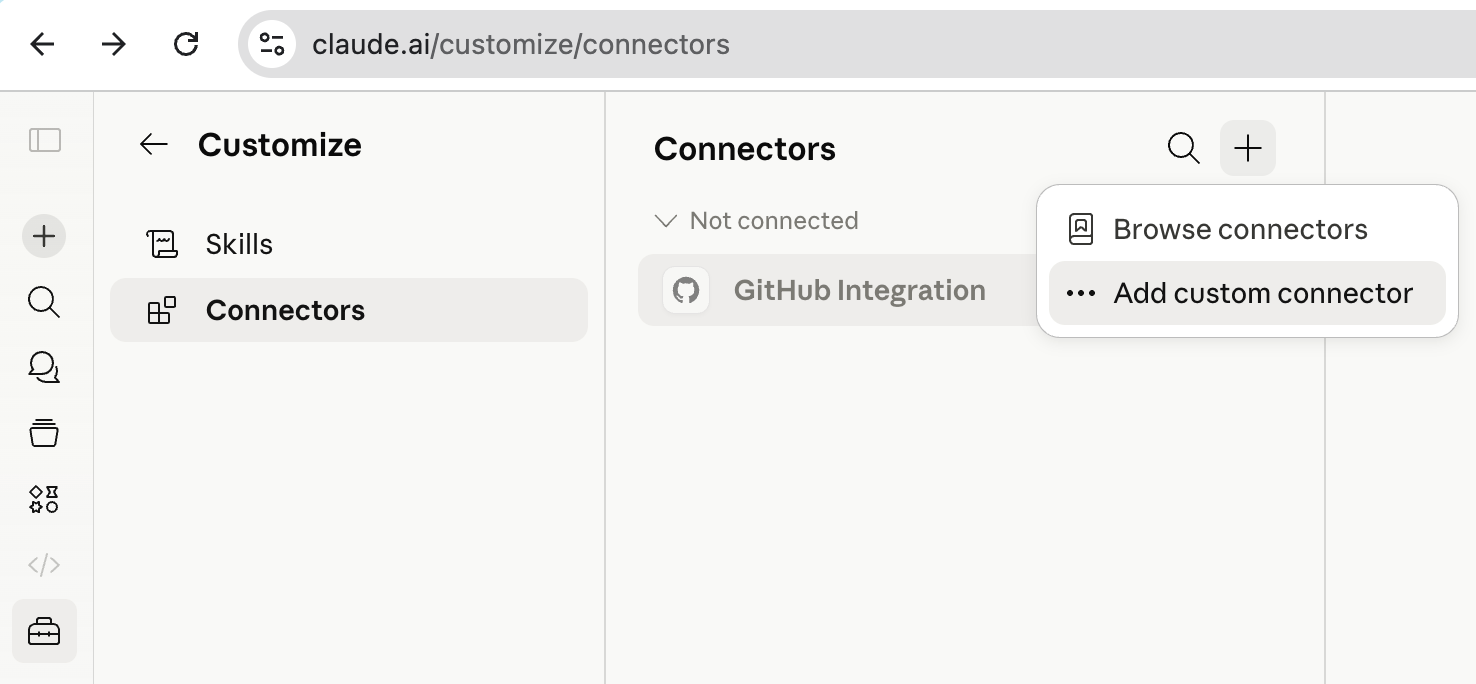
Choose Add custom connector.
-
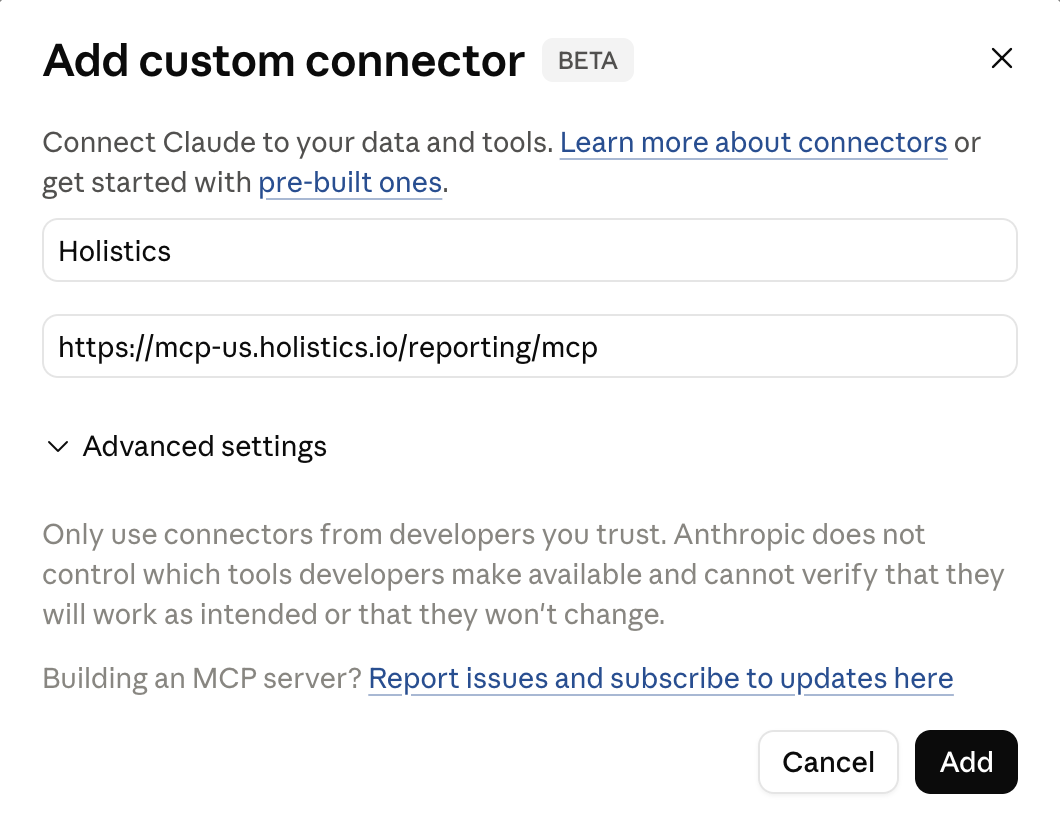
Enter a name and your connection URL from Step 2, then click Add.
-
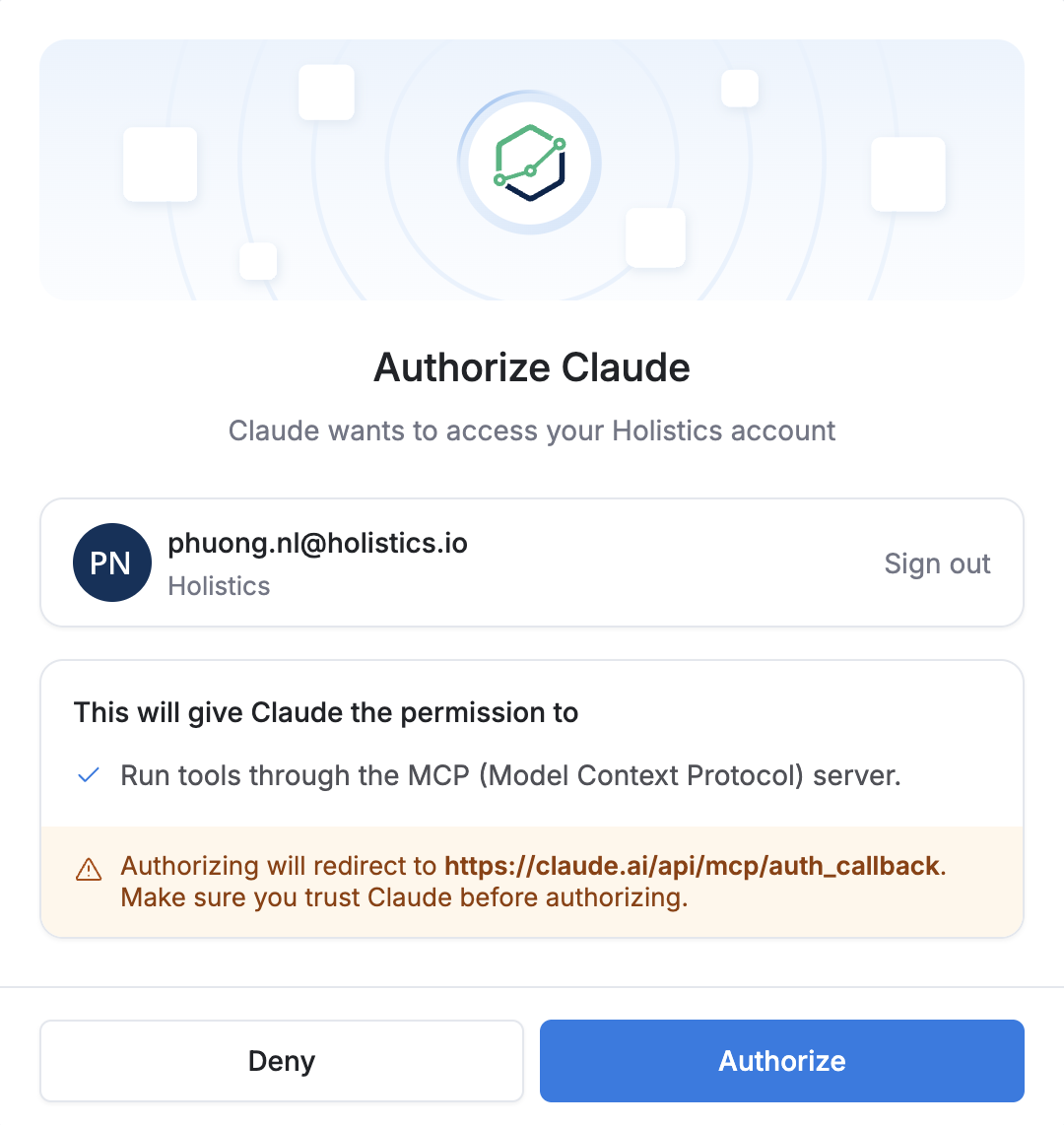
Click Connect and follow the OAuth flow to authenticate with your Holistics account.
-
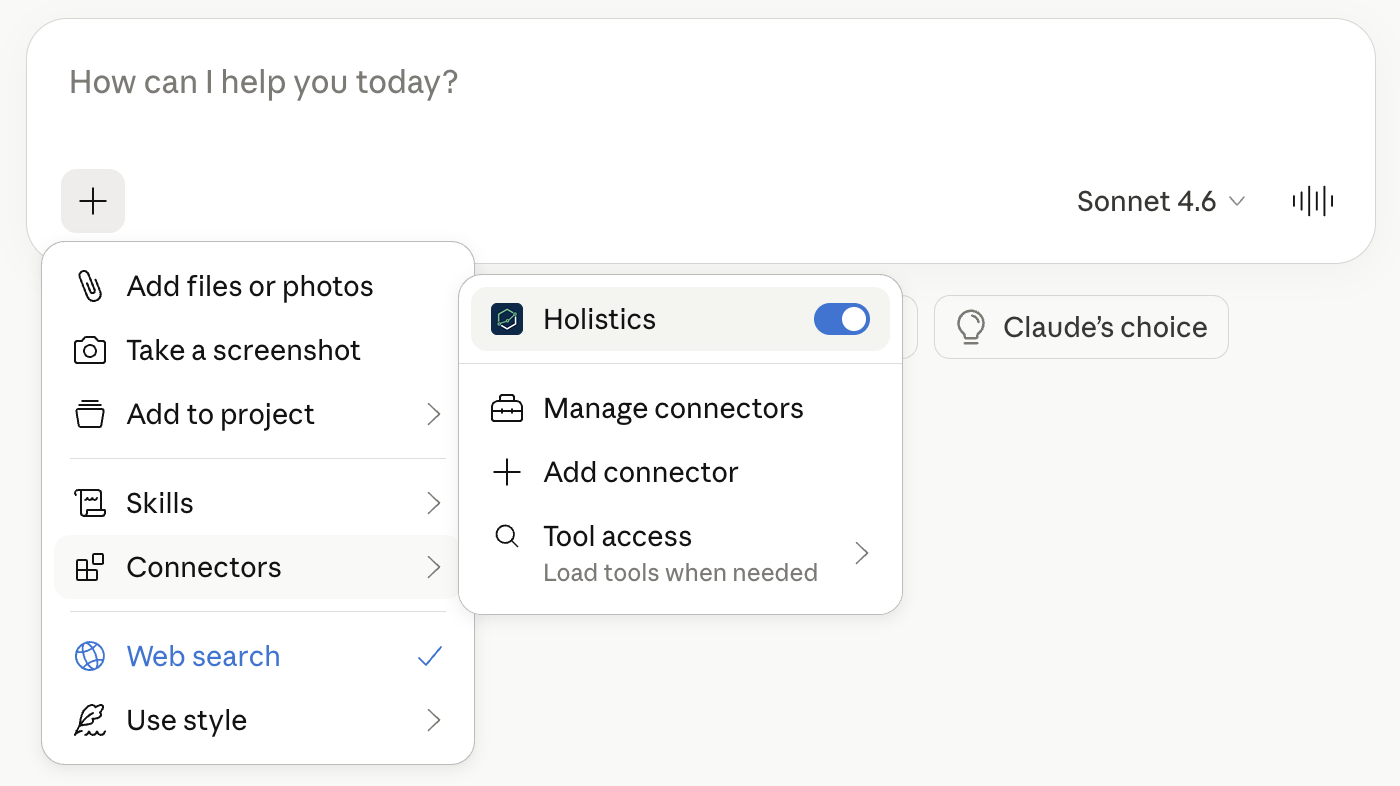
To use it in a chat, make sure Holistics under Connectors is enabled.
Need more help?
See the MCP FAQ for questions about permissions, data access, and security.