Cursor
For coding agents, the recommended setup is the Holistics CLI + Skills workflow rather than a standalone MCP connection. It sets up local AML development, CLI sync, and MCP access together in one step — the full local development experience, not just data Q&A.
Overview
Here's what you'll do to connect Cursor to Holistics:
- Turn on MCP Server: A one-time step in your Holistics workspace, done by an admin. If it's already on, skip ahead.
- Get your connection URL: Choose the environment you want to work with:
- Reporting: Published Holistics objects (those on the Reporting tab).
- Development: Unpublished Holistics objects in your current AMQL project branch (those on the Development tab).
- Choose your connection method:
- Remote URL config: Recommended (supports both OAuth and API key). See Cursor MCP docs.
- Local command config: Only supports API key.
- Choose your authentication method (Remote URL config only):
- OAuth: Logs in with your Holistics account (no key to create or manage).
- API key: Uses a static key instead, useful for headless or scripted setups.
- Learn more: OAuth vs. API key - which should I use?
- Install Holistics skills: add the Holistics plugins so Cursor knows how to work with Holistics.
Step 1: Turn on MCP Server
This is a one-time setup done by a workspace admin. Go to AI Settings and enable both Holistics AI and the MCP Server.

Step 2: Get your connection URL
Your connection URL depends on your data center region and the Holistics environment you want your AI to work with.
Select your data region
Select your working environment
Let your AI work with published Holistics objects — those on the Reporting tab.
Get your connection url
https://mcp-apac.holistics.io/reporting/mcp
Let your AI work with unpublished Holistics objects in your current AMQL project branch — those on the Development tab.
Get your connection url
https://mcp-apac.holistics.io/development/mcp
Select your working environment
Let your AI work with published Holistics objects — those on the Reporting tab.
Get your connection url
https://mcp-us.holistics.io/reporting/mcp
Let your AI work with unpublished Holistics objects in your current AMQL project branch — those on the Development tab.
Get your connection url
https://mcp-us.holistics.io/development/mcp
Select your working environment
Let your AI work with published Holistics objects — those on the Reporting tab.
Get your connection url
https://mcp-eu.holistics.io/reporting/mcp
Let your AI work with unpublished Holistics objects in your current AMQL project branch — those on the Development tab.
Get your connection url
https://mcp-eu.holistics.io/development/mcp
Get your connection url
Please contact [email protected] for your MCP server address.
URL format
https://mcp-<REGION>.holistics.io/<ENV>/mcp
<REGION>: Choose based on your data center:apac,eu, orus<ENV>:reporting(default): Let your AI work with published Holistics objects (i.e. objects on your Holistics Reporting tab)development: Let your AI work with unpublished Holistics objects in your current AMQL project branch (i.e. objects on your Holistics Development tab)
Step 3: Connect
Cursor supports two ways to register the Holistics MCP server: Remote URL config and local command config.
Remote URL config
Supports both OAuth and API key.
OAuth
- Use your connection URL from Step 2 and replace
<MCP_SERVER_ADDRESS>. Cursor will prompt you to log in.
{
  "mcpServers": {
    "holistics": {
      "url": "<MCP_SERVER_ADDRESS>"
    }
  }
}
API key
- Use your connection URL from Step 2 and replace
<MCP_SERVER_ADDRESS>. - Obtain your API key:
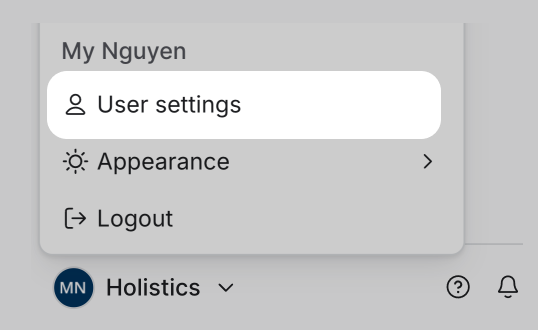
Find your key under profile menu > User settings in Holistics.
- Replace
<YOUR_HOLISTICS_API_KEY>below with it.
{
  "mcpServers": {
    "holistics": {
      "url": "<MCP_SERVER_ADDRESS>",
      "headers": {
        "X-Holistics-Key": "<YOUR_HOLISTICS_API_KEY>"
      }
    }
  }
}
Local command config
Only supports API key authentication.
- Use your connection URL from Step 2 and replace
<MCP_SERVER_ADDRESS> - Use the same API key as obtained above, and replace
<YOUR_HOLISTICS_API_KEY>below with it.
{
  "mcpServers": {
    "holistics": {
      "command": "npx",
      "args": [
        "-y",
        "mcp-remote",
        "<MCP_SERVER_ADDRESS>",
        "--header", "X-Holistics-Key:<YOUR_HOLISTICS_API_KEY>"
      ]
    }
  }
}
Step 4: Install Holistics skills
Holistics skills teach Cursor how to work with Holistics, such as exploring datasets and writing AQL. In Cursor, plugin marketplaces are managed at the team level (Teams or Enterprise plans): an admin imports the marketplace once, then teammates install the plugins they need.
- As an admin, go to Dashboard → Plugins & MCPs.
- Under Team Marketplaces, click Add Marketplace, select Import from Repo, and paste
https://github.com/holistics/skills. - Add the Holistics plugins with Add to Marketplace.
- Under Marketplace Settings, set Marketplace Access, optionally turn on Enable Auto Refresh, and save.
- Teammates open Customize in Cursor's sidebar, find the Holistics plugins they need, select Install, and choose a project or user scope:
holistics-development: develop your AMQL project (models, datasets, and dashboards).holistics-reporting: ask data questions on published datasets and dashboards.
For more details, see Cursor's guide: Plugins.
Need more help?
See the MCP FAQ for questions about permissions, data access, and security.