Set up
Enable MCP server
This is a one-time setup done by a workspace admin. Go to AI Settings and enable both Holistics AI and the MCP Server.

Authentication
Holistics MCP supports two authentication methods. Choose the one that best fits your needs:
| OAuth (recommended) | API key | |
|---|---|---|
| Best for | Individual users connecting under their own Holistics identity | Admins managing keys centrally, or automated workflows |
| Setup complexity | Low — browser login flow | Medium — manual configuration |
| Key management | Automatic | Manual |
| User permissions | Uses your Holistics account permissions | Uses the API key owner's permissions |
OAuth
Your connection URL depends on your data center region and the Holistics environment you want your AI to work with.
App domain
Environment
Let your AI work with published Holistics objects — those on the Reporting tab.
Connection URL
https://mcp-apac.holistics.io/reporting/mcp
Let your AI work with unpublished Holistics objects in your current AMQL project branch — those on the Development tab.
Connection URL
https://mcp-apac.holistics.io/development/mcp
Environment
Let your AI work with published Holistics objects — those on the Reporting tab.
Connection URL
https://mcp-us.holistics.io/reporting/mcp
Let your AI work with unpublished Holistics objects in your current AMQL project branch — those on the Development tab.
Connection URL
https://mcp-us.holistics.io/development/mcp
Environment
Let your AI work with published Holistics objects — those on the Reporting tab.
Connection URL
https://mcp-eu.holistics.io/reporting/mcp
Let your AI work with unpublished Holistics objects in your current AMQL project branch — those on the Development tab.
Connection URL
https://mcp-eu.holistics.io/development/mcp
Connection URL
Please contact [email protected] for your MCP server address.
URL format
https://mcp-<REGION>.holistics.io/<ENV>/mcp
<REGION>: Choose based on your data center:apac,eu, orus<ENV>:reporting(default): Let your AI work with published Holistics objects (i.e. objects on your Holistics Reporting tab)development: Let your AI work with unpublished Holistics objects in your current AMQL project branch (i.e. objects on your Holistics Development tab)
API key
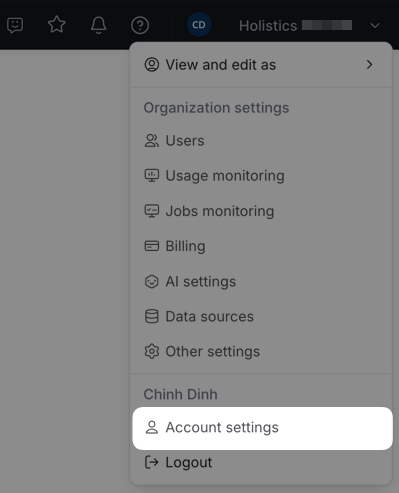
Pass a Holistics API key via the X-Holistics-Key HTTP header. It's long-lived and requires no login flow. Find your key under Account settings in Holistics.
Test and troubleshoot
If your AI tool can't connect, use MCP Inspector to test the server directly.
-
Run MCP Inspector in your terminal:
npx @modelcontextprotocol/inspectorIt opens automatically in your browser.
-
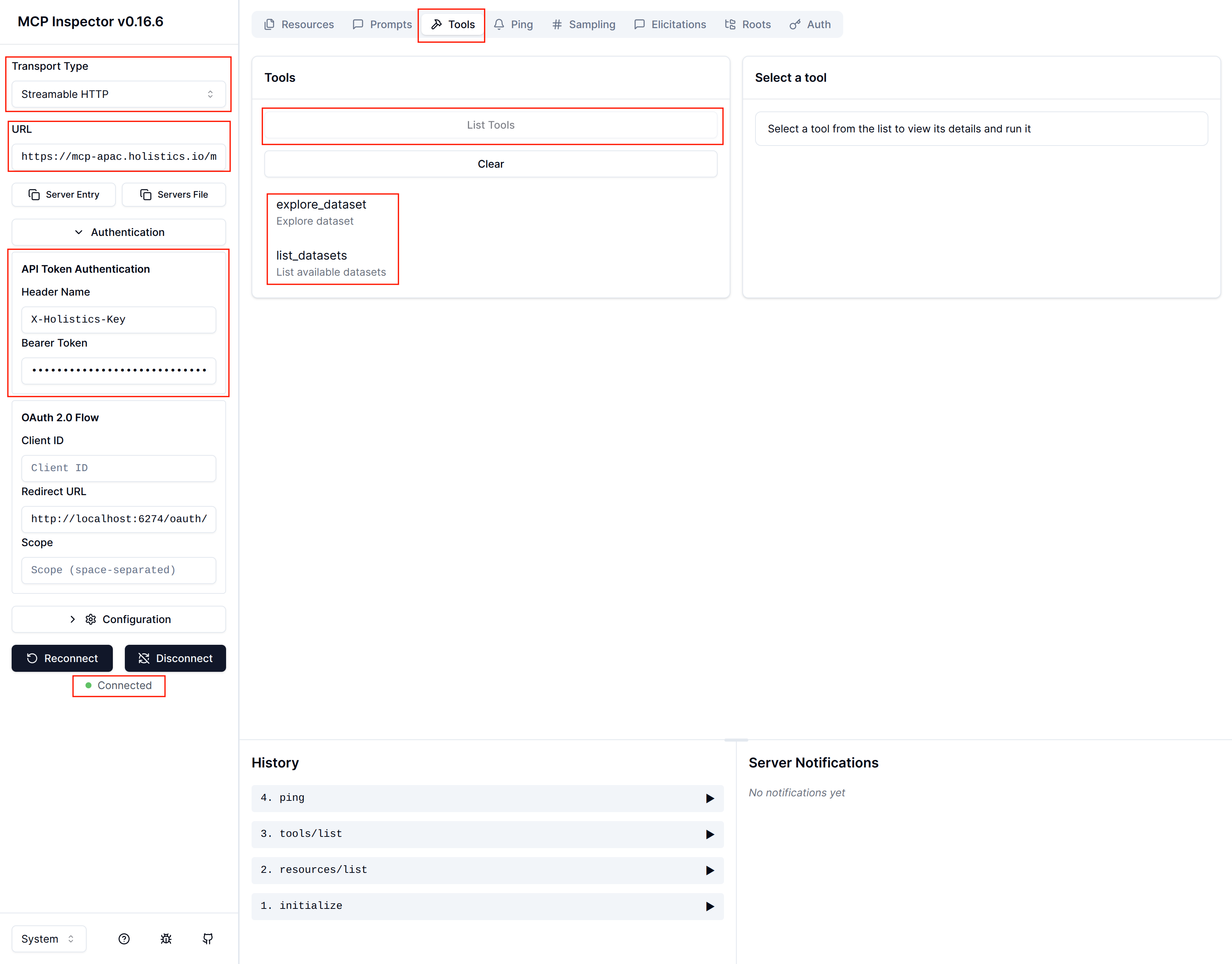
Configure the connection:
- Transport Type:
Streamable HTTP - URL: your connection URL from above
- Authentication — choose one:
- OAuth: click Connect and follow the OAuth flow
- API Key: select API Token Authentication, set Header Name to
X-Holistics-Key, enter your API key as the Bearer Token
- Transport Type:
-
Click Connect — you should see "Connected" status.
-
Go to the Tools tab and click List Tools — you should see the available Holistics tools.
If you still can't connect, verify that Holistics AI and MCP Server are enabled in your AI Settings and that your API key is valid (in case you use API).