AI Tasks
What is an AI Task?
An AI Task is a reusable unit of AI work that you define once and run automatically on a schedule or on demand.
Use an AI Task for work that is:
- Repetitive: it needs to happen regularly (daily, weekly, monthly).
- Has a clear definition of done: you can describe what a good output looks like.
- Doesn't need your presence: it can run without you being online.
Because the task has explicit acceptance criteria, every run is automatically evaluated (pass or fail), not just generated. This means:
- Consistent output: the AI follows the same brief every time.
- Verified results: the output is checked against your criteria before the task is marked complete.
- Full automation: runs on a schedule without any manual triggering.
Create an AI Task
Where to create an AI Task
Go to Development. There are two ways:
- UI: in the Project Explorer, click Add AI Task.
- AI chat panel: ask freeform, e.g. "Create a task to summarize last week's sales by region at 8am every Monday."
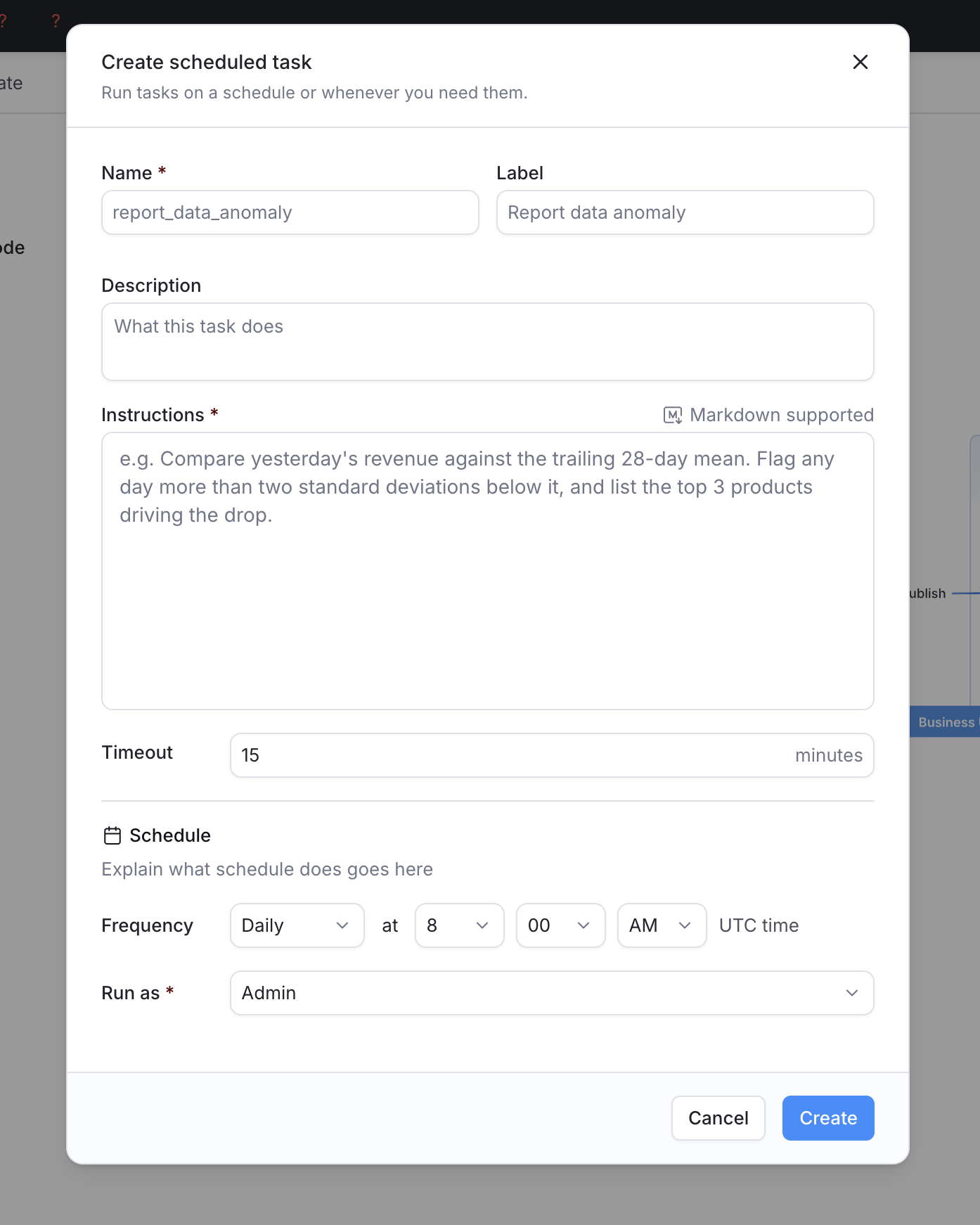
What goes into an AI Task
Below are the essential inputs you'll see on the UI. For advanced settings, see How it works in code.
- Name (required): The task's unique identifier, e.g.
revenue_weekly_insight. Used to reference the task in a schedule or slash command. - Label (required): Display name shown in the AI Tasks management page.
- Description (optional): A short note about what the task does, useful for teammates browsing the list.
- Brief (required): What you want the AI to complete. You can reference specific dashboards or datasets, and call on AI Skills to guide how the AI approaches the work.
- Acceptance Criteria (required): What a successful output looks like.
Schedule an AI Task
An AI Schedule defines when to run which AI Tasks, automatically. When creating an AI Task, you have the option to create a schedule for it.
What goes into a schedule:
- Time and frequency (required): When the task runs, e.g. every Monday at 8am, or on the 1st of every month. Follows your workspace timezone setting.
- Run as (required): The user identity the task executes as. The AI sees only what this user can see. If the user is deactivated or deleted before the schedule fires, the run fails.
View published AI Tasks
Go to the AI Tasks page to see all published AI Tasks. The list shows each task's label, associated schedule, last run time, and last run status (running / success / failure).
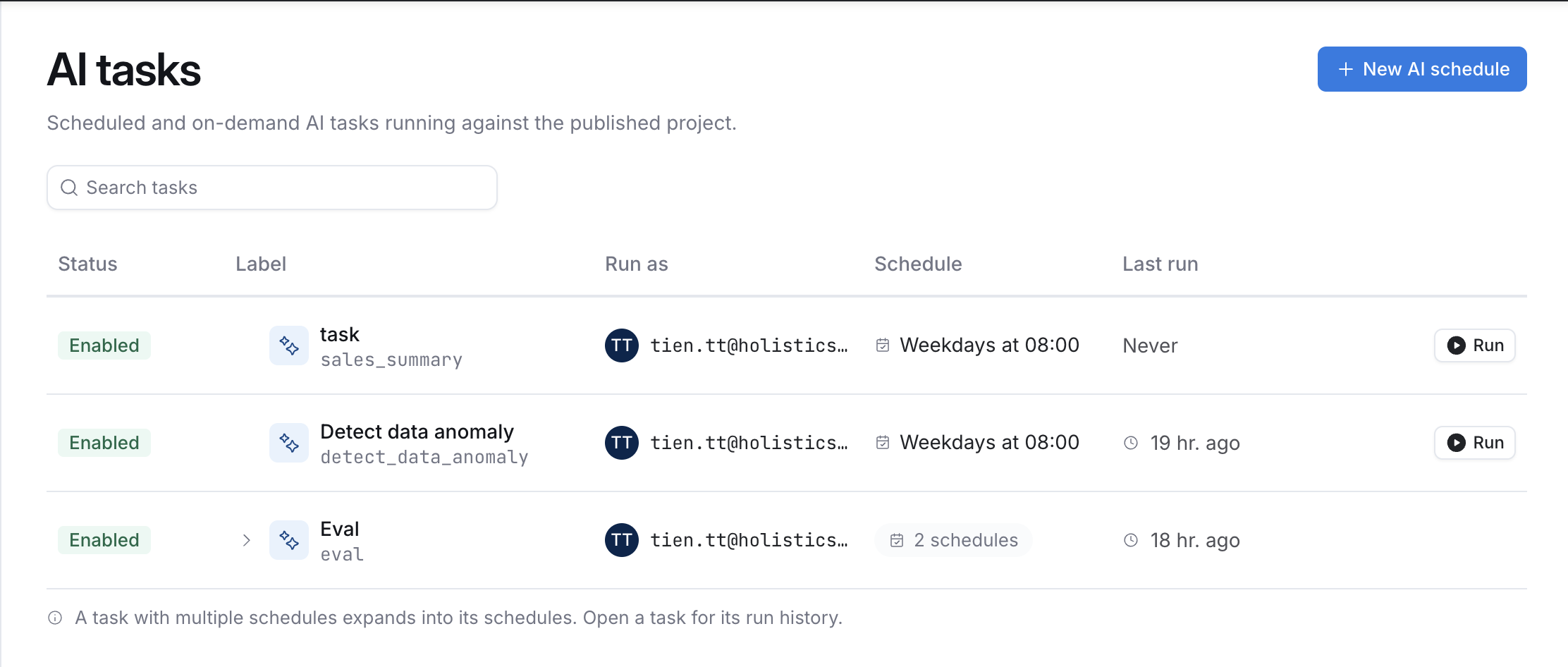
Click a task to see its run history. Each run record includes:
- Status and timestamps (start time, end time).
- The trigger type: whether it was run by a schedule or triggered manually.
- The full output conversation, which you can read and continue from directly.
Run an AI Task
"Run as" permission
Which user's permission an AI Task runs as depends on how it's triggered:
- Run manually: runs as the current user.
- Run on schedule: runs as the schedule's "Run as" user.
Run manually
You can run an AI Task manually in two places:
- In Development: Use the slash command
/task-namein the AI Copilot chat page. Useful for testing and iterating before publishing. - In Reporting (after publishing):
- Click Run on the AI Tasks management page.
- Use the slash command
/task-namein the Ask AI chat page.
Run on schedule
If an AI Task is configured to run on a schedule, it executes automatically on the configured cadence.
How it works in code
AI Task and AI Schedule are independent building blocks: one task can be targeted by multiple schedules, and one schedule can run multiple tasks.
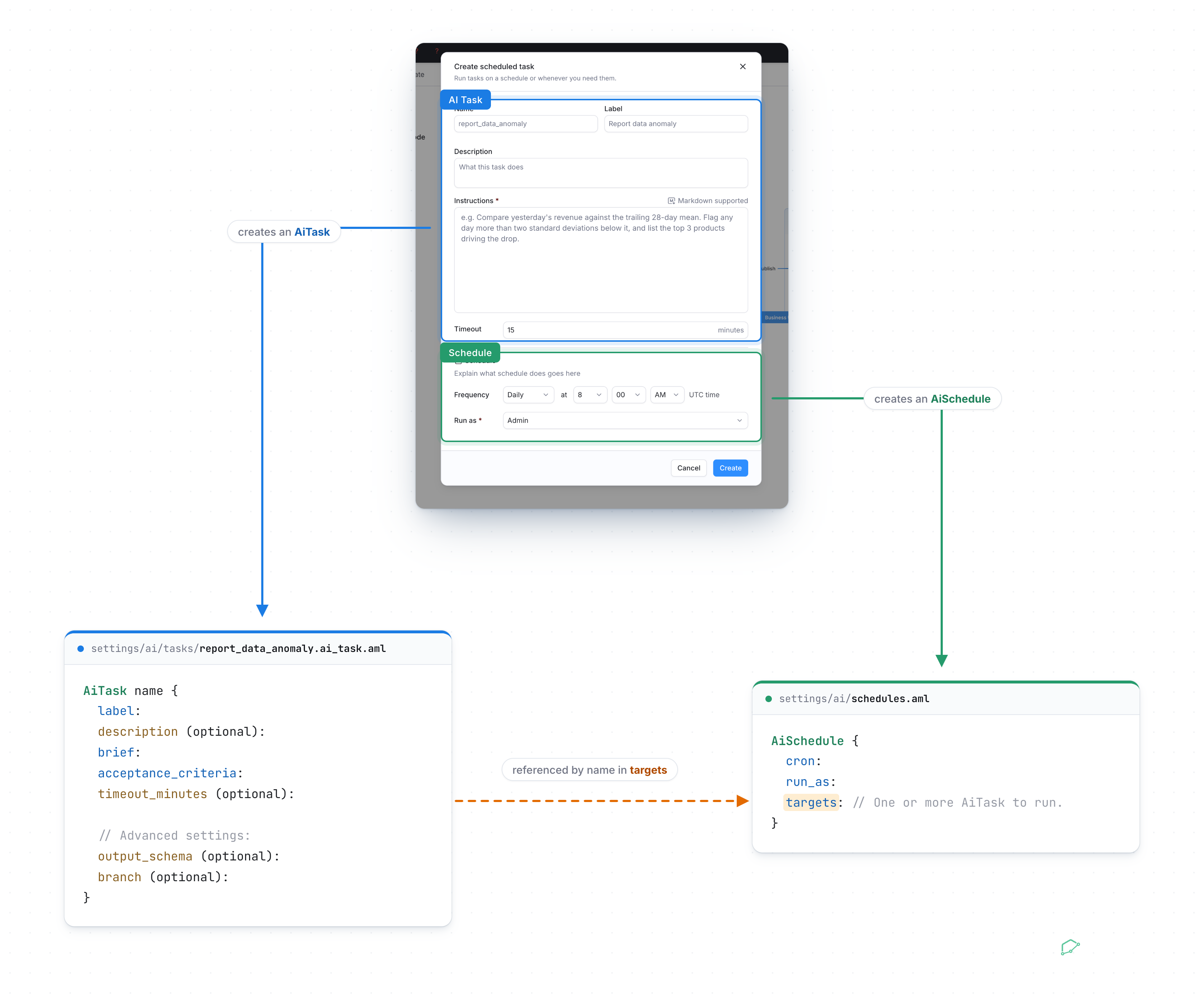
- When you create an AI Task, an
AiTaskis created in an.ai_task.amlfile undersettings/ai/tasks/. - When you schedule an AI Task, an
AiScheduleis created in theschedules.amlfile.
AiTask definition in code:
AiTask name {
  label:
  description (optional):
  brief:
  acceptance_criteria:
  timeout_minutes (optional):

  // Advanced settings:
  output_schema (optional):
  branch (optional):
}
Advanced settings not covered above:
- Output Schema (optional): A JSON schema defining the expected structure of the output. Use this when you need the result in a specific format, for example when a downstream system needs to parse it.
- Branch (optional, default: production): Which version of your data model the AI works against. 'Development' is coming soon.
AiSchedule definition in code:
Each AiSchedule is an item in the schedules list in schedules.aml. When the list has more than one schedule, separate them with a comma:
const schedules = [
AiSchedule {
cron: '0 8 * * 1' // every Monday at 08:00
targets: [weekly_sales_report]
},
AiSchedule {
cron: '0 9 1 * *' // the 1st of every month at 09:00
targets: [order_return_anomaly_check, ai_chat_insights_rollup]
}
]
- cron: when the schedule runs, as a cron schedule expression.
- run_as: the email of the user the tasks run as.
- targets: one or more
AiTasks to run.
AI Task vs. AI Skill
What's the difference
If you're already using AI Skills, here's how a Task is different.
| AI Skill | AI Task | |
|---|---|---|
| What it is | Instructions on how the AI should approach the work | Defines what the AI should complete, with a clear definition of "done" |
| When to use | You want consistent answers for repetitive work | You have repetitive work to complete, need the output verified (not just generated), or have a potential need for automation |
Example
- AI Task: Summarize last week's revenue by region and flag anomalies.
- Definition of done: produced a correct summary with relevant anomalies flagged.
- AI Skill: How to calculate revenue, how to detect anomalies.
- AI Schedule: Run this Task every Monday morning.
Using them together
Many times AI Task and AI Skill are meant to use together, not chosen between. Pick whichever matches how the work shows up, then let it evolve. There's no wrong starting point.
- Start with a Skill for a way of working that applies across many jobs: team conventions, formatting rules, or a workflow you repeat often. E.g., "how to compute a P&L" or "always use ISO week for time periods."
- Start with a Task when you already know the specific job and what "done" looks like. E.g., "summarize last week's revenue by region and flag anomalies, every Monday."
- Task → Skill: when the same instructions keep showing up across multiple Task briefs, extract them into a Skill so future Tasks can just reference it.
- Skill → Task: when you keep invoking the same Skill for the same outcome on a regular basis, wrap it in a Task with a definition of done (and a Schedule if it needs to run unattended).
- A Task can call a Skill, not the reverse: a Task's brief can invoke existing Skills to guide how the AI approaches the work, but a Skill can't kick off a Task on its own — someone still has to assign the job.
Example use cases
Weekly sales report
Call /sales_reporting_conventions for the comparison window, region groupings, and currency formatting. Summarize last week's sales by region under those conventions, call out the key insights, and send the summary to the #sales-weekly Slack channel.
Order return anomaly check
Catch order return issues early: compare this week's @order_returns volume per reason against the trailing 8-week baseline, flag any reason with an abnormal spike or any reason absent from that baseline, state the volume vs. baseline and a likely driver for each flag, and notify the #support-alerts Slack channel and the support lead's email when something's flagged.
AI Chat Insights rollup
Roll up last week's AI Chat Insights: group similar Suggestions from the past 7 days (e.g., the same dataset missing a metric definition), then output the top 5 groups by conversation count, each with the affected object, the gap, and the fix quoted from the original Suggestion.
Send an email or Slack with AI Task
We're building a delivery solution for AI Tasks.
Today, an AI Task's output lives in its run record: you (or a teammate) open the run to read the result. Soon, an AI Task will be able to deliver its output directly, so a task like "summarize last week's revenue by region and flag anomalies" can end with that summary landing in a Slack channel or an inbox, with no manual step to copy it out.