SSO integration with Microsoft Entra ID (Azure AD)
Follow these instructions to set up Holistics SAML SSO with Microsoft Entra ID (formerly Azure Active Directory). If you use a different identity provider and need assistance with configuration, please contact our support team.
Microsoft renamed Azure Active Directory (Azure AD) to Microsoft Entra ID in mid-2023. The screenshots and steps below apply whether your tenant still shows Azure AD or Entra ID.
Add a new enterprise application
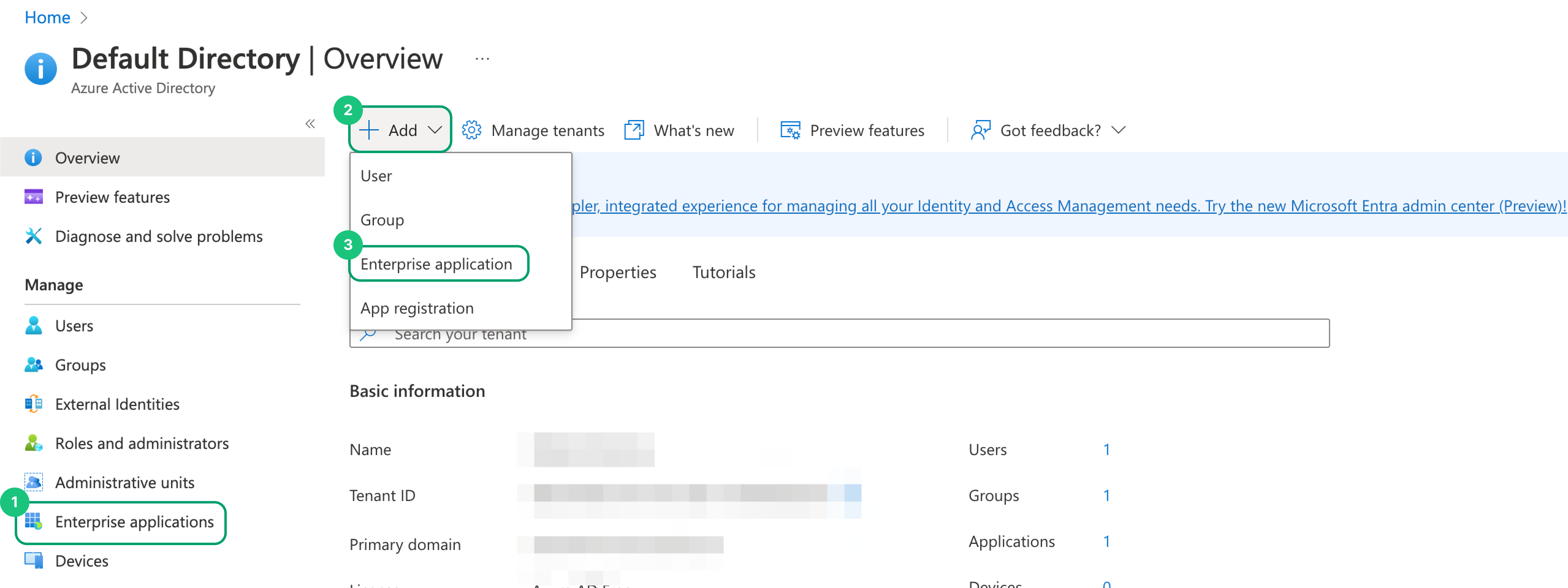
- In Microsoft Entra ID (or Azure Active Directory), select the Enterprise applications option in the left sidebar. Click on New > Enterprise Application to add a new enterprise application.
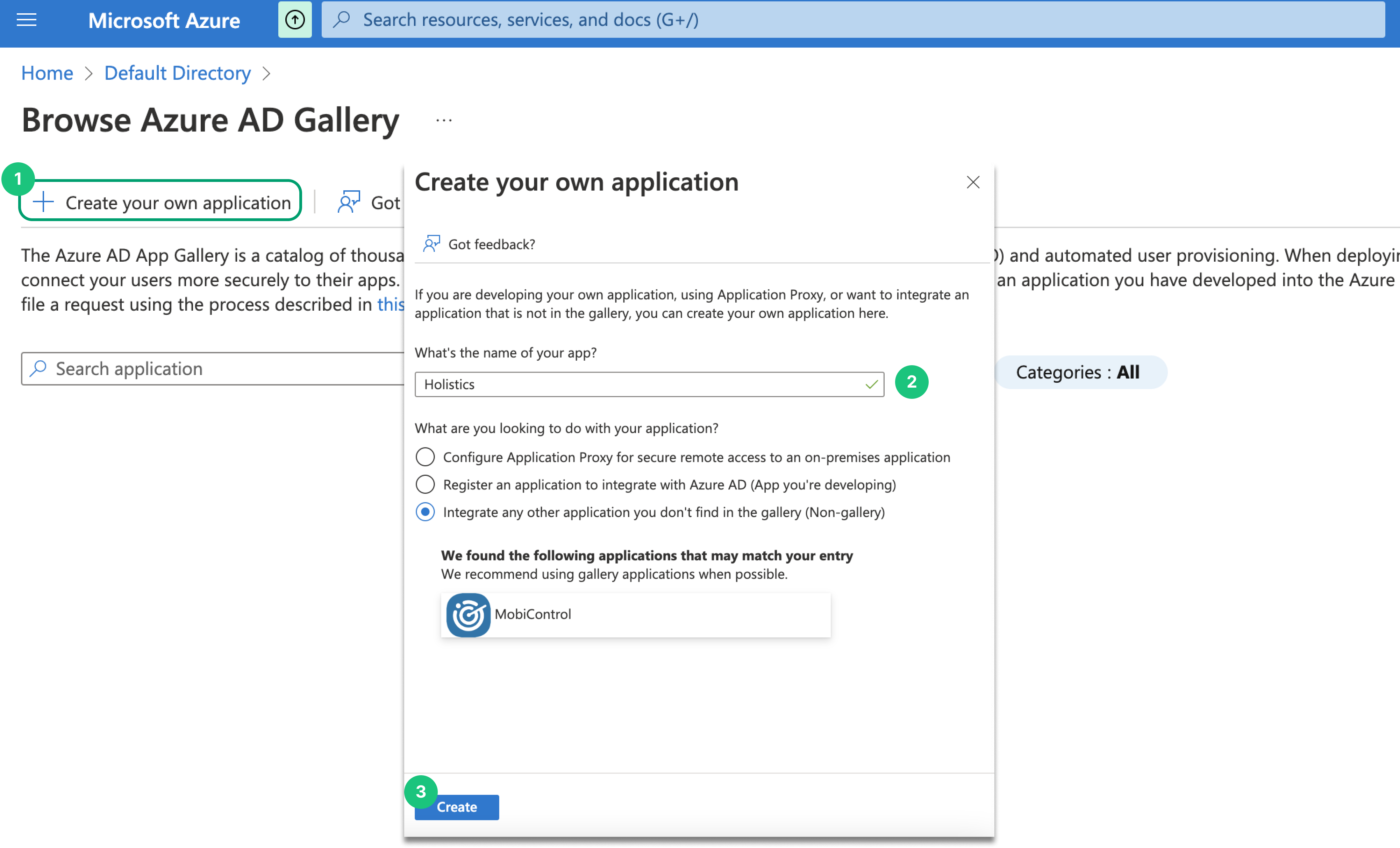
- Then, click on Create your own application. Enter Holistics in the "Name" field and click on the Add button to add the application.
Add users and groups
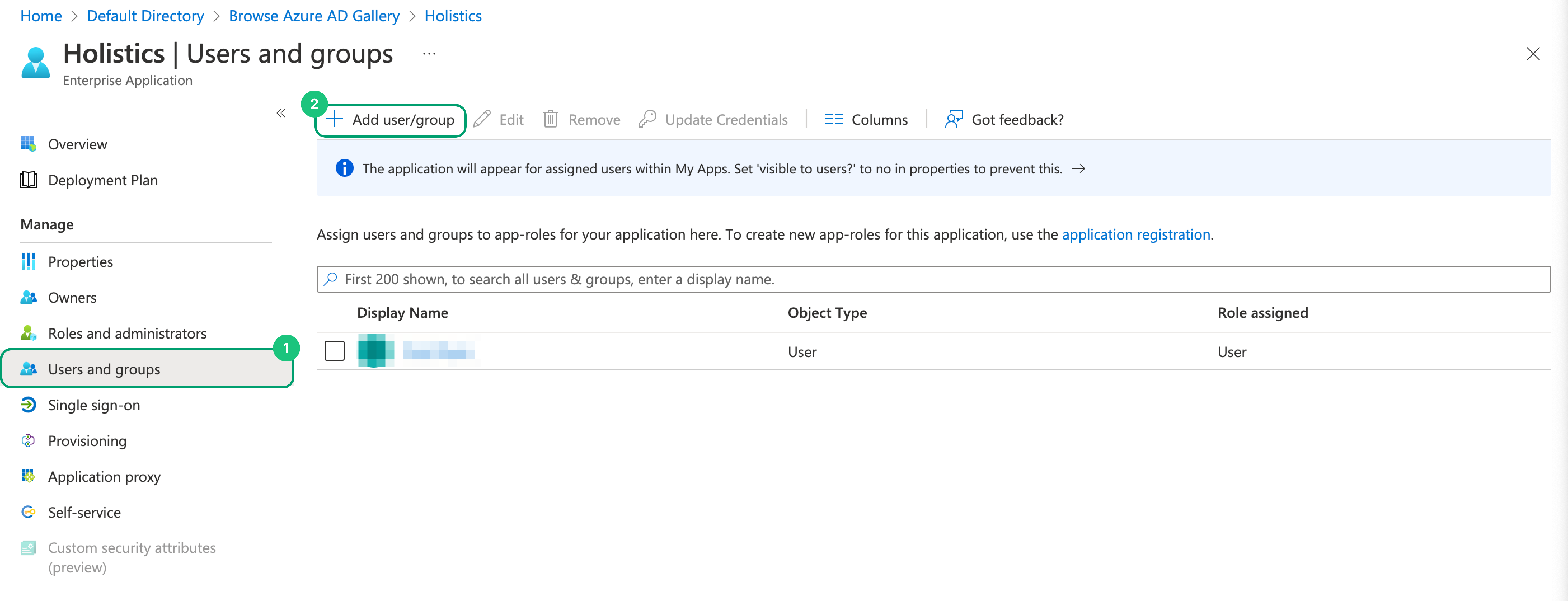
Click on the newly-created Holistics application. Then, select Users and Groups in the left sidebar. Finally, add your users into this application.
Configure single sign-on with SAML
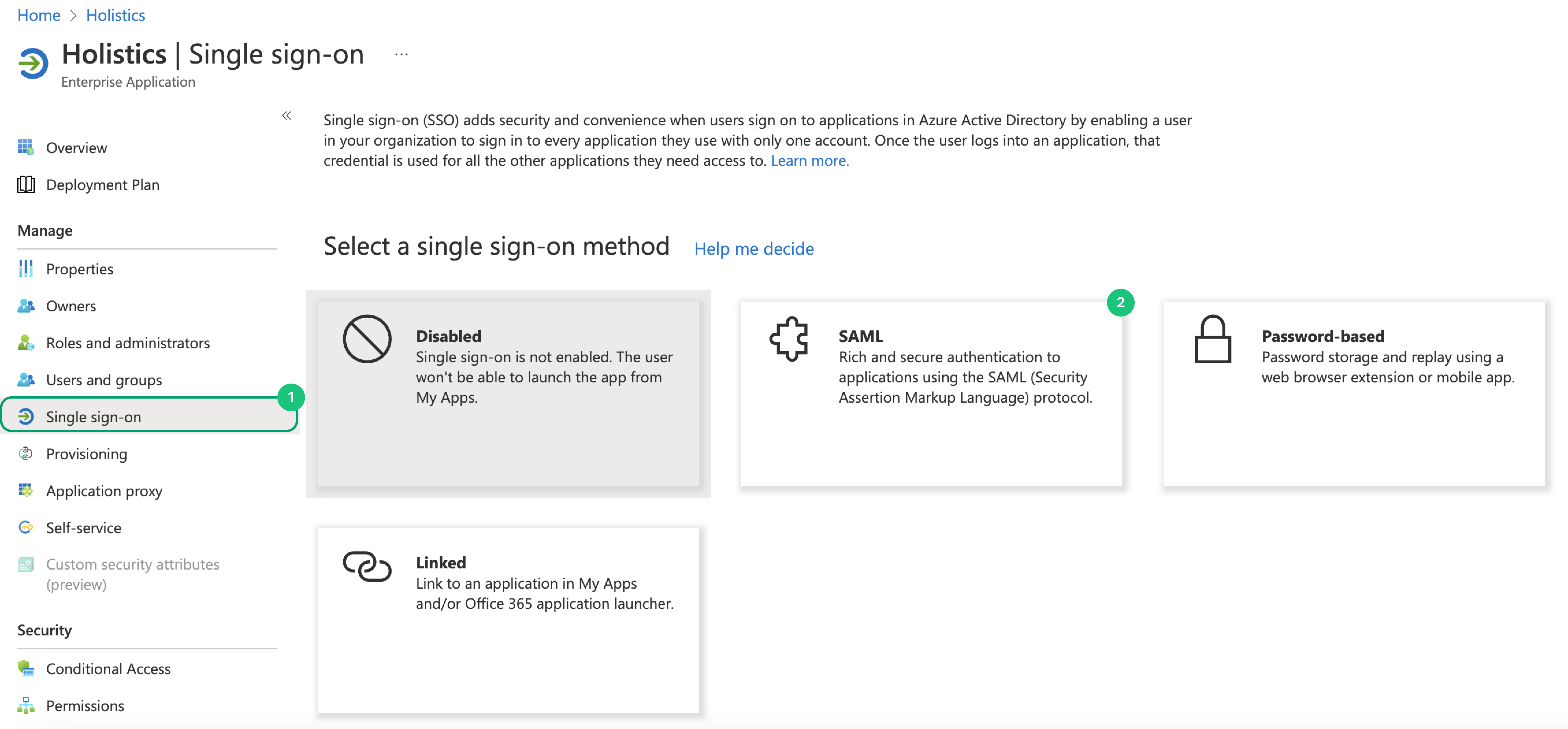
In the Holistics application overview, click on Single Sign-on on the left sidebar. Select SAML as the sign-on method.
Basic SAML configuration
- Click Edit in the Basic SAML Configuration section.
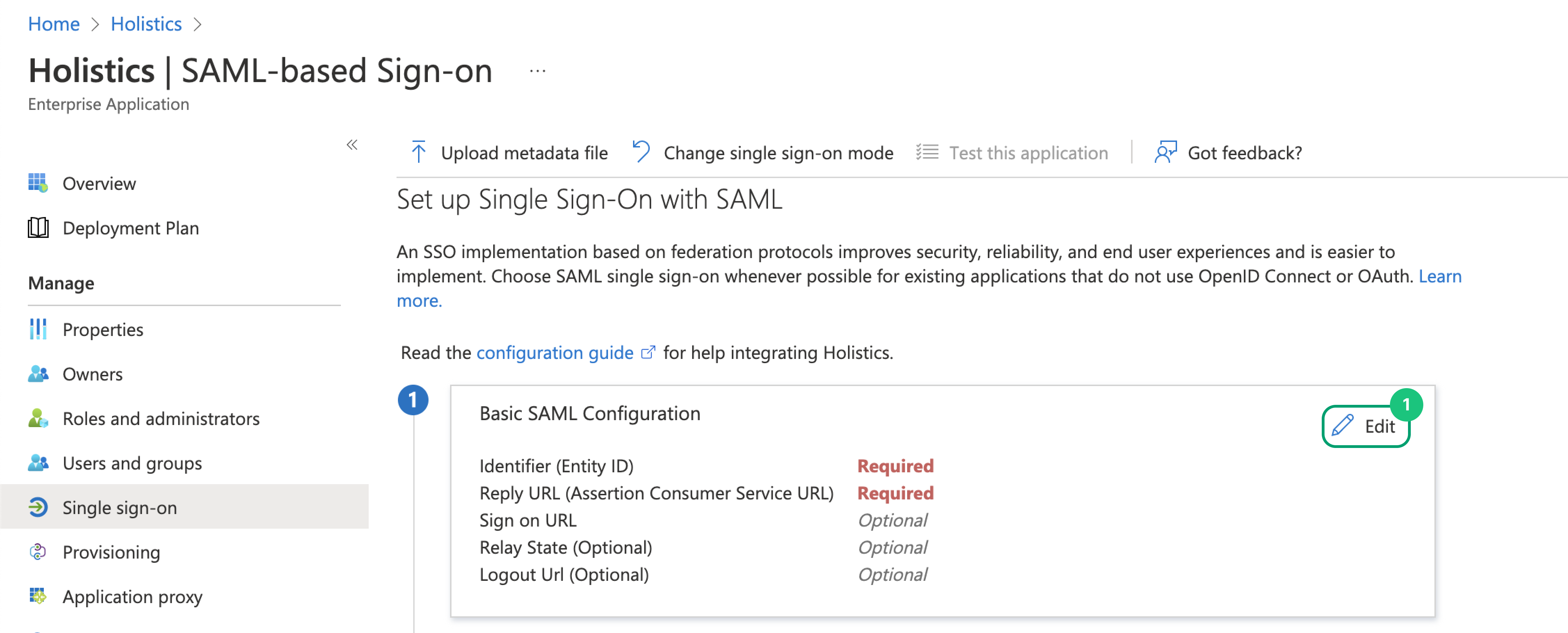
Fill in Identifier and Reply URL fields. If you are unsure about these values, depending on your data center, go to your SSO Configuration URL and copy them. Remember to toggle Authenticate with SSO (SAML) to on first.
Depending on your data center, your SSO Configurations URL would be:
- APAC server: https://secure.holistics.io/manage/settings#sso
- EU server: https://eu.holistics.io/manage/settings#sso
- US server: https://us.holistics.io/manage/settings#sso

- Click Save to save the configuration.
Attributes & claims
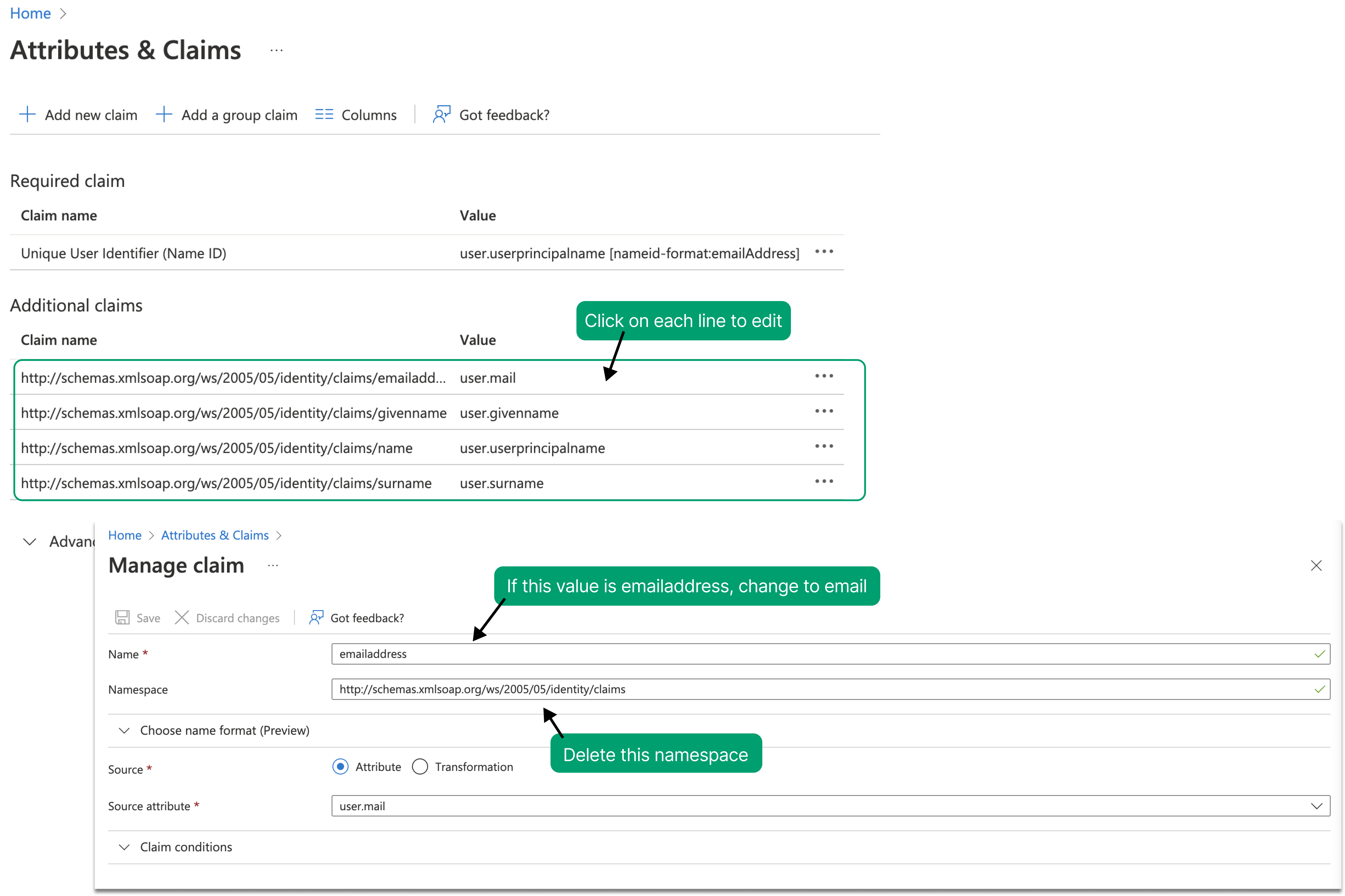
- Click Edit on the Attributes & Claims section. You will need to edit every line in the Additional claims section. Click on each line to begin the editing. Remove the namespace section in all the records.
By default, there is an attribute name emailaddress in Entra ID (Azure AD). Change this into email to conform to Holistics configurations.
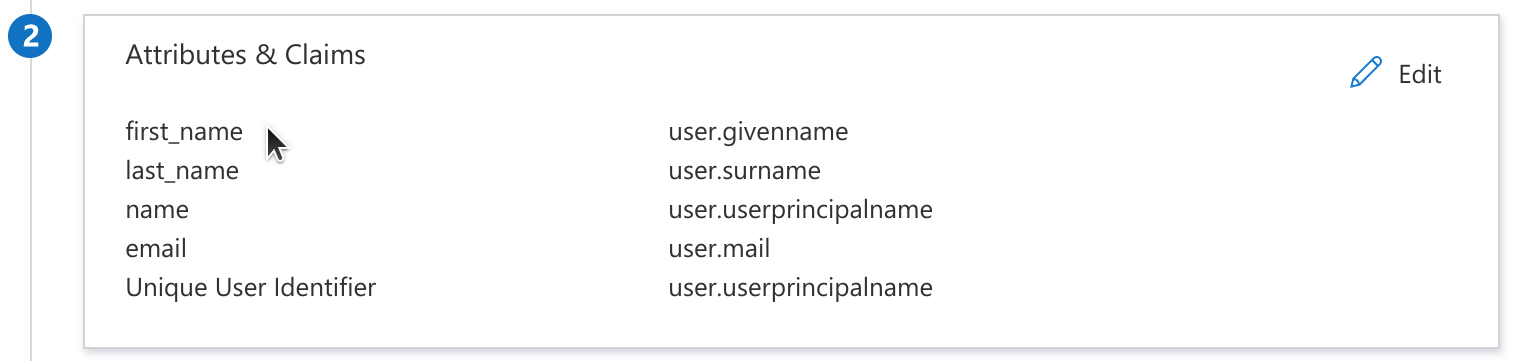
- Click Save. After editing, the second section should look like this.
SAML signing certificate
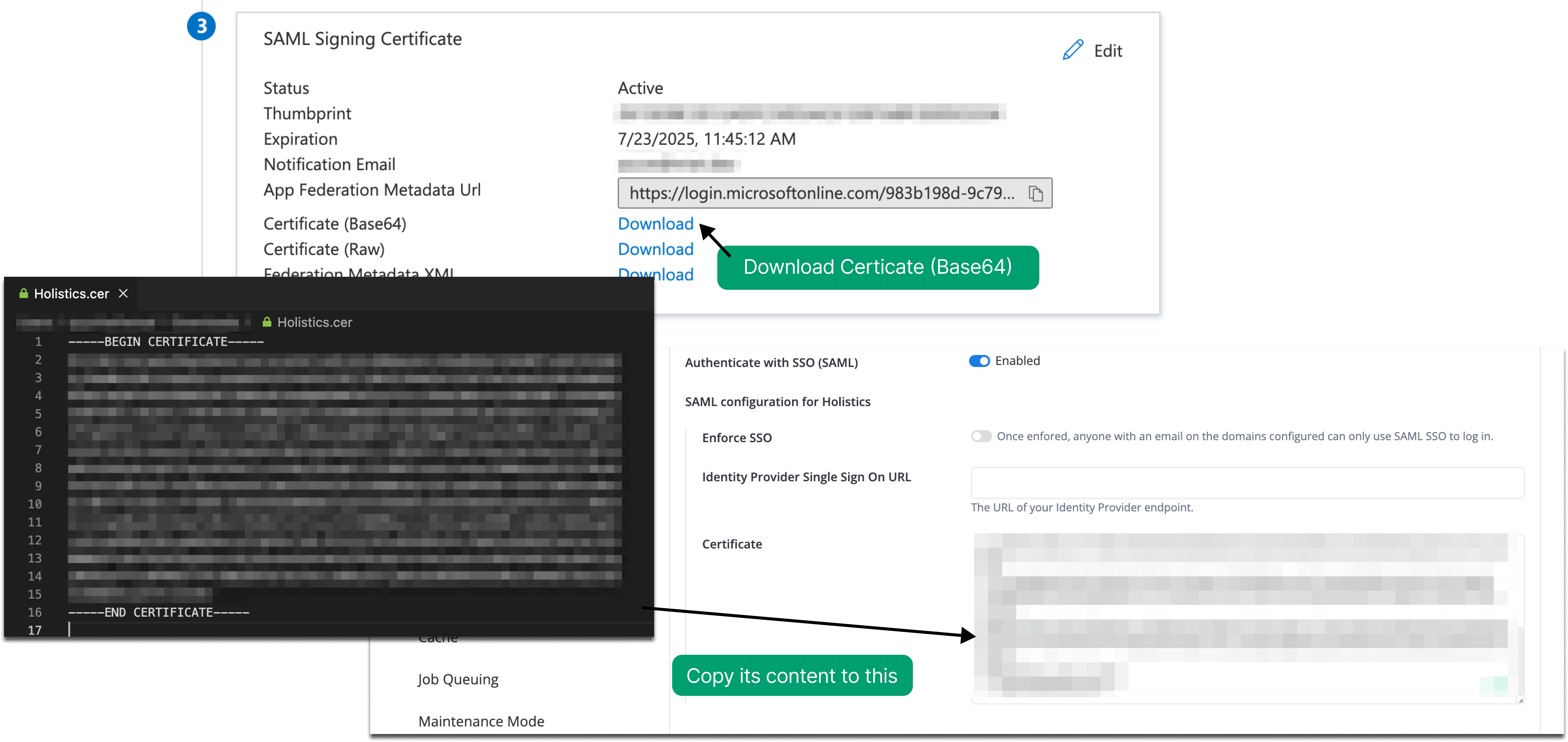
Download Certificate (Base64) from the section. Copy its content and paste it into the Certificate box of your SSO Configurations in Holistics.
Depending on your data center, your SSO Configuration URL would be:
- APAC server: https://secure.holistics.io/manage/settings#sso
- EU server: https://eu.holistics.io/manage/settings#sso
- US server: https://us.holistics.io/manage/settings#sso
Set up Holistics
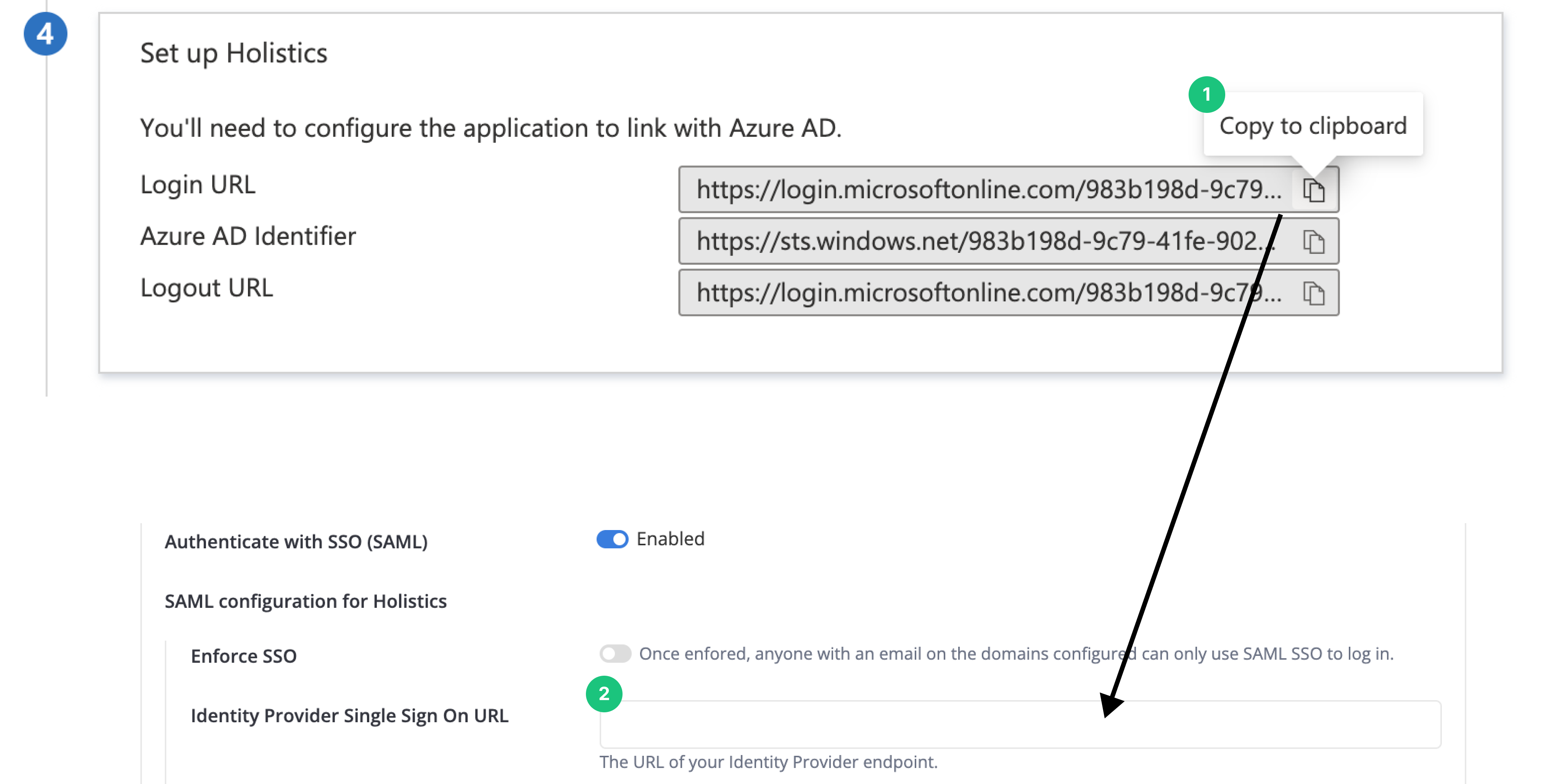
Copy the Login URL in the Microsoft Entra ID (Azure AD) section and paste it to Identity Provider Single Sign On URL in your SSO Configurations in Holistics.
Depending on your data center, your SSO Configurations URL would be:
- APAC server: https://secure.holistics.io/manage/settings#sso
- EU server: https://eu.holistics.io/manage/settings#sso
- US server: https://us.holistics.io/manage/settings#sso
Test single sign-on with Holistics
Click on Test in this section to verify that the setup was done correctly. You should be able to login to Holistics.
