Set up SAML SSO with Okta
This guide explains how to configure Security Assertion Markup Language (SAML) single sign-on (SSO) between Okta and Holistics. After setup, users can start sign-in from either Okta or Holistics.
If you use a different identity provider and need help with configuration, contact our support team.
Prerequisites
Before you configure the integration, make sure you have the required plan, permissions, and user accounts.
- A Holistics Custom Plan with SAML SSO enabled
- Administrator access to both Holistics and Okta
- Holistics user accounts for everyone who will use SSO. Holistics does not create accounts just-in-time from SAML assertions. You can create users manually or provision them with SCIM.
Do not enable Enforce SSO until you have successfully tested the integration. Enforcing SSO signs out users who authenticated with email or Google and can prevent access if the SAML configuration is incorrect.
Supported features
The Holistics SAML integration supports the following Okta sign-in flows.
| Feature | Supported | Description |
|---|---|---|
| SP-initiated SSO | Yes | A user starts sign-in from Holistics and authenticates through Okta. |
| IdP-initiated SSO | Yes | A user starts sign-in from the Holistics tile in Okta. |
| Just-in-time provisioning | No | Create users in Holistics manually or provision them with SCIM before they sign in. |
| SAML single logout | No | Signing out of Holistics does not end the user's Okta session. |
The following SAML attributes are supported:
| Name | Value |
|---|---|
email | user.email |
first_name | user.firstName |
last_name | user.lastName |
Configure SAML
The setup has two parts. First, add the Holistics integration in Okta. Then copy Okta's identity provider details back to Holistics.
Step 1: get the Holistics service provider details
Holistics provides tenant-specific values that Okta needs to send SAML assertions to the correct organization.
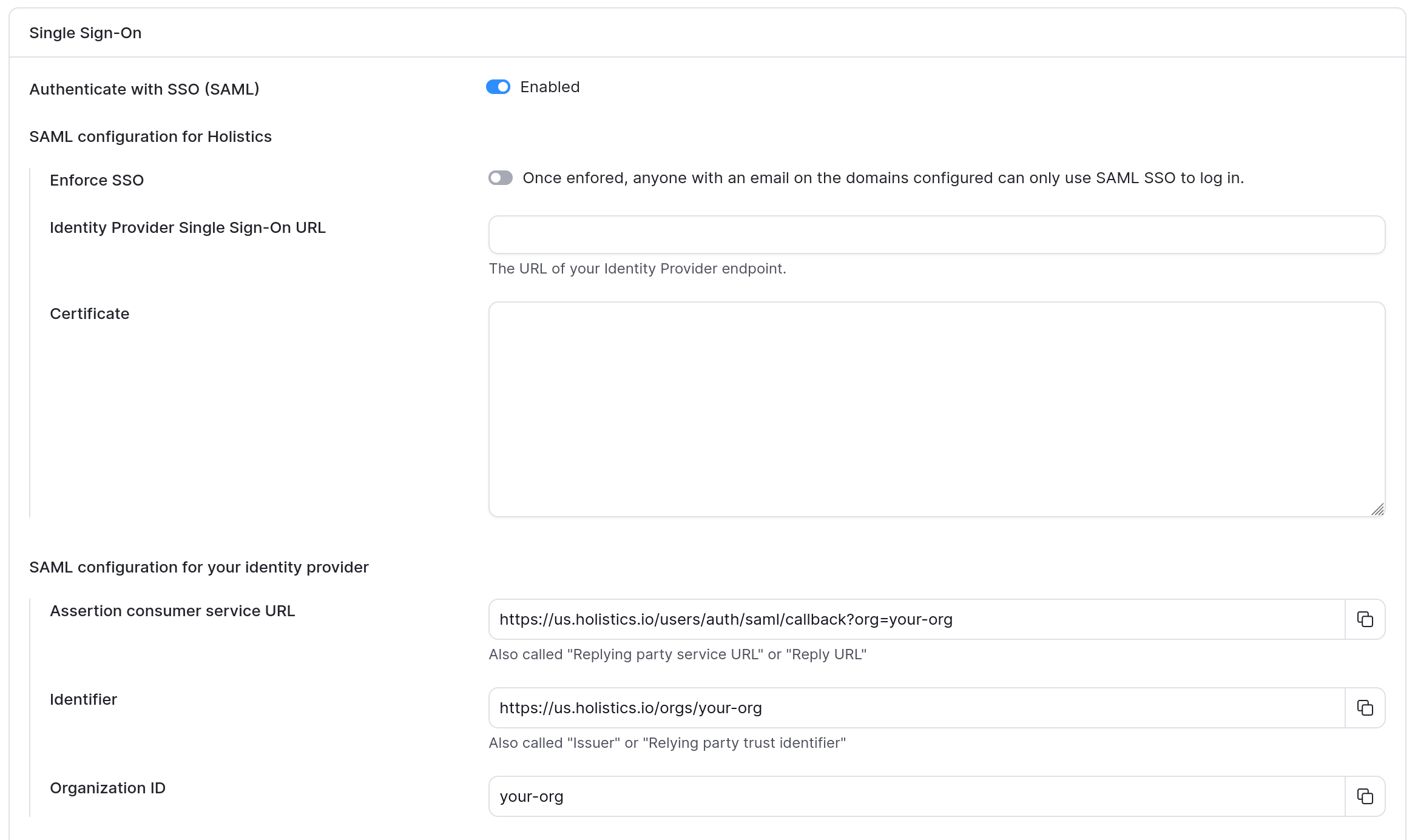
- In Holistics, click on the Profile > Other settings, then go to Settings > Single sign-on.
- Turn on Authenticate with SSO (SAML). Leave Enforce SSO off while configuring and testing the integration.
- Keep this page open so you can complete the Holistics configuration later.
Step 2: create the application in Okta
Add the Holistics integration from the Okta Integration Network.
- In the Okta Admin Console, go to Applications > Applications.
- Go to Browse App Catalog.
- Search for
Holistics, then select it from the results. - Click Add Integration.
- Update the App Label as needed.
- For Region Domain, enter your Holistics login domain without
https://. For example, enterus.holistics.ioinstead ofhttps://us.holistics.io. - For Organization ID, enter the organization ID shown in the Single sign-on section of the Holistics admin settings.
- Click Done.
Step 3: configure Okta as the identity provider in Holistics
Okta generates the sign-in endpoint and signing certificate that Holistics uses to verify SAML responses.
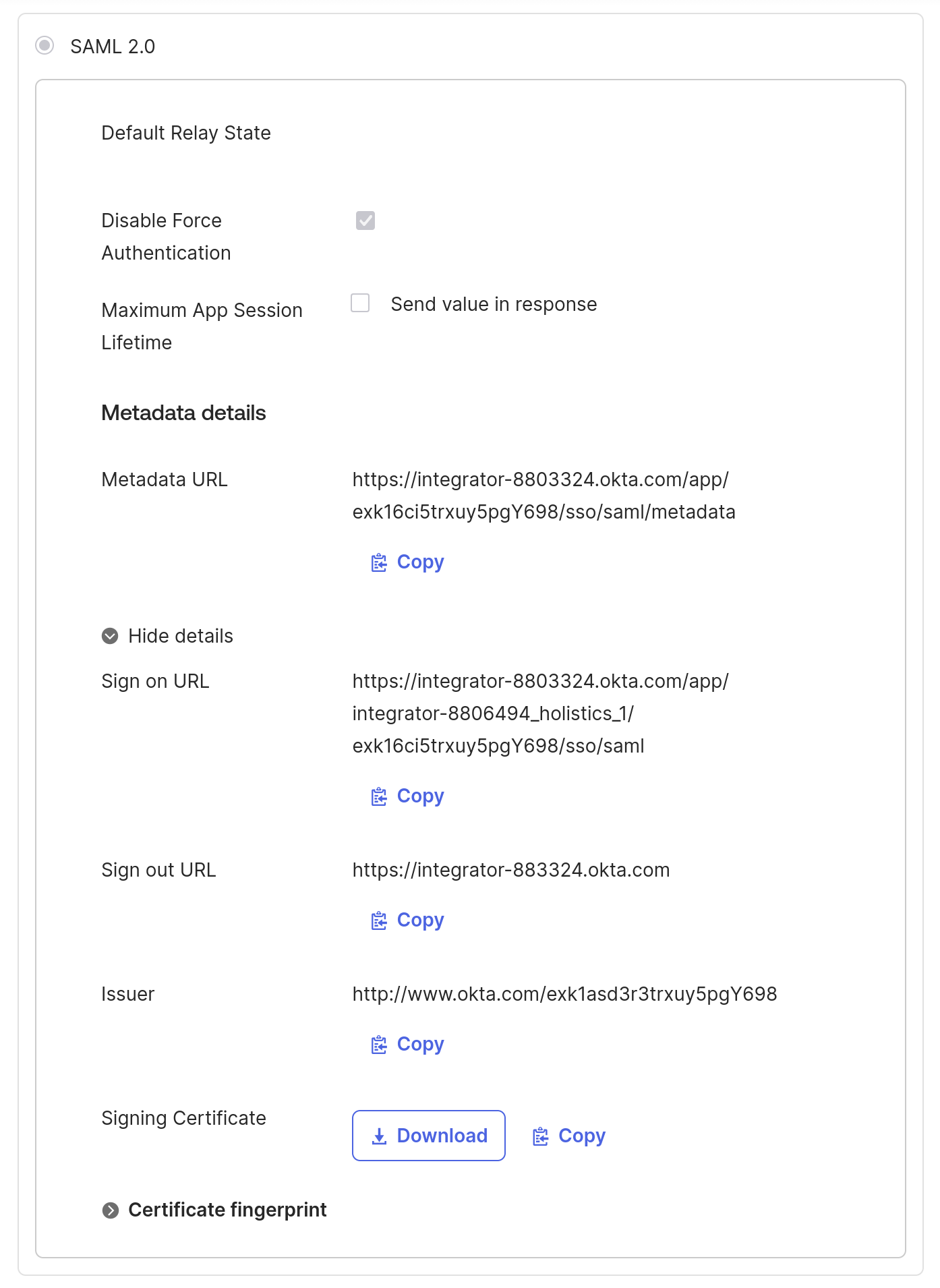
- In Okta, open the Holistics application and go to the Sign On tab.
- In the SAML 2.0 section, click More details.
- Copy the Sign on URL and paste it into the Identity Provider Single Sign-On URL field in Holistics.
- Copy the Signing Certificate and paste it into the Certificate field in Holistics.
- Save the Holistics configuration.
Step 4: assign users in Okta
Only users assigned to the application can authenticate through it.
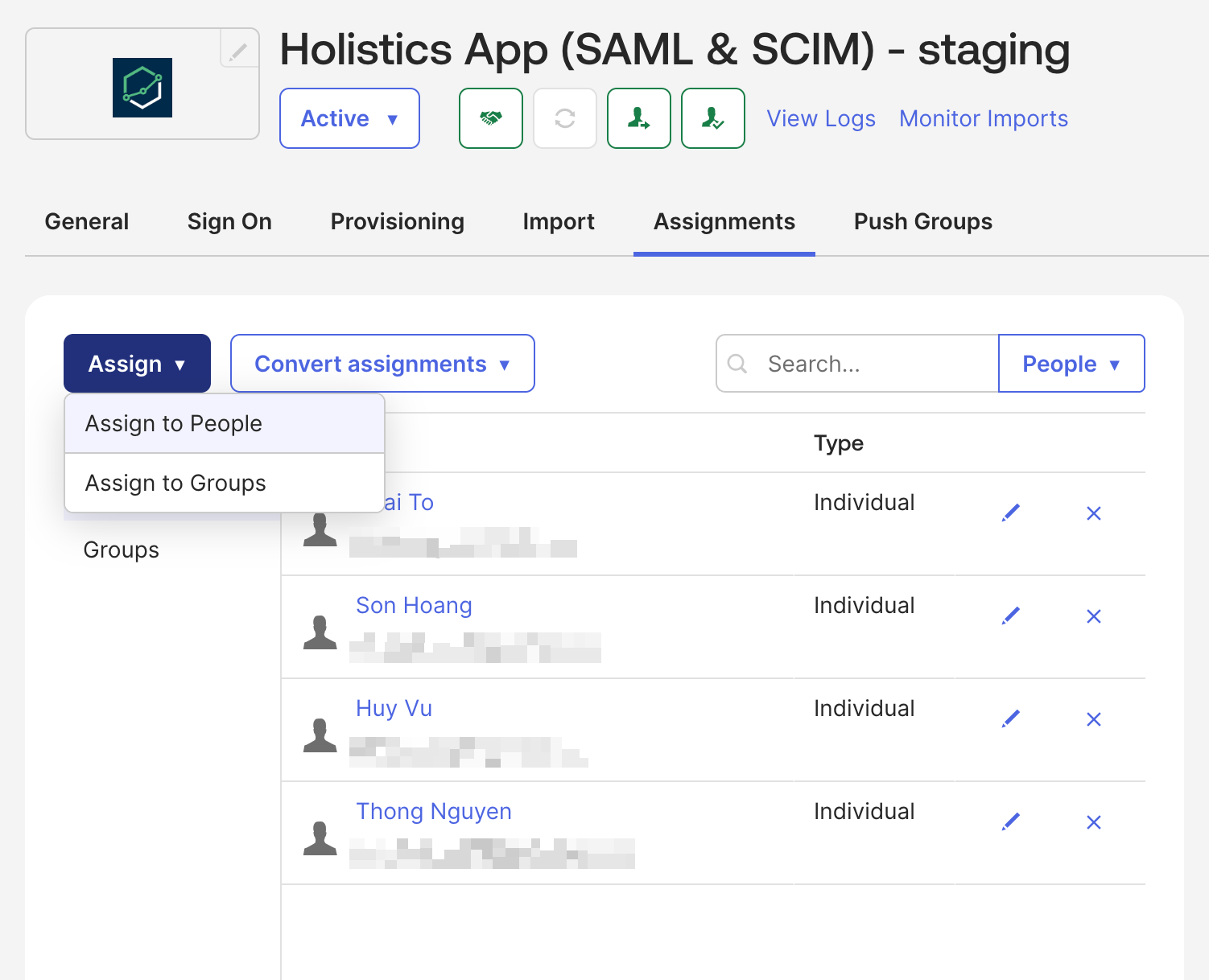
- In Okta, open the Holistics application and go to the Assignments tab.
- Click Assign > Assign to People or Assign to Groups.
- Select the users or groups that need access, then complete the assignment.
- Confirm that each assigned person already has a Holistics account with the same email address.
Verify IdP-initiated SSO
Use the Okta dashboard to confirm that Okta can send a valid SAML response to Holistics.
- Sign in to Okta as a user assigned to the Holistics application.
- Click the Holistics application tile.
- Confirm that the user reaches Holistics without being asked for separate Holistics credentials.
Verify SP-initiated SSO
In a service provider (SP)-initiated flow, the user starts from Holistics and is redirected to Okta for authentication.
- Open your Holistics sign-in page.
- Start SSO sign-in for your organization.
- Authenticate with Okta if prompted.
- Confirm that Okta redirects you to Holistics and that you can access the expected organization.
After both flows work for a test user, you can enable Enforce SSO in Settings > Single sign-on if your organization requires all users on the configured domains to authenticate with SAML.
Troubleshooting
Use these checks to diagnose the most common SAML setup problems.
A user is not assigned to the application
In Okta, open the Holistics application and check the Assignments tab. Assign the user directly or through a group, then try again.
Holistics cannot find the user
Confirm that the user already exists in Holistics and that their Holistics email matches the email attribute sent by Okta. SAML sign-in does not create a Holistics account.
The SAML response has an audience or destination error
Compare Okta's Audience URI (SP Entity ID) and Single sign-on URL with the current Identifier and Assertion consumer service URL in Holistics. Copy the values again to avoid extra spaces or values from another Holistics organization.
The SAML response or certificate is invalid
Copy the current X.509 Certificate from Okta's SAML setup instructions into Holistics. Include the certificate boundary lines and make sure the certificate belongs to the same Okta application.
Users are locked out after SSO is enforced
Ask another Holistics administrator with an active session to turn off Enforce SSO and correct the configuration. If no administrator can access the organization, contact Holistics support.