Set up SCIM with Okta
This guide explains how to configure System for Cross-domain Identity Management (SCIM) provisioning from Okta to Holistics. After setup, Okta can create, update, and deactivate Holistics users and keep pushed groups in sync.
If you use a different identity provider and need help with configuration, contact our support team.
Prerequisites
Before you configure provisioning, make sure SSO and the required administrator access are ready.
- SAML SSO with Okta is configured and tested.
- You are an administrator in both Holistics and Okta.
- Your Holistics plan has enough seats for the users you intend to provision. Existing users with matching email addresses are linked without consuming another seat.
- You have identified the Okta groups that should map to the Admin, Analyst, Explorer, and Viewer roles in Holistics.
Set up group-to-role mapping, including a mapping for the Admin role, before assigning users in Okta. Without a matching group, a synced user receives the Viewer role. This can downgrade existing administrators and lock you out of Holistics.
Supported features
Provisioning is one-way from Okta to Holistics. Manage synced users, groups, and memberships in Okta rather than editing them in Holistics.
| Feature | Supported | Description |
|---|---|---|
| Create users | Yes | Assigning a new user to the Okta app creates the user in Holistics. |
| Update user attributes | Yes | Changes to mapped profile attributes are pushed to Holistics. |
| Deactivate users | Yes | Unassigning or deactivating a user in Okta deactivates the user in Holistics without deleting their data. |
| Push groups | Yes | Selected Okta groups are created and updated in Holistics. |
| Sync group membership | Yes | Membership changes in pushed groups are reflected in Holistics. |
| Import users or groups from Holistics | No | Holistics does not act as a profile source for Okta. |
| Sync passwords | No | Users authenticate through SAML SSO; SCIM does not synchronize passwords. |
Holistics supports the email and displayName SCIM user attributes. Holistics user attributes are not provisioned through SCIM, and roles are assigned through group-to-role mapping rather than a SCIM profile attribute.
Configure provisioning
Complete the Holistics configuration first so that you have the base URL and API token required by Okta. Then configure provisioning and assignments in the Okta application.
Step 1: enable SCIM in Holistics
Enabling SCIM creates tenant-specific credentials for your Okta connection.
- In Holistics, click on the Profile > Other settings, then go to Settings > Single sign-on.
- Turn on Enable SCIM Provisioning.
- Copy the SCIM Base URL.
- Generate and copy the SCIM API Token. Store the token securely because Holistics displays it only once.
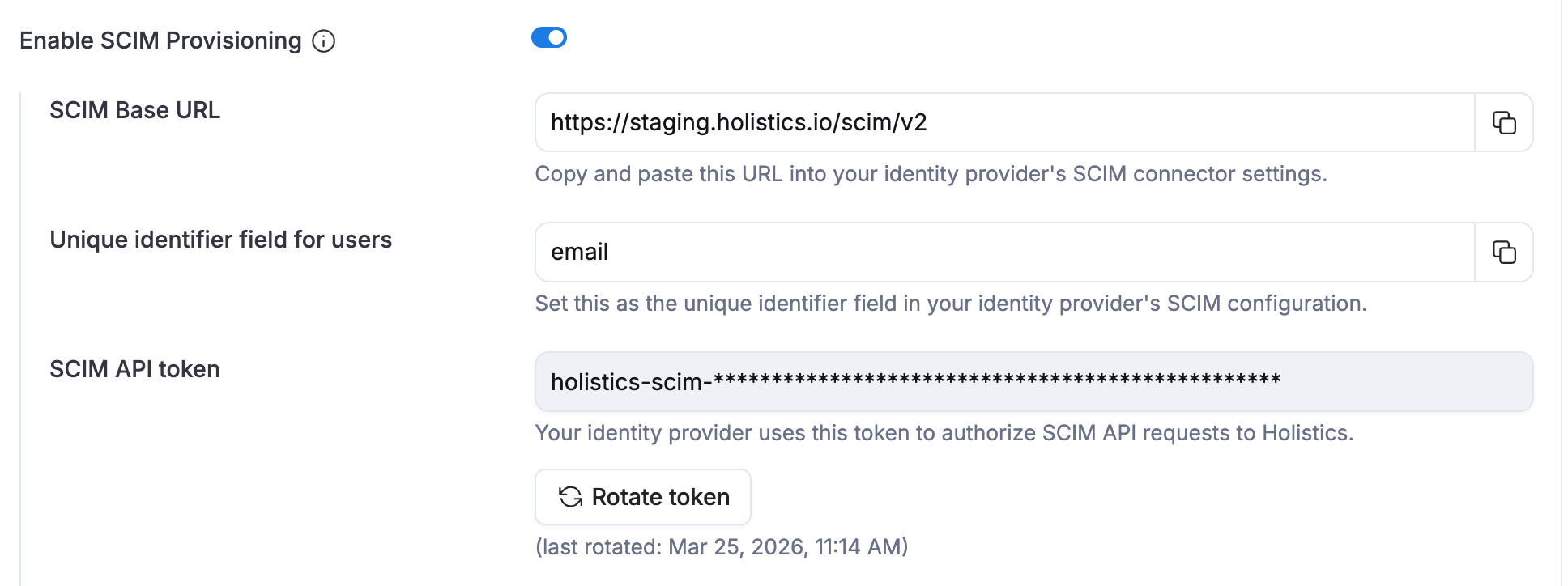
Treat the SCIM API token like a password. If you lose or expose it, generate a new token in Holistics and update Okta. Generating a token invalidates the previous one.
Step 2: configure group-to-role mapping in Holistics
Role mappings determine the Holistics permissions that provisioned users receive based on their pushed Okta groups.
- In the Group to role mapping section, add the Okta group names you plan to push.
- Map each group to a Holistics role. For example, map
HOLISTICS_ADMINto Admin andHOLISTICS_ANALYSTto Analyst. - Save the mappings before assigning users in Okta.
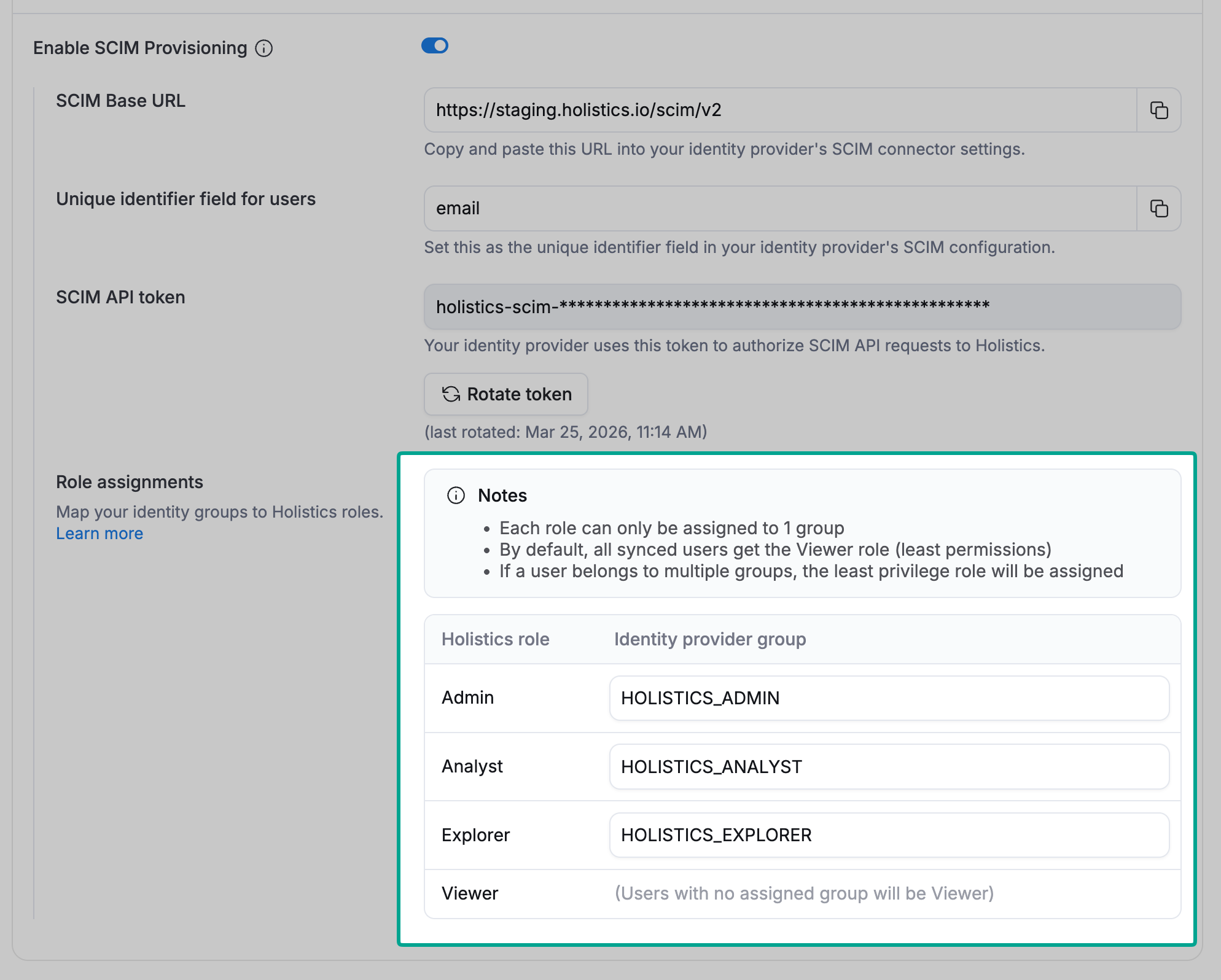
If a user belongs to multiple mapped groups, Holistics assigns the least privileged mapped role. For example, a user in both HOLISTICS_ADMIN and HOLISTICS_ANALYST receives the Analyst role. Users who do not belong to a mapped group receive the Viewer role.
Step 3: configure the SCIM connection in Okta
Use the API token generated by Holistics to authenticate Okta's provisioning requests.
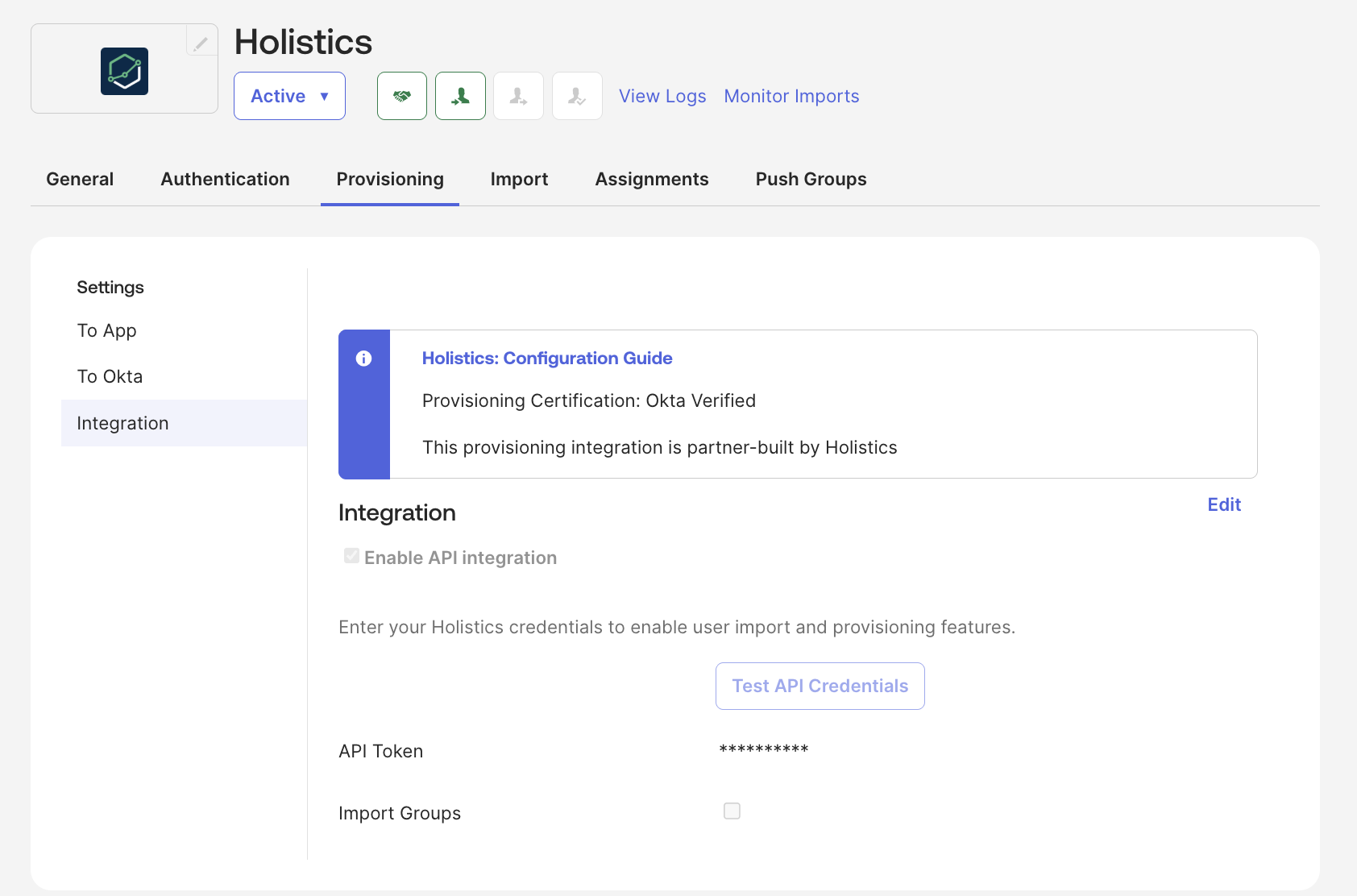
- Go to the Provisioning tab of the Holistics app.
- Under Integration, click Configure API Integration.
- Select the Enable API Integration checkbox.
- Enter the SCIM API Token copied from Holistics in the API Token field, then click Test API Credentials.
- After the test succeeds, click Save.
Step 4: enable provisioning to Holistics
Turn on the lifecycle actions that Okta should send to Holistics.
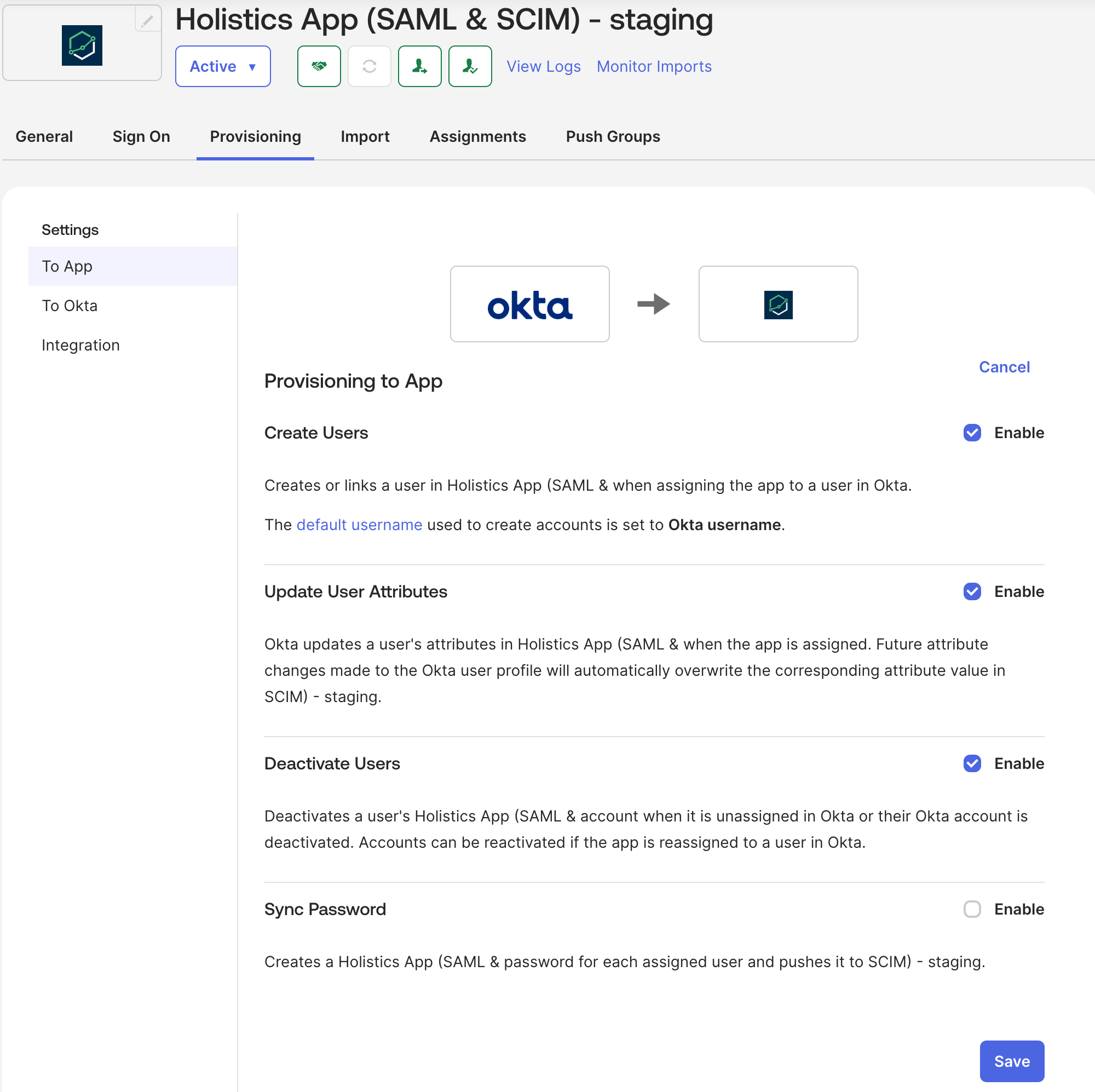
- In the Provisioning tab, go to Settings > To App.
- Click Edit.
- Enable Create Users, Update User Attributes, and Deactivate Users.
- Click Save.
Step 5: verify attribute mappings
Attribute mappings control which Okta profile values are sent for each Holistics user.
In Provisioning > To App, confirm these mappings:
| Okta attribute | Holistics field | Purpose |
|---|---|---|
email | Email address | Uniquely identifies and links the user. |
displayName | Name | Sets the name displayed in Holistics. |
Step 6: assign users to Holistics
Assign a small pilot group first. This limits the impact of configuration problems and lets you verify user roles before a wider rollout.
- In Okta, open the Holistics application.
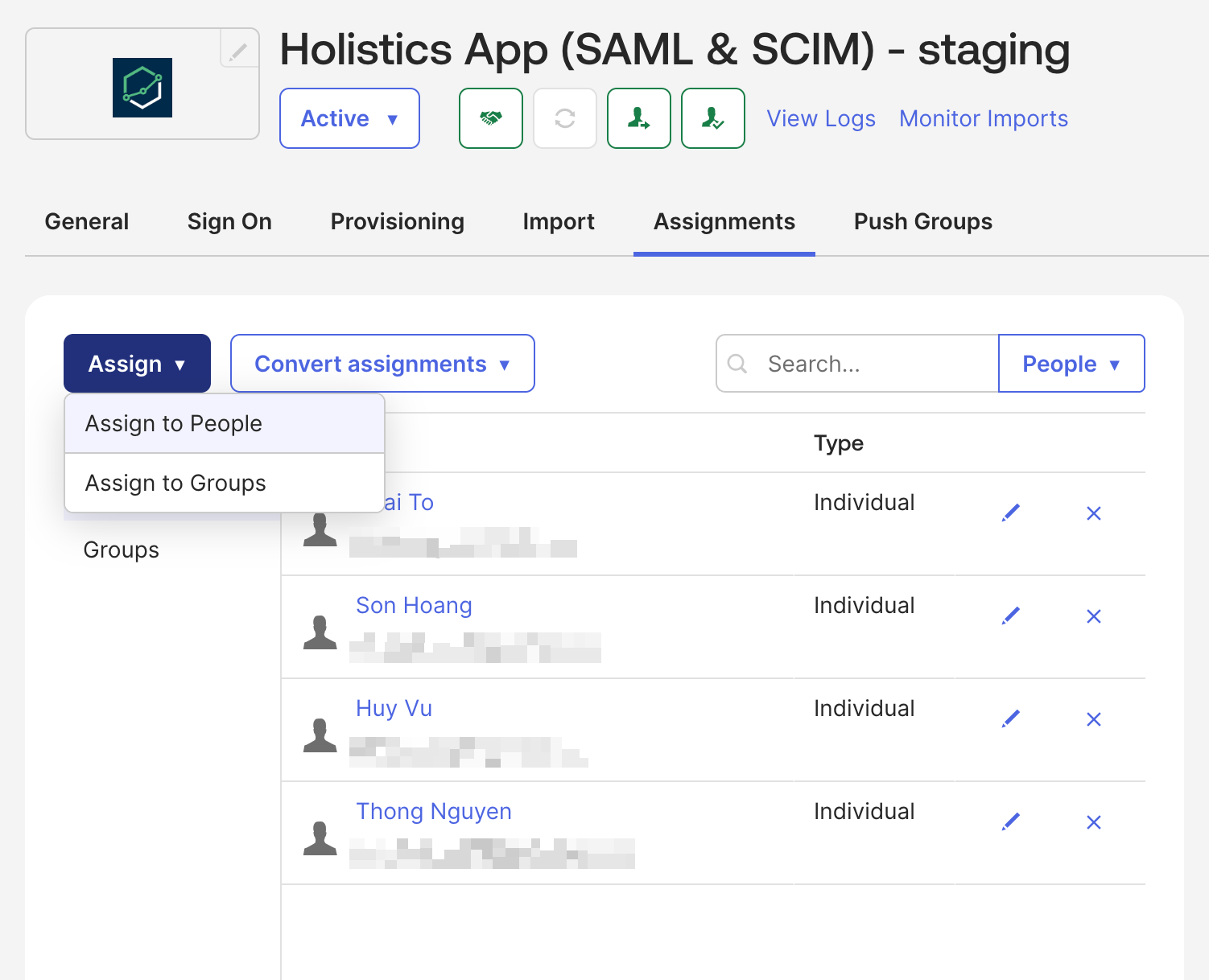
- Go to the Assignments tab.
- Click Assign > Assign to People or Assign to Groups.
- Select the pilot users or group.
- Review the profile attributes, then click Save and Go Back.
- Click Done.
Okta creates new users in Holistics and links existing users whose email addresses match. To deactivate a user in Holistics, unassign them from the Okta app. Their account is deactivated rather than deleted, so their data and activity history remain available.
Step 7: push groups to Holistics
Push each group used for role mapping so that Holistics can synchronize the group and its membership.
- In Okta, open the Holistics application.
- Go to the Push Groups tab.
- Click Push Groups > Find groups by name.
- Search for and select a group configured in your Holistics role mappings.
- Click Save.
- Repeat these steps for each group you want to synchronize.
Users in a pushed group must also be assigned to the Holistics app, either individually or through an assignment group. Pushing a group does not grant its members access to the app.
Verify provisioning
Test each supported lifecycle action with the pilot users before assigning the rest of your organization.
- In Holistics, open User Management and confirm that the pilot users appear with the expected names, groups, and roles.
- In Okta, update a pilot user's display name and confirm that the change reaches Holistics.
- Add and remove the user from a pushed group, then confirm that membership and role changes reach Holistics.
- Unassign a pilot user from the app and confirm that the user is deactivated in Holistics.
- In Okta, go to Reports > System Log and review the provisioning events for errors.
Provisioning can take a few minutes. After the pilot succeeds, assign the remaining users and groups.
SSO sign-in behavior
SCIM provisions accounts but does not authenticate users. Sign-in, including SP-initiated SSO from Holistics, uses the separate SAML SSO integration with Okta.
A provisioned user must remain assigned to the Holistics application in Okta to authenticate. Their Okta email must also match the email in Holistics.
Troubleshooting
Okta's System Log usually contains the most useful details for failed provisioning requests. Go to Reports > System Log and filter for events related to the Holistics application.
The API credentials test fails
If Test API Credentials fails, the token is likely missing, mistyped, or was replaced. Generate a new SCIM API Token in Holistics and enter it in the API Token field in Okta.
A user is not provisioned
Confirm that the user is assigned to the Holistics application and that Create Users is enabled under Provisioning > To App. Also check that the user's email is present and that your Holistics plan has an available seat. Provisioning fails rather than exceeding the seat limit.
A user has the wrong role
Check that the relevant Okta group is active under Push Groups and that its name exactly matches the Holistics group-to-role mapping. If the user belongs to multiple mapped groups, remember that Holistics assigns the least privileged mapped role.
A group or membership change is missing
Confirm that the group has an Active push status in Okta. The user must also be assigned to the Holistics application; pushing a group alone does not assign its members. Allow a few minutes for the update, then review Okta's System Log.
A profile update does not appear
Confirm that Update User Attributes is enabled and that the changed field is mapped under Provisioning > To App. Holistics user attributes are not part of SCIM provisioning, so only supported SCIM profile fields are updated.
A deactivated user can still sign in
Confirm that Okta successfully sent the deactivation event and that it appears without errors in the System Log. If you only removed the user from a pushed group, unassign the user from the Holistics application to deactivate their Holistics account.
If the issue persists, contact Holistics support and include the Okta System Log error and its timestamp.