Quick start
You can start any of these from the dataset panel, viz settings, or the result table. This section focuses on creating metrics with Calculation Builder (GUI). For Formula mode and AQL, see the AQL docs.
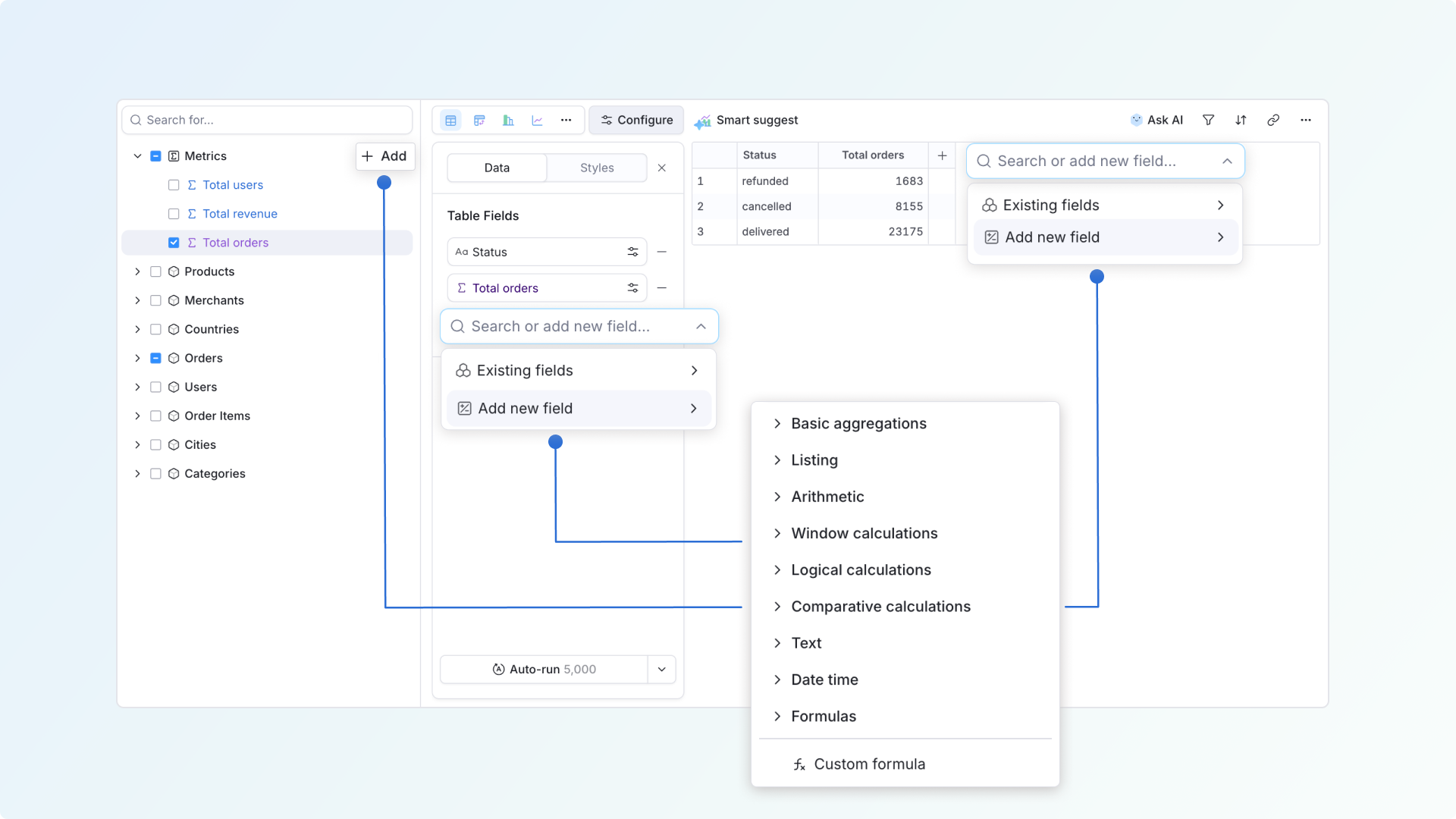
Create metrics from scratch
Use this when you want to create a new metric with blank settings and set it up yourself. See Available calculations for the full list of options.
Create metrics from an existing one
Use this when you want to build a new metric using an existing one as the input.
Example: from Total orders metric, create a new metric % of total orders.
Aggregate dimensions into metrics
Use this when you want to summarize a dimension into a metric with a quick aggregation (e.g. count, sum, average, min, max...).
Example: from the Delivery attempts dimension, apply 75th percentile to create a metric P75 - Delivery attempts.
Duplicate existing metrics
Use this when you want a variant of an existing metric with a small tweak.
Example: duplicate Total orders into a new metric, then change its filter to Country is Australia to make Total orders (Australia).
Create metrics with AI
Describe what you want in plain language and AI builds the metric for you, no point-and-click needed. You can easily verify it's accurate by seeing how AI built it in the chat, and if you'd like to change anything, just open the metric in the calculation builder.
Example: ask for Ratio of Australia orders to total. AI builds it as Total orders (Australia) ÷ Total orders, reusing those metrics if they exist or creating them if not.