Start building with Calculation Builder
This page covers the orientation work around Calculation Builder: where to open it, how to find the right calculation, and how to inspect or extend what it created. For step-by-step examples of individual calculations, see the Calculation Builder reference.
Start building
Every metric begins the same way: click a metric or column, pick what you want to compute, and Holistics builds it. You can launch the calculation menu from wherever you happen to be looking at your data.
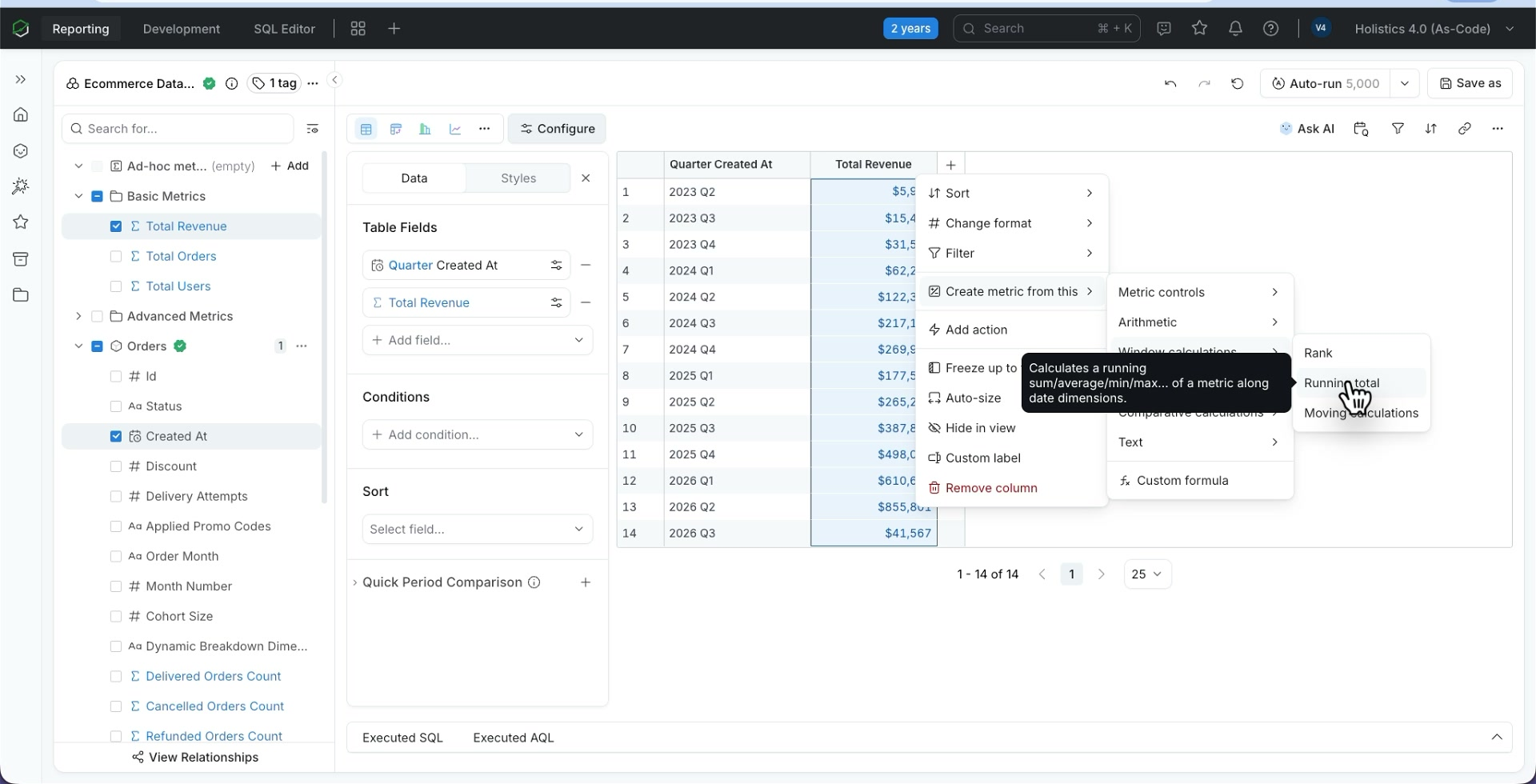
From the result table: click any metric or column in the table and the menu opens right there, in the context of the value you clicked. This is the fastest path when you are already exploring numbers and spot something you want to derive.
From the dataset tree: expand a model, find the field you want, and use the more-options dropdown on its right to choose Create metric from this. This is handy when you are building a report from scratch and know which field to start from.
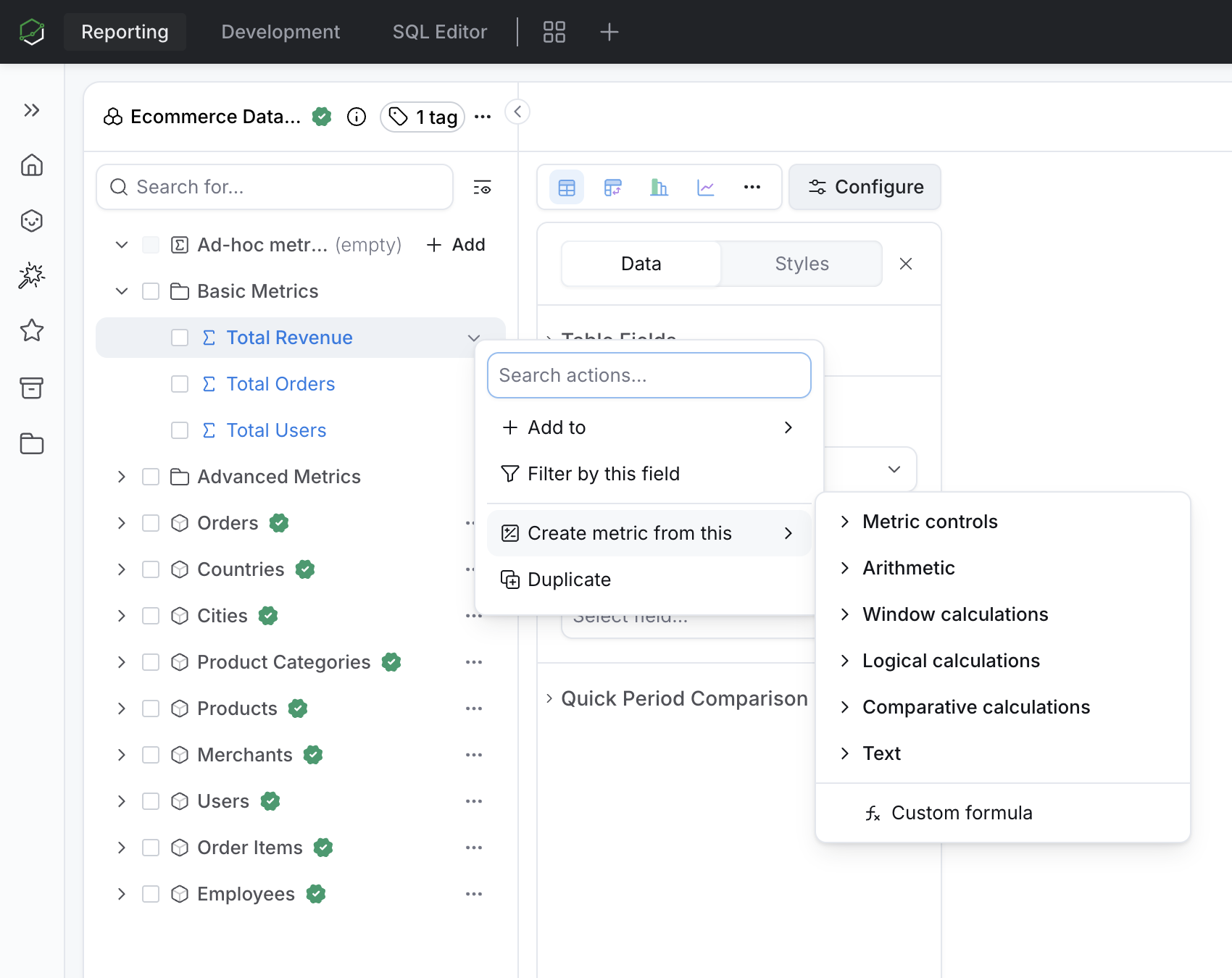
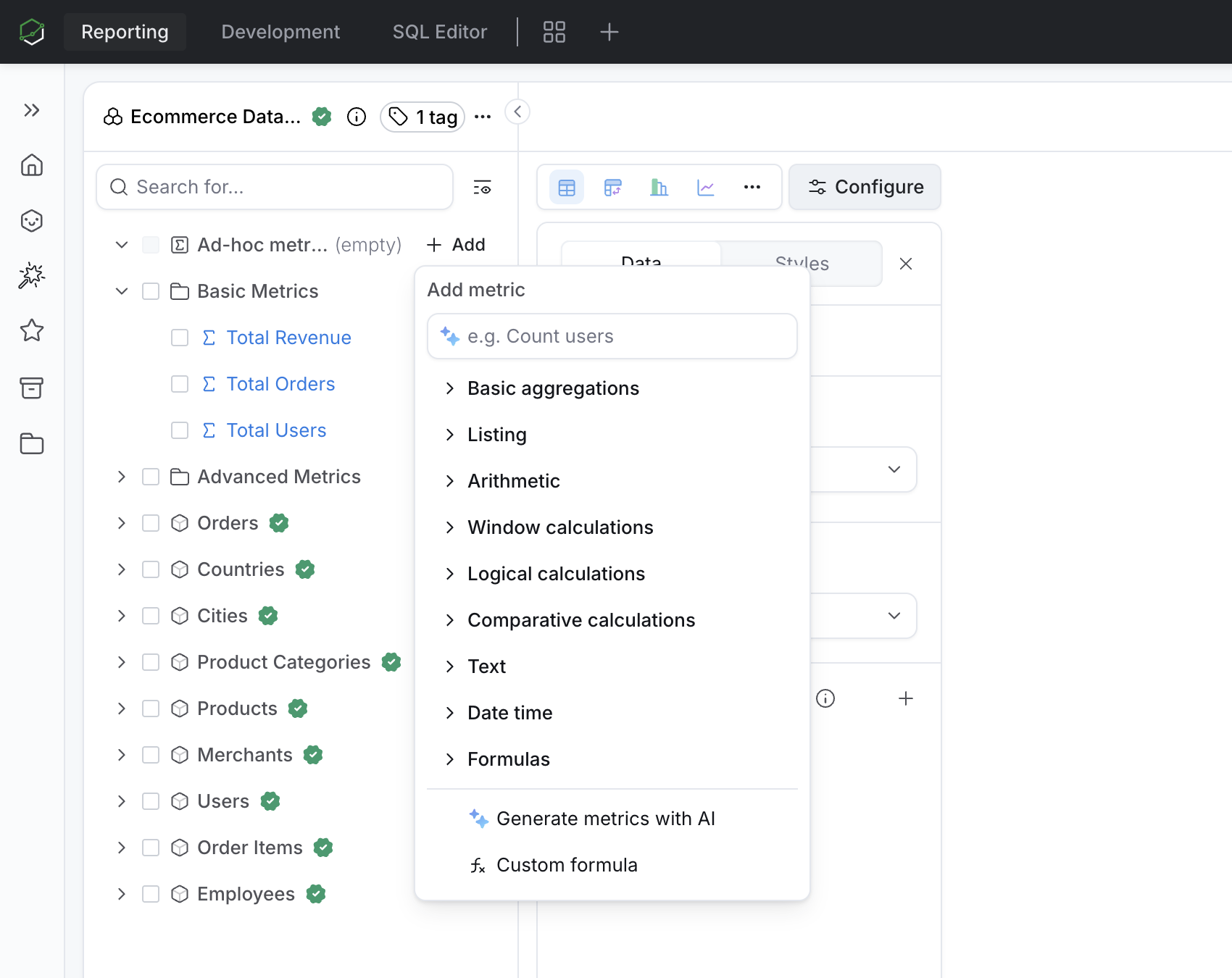
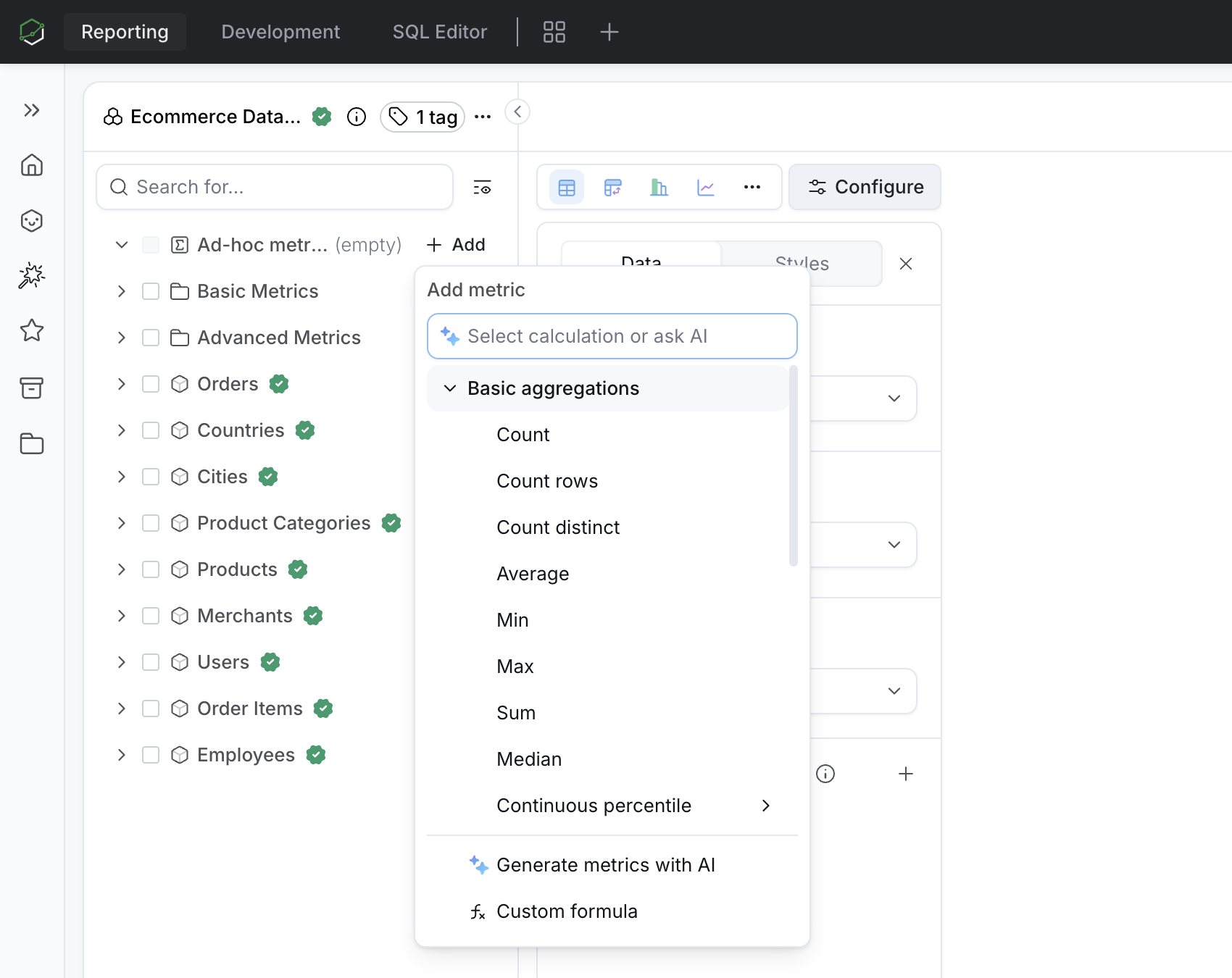
Both routes open the same menu, grouped into Metric controls, Arithmetic, Window calculations, Logical calculations, Comparative calculations, Text, and Custom formula. There is also an Add metric picker (the + Add button on ad-hoc metrics) that lays out the full catalog by category so you can browse everything in one place, including Generate metrics with AI.
Build on what you already have
You rarely start from zero. From any metric's menu, you can compose a new one from an existing calculation.
- Create metric from this builds a new metric on top of an existing one. From a filtered revenue metric, apply period over period to compare it against last year.
- Aggregate applies a quick aggregation (count, sum, average, min, max) to a column. Average a customer-age column into an average-age metric, for example.
- Duplicate copies a metric's definition so you can vary it. Duplicate a completed-orders metric and change the condition to a refunded status for a refunded variant.
You can also rename any metric through Label, Name, and Description so it reads clearly for whoever uses the report next.
Create with AI
Choose Generate metrics with AI, describe the metric you want in plain language, and AI builds it for you. You do not need to choose a calculation or write a formula first.
The generated metric opens in the Calculation Builder, so you review and adjust it through the same GUI instead of editing raw AQL.
See the generated AQL
Every action in the builder writes AQL, the query language Holistics runs underneath. You do not have to read it, but you can.
Open the Definition popover on any metric to see the exact expression a GUI action produced. Filtering a revenue metric to delivered orders generates:
revenue | where(ecommerce_orders.status == "delivered")
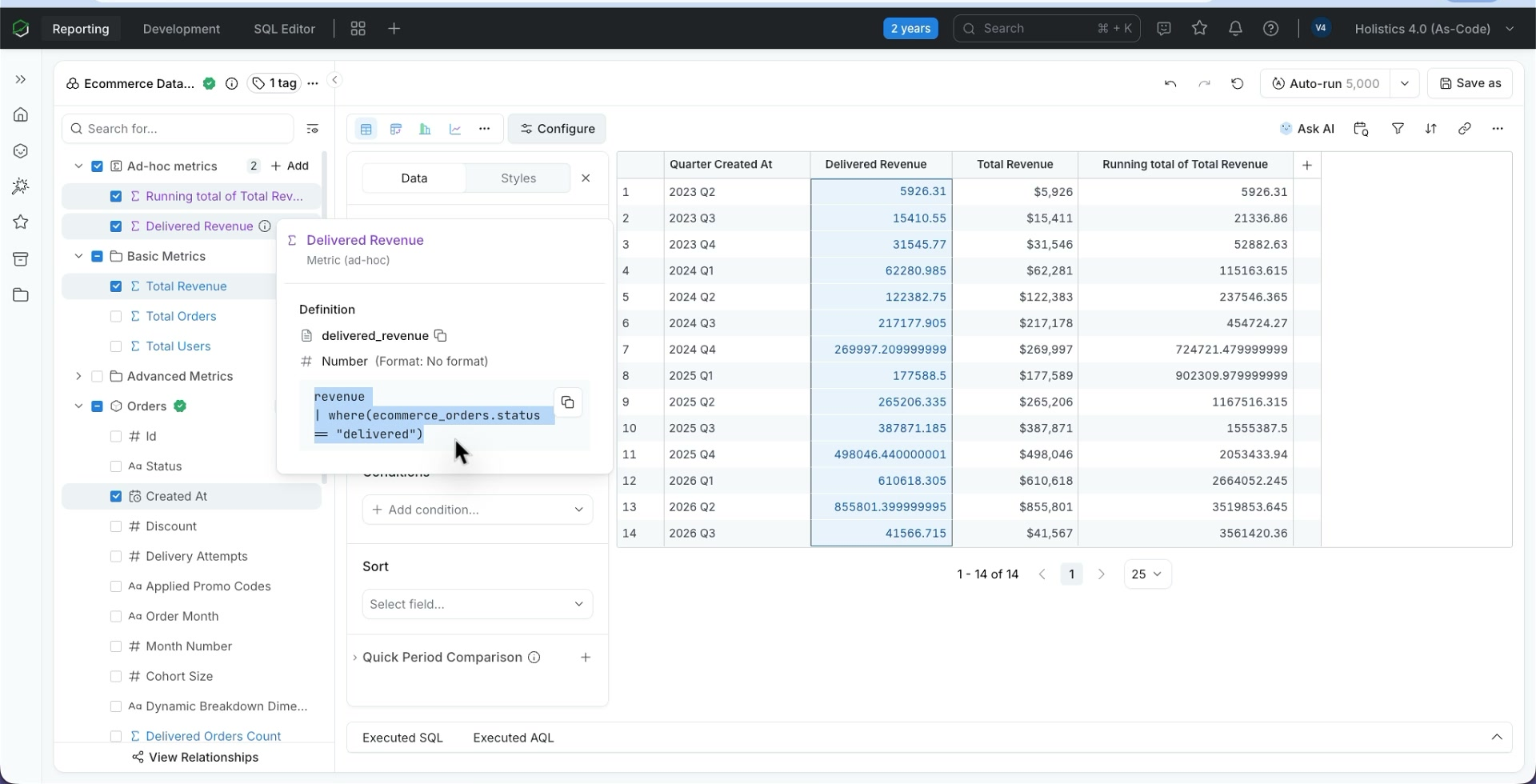
Because the definition is AQL, the metric is context-aware: it adapts to whatever dimensions and filters a report applies, so one definition stays correct across reports. Define a ratio metric once and it reads correctly by month, by region, or overall.
When the builder does not cover what you need, switch to Formula mode (also reachable as Custom formula) and write AQL directly. The GUI and the formula are two views of the same metric, so you can move between them freely.
Available calculations
The full catalog is grouped the same way as the Add metric picker. Each row shows what the calculation does, an example use case, and the AQL function it generates.
Basic aggregations
| Calculation | What it does | Example | AQL reference |
|---|---|---|---|
| Count | Counts the total number of items in a group. | Number of orders | count |
| Count rows | Counts the number of rows in a table. | Number of records in a model | count |
| Count distinct | Counts the total number of distinct items in a group. | Number of unique customers | count_distinct |
| Sum | Calculates the sum of values in the group. | Total revenue | sum |
| Average | Calculates the average of values in a group. | Average order value | average |
| Min | Returns the item in the group with the smallest value. | Earliest signup date | min |
| Max | Returns the item in the group with the largest value. | Highest order amount | max |
| Median | Computes the median of the values in the group. | Median order value | median |
| Sample standard deviation | Computes the sample standard deviation of the values in the group. | Variability of order value (sample) | stdev |
| Population standard deviation | Computes the population standard deviation of the values in the group. | Variability of order value (population) | stdevp |
| Sample variance | Returns the sample variance of the values in the group. | Sample order-value variance | var |
| Population variance | Returns the population variance of the values in the group. | Population order-value variance | varp |
| Continuous percentile | Returns the value at the given percentile of the sorted expression values, interpolating between adjacent values if needed. | 95th percentile of response time | percentile_cont |
| Discrete percentile | Returns the value at the given percentile of the sorted expression values. If the percentile falls between two values, one of them will be returned. | 90th percentile of order value | percentile_disc |
Listing
| Calculation | What it does | Example | AQL reference |
|---|---|---|---|
| List | Lists values from a data model. | List of products per order | Aggregate functions |
Arithmetic
| Calculation | What it does | Example | AQL reference |
|---|---|---|---|
| Add (+) | Adds the values of two fields together. | Total cost = price + shipping | Operators |
| Subtract (-) | Subtracts the value of one field from another. | Profit = revenue - cost | Operators |
| Multiply (x) | Multiplies the values of two fields. | Line total = price x quantity | Operators |
| Divide (/) | Divides the value of one field by another. | Conversion rate = orders / visits | Operators |
Window calculations
| Calculation | What it does | Example | AQL reference |
|---|---|---|---|
| Rank | Assigns a rank to each record based on the order of specified fields, optionally within partitions. | Rank products by total sales | rank |
| Running total | Calculates a running sum, average, min, or max of a metric along date dimensions. | Cumulative total users | running_total |
| Moving calculations | Calculates a moving value on a metric. | 7-day moving average of orders | Window functions |
Logical calculations
| Calculation | What it does | Example | AQL reference |
|---|---|---|---|
| Count if | Counts the total number of items in a group with conditions. | Number of female users above 30 | count_if |
| Count distinct if | Counts the total number of distinct items in a group with conditions. | Unique customers from a region | Aggregate functions |
| Average if | Calculates the average of values in a group with conditions. | Average order value for repeat buyers | Aggregate functions |
| Min if | Returns the item in the group with the smallest value with conditions. | First order date for VIP customers | Aggregate functions |
| Max if | Returns the item in the group with the largest value with conditions. | Largest order from a campaign | Aggregate functions |
| Sum if | Calculates the sum of values in the group with conditions. | Revenue from a specific product line | Aggregate functions |
| Case when | Returns the value associated with the first condition that evaluates to true. | Bucket customers into tiers | case |
Comparative calculations
| Calculation | What it does | Example | AQL reference |
|---|---|---|---|
| Percent of total | Calculates the percentage of a metric relative to the original value of that metric. | Revenue share by category | percent_of_total |
| Period over period | Calculates the change of a metric between two periods. | This year's orders vs last year's | Time intelligence functions |
Text
| Calculation | What it does | Example | AQL reference |
|---|---|---|---|
| Concat | Returns the concatenated string of multiple strings. | Full name from first and last name | Text functions |
Date time
| Calculation | What it does | Example | AQL reference |
|---|---|---|---|
| Date difference | Calculates the difference between two dates in a specified time unit. | Days between order and delivery | date_diff |
| Date add | Adds or subtracts intervals from a date. | Estimated delivery date | Time intelligence functions |
Formulas
| Calculation | What it does | Example | AQL reference |
|---|---|---|---|
| Custom formula (Formula mode) | Lets you write your own expression in AQL when the available calculations are not enough. | Any custom metric or dimension | AQL |
Related
- Calculation Builder reference: detailed examples for each calculation builder.
- Custom Calculations Handbook: the guided, task-by-task path to building calculations.
- Ad-hoc Fields: where calculation fields live and how they differ from dataset fields.
- AQL: the query language every calculation generates.