Theme Builder
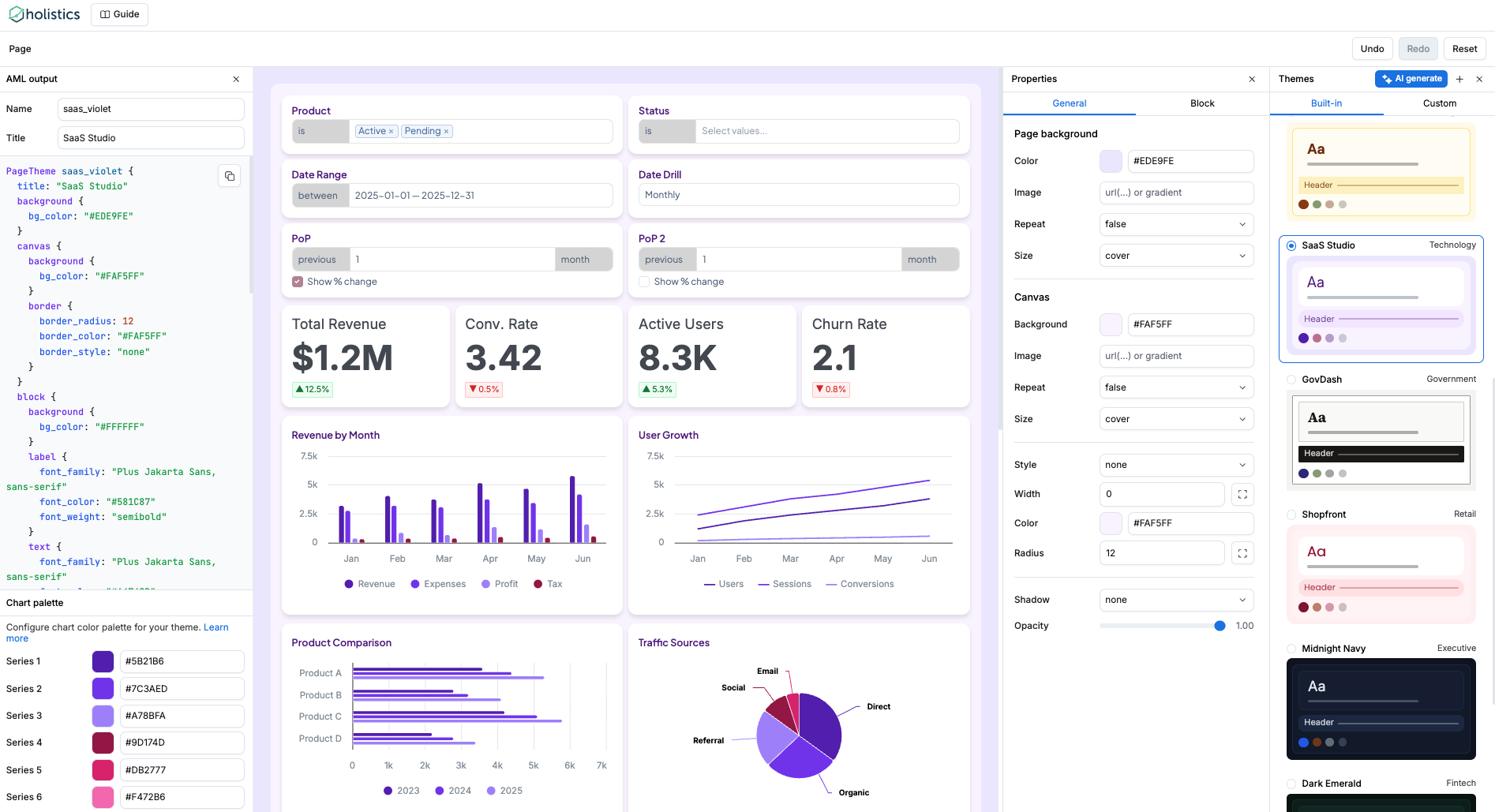
Building dashboard themes in AML code is often a "blind" process without a native live preview. To simplify this, use our Theme Builder Sandbox - an interactive sandbox to design and preview your themes in real-time, then simply copy the generated AML code back into Holistics.
Think of it as your design sandbox while we validate the concept before bringing it fully into the app.
Before you start
You will get the most out of this guide if you are familiar with:
Step 1: Open Theme Builder and choose a starting point
Open Holistics Theme Builder Sandbox (no login required).
You can start in one of three ways:
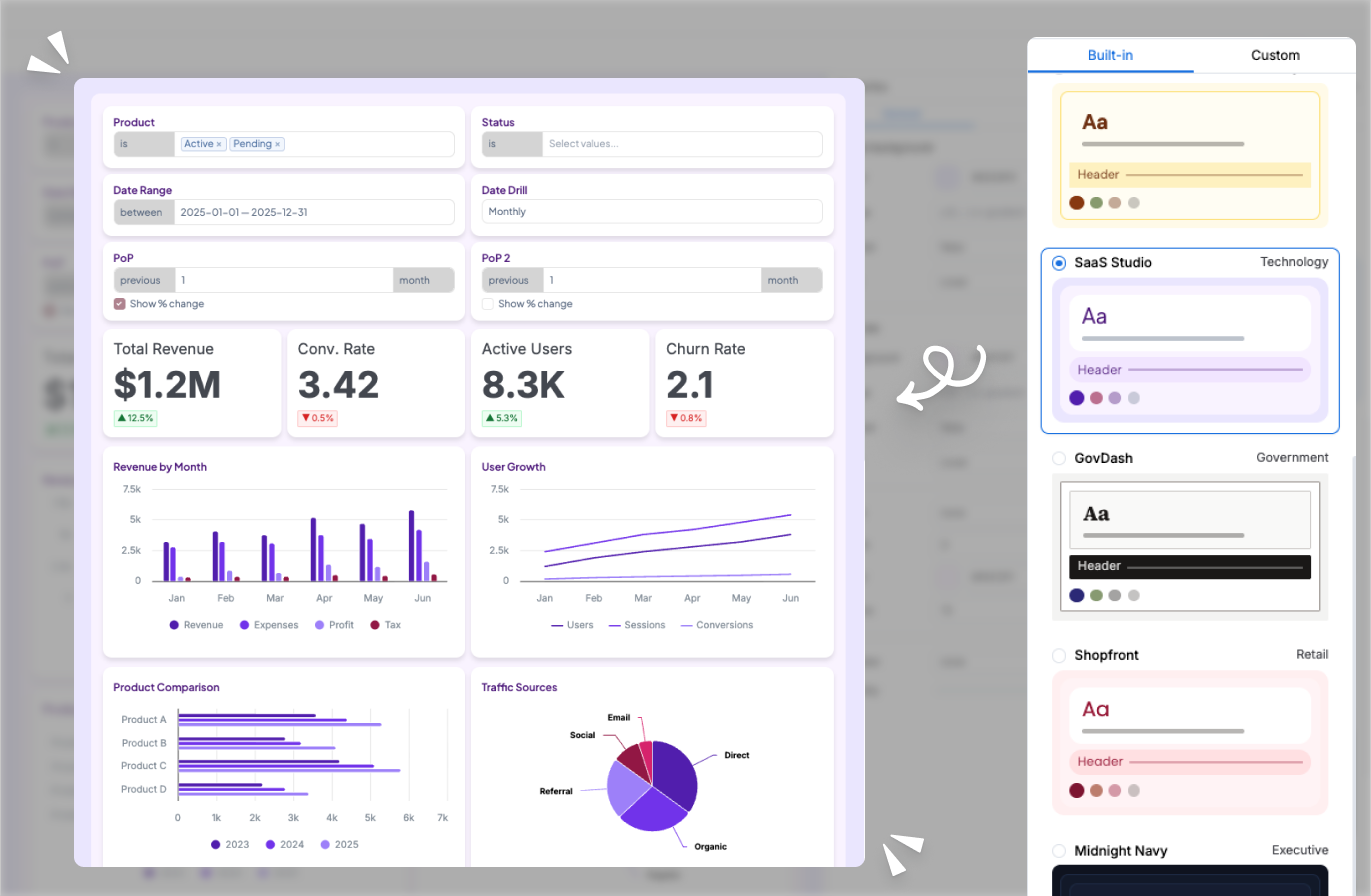
Option A: Pick a pre-built theme (recommended)
Use the built-in gallery to pick a ready-made style (for example: light, dark, corporate, or colorful) and preview it immediately.
Option B: Generate a theme with AI
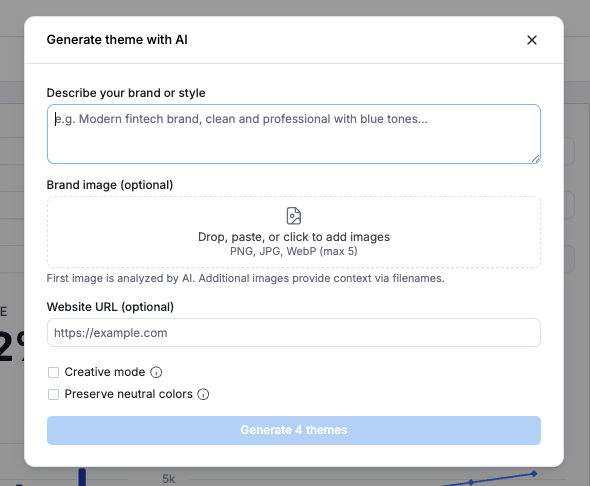
Click Generate with AI and describe what you want in natural language.
Example prompts:
- A dark theme with a navy blue background and teal accent colors, using a clean sans-serif font.
- A minimal white dashboard with our brand color #259B6C as the primary accent.
You can also provide your company website so AI can align with your brand.
Option C: Start from scratch
If you want full control, use the GUI editor directly and customize every property yourself.
Step 2: Customize your theme in the GUI editor
After selecting or generating a base theme, refine it in the GUI editor.
The editor is organized into four levels:
- Page: Overall page background, font family, base font sizes
- Canvas: Dashboard canvas background, padding, border radius
- Block: Block background, shadows, borders, padding
- Viz: Chart colors, table styles, data label fonts
As you make changes, the live preview panel updates immediately so you can see exactly how the dashboard will look.
- Start with colors first to establish overall visual direction.
- Match font family to your brand typeface.
- Keep spacing and border radius consistent across levels.
- Validate readability and contrast for both light and dark styles when relevant.
Step 3: Apply the generated theme in Holistics
When your theme is ready, copy the generated AML and apply it in Holistics.
You can apply themes in two ways:
Option A: Create a reusable (organization-wide) theme
- In Holistics, open Development.
- In
library/dashboard_themes, create a new.theme.amlfile (for example:my_brand.theme.aml). - Paste the generated AML from Theme Builder into that file.
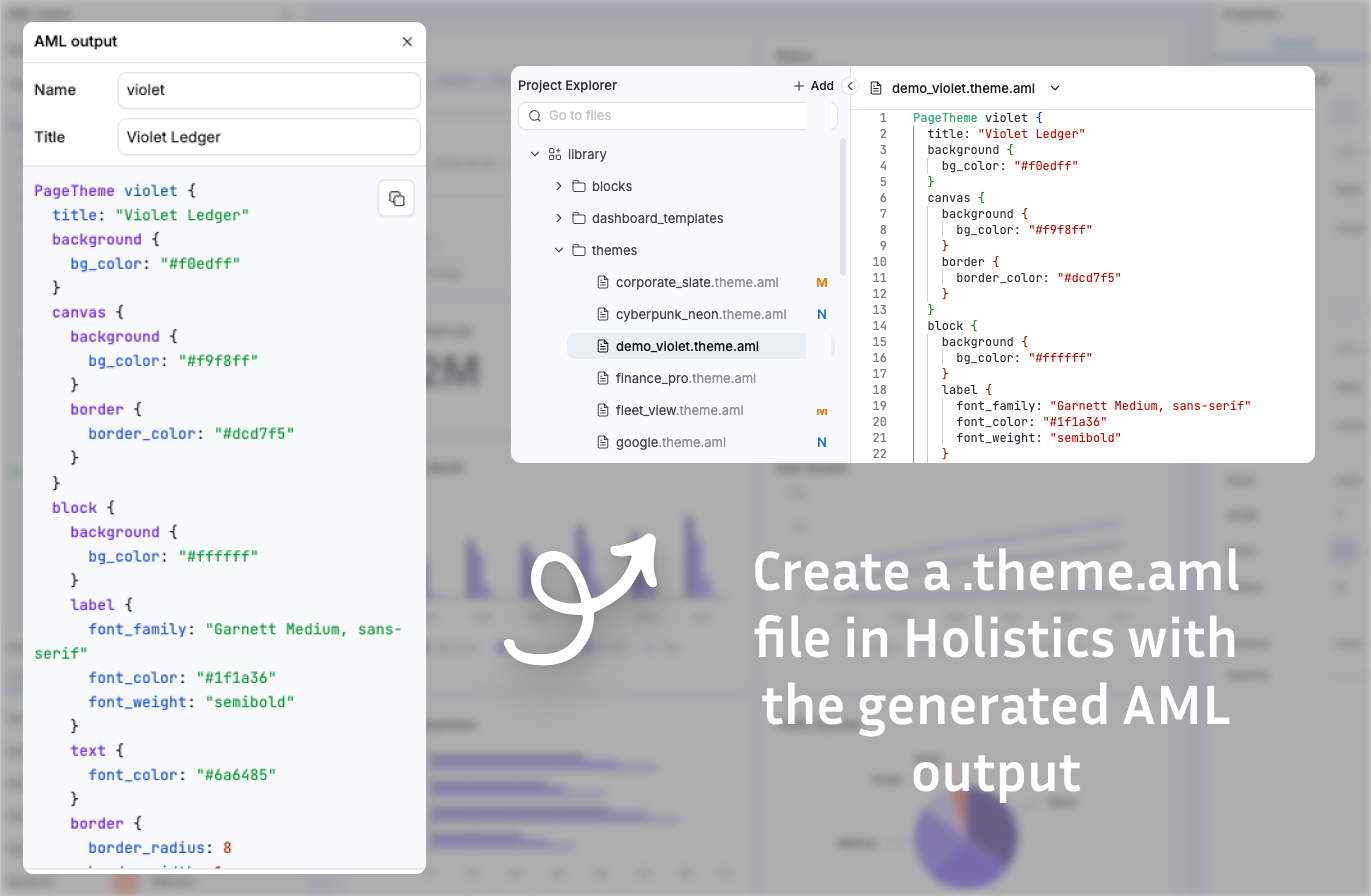
After saving, your theme appears in Theme settings → Custom themes for dashboards in Development. To use it in Reporting, commit and publish the theme file.
Option B: Apply as a local (dashboard-specific) theme
- Open the dashboard's code in Holistics.
- Set its
theme:property to an inlinePageThemeand paste generated AML. - Remove the generated theme
unameso it works as an inline local theme.
Dashboard ecommerce_dashboard {
  theme: PageTheme {
    background { bg_color: "#f5fdf7" }
    canvas {
      background { bg_color: "#ffffff" }
      border { border_radius: 12, border_color: "#ccefdc" }
      shadow: "sm"
    }
    block {
      background { bg_color: "#ffffff" }
      label { font_family: "Roboto Slab", font_color: "#0a2617" }
      border { border_radius: 12, border_color: "#ccefdc" }
      shadow: "sm"
    }
  }
}
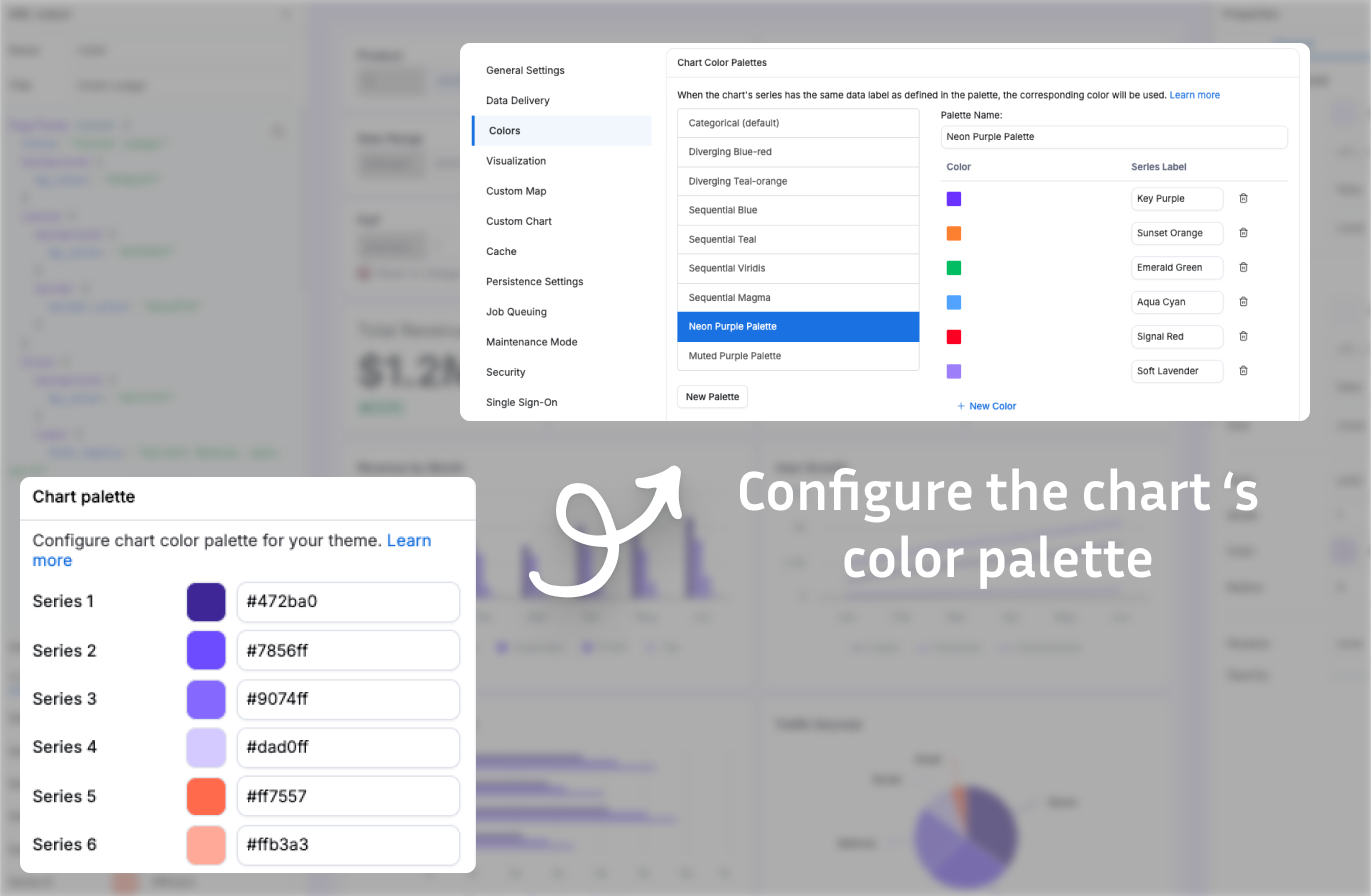
Step 4: Configure chart color palette separately
Theme settings currently control layout and styling (for example, typography, spacing, backgrounds, and borders), but not chart color palettes.
You still need to configure color palettes separately in two ways:
- Organization-wide (admin): set default palette in Color palettes settings.
- Per visualization: choose palette directly in each chart's settings.
We're integrating color palettes into themes in 2026Q2, so you'll be able to manage everything in one place.