Set a Default Map View
By default, maps auto-zoom to fit all available data. If you want your users to focus on a specific area, you can set a custom default view with a chosen zoom level and center point.
Set a custom default view
- In the Widget/Dashboard editor, pan and zoom to the view you want everyone to see first.
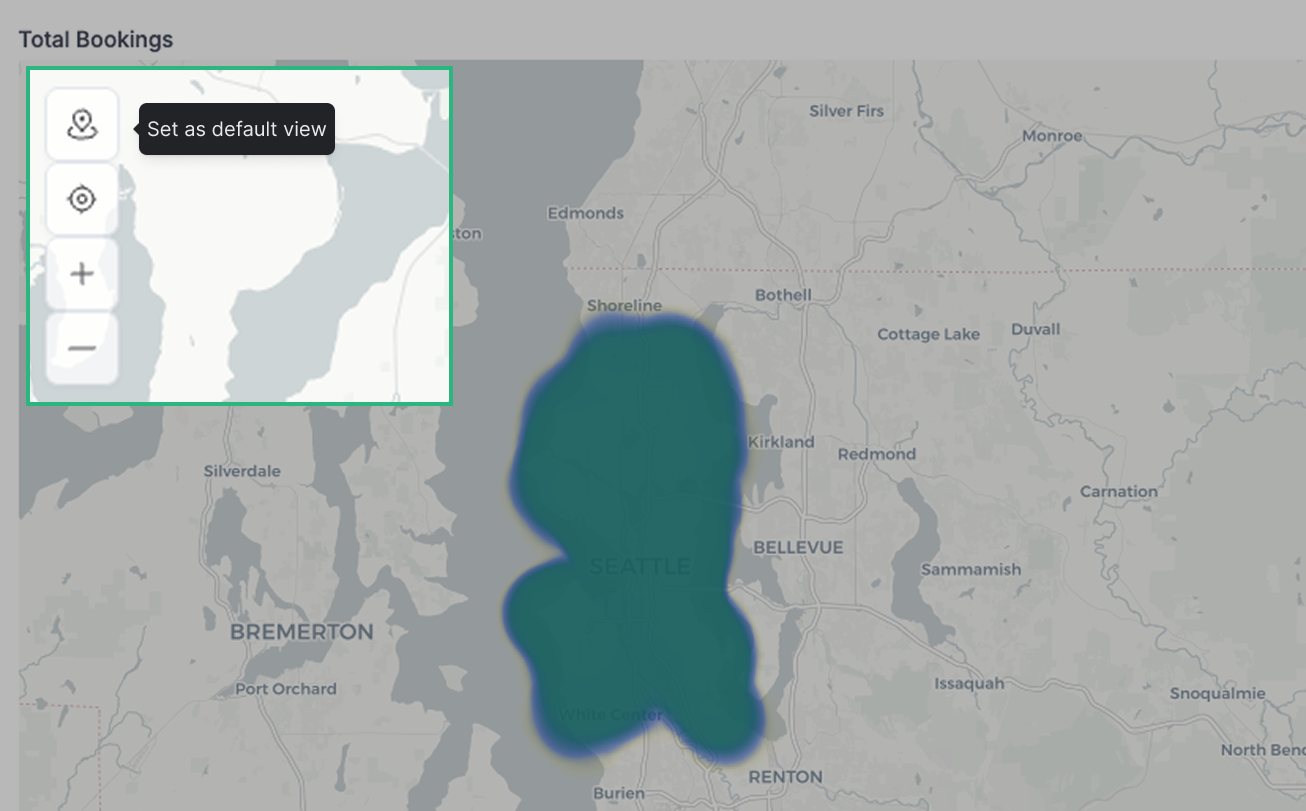
- Click the Pin button on the map to save that view.
- The map now opens at this view for all users.
Update the default view
- While editing, pan and zoom to the new view you want.
- Click the Pin button again to save the new view.
Remove the default view
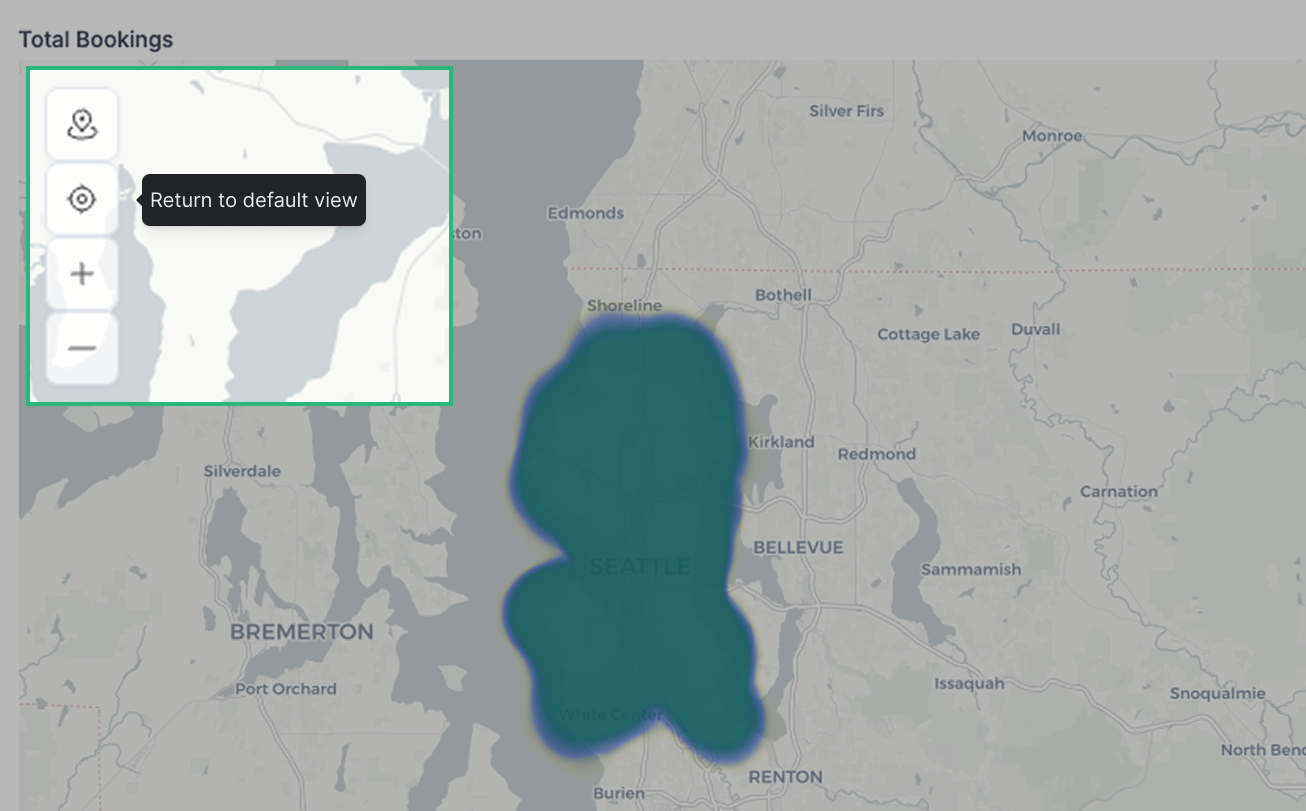
- Click Return to default view to jump back to the saved location.
- Click the dark Pin button to clear the saved view.
- The map returns to auto-zoom behavior, and the Pin button returns to its inactive state.