Automatic reverse SSH tunnel
Introduction
Use the automatic setup when your proxy or bastion server can run the Holistics-generated bash script. This is the recommended path for most teams because the script registers the SSH key, starts the tunnel, and creates a service to keep it running.
If you are still choosing an approach, start with the reverse SSH tunnel overview.
- The script fully supports Debian and RHEL based distros, and partially supports macOS. See Running the automated script on macOS for details.
- For other systems, use manual reverse SSH tunnel setup.
- The tunnel service runs as one user per machine. Within a single bastion server, use the same user to set up all Holistics tunnel connections.
Step-by-step
Before you start, make sure your proxy server can connect to your database host and port. The proxy server also needs outbound access to the Holistics tunnel server on port 50022.
- Enter the display name of the data source and choose your database type.
- Choose Use reverse tunnel.
- Fill in the
HostandPortwhere your database can be accessed from your proxy server. If your database is on an AWS machine, specifyinglocalhostmay not work, so use the machine's local IP instead, such as172.31.2.1.
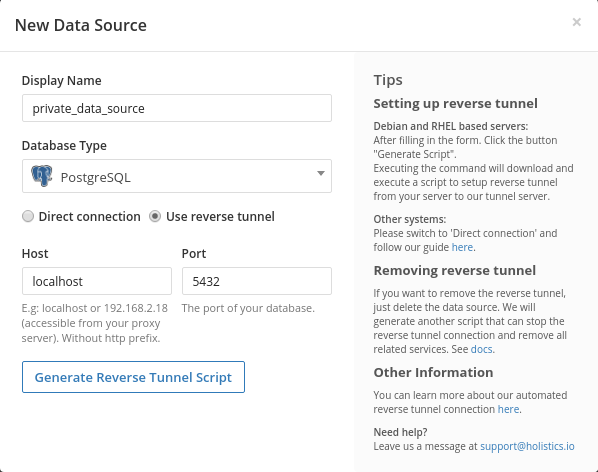
- Click
Generate Scriptand wait for the script to be generated.
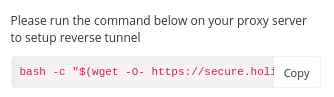
- Copy the command and execute it on your proxy or bastion server. Do not prepend the command with
sudo, because some packages are installed for the current user. The script will ask for superuser privileges later when it needs to install packages or set up system services. See How the automated script works for the actions the script carries out.

- Read the script introduction and follow the script execution.
- Return to your browser when this message appears:
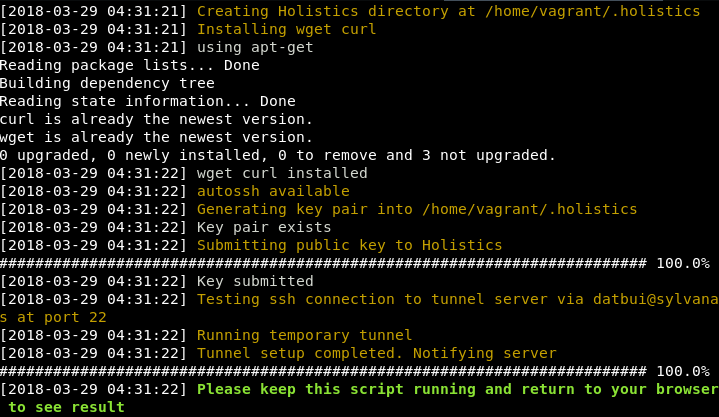
- The database configurations will now appear on your form. Fill in the remaining fields and click
Test Connection.
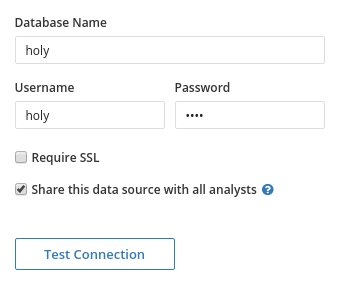
- If the test is successful, click
Save Data Source.

- After the data source is saved, the reverse tunnel will run in a system service called
h_autossh. The status display varies between systems.
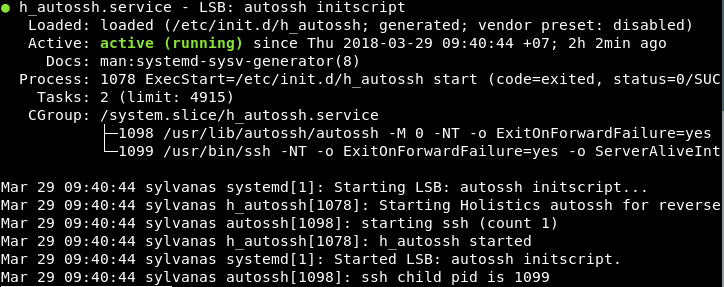
The h_autossh service
The reverse tunnel script creates a service to manage all tunnel connections from this server to Holistics. The service is also enabled to run on startup.
Use these commands on the proxy server:
- To start all Holistics tunnels, run
sudo service h_autossh start. - To stop all Holistics tunnels, run
sudo service h_autossh stop. - To restart all Holistics tunnels, run
sudo service h_autossh restart. - To see the service status, run
sudo service h_autossh status.
Removing a reverse tunnel
For data sources using reverse tunnel connection, when you click Delete, Holistics generates another script for you to execute on the proxy server.
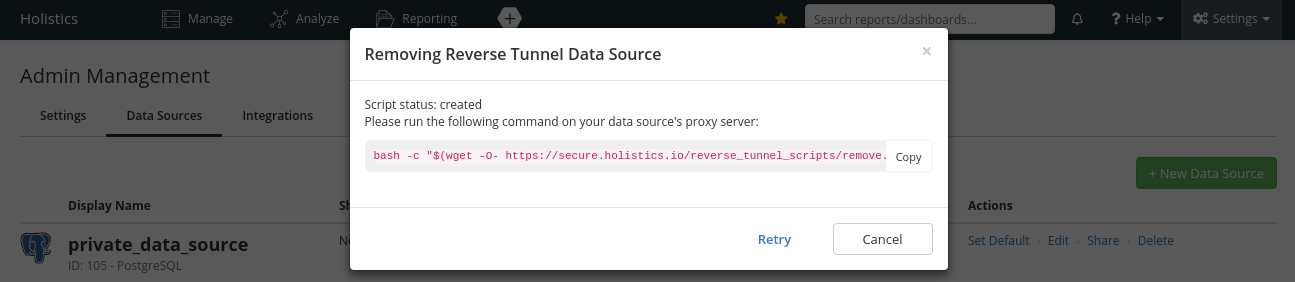
This script removes the reverse tunnel associated with the chosen data source from h_autossh and restarts the service.
If the reverse tunnel being removed is the last tunnel in h_autossh, the h_autossh service will also be removed. Finally, the data source will be deleted.
Updating the host or port of a reverse tunnel
Currently, you cannot directly update the host or port of a reverse tunnel data source.
Use this workaround:
- Create a new reverse tunnel data source with your updated configuration.
- Send an email to [email protected] to request swapping the two data sources.
In your email, include the name or ID of both the old data source and new data source. Send the request from a valid Holistics admin email in your workspace.
You can still update other configurations, such as database name, username, and password, from the Holistics UI.
Troubleshooting
These checks assume a Linux proxy server. If you are using a different operating system, use the equivalent commands for that system.
When there is an error with a data source connected using the automated script, perform these checks.
Check whether the proxy server can reach the Holistics tunnel server
On the proxy server, check whether it can connect to the Holistics tunnel server on port 50022:
- With netcat:
nc -w 10 tunnel.holistics.io 50022 && echo 'success' || echo 'fail' - With telnet:
telnet tunnel.holistics.io 50022
- Success
- Failure
With netcat, a successful response outputs success.

With telnet, a successful response looks like this:

With netcat, a failure response outputs failure.
With telnet, a failure response may contain one of these messages:
telnet: Unable to connect to remote host: Connection timed out
telnet: could not resolve tunnel.holistics.io: Name or service not known
telnet: Unable to connect to remote host: Connection refused
Check whether h_autossh is running
Run this command on the proxy server:
sudo service h_autossh status
- Success
- Failure
A successful response tells you that the h_autossh service is running.

A failure response tells you that the system cannot find the h_autossh service.

Check whether the tunnel process is running
Check if the tunnel process is actually running:
sudo ps aux | grep tunnel.holistics.io | grep -v grep
- Success
- Failure
A successful response lists the running tunnel processes.

A failure response returns no result.

Check whether the proxy server can reach the database
From the proxy server, test the database host and port with either telnet or a database CLI:
telnet <database_host_ip> <database_port>- For MySQL:
mysql -h <database_host_ip> -P <database_port> -u <db_username> -p
- Success
- Failure
If you are able to log in to the Postgres shell, the successful response looks like this:

With telnet, a successful response looks like this:

A failure response from psql looks like this:

A failure response from telnet looks like this:

Check whether autossh was installed from snap
Some Holistics users have experienced issues with snap-installed autossh, so we recommend against using it.
-
Check where
autosshis installed:which autosshIf the result is something like
/snap/bin/autossh, it was installed via snap. -
Uninstall the snap package:
sudo snap remove autossh -
Recreate the data source. The Holistics script will automatically reinstall the appropriate version of
autossh.
If all checks return successful results, send the command outputs to [email protected] and we will help with further troubleshooting.
How the automated script works
For your reference, the script takes these actions in order.
Details
1. Create Holistics directory
Creates a directory to store all files related to the process.
Full path: $HOME/.holistics
2. Install packages
The script will try to install two main packages:
- curl: Used to communicate with the Holistics web server.
nssis also updated if possible so thatcurlcan handle SSL connections properly. - autossh: Used to handle the tunnel connection and keep the connection persistent. For distros using the
yumpackage manager,autosshis not always available, such as in RHEL 6. In this case,gccandmakewill also be installed to compileautosshfrom its source. If you want to installautosshyourself, install it before executing the script and the script will not try to install it again.
3. Generate an RSA key pair and submit the public key to Holistics
A new key pair is generated in the Holistics directory using ssh-keygen. If the key pair already exists, for example when you have already set up another tunnel, the existing key pair is used. Then, the public key is submitted to the Holistics web server. Holistics adds your public key to the tunnel server so that the SSH connection can be established, and also assigns a specific port on the tunnel server for your new connection.
4. Start the reverse tunnel
The script creates a reverse tunnel SSH connection from your proxy server to the Holistics tunnel server. The remote port is the one assigned by Holistics, and the local port is the one you configured in the data source form. Afterward, the script notifies the Holistics web server about the running tunnel.
5. Create or update the h_autossh service
When the script tells you to return to the browser, it starts waiting for your data source result. If the data source is saved successfully, the script stops the temporary reverse tunnel. Then, it creates a new service called h_autossh, stored in /etc/init.d/, which contains the command to run the reverse tunnel. If the service exists, the script updates it to include the new tunnel configuration. The service is also enabled to run on startup.
Running the automated script on macOS
The script should work until the final step that sets up the h_autossh service, because macOS services are not supported by the script.
If you use macOS, after your data source has been created successfully in Holistics and the script has finished, you will need to run and manage the tunnel manually.
Steps
-
In the terminal output of the automated script, find the SSH command shown after
Running temporary tunnel. It should look similar to this:sudo su <user> -c 'ssh -f -M -S <socket_path> -NT -o ExitOnForwardFailure=yes -o ServerAliveInterval=60 -o ServerAliveCountMax=3 -p 50022 -i /home/<user>/.holistics/id_rsa -R <remote_port>:<client_host>:<client_port> [email protected]' -
Optional: remove
-ffrom the command to run it in the foreground, so you can useCtrl-Cto stop the tunnel. -
Run the modified command. For example:
sudo su <user> -c 'ssh -M -NT -o ExitOnForwardFailure=yes -o ServerAliveInterval=60 -o ServerAliveCountMax=3 -p 50022 -i /home/<user>/.holistics/id_rsa -R <remote_port>:<client_host>:<client_port> [email protected]' -
Refresh the Holistics page to see if the connection is working.
-
Keep the command in step 3 running to keep the tunnel connection alive. You will need to manage and maintain the process manually, including running it again after restarting your machine.