Connect to Microsoft Fabric
Microsoft Fabric is a data platform from Microsoft. It includes SQL database and Data Warehouse.
This page describes how to connect your Fabric SQL database or Data Warehouse to Holistics as a data source. Fabric uses the SQL Server protocol, so you will select Microsoft SQL Server as the database type in Holistics.
Fabric does not support username and password login. Holistics connects to Fabric with a Microsoft Entra service principal (a client ID and a client secret).
High-level overview
There are 3 main steps to get started using Fabric with Holistics:
- Create a service principal in Microsoft Entra.
- Grant the service principal access to your Fabric workspace.
- Connect Fabric to Holistics as a data source.
Step-by-step instructions
Follow these steps to configure Microsoft Entra, set up permissions in Fabric, and establish the connection in Holistics.
Step 1: Create a service principal
A service principal acts as a secure identity for Holistics to authenticate with Microsoft Fabric. You will create this app registration in Microsoft Entra to obtain a Client ID and Client Secret.
- Go to the Microsoft Entra admin center.
- Select App registrations, then click New registration.
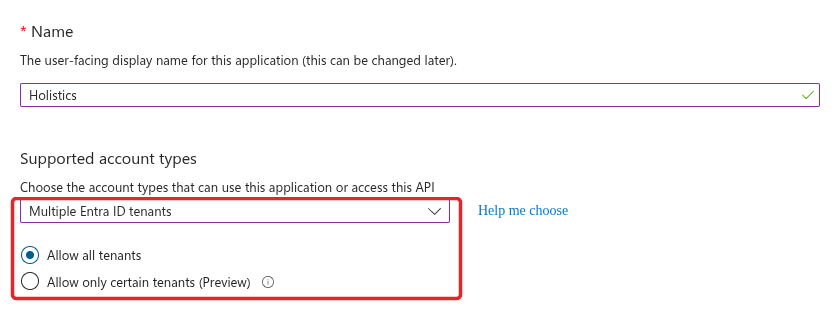
- Enter a name (for example, "Holistics") and click Register. For Supported account types, you can keep the default (single tenant) or choose multiple tenants. Both work with Holistics.
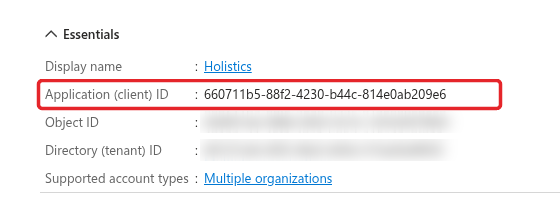
- On the Overview page, copy the Application (client) ID.
- Select Certificates & secrets, then click New client secret.
- Copy the secret Value (not the Secret ID next to it). You can only see it once.
Client secrets expire. When your secret expires, create a new one and update the data source in Holistics.

Step 2: Grant access in Fabric
After creating the service principal, you must authorize it to access your Fabric workspace. This allows Holistics to read and query your databases.
- Open your workspace in Microsoft Fabric.
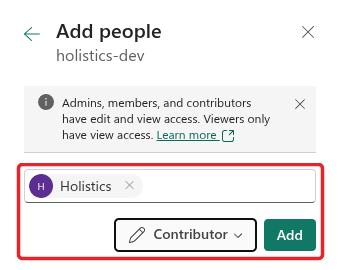
- Click Manage access, then Add people or groups.
- Search for the app you created in Step 1 and add it with the Contributor role.
If you only want to give access to one database, share the SQL database with the app and select Read permission instead.
Step 3: Connect Fabric to Holistics
Finally, enter the credentials and connection details in Holistics to complete the setup.
- From Holistics app's header bar, open Organization Settings menu -> Data Sources.
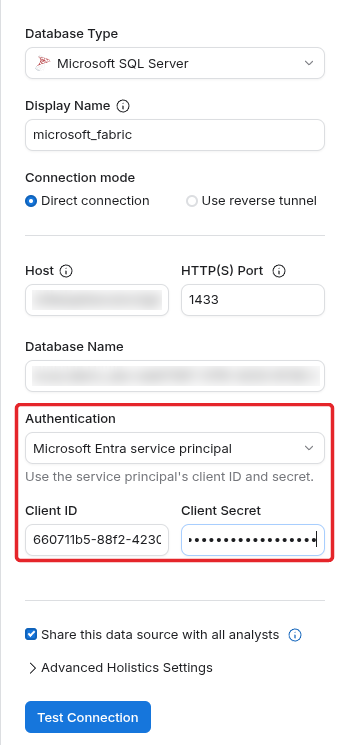
- Click New Data Source button, and select Microsoft SQL Server as the database type. Then fill in the form:
- Display Name: Give the connection a name.
- Host: The server name in your Fabric connection string. For example:
abc123.database.fabric.microsoft.com - Port: The default port number is 1433.
- Database Name: The database name in your Fabric connection string.
- For SQL database, include the ID at the end. For example:
Sales-1a2b3c4d-0000-1111-2222-333344445555 - For Data Warehouse, use the warehouse name. For example:
sales_warehouse
- For SQL database, include the ID at the end. For example:
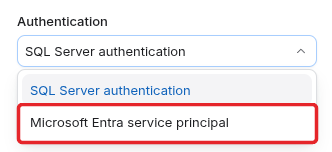
- Authentication: Select Microsoft Entra service principal.
- Client ID: The Application (client) ID from Step 1. You don't need to enter the Tenant ID.
- Client Secret: The secret value from Step 1.
- Click Test connection, then save the data source.
Fabric data sources always use the Canal engine. Canal is enabled automatically and cannot be turned off.
FAQs
How do I create a schema for CSV uploads?
Holistics does not create schemas in Fabric. Create the schema in the Fabric query editor before you upload a CSV file:
CREATE SCHEMA <schema_name> AUTHORIZATION dbo;
You need AUTHORIZATION dbo because the service principal cannot own a schema.
Known limitations
On Fabric Data Warehouse, a persistent query model fails when the model has nvarchar, datetimeoffset, or datetime2 columns.