Connect to Oracle Database
Introduction
This documentation walks you through connecting an Oracle Database to Holistics as a data source.
Before you start, make sure you have:
- The host (or public IP) and port of your Oracle Database (default port is
1521). - The Service Name or SID of the Oracle instance you want to connect to.
- A dedicated database user with Read or Read & Write permission on the schemas you want to expose to Holistics.
- The Holistics IP address whitelisted on your Oracle server (if the server sits behind a firewall).
Connect Oracle to Holistics as a data source
From the Holistics app's header bar, open Organization Settings -> Data Sources -> New Data Source.
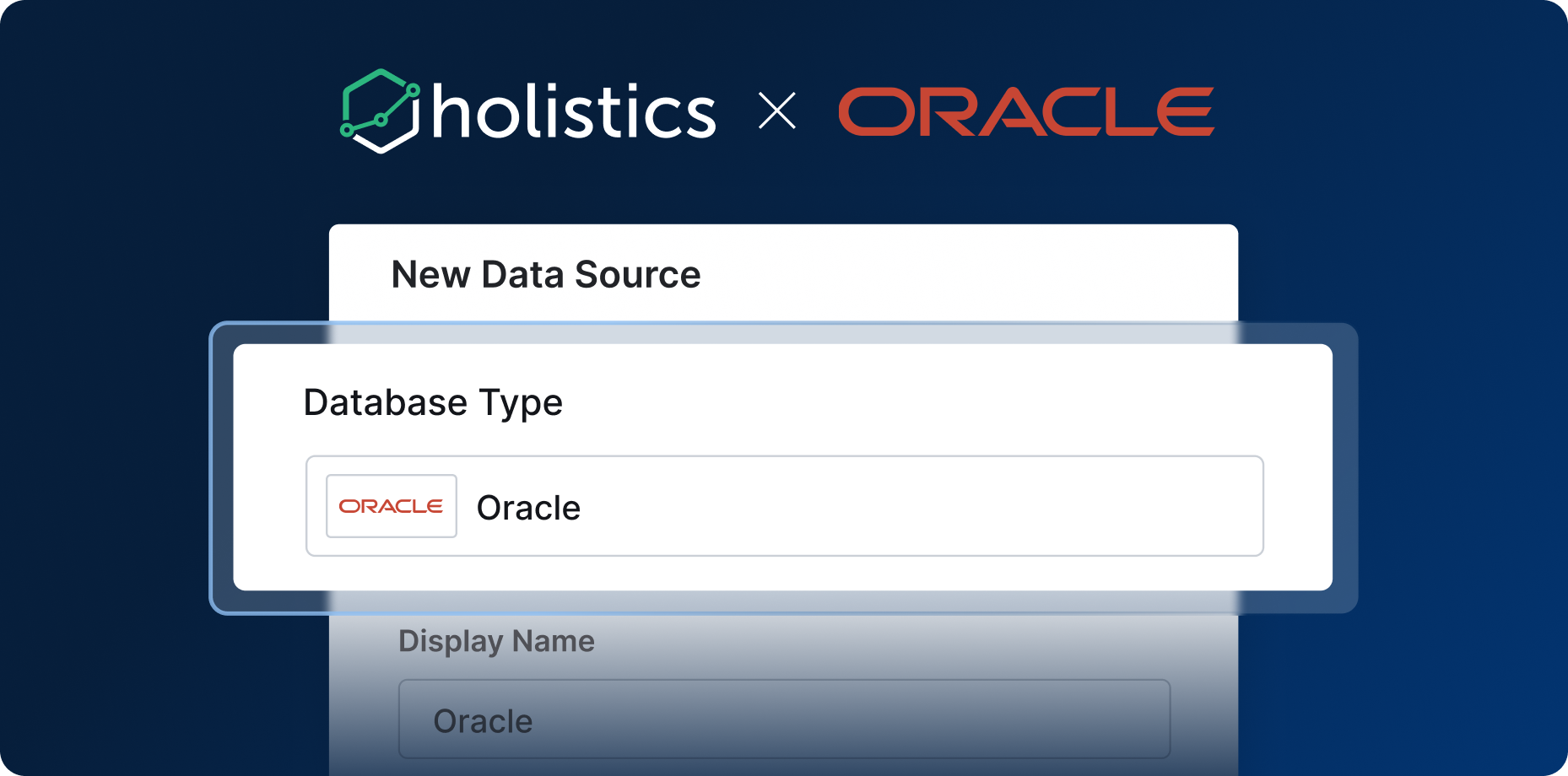
Select Oracle as the database type and fill in the form:
- Database Type: Select Oracle.
- Display Name: A name for the connection (this appears in the data source picker).
- Connection Mode: Direct connection. Use Connection via Reverse Tunnel if you can't whitelist the Holistics IP.
- Host: The Oracle server's local or public hostname/IP.
- Port: The Oracle listener port, default
1521. - Service Name / SID: The Service Name or SID of the Oracle instance you want to connect to.
- Username and Password: Credentials for the dedicated Holistics user you created.
Click Test Connect to verify the connection. If the test succeeds, click Save.
Next steps
- Build your first dataset
- Create a dedicated database user
- Connect via Reverse Tunnel if direct connection isn't an option