# Version Control with Git
> Empower your Holistics codebase with Git. Perform code branching and conduct change reviews for a more effective analytics development workflow.
:::tip Familiarity with Git
This section assumes that you are familiar with Git and Version Control concepts. In case you need a refresher, here are some excellent materials: [Git's official docs](https://git-scm.com/book/en/v2/Getting-Started-About-Version-Control), [GitHub - About Git](https://docs.github.com/en/get-started/using-git/about-git).
:::
## Introduction
In Holistics, all of your analytics code is **version-controlled with Git**. This means you can enjoy the benefits of Git within the Holistics development environment, such as:
- **Isolated environment:** Multiple data builders can work on different code branches without blocking each other
- **Audit logging:** Keeping track of the changes made to your analytics code base, knowing who modified what
- **Applying code review procedure** to double-check, approve, and disapprove changes. Deploy only when you are confident with your changes
- **"Time-traveling":** Reverting to a previous version in case something bad happens
The basic features of Git are made accessible via the friendly graphical interface of **Development workspace**. On the other hand, advanced users still have access to all underlying Git features by using the command line.
## Enable Git workflow
:::info Note
By default, Holistics will use the **Holistics Repository** to keep track of code changes.
In Standard Plan and above, you can also [connect to an **external repository**](/docs/git-version-control/external-git) that you manage yourself.
:::
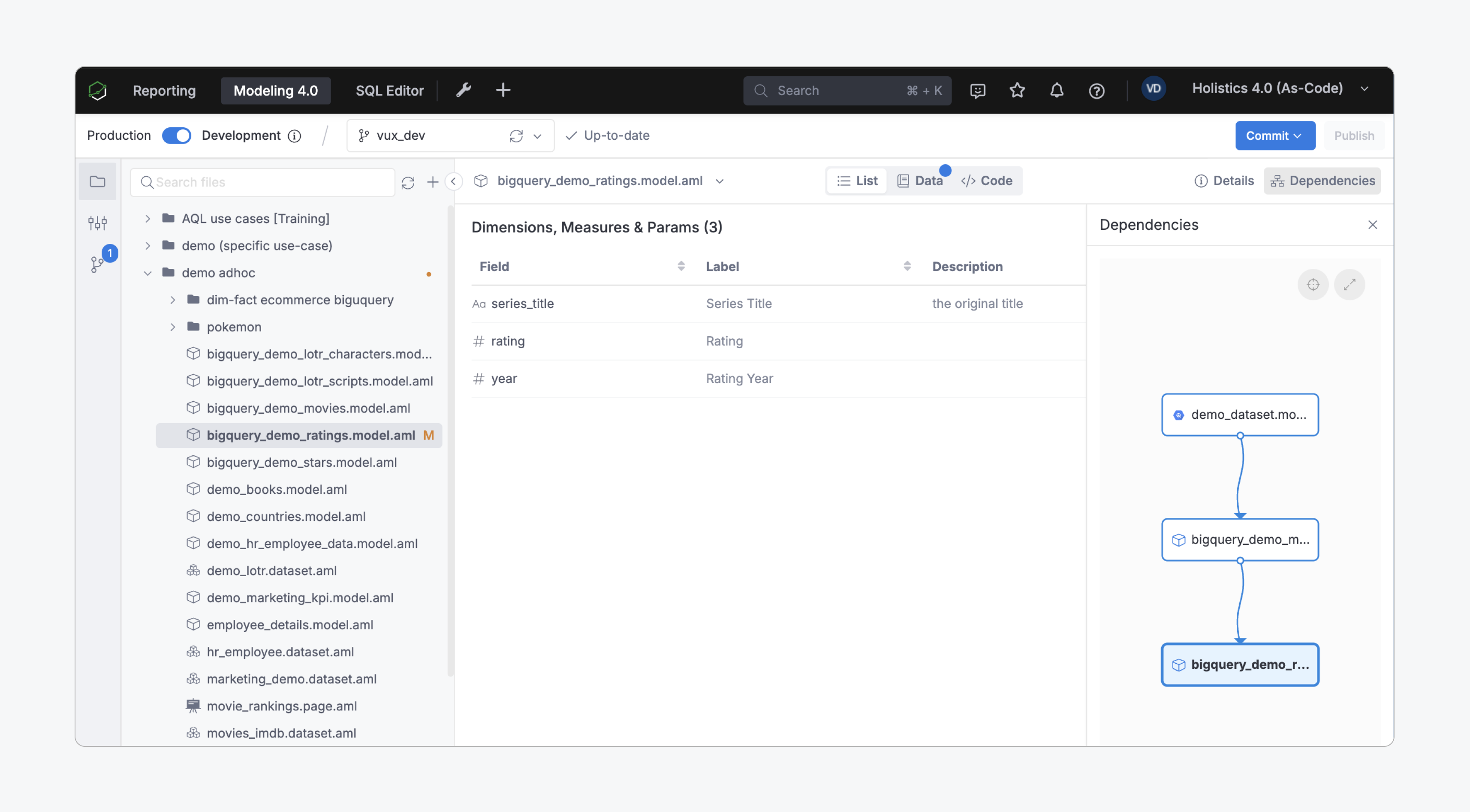
Simply go to **Development** workspace > **Settings** tab > click "**Enable Git Workflow**".
## High-level workflow
A typical workflow in Development workspace involves the following operations:
1. **Enable Development Mode:** In **Development workspace** page, the **Production** mode is a "read-only" mode where you will see codes in the `master` branch which was already deployed to production. To start making changes, simply toggle to **Development mode**.
2. [**Prepare your branch**](/docs/git-version-control/branch-management):
- **Work on an existing branch:** In case you return to work on an existing branch, and the branch's code is already out-dated compared to production, you will need to click **Pull from production** to update your branch.
- **Create a new branch:** You can also create a new branch out of the `master` branch to have access to the most up-to-date code, or create a new branch out of a development branch to further test your ideas.
3. **Make changes & record changes**: After making changes in your code base, you need to **Commit and Push** to record the changes to your code base. You can easily **abort the changes** that you have not committed, or even [**restore**](/docs/git-version-control/version-restore) to a previously committed version.
4. [**Validate Reports**](/docs/development/reporting-validation): Before publishing your new changes to Production, it is advisable to use the **Report Validation** feature to check if the changes have broken any downstream reports.
5. [**Publish**](/docs/development/dev-prod-mode): After you have [**validated**](/docs/development/reporting-validation) your code and committed all changes, click **Publish** to deploy your changes to Production, and so available to end-users.
In reality, the development workflow may not be so straightforward. Here are some other operations that you may need to know about:
- [**Restore a version**](/docs/git-version-control/version-restore)
- [**Resolve merge conflicts**](/docs/git-version-control/resolve-merge-conflicts)
## Mechanism
The version control feature of Holistics is powered by **Git**. Behind the scenes, Holistics tracks analytics code changes with one of the following:
- **Holistics (System) Repository**: A Git repository that Holistics hosts and maintains internally on the server.
- **External Repository**: Repository that sits on customers’ servers or Git providers (like GitHub, GitLab, or Bitbucket)
The Holistics Repository is in use by default. However, once you have [connected to your own external Git repository](/docs/git-version-control/external-git), Holistics will only use the external one.
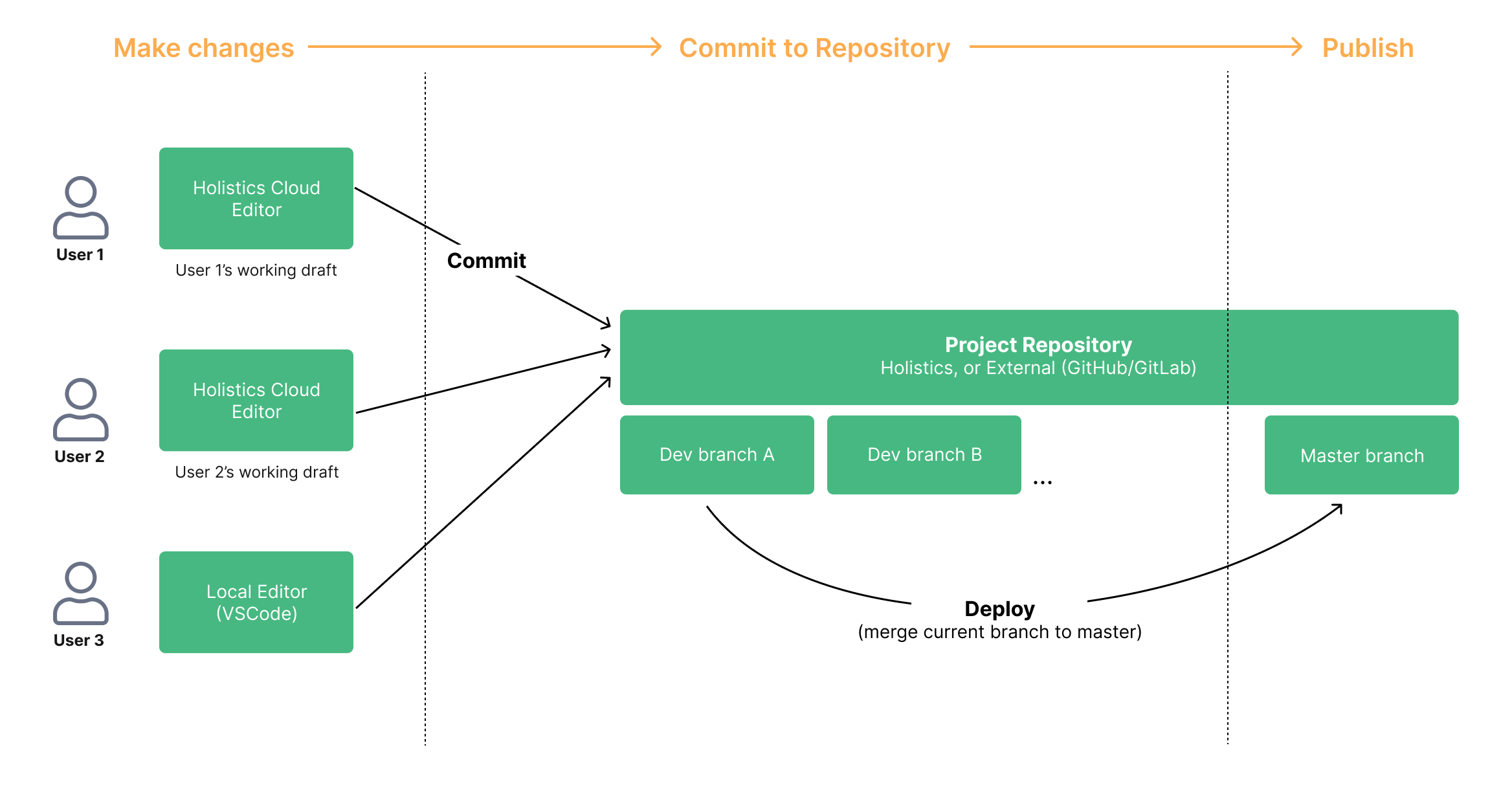
Without External Git repository
With External Git repository