Calculation builder handbook

Create reusable metrics with a point-and-click builder, then refine them with filters, grouping, formatting, AI, or AQL when the logic needs more control.

Calculation Builder helps you turn dimensions and existing metrics into new fields without writing formulas. It is useful when you need a quick count, a filtered metric, a percent of total, a period comparison, a moving average, or a small text or arithmetic transformation.

Each field can be edited in GUI mode with Calculation Builder or Formula mode with AQL. Start with the builder when the calculation matches a common pattern, then switch to Formula mode when you need custom logic.

Start building metrics

You can open Calculation Builder from the dataset panel, visualization settings, or the result table. Pick the entry point that matches the field you already have in front of you.

View quick start
  1. Open the dataset panel, viz settings, or result table.
  2. Create a new metric.
  3. Choose a calculation type.
  4. Fill in the inputs, then save the metric.
View quick start
  1. Find the metric you want to reuse.
  2. Create a new metric from it.
  3. Choose the next calculation.
  4. Save the result with a clear label.
View quick start
  1. Select a dimension.
  2. Choose an aggregation such as count, sum, average, min, or max.
  3. Review the generated metric name.
  4. Save or adjust the configuration.
View quick start
  1. Duplicate an existing metric.
  2. Change the filter, grouping, format, or input.
  3. Rename it so the difference is obvious.
  4. Save the new metric.
View quick start
  1. Describe the metric you want.
  2. Review how AI builds the calculation.
  3. Open it in Calculation Builder if you want to adjust it.
  4. Save when the logic is correct.

Configure the field

After choosing a calculation, review the field settings before saving. These settings control what the field computes, how it appears to other users, and how it behaves inside a report.
Choose the Calculation Inputs preview

Choose the Calculation Inputs

Required2 min

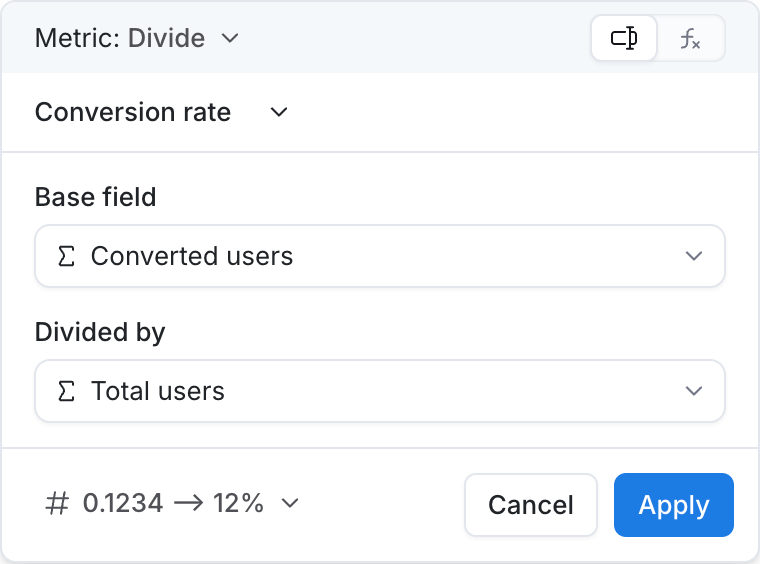
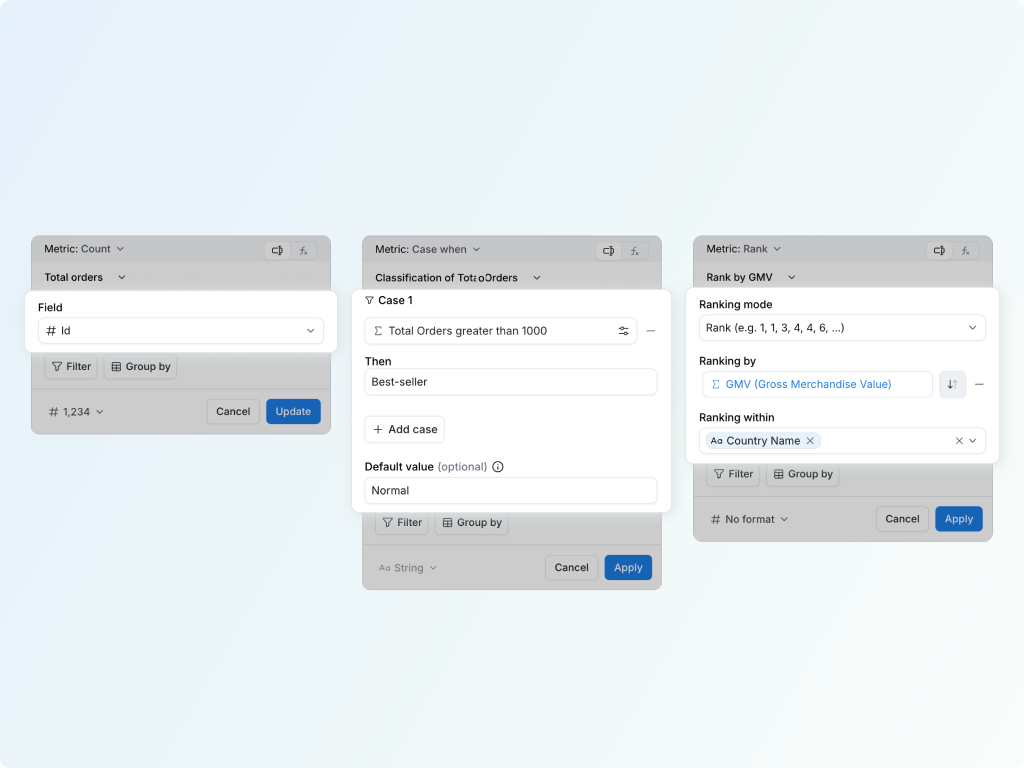
Inputs define the calculation logic. For example, a divide calculation needs a numerator field and a denominator field.

View details
  1. Pick a calculation type.
  2. Fill in the required inputs.
  3. Use fields, text, numbers, or options depending on the calculation.
  4. Check the preview before saving.
Set Field Metadata preview

Set Field Metadata

Good hygiene2 min

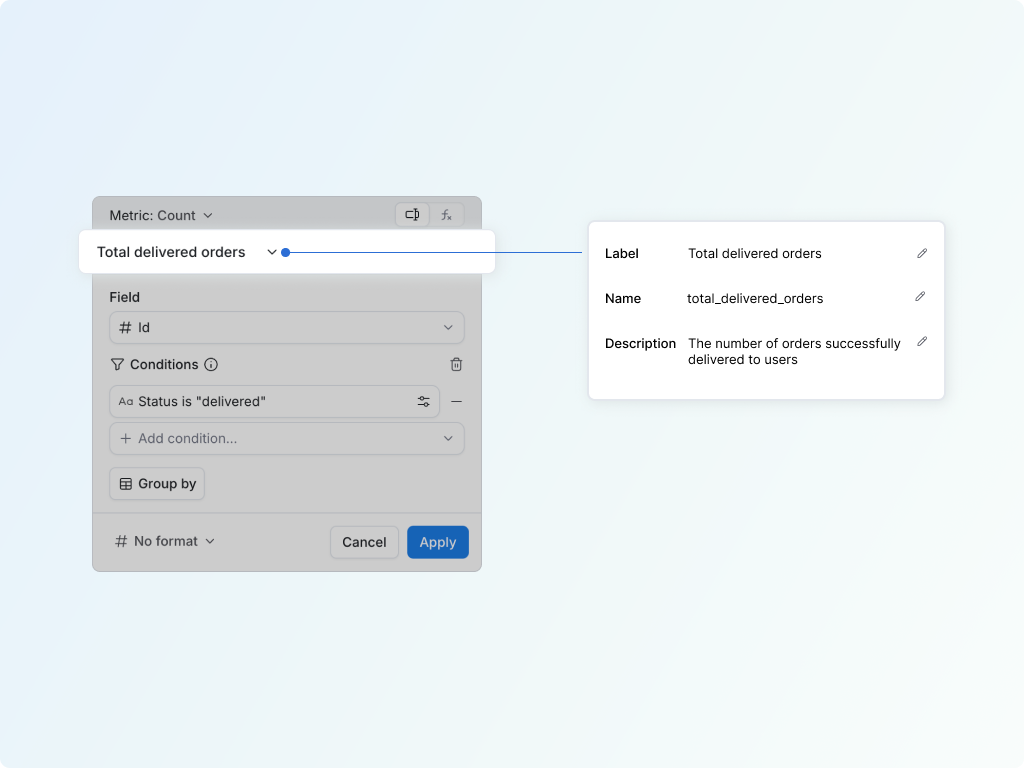
Make the metric understandable in reports and easy to reference in formulas later.

View details
  1. Give the field a readable label.
  2. Use a clear name for formula references.
  3. Add a short description.
  4. Save the metadata with the field.
Apply a Field-Level Filter preview

Apply a Field-Level Filter

Focused logic2 min

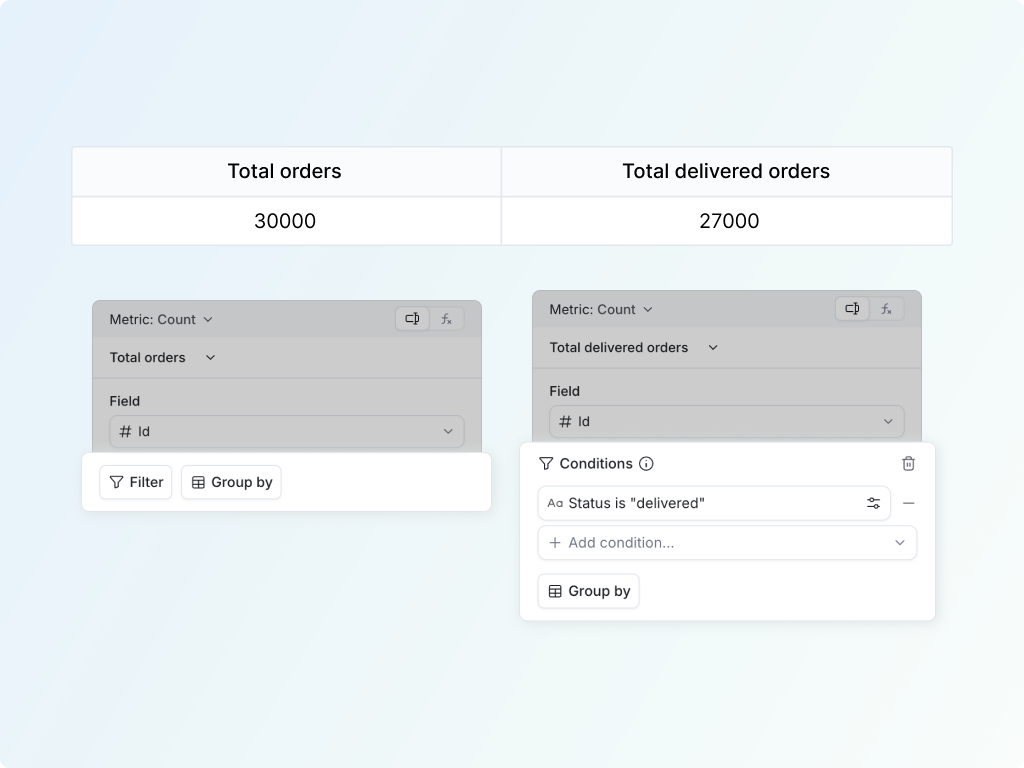
Build metrics like Delivered orders without changing the other fields on the same visualization.

View details
  1. Open the field filter settings.
  2. Add the condition that should apply only to this field.
  3. Review the filtered result.
  4. Save the field.
Control the Grouping preview

Control the Grouping

Advanced3 min

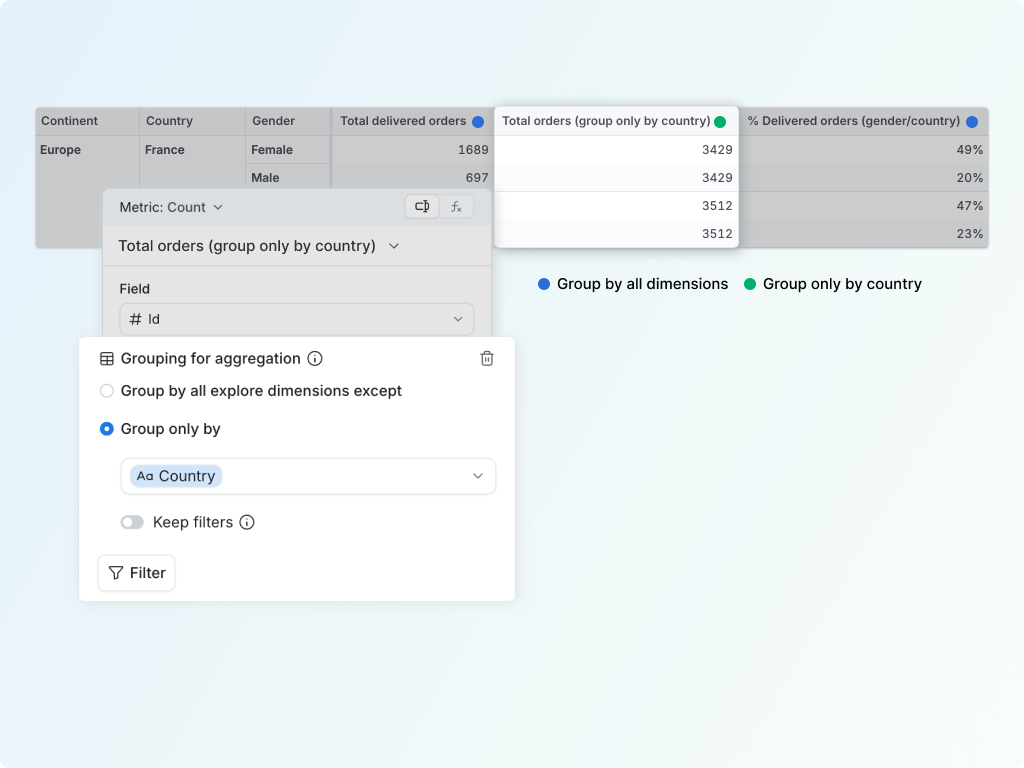
Set the level of detail for a metric, such as grouping only by country even when the report has more dimensions.

View details
  1. Open the group-by settings.
  2. Choose whether to exclude dimensions or group only by selected dimensions.
  3. Check whether the metric should follow the report context.
  4. Save after the level of detail looks right.
Format the Result preview

Format the Result

Presentation1 min

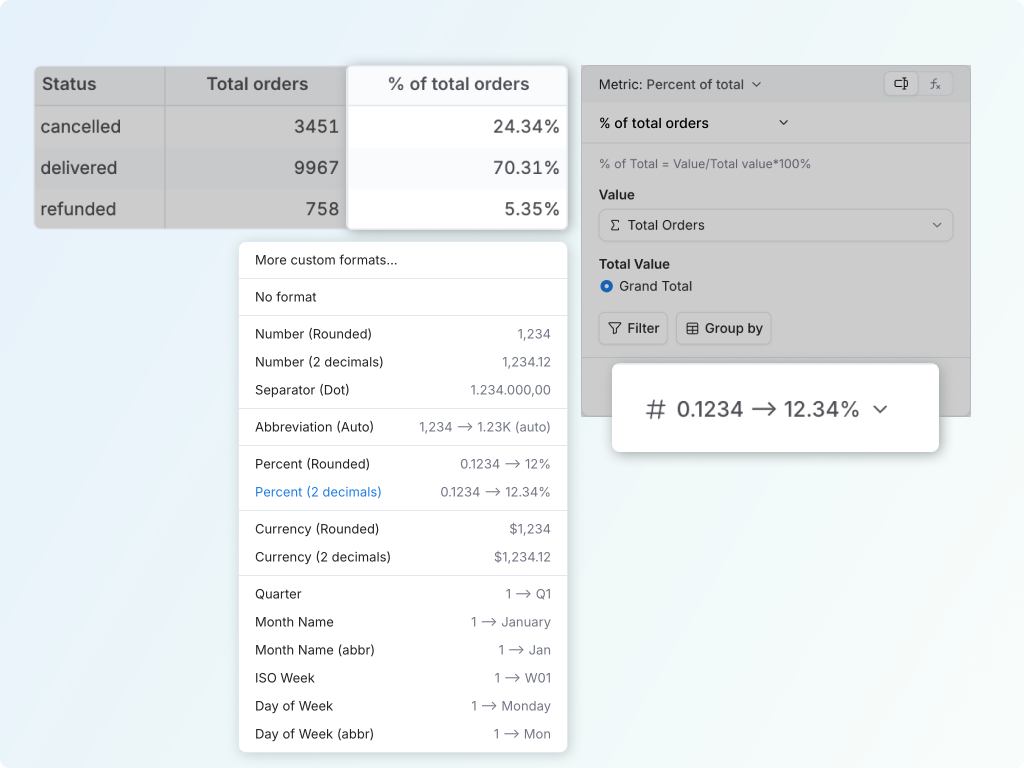
Turn raw values into readable outputs, such as showing 0.2434 as 24.34%.

View details
  1. Open the format settings.
  2. Choose a number, currency, percent, or other display format.
  3. Set decimals where needed.
  4. Save the field.

Choose the right calculation

Calculation Builder groups common metric patterns into categories. Start with the category that matches the business question, then choose the exact calculation inside it.
Basic Aggregations preview

Basic Aggregations

Counts and totals3 min

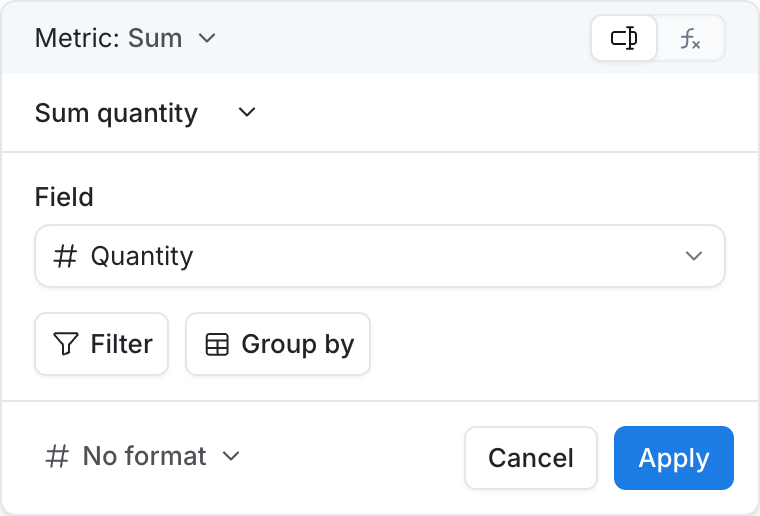
Summarize rows into metrics like total revenue, unique customers, median order value, or P95 response time.

  1. Choose a dimension or table.
  2. Pick count, count distinct, sum, average, min, max, median, percentile, variance, or standard deviation.
  3. Set any required percentile or aggregation options.
  4. Save the metric.
Listing preview

Listing

Related values2 min

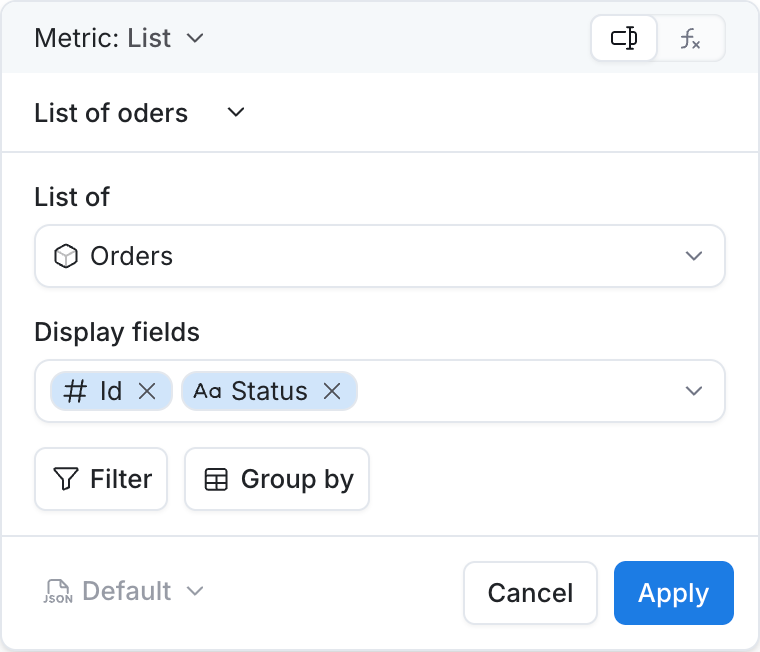
Show related values next to an aggregation, such as products on each order or tags on a support ticket.

View calculation
  1. Choose List.
  2. Pick the table to list from.
  3. Choose display fields.
  4. Use the result beside an aggregation.
Arithmetic preview

Arithmetic

Field math2 min

Combine fields into calculations like profit, conversion rate, tax amount, or line total.

  1. Choose Add, Subtract, Multiply, or Divide.
  2. Select the two input fields.
  3. Name the result.
  4. Format the output if needed.
Window Calculations preview

Window Calculations

Across rows4 min

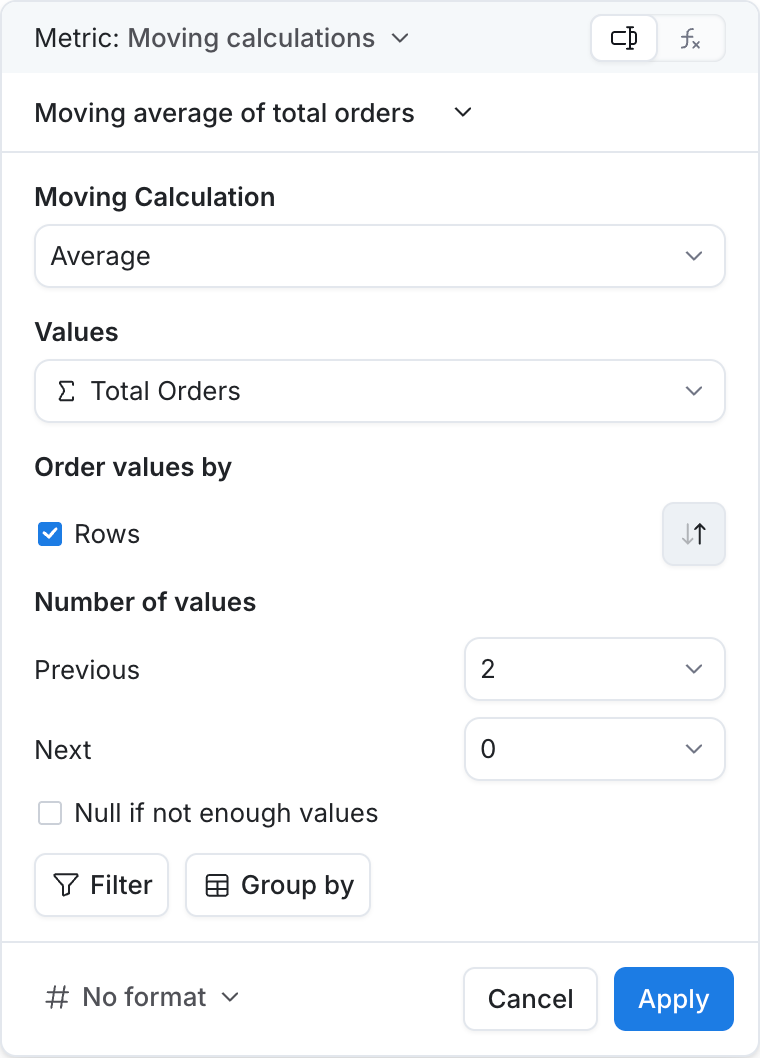
Rank items, accumulate a running total, or smooth a trend with moving averages and rolling sums.

  1. Choose rank, running total, or moving calculation.
  2. Select the metric or dimension to calculate over.
  3. Choose the ordering or window settings.
  4. Review the result in the visualization.
Logical Calculations preview

Logical Calculations

Conditions3 min

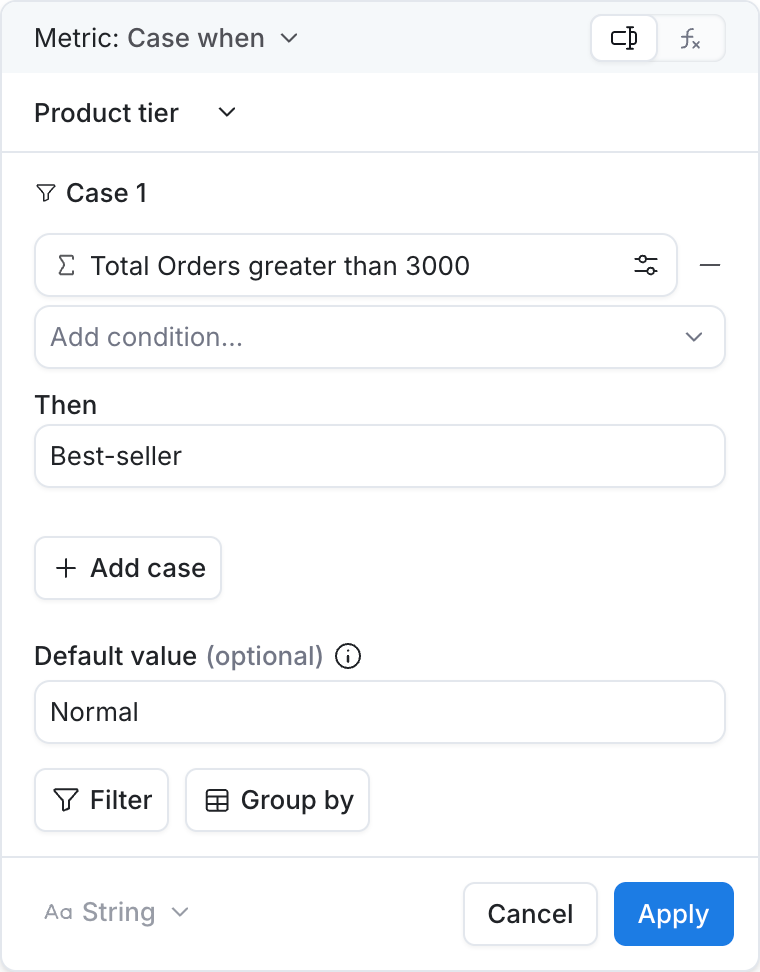
Count, sum, average, min, or max only matching records, or use Case when to bucket values into labels.

  1. Choose a conditional aggregation or Case when.
  2. Set the base field or cases.
  3. Add the condition logic.
  4. Save with a descriptive label.
Comparative Calculations preview

Comparative Calculations

Context4 min

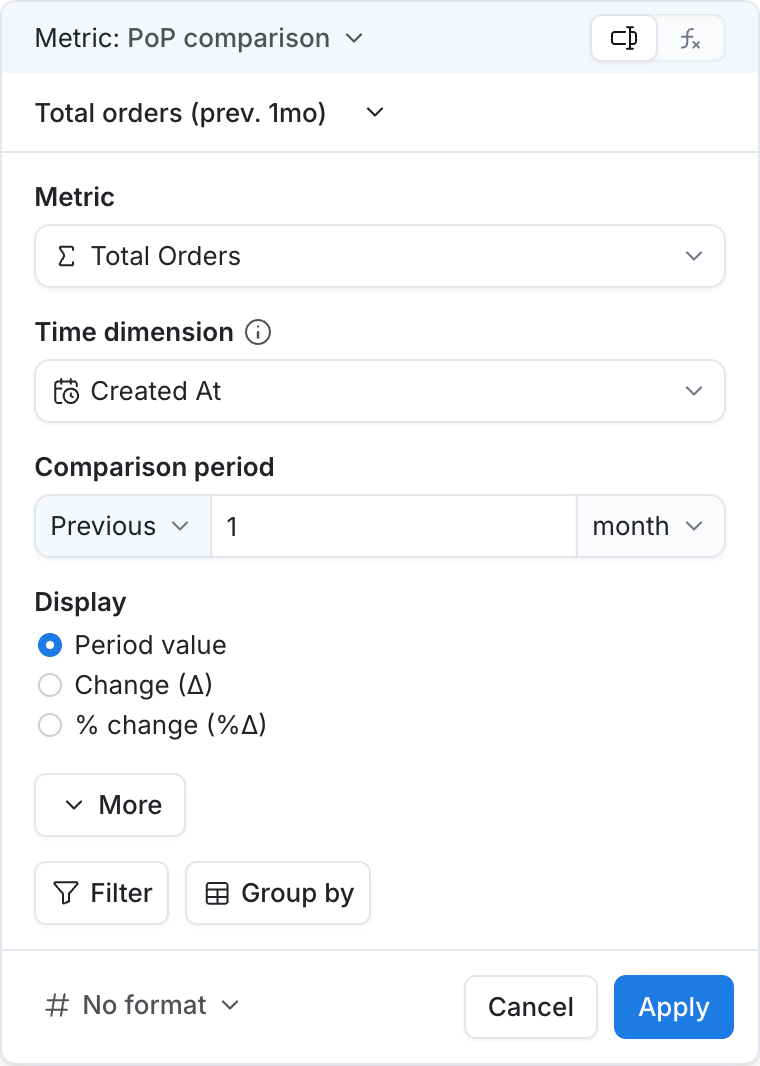
Show share of a total or compare a metric against a previous period, such as this month vs last month.

  1. Choose percent of total or period over period.
  2. Select the metric to compare.
  3. Choose the total scope or comparison period.
  4. Pick the display option and save.
Text preview

Text

Labels2 min

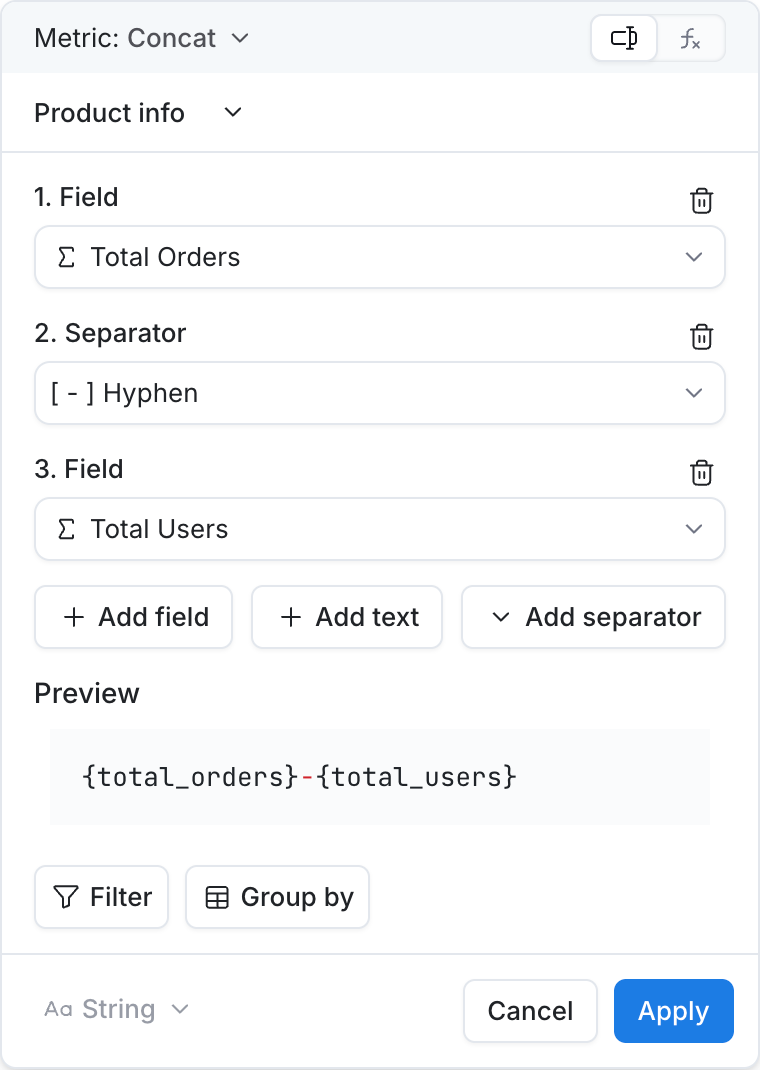
Combine text fields and fixed strings, such as full name or a city-and-country label.

View calculation
  1. Choose Concat.
  2. Add field values, plain text, or separators.
  3. Preview the combined text.
  4. Save the result.

Go beyond the builder

Calculation Builder covers common metric patterns. When you need logic that does not fit the menu, use Formula mode and write the field directly in AQL.

Switch to Formula Mode

Custom logic4 min

Use the AQL editor when the calculation needs custom logic beyond the visual builder.

Learn AQL
  1. Open the field.
  2. Switch from GUI mode to Formula mode.
  3. Write or edit the AQL expression.
  4. Run the report and check the result.

Browse the Full Calculation List

Reference2 min

Search the full Calculation Builder catalog, including inputs, examples, preview images, and category links.

Open reference
  1. Open the available calculations page.
  2. Search or filter the calculation table.
  3. Open the calculation category.
  4. Review inputs and examples.

Learn AQL

Power users30 min

Learn the language that powers Calculation Builder when you want more control over metric logic.

Start learning
  1. Read the 30-minute AQL guide.
  2. Use the function cheatsheet for syntax.
  3. Borrow examples from the cookbook.
  4. Return to Formula mode to apply the pattern.

Open Markdown
Let us know what you think about this document :)