
End Users Handbook

Everything a business user can do in one place. See what each capability is for and how it works, so new users get the full picture and seasoned users find what they've missed.

Getting Answers Quickly

Instead of hunting through dashboards, ask a question in plain language. Holistics surfaces trusted dashboards, charts, and answers, and can explain how to use the platform as you go.

Start with Ask AI

Ask a business question and get a trusted chart or dashboard back.

2 minFirst-time users
Show the steps
  1. Open Ask AI.
  2. Type your question in plain language.
  3. Review the suggested chart or dashboard.
  4. Open the related report to explore further.
Full guide

Share an Ask AI Conversation

Send an AI-assisted analysis to a colleague with a link.

2 minCollaborators
Show the steps
  1. Open the conversation.
  2. Copy the share link.
  3. Send it to teammates inside your company.

Conversations are retained for a limited time, so save important charts to a dashboard.

Full guide

Ask Follow-Up Questions

Clarify a metric, trend, or spike from the chart itself.

2 minAll users
Show the steps
  1. Open the chart or AI result.
  2. Open the AI side panel.
  3. Ask your follow-up question.
  4. Read the explanation.
Full guide

Summarize a Dashboard with AI

Get a plain-language summary of what a dashboard is showing.

3 minAll users
Show the steps
  1. Open a dashboard.
  2. Select the widgets you care about.
  3. Ask AI to summarize them.
  4. Review the summary.
Full guide

Ask AI Across Widgets with Your Org's Context

Select several widgets, ask one question across them, and get an answer shaped by your organization's own context and preferences, not generic guesses.

3 minAll users
Show the steps
  1. Open a dashboard and select the widgets you want to analyze together.
  2. Ask AI a question that spans those widgets.
  3. AI answers using your organization's custom context, terminology, and response preferences.
  4. Review the insight and ask follow-ups to go deeper.

Your data team curates the organization context — business background, terminology, and how answers should be phrased — so AI responds in your company's language and conventions. Enriching this context is the most effective way to get more accurate answers.

Full guide

Interact with AI-Generated Charts

Hover, filter, and drill into an AI result instead of reading a static chart.

3 minAll users
Show the steps
  1. Review the AI-generated chart.
  2. Hover or click to inspect values.
  3. Open the report.
  4. Filter or drill into the data.
Full guide

Use Holistics from Your Own AI Interface

Connect Holistics to your chat or command-line tools via MCP.

4 minTeams with IT support
Show the steps
  1. Identify the internal AI interface you want answers in.
  2. Ask your data or IT team whether Holistics can be connected.
  3. Define what types of questions to support.
  4. Test responses with governed data access.
Full guide

Exploring Dashboards & Reports

Go beyond a static answer. Filter, cross-filter, and slice a dashboard down to the view you need.

Filter a Dashboard or Report

Narrow results by time, region, segment, or product, even by hidden fields.

3 minAll users
Show the steps
  1. Open a dashboard or report.
  2. Add or edit a filter.
  3. Pick the field and value.
  4. Apply and review the result.
Full guide

Filter by a Relative Date or Time

Filter on moving windows like the last 7 days, this month, or year to date. The view stays current without editing the date each time.

3 minAll users
Show the steps
  1. Open a dashboard or report and add or edit a date filter.
  2. Choose a relative option such as last N days, this month, or year to date.
  3. Set the unit and range for the window.
  4. Apply and review the result, which updates automatically as time moves on.
Full guide

Cross-Filter a Dashboard

Click a chart to filter every related chart on the dashboard at once.

3 minAll users
Show the steps
  1. Open a dashboard with cross-filtering enabled.
  2. Click a value or segment in any chart.
  3. Watch the other charts filter to match.
  4. Click again to clear the cross-filter.

Cross-filtering is turned on by your data team when building the dashboard.

Full guide

Filter to Top or Bottom N

Show only the highest or lowest N records, applied after your other filters.

3 minAll users
Show the steps
  1. Open a report in exploration mode.
  2. Add a top/bottom N filter on the metric.
  3. Set N and the ranking direction.
  4. Apply and review the ranked result.
Full guide

Drill Through to Another Dashboard

Jump from a summary view to a related detail dashboard.

3 minAll users
Show the steps
  1. Click the metric, row, or record.
  2. Pick the drill-through destination.
  3. Continue analysis in the destination dashboard.

This usually requires your data team to set up the workflow first.

Full guide

Refresh Data to the Latest

Pull the newest numbers when data has been added since the dashboard last loaded. Refresh a whole dashboard or a single widget on demand.

2 minAll users
Show the steps
  1. Click Refresh to see when the results were last cached.
  2. To refresh everything, choose Refresh Now next to the dashboard title.
  3. To refresh just one chart, open the widget's more-options menu and refresh it.
  4. Wait for the query to rerun and the latest numbers to load.

Holistics caches query results for speed, so a dashboard may show data from its last run rather than this moment. Refreshing reruns the query against the warehouse. To limit load on the database, refresh is usually available to admins and dashboard owners.

Full guide

KPI Metric Sheets

See the same set of key KPIs side by side across different time aggregations (day, week, month, quarter, year) in one compact view that updates automatically.

3 minExecutives
Show the steps
  1. Open a dashboard with a metric sheet, or add one from the chart selector.
  2. Pick the KPIs you want to track in a single view.
  3. Choose the time aggregations to compare across, such as month, quarter, and year.
  4. Read the latest numbers, which refresh automatically as new data lands.

A metric sheet is ideal for executive scorecards. It gives one consistent set of KPIs, reviewed across time periods without rebuilding the view.

Full guide

Understand the Context Behind Your Data

See what each metric and field actually means, straight from the definitions your BI team maintains, so you read every number with the right context.

3 minAll users
Show the steps
  1. Open a dashboard and hover the info icon on any widget to read its definition.
  2. Review the metric's meaning and context, written by the BI team.
  3. Open a dataset to build your own report and see the same definitions inline.
  4. Rely on these centralized definitions to interpret every number consistently.

Definitions are authored once by the BI team in the backend and exposed live wherever you consume data, on dashboard widgets and in datasets. That keeps everyone on the same source of truth.

Full guide

Uncover the Who and Why Behind a Number

Drill into any number until a pattern jumps out, then open the records behind the spike to see the actual customers and orders. In Holistics every metric works this way by default, with no drill paths to pre-build.

Drill Down into a Metric

Slice a number open dimension by dimension, until the pattern driving it stands out.

3 minAll users
Show the steps
  1. Click a metric or chart segment.
  2. Choose a drill-down dimension.
  3. Review the breakdown.
  4. Keep drilling as needed.

Drill as deep as the question needs, across every dimension in the dataset.

Full guide

View Underlying Data

See the exact records behind a number, so a spike becomes the named customers or orders that caused it.

3 minAll users
Show the steps
  1. Click the metric or chart element.
  2. Choose "view underlying data".
  3. Inspect the record-level table.
  4. Export only if permitted.

Works on any metric, because the semantic layer already maps each number back to its rows.

Full guide

Creating & Saving Your Own Analysis

Safe self-service. Customize, save, and share your own analysis without touching official dashboards.

Explore a Report

Adjust dimensions and measures for your own analysis.

Explore a Report preview
4 minSelf-service users
Show the steps
  1. Open the report.
  2. Enter exploration mode.
  3. Add or remove fields.
  4. Save to your personal workspace if useful.
Full guide

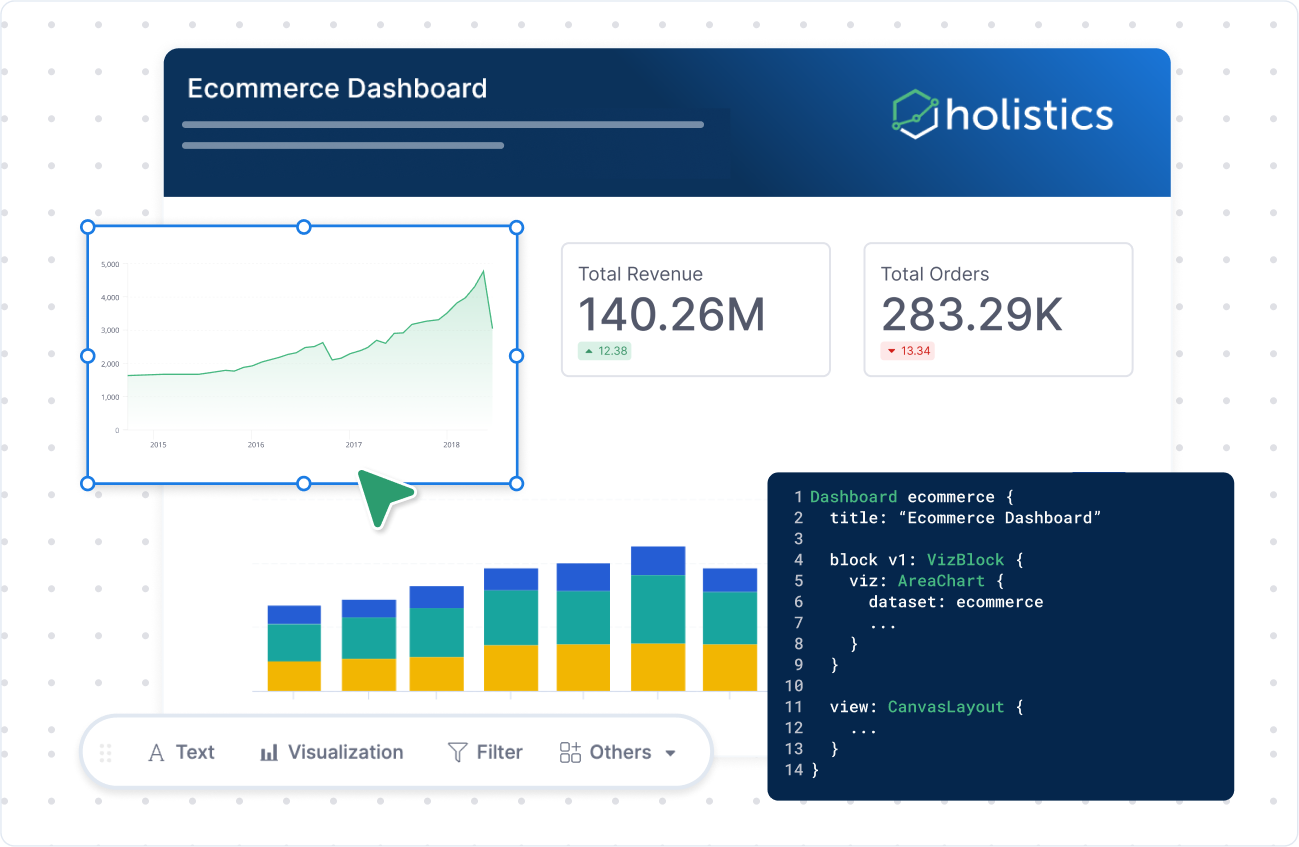
Create a Dashboard from a Dataset

Spin up a brand-new dashboard straight from a dataset you already have access to.
3 minSelf-service users
Show the steps
  1. Open a dataset you have access to.
  2. Create a new dashboard from it.
  3. Add the fields and charts you want to show.
  4. Save the dashboard to your workspace.

Get to Know Canvas Dashboards

Learn the building blocks, and place filters and content anywhere you like.

Get to Know Canvas Dashboards preview
3 minAll users
Show the steps
  1. Open a canvas dashboard.
  2. Learn the key parts: visualization blocks, text blocks, and filters.
  3. Drag components anywhere on the canvas.
  4. Place filters anywhere on the canvas, not only at the top.

Unlike fixed dashboards, a canvas dashboard lets you position filters anywhere on the page, not only across the top.

Full guide

Find Your Way Around the Visualization Interface

Know where the chart selector, Configure panel, and toolbar actions live.

3 minAll users
Show the steps
  1. Pick a chart type from the chart selector.
  2. Open the Configure panel to set fields and options.
  3. Use the toolbar for Analyze, Ask AI, filters, and sort.
  4. Run to preview your result.
Full guide

Customize Your Dashboard Editor

Set your default layout preferences for the editor, like whether widgets can overlap and how content is trimmed, so every dashboard you build starts the way you lay things out.

3 minSelf-service users
Show the steps
  1. Open a dashboard in edit mode.
  2. Open the editing preferences in the authoring panel.
  3. Set defaults like widget overlap and content trimming.
  4. Save so the editor opens the way you like next time.
Full guide

Save to Personal Workspace

Keep your own version of an analysis, privately.

Save to Personal Workspace preview
2 minSelf-service users
Show the steps
  1. Finish your exploration.
  2. Click save.
  3. Choose your personal workspace.
  4. Name the report clearly.
Full guide

Share a Report Internally

Let teammates see your saved analysis with the right access.

Share a Report Internally preview
3 minCollaborators
Show the steps
  1. Open the saved report.
  2. Click share.
  3. Choose users or groups.
  4. Confirm the access settings.

Check with your data team if you are unsure whether a report should be shared broadly.

Full guide

Auto-Sync a Report to Google Sheets

Keep a Google Sheet in step with a Holistics report, refreshed on a schedule, so the numbers your team works with in Sheets are always current.

3 minAll users
Show the steps
  1. Open the report or dashboard you want to sync.
  2. Set up a Google Sheets schedule and connect your Google account.
  3. Pick the destination sheet and how often it should refresh.
  4. Save, then check that the sheet updates on schedule.

Each run overwrites the sheet with the latest data, so downstream formulas and pivots stay live. Setting up the Google connection may need your data team's help the first time.

Full guide

Export to CSV or Excel

Continue analysis offline, where permitted.

2 minAll users
Show the steps
  1. Open the report.
  2. Click export.
  3. Choose CSV or Excel.
  4. Download the file.

Export permissions may be controlled by your data team.

Full guide

Build Calculations, Conditions & Analytic Functions

Add calculated fields with a point-and-click builder or with AI, layer in advanced filter conditions, apply prebuilt analytic functions like period-over-period and trend lines, or package a repeatable analysis as a governed AI skill.

Create Advanced Nested Conditions

Combine AND/OR grouped filters without SQL.

5 minPower users
Show the steps
  1. Open a report in exploration mode.
  2. Add a filter condition.
  3. Group conditions together.
  4. Combine AND and OR logic, then apply.
Full guide

Create Period-over-Period Comparisons

Compare current vs previous period in a few clicks.

4 minSelf-service users
Show the steps
  1. Open a report in exploration mode.
  2. Click the metric you want to analyze.
  3. Choose period-over-period comparison.
  4. Select the comparison period.
Full guide

Create a Running Total

Accumulate a metric across a dimension, like running revenue by month.

3 minSelf-service users
Show the steps
  1. Open a report in exploration mode.
  2. Click the metric.
  3. Choose running total.
  4. Pick the dimension to accumulate across.
Full guide

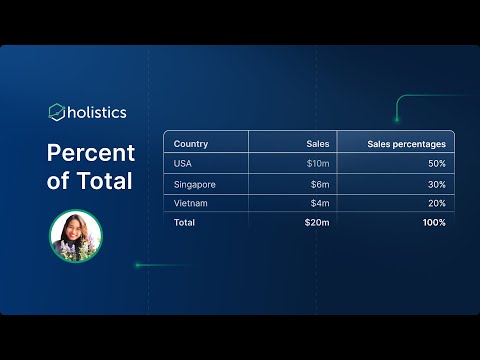
Add Moving Calculations

Smooth noisy trends with moving averages and measure change over time.
3 minSelf-service users
Show the steps
  1. Open a report in exploration mode.
  2. Click the metric.
  3. Choose a moving calculation, such as a moving average.
  4. Review the smoothed trend.
Full guide

Show Percent of Total

Convert a metric into contribution percentages.

Show Percent of Total preview
3 minSelf-service users
Show the steps
  1. Open a report in exploration mode.
  2. Click the metric.
  3. Choose percent of total.
  4. Review the updated calculation.
Full guide

Add a Trend Line

Overlay a trend line to see the direction behind the data points.

2 minSelf-service users
Show the steps
  1. Open a chart in exploration mode.
  2. Open the analytic functions menu.
  3. Add a trend line.
  4. Pick the trend line type if needed.
Full guide

Add a Reference Line

Mark a target, average, or threshold line on a chart.

2 minSelf-service users
Show the steps
  1. Open a chart in exploration mode.
  2. Open the analytic functions menu.
  3. Add a reference line.
  4. Set the value or field it should mark.
Full guide

Suggest Organization-Specific AI Skills

Package a repeated analytical workflow as a reusable, governed AI skill.

4 minPower users
Show the steps
  1. Identify a repeated workflow or question.
  2. Describe what the AI skill should help with.
  3. Share examples with your data team to build and govern it.
  4. Help test whether the skill produces useful results.
Full guide

Design & Style Your Dashboard

Make your dashboards clear, branded, and great to look at.

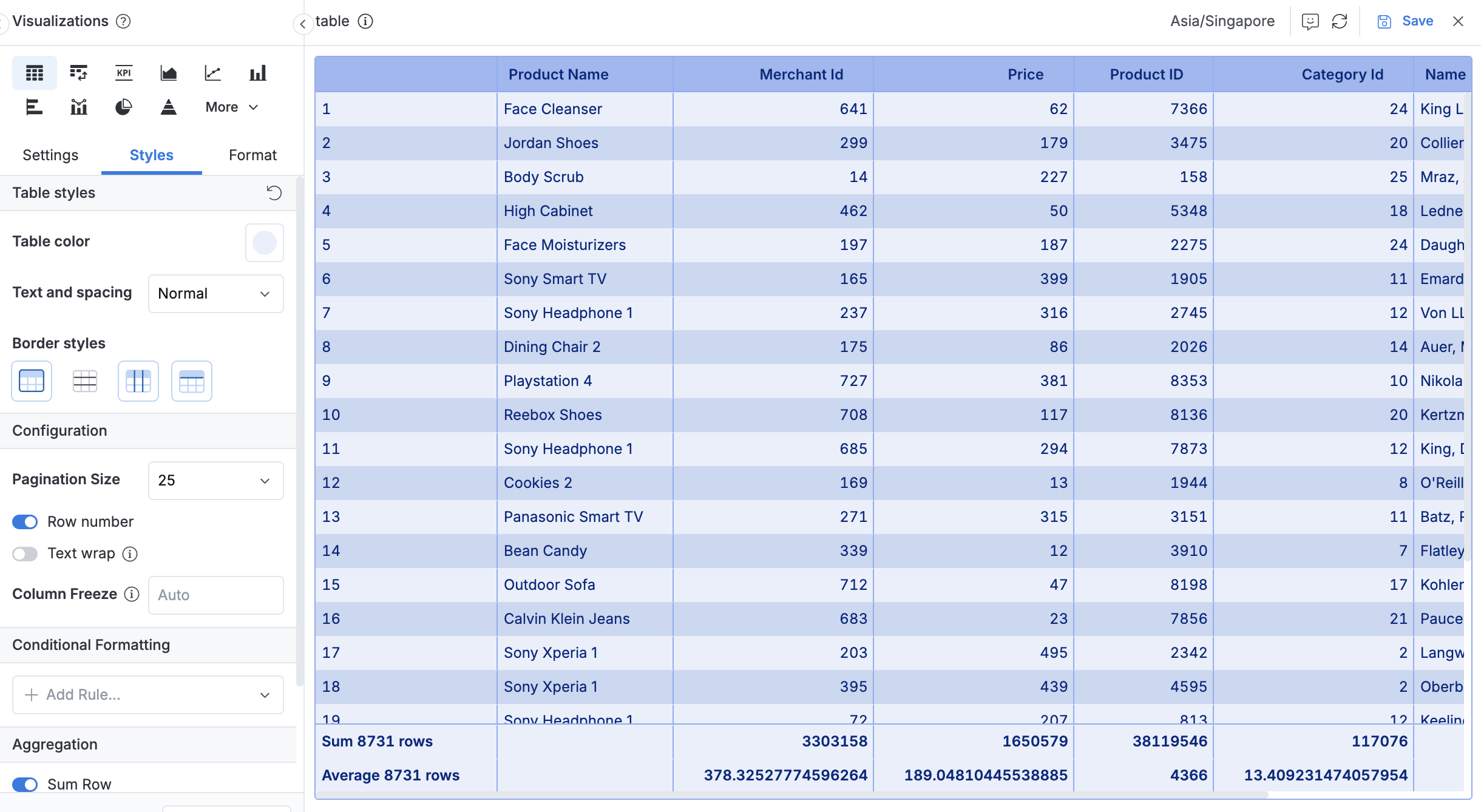
Add Conditional Formatting

Highlight values that cross a threshold.
3 minAll users
Show the steps
  1. Open the report.
  2. Choose conditional formatting.
  3. Define the threshold.
  4. Pick the style and save.
Full guide

Wrap Content & Set Custom Labels

Tidy tables by wrapping header or cell text and renaming fields with custom labels.

Wrap Content & Set Custom Labels preview
3 minAll users
Show the steps
  1. Open a table visualization's style settings.
  2. Turn on text wrapping for headers or cells.
  3. Set a custom label to rename a field.
  4. Save the styling.
Full guide

Change Colors & Style

Restyle a chart or table with your own colors and formatting.

3 minAll users
Show the steps
  1. Select the chart or table.
  2. Open its style settings.
  3. Change colors, fonts, and borders.
  4. Save your changes.
Full guide

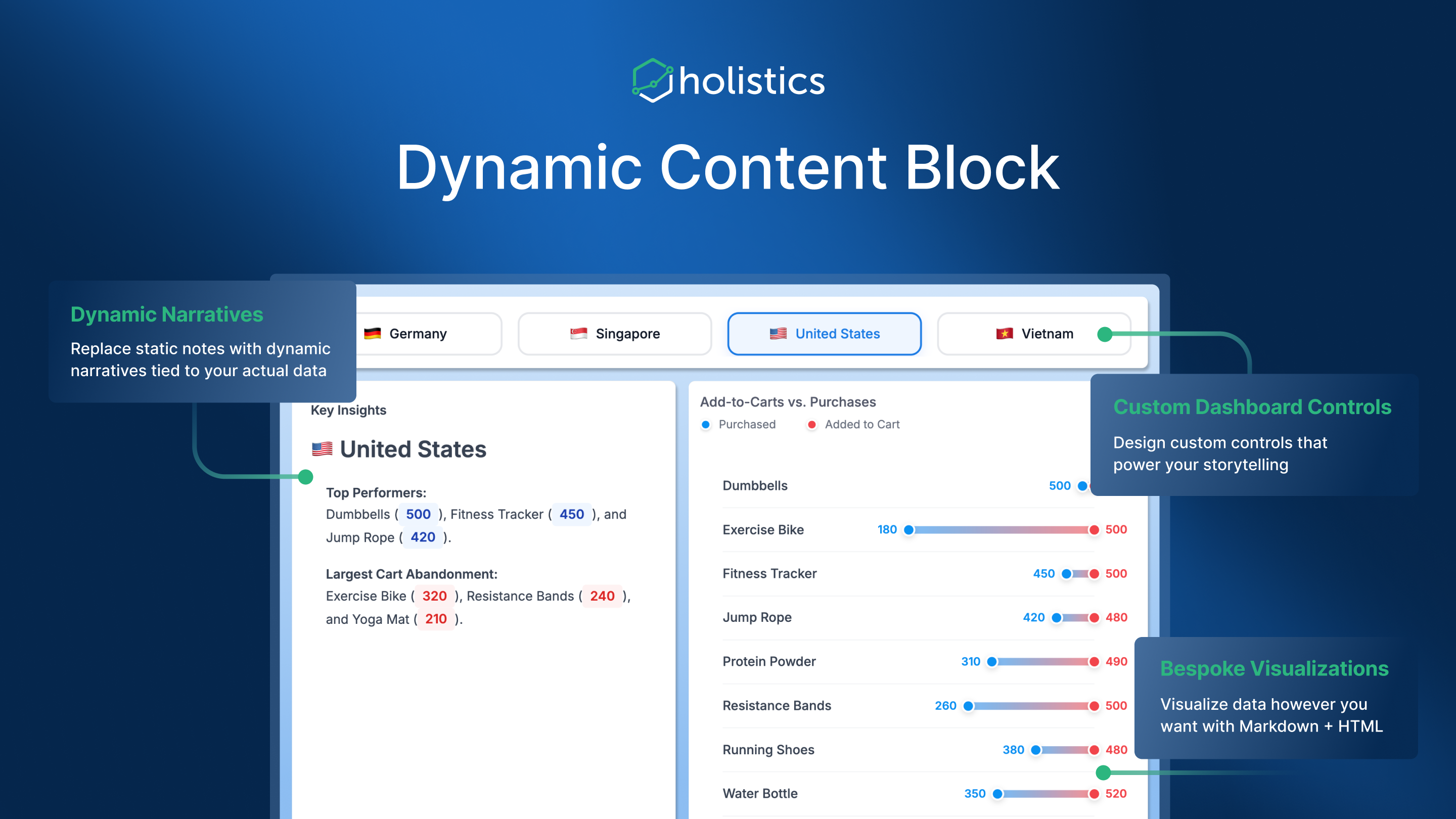
Use Custom Charts

Go beyond the built-in charts with open-source visualizations.
4 minPower users
Show the steps
  1. Open a report and add a custom chart.
  2. Paste or adapt a visualization spec.
  3. Map your fields into the chart.
  4. Save it to your dashboard.

Adding a custom chart may need your data team's help. For inspiration, browse the Vega-Lite example gallery to see how flexible the presentation can be.

Full guide

Build Dynamic Content Blocks

Create rich blocks like KPI cards, heatmaps, and metric trees from templates.

Build Dynamic Content Blocks preview
5 minPower users
Show the steps
  1. Browse the template gallery for a starting point.
  2. Add a Visualization block and choose the Markdown type.
  3. Map your data fields into the template.
  4. Adjust the design to taste.

You can also ask AI to generate the block design for you. Browse the template gallery to get started.

Full guide

Build Rich Layouts with HTML & CSS

Design branded, web-app-like dashboard themes and layouts.

5 minPower users
Show the steps
  1. Open the Theme Builder Sandbox.
  2. Pick a pre-built theme, generate one with AI, or start from scratch.
  3. Customize colors, spacing, and layout in the live GUI editor.
  4. Copy the generated theme into Holistics, or send it to your data team to apply.
Full guide

Deliver, Share & Act on Data

Get data and insights out of Holistics, delivered to inboxes and channels, shared with external viewers, or used to trigger action in other systems. Most of these are set up with your data team. Need more access to do them yourself? Ask your data team.
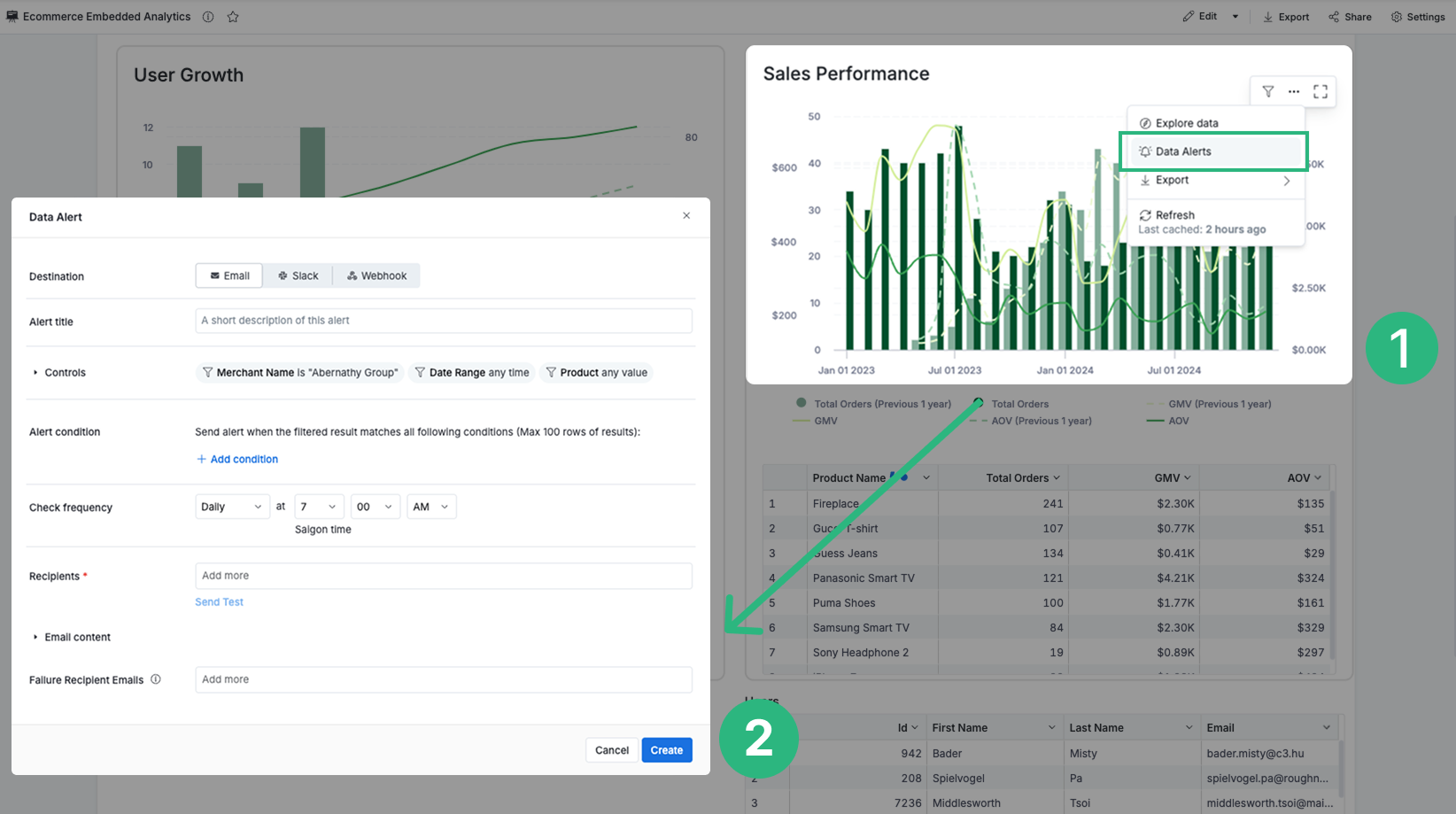
Set Up Alerts

Be notified through email, Slack, or a webhook when a metric crosses a threshold.

Set Up Alerts preview
3 minAll users
Show the steps
  1. Pick the metric to monitor.
  2. Define the alert condition or threshold.
  3. Choose the channel (email, Slack, or webhook).
  4. Ask your data team to set it up.
Full guide

Schedule Report Delivery

Have recurring reports delivered automatically to where your team already works, from email and Slack to Google Sheets and SFTP.
Schedule Report Delivery preview
3 minAll users
Show the steps
  1. Pick the report or dashboard to send.
  2. Choose the delivery schedule.
  3. Pick the destination and recipients.
  4. Ask your data team to set it up.
Full guide

Set Up Product Actions

Trigger an operational workflow directly from a report.

Set Up Product Actions preview
3 minAll users
Show the steps
  1. Pick the report or record where the action should appear.
  2. Describe the action users should trigger.
  3. Name the destination system or workflow.
  4. Ask your data team to set it up.
Full guide

Open Markdown
Let us know what you think about this document :)