# Quickstart
> The end-to-end development workflow in Holistics, from connecting a database to publishing dashboards. High-level orientation with links to drill into each step.
## Introduction
Building analytics in Holistics follows a structured workflow that turns raw database tables into dashboards and reports. The workflow cleanly separates **development** from **production**, so you can iterate safely without affecting your end users.
The journey progresses through three layers:
| Layer | What You Build | Purpose |
|-------|---------------|---------|
| **Data Sources** | Database connections | Connect to your data warehouses |
| **Modeling** | Data models, datasets | Define business logic and relationships |
| **Reporting** | Explorations, ad-hoc reports, dashboards | Visualize and share insights |
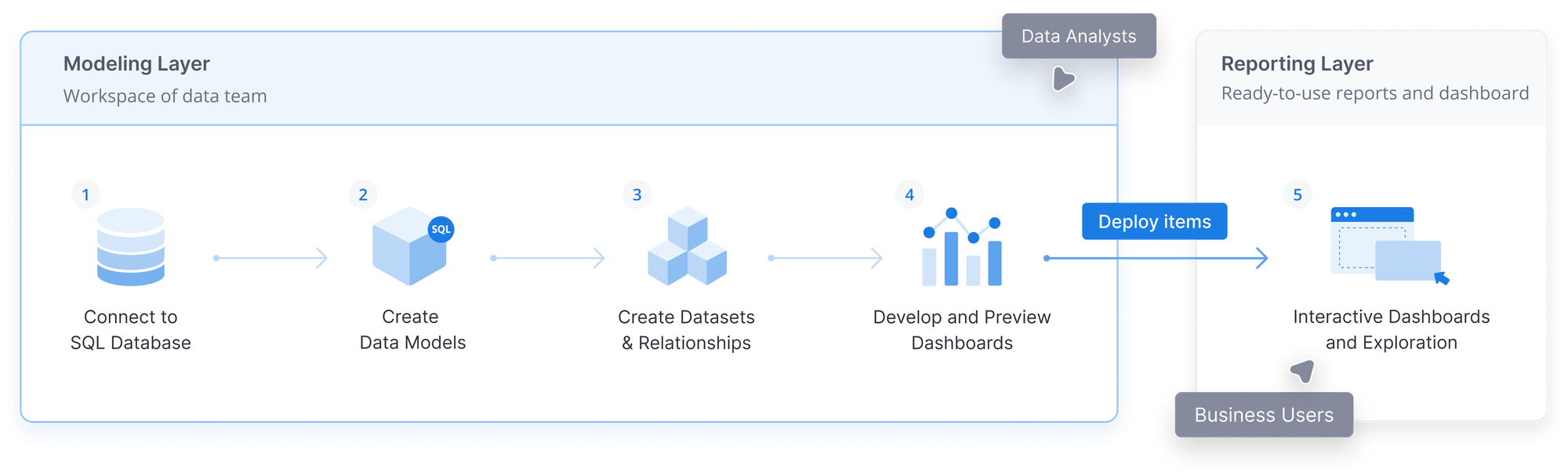
This guide walks you through each step of the development workflow:
1. [Connect to a database](/docs/quickstart#1-connect-to-a-database)
2. [Enable development mode](/docs/quickstart#2-enable-development-mode)
3. [Develop data models](/docs/quickstart#3-develop-data-models)
4. [Develop datasets](/docs/quickstart#4-develop-datasets)
5. [Develop dashboards](/docs/quickstart#5-develop-dashboards)
6. [Commit changes and publish](/docs/quickstart#6-commit-changes-and-publish)
7. [Explore data and build reports](/docs/quickstart#7-explore-data-and-build-reports)
## 1. Connect to a database
Your database connection is the foundation of everything in Holistics. All data models, datasets, and reports build on top of the tables in your connected data warehouse.
:::info
For detailed setup instructions, see [Connect to a Database](/docs/connect/).
:::
Before you can start modeling, make sure you have connected to at least one database. Holistics supports a wide range of databases including PostgreSQL, MySQL, BigQuery, Snowflake, and more.
## 2. Enable development mode
The Development/Production separation is what makes it safe to iterate on your analytics. In Development Mode, you can freely modify models, datasets, and dashboards without affecting the reports your end users are viewing in Production.
:::info
For more details on the two modes, see [Mode & Deployment](/docs/development/dev-prod-mode).
:::
To enable Development Mode, navigate to the **Development workspace** and click the toggle to switch from **Production Mode** to **Development Mode**.
## 3. Develop data models
Data models are abstract representations of your database tables. They let you define business logic, add calculated fields, and enrich raw data with metadata, all without modifying the underlying database.
:::info
For detailed instructions, see [Data Models](/docs/data-model) and [AML Model syntax](/as-code/aml/model).
:::
Holistics supports two types of data models:
| Model Type | Description | Use Case |
|------------|-------------|----------|
| **[Table Model](/docs/table-models)** | Maps directly to an existing database table | When you want to expose a table as-is with added metadata |
| **[Query Model](/docs/query-models)** | Defined by custom SQL that selects from tables or other models | When you need to clean up data, perform calculations, or define reusable business logic in SQL |
You can create models using either the visual GUI or by writing AML code directly in the Development workspace.
**Creating a Table Model:**
**Creating a Query Model:**
## 4. Develop datasets
Datasets connect your data models together with relationships, making them available for exploration. Think of a dataset as a curated collection of related models that business users can query without writing SQL.
:::info
For detailed instructions, see [Datasets](/docs/datasets) and [AML Dataset syntax](/as-code/aml/dataset).
:::
A dataset includes:
- **Models**: The data models included in the dataset
- **Relationships**: How models connect to each other (e.g., `orders.user_id > users.id`)
In Holistics, you can design your dataset following proven [modeling patterns](/docs/modeling-patterns) like star schema, galaxy schema, or snowflake schema depending on your analytical needs.
Once published, datasets appear in the Reporting tab where users can explore them with a drag-and-drop interface.
## 5. Develop dashboards
Dashboards combine visualizations, filters, and interactive controls into a single view for end users. In Holistics, dashboards are defined in AML code, which gives you full control over layout, interactions, and styling with the benefits of version control and reusability.
:::info
For detailed instructions, see [Canvas Dashboard](/docs/dashboards/) and [AML Dashboard syntax](/as-code/aml/dashboard).
:::
A dashboard consists of:
- **Blocks**: Visual components like charts (VizBlock), text (TextBlock), filters (FilterBlock), and date drills (DateDrillBlock)
- **Interactions**: Define how blocks interact with each other (e.g., filters affecting charts)
- **Views**: Control the layout and positioning of blocks on the canvas
- **Settings**: Configure timezone, caching, and other dashboard-level options
To create a dashboard, add a new file with the extension `.page.aml` (e.g., `my_dashboard.page.aml`) in the Development workspace.
## 6. Commit changes and publish
This is where your work moves from development to production. Publishing makes your models, datasets, and dashboards available to end users in the Reporting tab.
### Commit changes
:::info
This step is necessary only if you're using [Holistics Git Flow](/docs/git-version-control). Otherwise, skip directly to [Publish](/docs/quickstart#publish).
:::
If you've connected an external Git repository, commit your changes before publishing. Click **Commit changes & Push**, update the commit message if needed, and then **Commit and push**.
### Publish
Click **Publish** to deploy your changes to production. Your datasets and dashboards will now be available in the Reporting tab.
## 7. Explore data and build reports
Your data is now ready for exploration. After publishing, your datasets appear in the **Reporting** tab where you and your team can start discovering insights.
With published datasets, users can:
- **Explore with drag-and-drop**: Select dimensions and measures, apply filters, and visualize data without writing SQL
- **Create visualizations**: Build charts, tables, and other visualizations from your curated datasets
- **Save to dashboards**: Capture meaningful explorations and add them to dashboards for ongoing monitoring
:::info
To learn more about what you can do with your data, see:
- [Data Exploration](/docs/data-exploration): Learn the drag-and-drop exploration interface
- [Visualizations](/docs/visualizations/): Explore available chart types and formatting options
:::
## FAQs
### What happens if my modeling changes break existing dashboards and reports?
When you modify models or datasets, downstream dashboards and reports may be affected:
- **Dashboards in [Public workspace](/docs/workspaces#public-workspace)**: You'll need to fix errors before publishing. This ensures shared content remains functional for all users.
- **Dashboards in [Personal workspace](/docs/workspaces#personal-workspace-old-private-workspace)**: You can still publish, but you'll receive a notification about which personal dashboards are broken.
The broken dashboard in Personal workspace will look like this in Reporting:
:::info
[Personal Canvas dashboards](/docs/workspaces#personal-workspace-old-private-workspace) can only be viewed and edited in **Reporting**, not in **Development**. If you need to fix a broken personal dashboard, contact [support@holistics.io](mailto:support@holistics.io).
We're considering adding support for personal Canvas dashboards in Development in the future.
:::