Managing user-created dashboards
This feature is available on select plans. If your team does not have access to this feature, please contact us.
Introduction
When you enable user-built dashboards for your embed users, their dashboards are stored in your Development environment as code files. This guide helps administrators view, monitor, and manage these dashboards.
This feature requires Git integration and workspace configuration. See user-built dashboards for setup instructions.
Managing user dashboards
Accessing user dashboard files
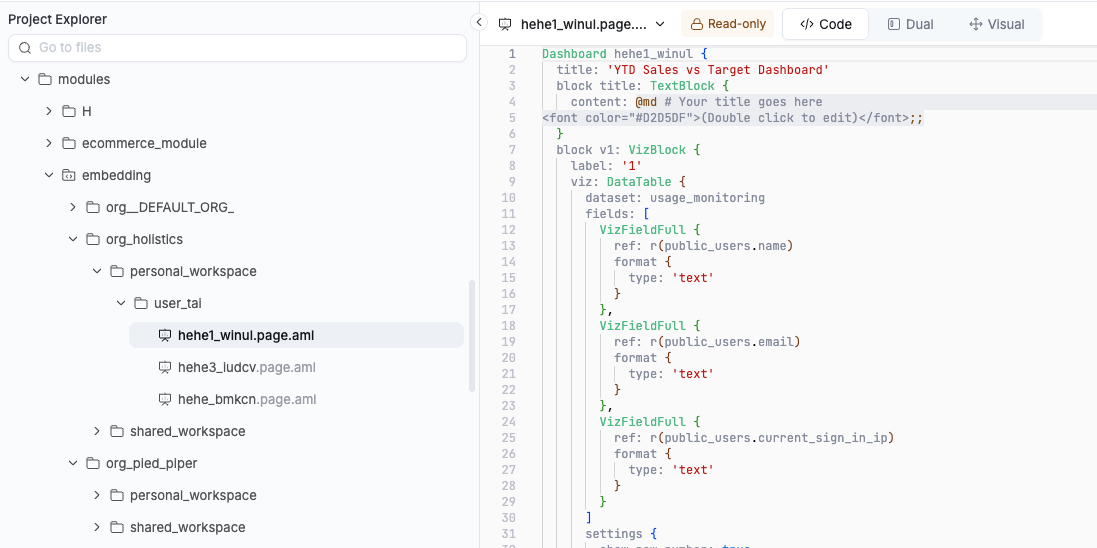
To find user dashboards in your codebase, open AML Studio in your Development environment and navigate to modules/embedding/. From there, browse to the relevant organization and workspace folder, then click any .page.aml file to view its contents.
For details on the folder structure, see How user dashboards are stored.
What admins can do
Admins have full visibility into user dashboard code. You can view and edit file contents like dashboard titles, descriptions, settings, visualizations, and layouts. You can also update dataset and field references when modeling changes break dashboards.
What admins cannot do
Some operations are restricted because user dashboard ownership and metadata are managed by the system, not the files themselves. You cannot create, rename, move, or delete user dashboard files through the UI. You also cannot modify the folder organization or file names. If you manually create new files, they won't appear in the user's workspace.
Common scenarios
Fixing broken dashboards after model changes
When you refactor your data models (rename fields, move datasets), user dashboards referencing those objects may break. To fix them, navigate to the affected dashboard file, update the dataset or field references to match your new model structure, then save your changes.
Reviewing what users have built
To understand how embed users are using your data, browse the shared_workspace folders to see dashboards shared within organizations, and check personal_workspace folders to see individual user dashboards.
How user dashboards are stored
This section explains the folder structure and file organization for reference.
Folder structure overview
User dashboards are organized within the modules/embedding/ directory of your AML codebase:
📦 AML Studio
┗ 📂 modules/
  ┗ 📂 embedding/
    ┣ 📂 org_${embed_org_id}/
    ┃ ┣ 📂 shared_workspace/
    ┃ ┃ ┗ 📜 ${uname_with_postfix}.page.aml
    ┃ ┗ 📂 personal_workspace/
    ┃   ┗ 📂 user_${embed_user_id}/
    ┃     ┗ 📜 ${uname_with_postfix}.page.aml
    ┣ 📂 org__DEFAULT_ORG_
    ┃ ┗ 📂 personal_workspace/
    ┃   ┗ 📂 user_${embed_user_id}/
    ┗ 📂 org_${another_org_id}/
      ┣ 📂 shared_workspace/
      ┗ 📂 personal_workspace/
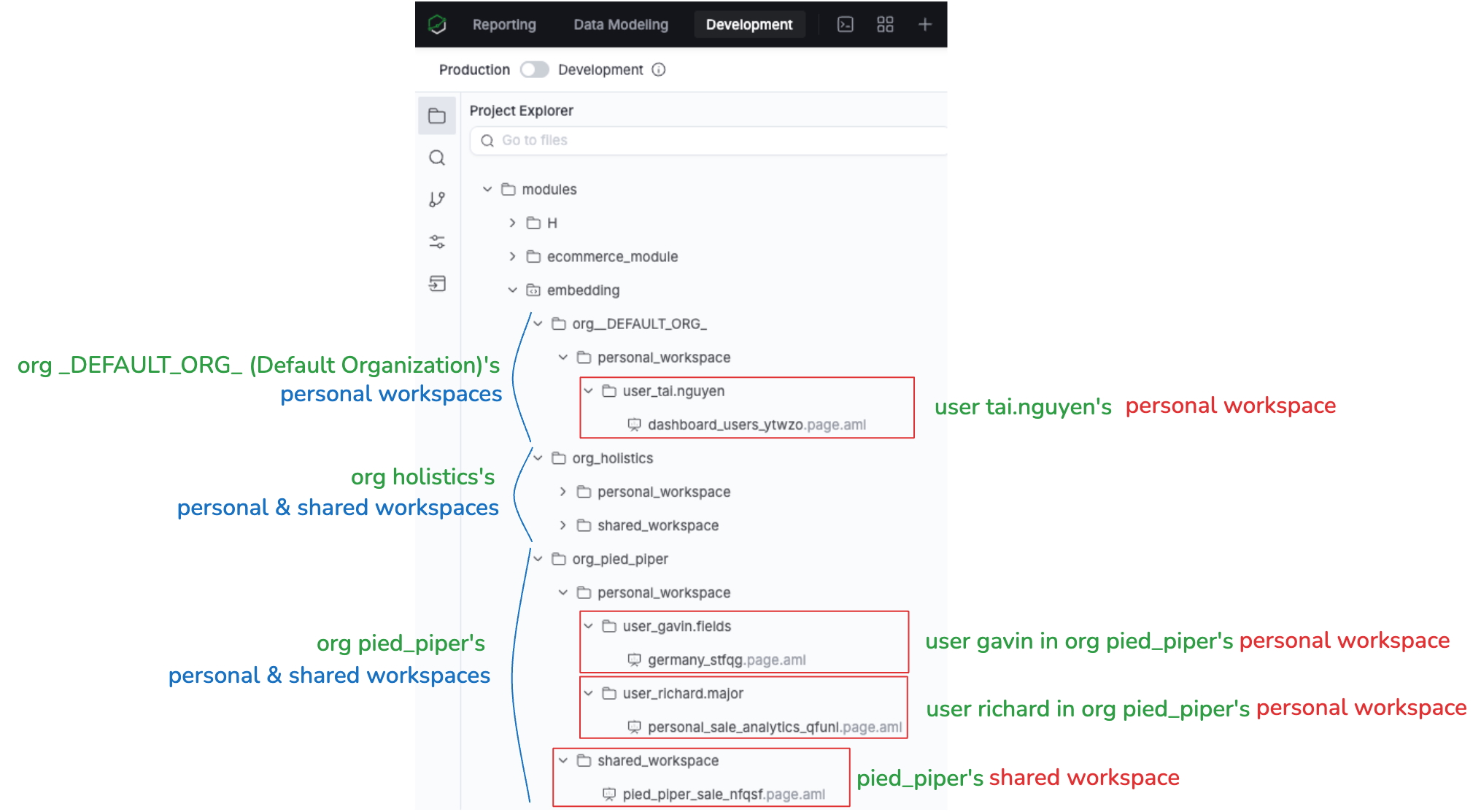
Example:
Workspace types
Each organization can have two types of workspaces where user dashboards are stored.
Shared workspace is located at modules/embedding/org_${embed_org_id}/shared_workspace/. It contains dashboards created by users with the editor role in the organization's shared workspace. This folder is only created when editors actually create dashboards.
Personal workspace is located at modules/embedding/org_${embed_org_id}/personal_workspace/user_${embed_user_id}/. It contains personal dashboards belonging to a specific user within the organization. This folder is only created when personal workspace is enabled and users actually create dashboards.
Default organization
When embed_org_id is empty, personal dashboards are stored in modules/embedding/org__DEFAULT_ORG_/personal_workspace/user_${embed_user_id}/. This special organization only supports personal workspace with no shared workspace available.
Users belong to organizations, so personal workspace folders are nested within the organization structure. This ensures proper data isolation between different organizations. For detailed security architecture, see How user isolation works.
File naming conventions
User dashboard files follow a consistent naming pattern. The format is ${uname_with_postfix}.page.aml, where the filename is automatically generated from the dashboard title plus a unique string. For example, a dashboard titled "Sales Report" becomes sales_report_a1b2c3.page.aml.
Related resources
- User-built dashboards - Enable and configure the feature
- Identity and workspace settings - Configure user roles and workspace permissions
- How user isolation works - Understand the security model