Row-level permissions
Introduction
Row-level permissions make sure each viewer only sees data that belongs to them.
For example, you embed one sales dashboard and show it to all of your customers. With row-level permissions, each viewer only sees their own rows: the German manager sees German sales, and the US manager sees US sales.
- All sales data
- German manager
- US manager
- all-sales → german-manager (country = Germany)
- all-sales → us-manager (country = United States)
How row-level permissions work
Row-level permissions work through permission rules. A rule says which rows a viewer can see, based on a field in your dataset. For example:
- German manager: only sees rows where
orders.countryisGermany - US manager: only sees rows where
orders.countryisUnited States
Holistics applies the rule as a filter whenever the viewer opens a dashboard or explores data.
You can add a rule in two ways. Both give the viewer the same result:
-
Option A: Direct permissions in the embed payload. Your backend writes the whole rule, including the viewer's value, into the embed payload. Nothing to set up in Holistics.
Embed payload (your backend)const payload = {objects: { dashboards: ["sales_overview"] },permissions: {row_based: [{// the dataset fieldpath: { dataset: "ecommerce", model: "orders", field: "country" },operator: "is",// the viewer's valuevalues: ["Germany"],},],},}; -
Option B: Attribute-based permissions in datasets. The rule is written once in your dataset and points at a user attribute instead of a fixed value. Your backend then only passes the viewer's value for that attribute in the embed payload.
ecommerce.dataset.aml (your Holistics project)Dataset ecommerce {permission country_access {field: r(orders.country) // the dataset fieldoperator: 'matches_user_attribute'value: 'country' // the user attribute}}Embed payload (your backend)const payload = {objects: { dashboards: ["sales_overview"] },user_attributes: {country: ["Germany"], // the viewer's value},};
Start with Option A: it's the fastest and easiest way to get going. Move to Option B once your row-level permission setup grows, with many embeds or more complex rules. You can also use both at once.
Option A: Direct permissions in the embed payload
Add rules to permissions.row_based in your embed payload:
const payload = {
  objects: {
    dashboards: ["sales_overview"],
  },
  permissions: {
    row_based: [
      {
        path: { dataset: "ecommerce", model: "orders", field: "country" },
        operator: "is",
        values: ["Germany"],
      },
    ],
  },
  exp: Math.floor(Date.now() / 1000) + 24 * 60 * 60,
};
What this does: every query on sales_overview that uses the ecommerce dataset gets the condition orders.country = 'Germany'. The viewer sees German sales only, and every chart, filter, and drill-down respects that.
Each rule has three parts:
path: the field to restrict, written as its dataset, model, and field unique names.operator: how to compare, such asis,is_not, ormatches. For relative date operators likelastandnext, also setmodifierto the time unit (day,month,year).values: the values the viewer is allowed to see. An empty array means no restriction on that field.
path.model must match the name declared after Model in AML. If sales.model.aml declares Model sales_orders { ... }, use sales_orders, not sales. The model must also belong to the dataset in path.dataset.
Example: different rules per viewer
In a real app, your backend picks the values based on who is logged in. Here a general manager sees everything, a country manager sees one country, and a store manager sees one city:
let countries = [];   // empty = no restriction
let cities = [];

if (currentUser.role === "country_manager") {
  countries = [currentUser.country];   // ["Germany"]
} else if (currentUser.role === "store_manager") {
  countries = [currentUser.country];   // ["United States"]
  cities = [currentUser.city];         // ["New York"]
}

const payload = {
  objects: { dashboards: ["sales_overview"] },
  permissions: {
    row_based: [
      {
        path: { dataset: "ecommerce", model: "orders", field: "country" },
        operator: "is",
        values: countries,
      },
      {
        path: { dataset: "ecommerce", model: "orders", field: "city" },
        operator: "is",
        values: cities,
      },
    ],
  },
  exp: Math.floor(Date.now() / 1000) + 24 * 60 * 60,
};
What this does:
| Viewer | countries | cities | Sees |
|---|---|---|---|
| General manager | [] | [] | All countries, all cities |
| Country manager | ["Germany"] | [] | Every city in Germany |
| Store manager | ["United States"] | ["New York"] | New York only |
Option B: Attribute-based permissions in datasets
Option B (attribute-based permissions in datasets) is only available on the Security Compliance Suite (SCS) or Embedded Analytics plan, and isn't enabled by default. Option A (direct permissions in the embed payload) is available on all plans.
Contact Holistics support if you want to upgrade or have any questions.
With Option A, every rule lives in your backend and names Holistics objects directly. As you embed more, this gets risky and tedious:
- Broken embeds: if someone renames a dataset, model, or field in Holistics, the rules in your backend no longer match and your embed breaks.
- Risk of data leaks: when you add a dashboard or a report, you have to remember to add rules for any new dataset it uses. Miss one, and viewers can see every row in that dataset.
- Extra work: rules already set on a dataset for internal users must be rewritten in the payload, and long payloads can exceed URL length limits.
Option B solves this by splitting a permission into two parts, each with its own job:
- The rule: what to filter. Lives in the Holistics modeling layer, next to your models and datasets. Managed by your Holistics admins.
- The value: who the viewer is. Lives in your app's backend and is sent in the embed payload as a user attribute. Managed by your engineers.
- Before: Option A
- After: Option B
- Embed payload (your backend) const payload = { objects: { dashboards: ["sales_overview"] }, permissions: { row_based: [ { path: { dataset: "ecommerce", model: "orders", field: "country" }, operator: "is", values: ["Germany"], }, ], }, };
- ecommerce.dataset.aml (Holistics) Dataset ecommerce { // ... models and relationships ... permission country_access { field: r(orders.country) operator: 'matches_user_attribute' value: 'country' } }
- Embed payload (your backend) const payload = { objects: { dashboards: ["sales_overview"] }, user_attributes: { country: ["Germany"], }, };
- a-rule → b-rule (rule moves to the dataset)
- a-value → b-value (value becomes a user attribute)
- option-b-payload → option-b-dataset (fills in 'country')
When the viewer opens the dashboard, Holistics fills the rule's country attribute with ["Germany"] from the payload.
This keeps each team on its own side: admins manage rules in Holistics, engineers only pass user attributes, and changing a rule never needs a backend update.
It's also safer by default. A dataset rule applies everywhere the dataset is used, including every embed, so a viewer can't get around it because someone forgot a rule in the payload. If the payload is missing a required attribute, the viewer sees an error instead of unrestricted data.
1. Create the user attribute
In Holistics, create a user attribute called country. See User Attributes for how.
2. Add the permission rule to the dataset
In the dataset, say which field to restrict and which attribute to match it against:
Dataset ecommerce {
  // ... your models and relationships ...
  permission country_access {
    field: r(orders.country)               // the field to restrict
    operator: 'matches_user_attribute'
    value: 'country'                       // the user attribute from step 1
  }
}
What this does: for anyone using this dataset, Holistics only returns rows where orders.country matches their country attribute. For more options, see Row-level permission as code.
3. Pass the viewer's attribute in the payload
When you sign the token, put the viewer's value under user_attributes, as an array.
const payload = {
  objects: { dashboards: ["sales_overview"], datasets: ["ecommerce"] },
  user_attributes: {
    country: ["Germany"],
  },
  exp: Math.floor(Date.now() / 1000) + 24 * 60 * 60,
};
What this does: the viewer's country is Germany, so the dataset rule turns into orders.country = 'Germany'. Same result as the Option A example, with a much shorter payload.
If a dataset rule uses a user attribute, your payload must pass a value for it. If one is missing, the viewer sees an error such as Missing user attributes: 'country' instead of the embed.
Besides specific values like ["Germany"], you can pass two special values:
[](empty array): the viewer sees no rows from that dataset."__ALL__": the rule is skipped, so the viewer sees all rows. See below.
Let a viewer see everything with __ALL__
Some viewers, such as a CEO or a manager who covers every country, should skip the rule. Set their attribute to __ALL__:
const payload = {
  user_attributes: {
    country: "__ALL__",   // no restriction on country
  },
};
What this does: the country_access rule is skipped for this viewer, so they see every country. Any other attribute you pass still applies.
Set default attribute values in an Embed Portal
If you persist your setup as an Embed Portal, you can give attributes default values at the portal level. Use this when every viewer of a portal shares the same restriction, or as a fallback when a payload leaves an attribute out.
EmbedPortal customer_portal {
  objects: [
    ecommerce,          // dataset
    sales_overview,     // dashboard
  ],

  default_user_attributes {
    country: ['United States']   // used when the payload doesn't set country
  }
}
A value in the payload always wins over the portal default:
const payload = {
  embed_portal: "customer_portal",
  user_attributes: {
    country: ["Germany"],   // overrides the default ['United States']
  },
};
What this does: this viewer sees German data. A viewer whose payload doesn't set country sees US data.
How the two options combine
If a payload carries both direct rules and user attributes, all rules apply together (AND). The viewer only sees rows that match every rule.
For example, this payload sends both. The country attribute feeds the country_access rule in the dataset, and row_based adds a direct rule on the same field:
const payload = {
  objects: { dashboards: ["sales_overview"] },
  // Option B: fills the dataset rule on orders.country
  user_attributes: {
    country: ["Germany", "France"],
  },
  // Option A: a direct rule on the same field
  permissions: {
    row_based: [
      {
        path: { dataset: "ecommerce", model: "orders", field: "country" },
        operator: "is",
        values: ["France"],
      },
    ],
  },
};
What the viewer sees:
- Dataset rule (from
user_attributes):orders.countrymust be Germany or France. - Direct rule (from
row_based):orders.countrymust be France. - Both apply (AND), so the viewer only sees France.
Direct rules in the payload can only narrow down what a dataset rule allows. They can't bypass or override a rule defined in your dataset.
FAQs
Why does the Embed Builder show a different dataset name from the one in the code?
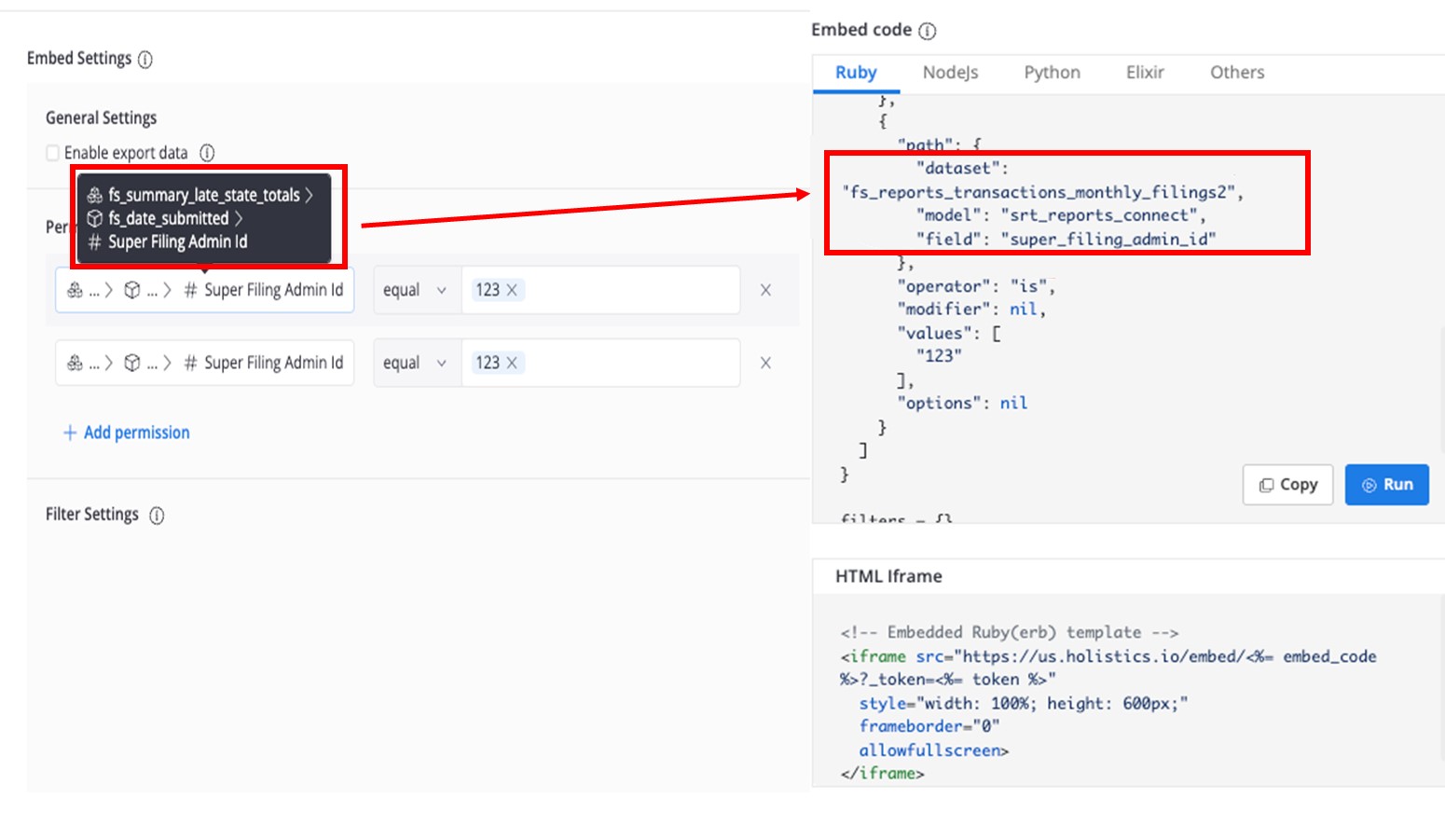
The dataset was renamed. The UI shows the dataset's current title, while the code uses its unique name. The unique name is set when the dataset is created and doesn't change on rename, so existing payloads keep working.
Do row-level permissions apply to exploration and Ask AI?
Yes. They're applied at the dataset level, so they cover dashboards, data exploration, drill-down, view underlying data, user-built dashboards, email subscriptions, and Ask AI. If a viewer can reach a dataset, their permissions come with them.