Drill-through
This documentation assumes you're familiar with:
Introduction
Drill-through lets your embedded users dig deeper, explore related data, and generate more business insights. Drill-through in embedded dashboards works exactly like it does in normal dashboards, with a few additional setup steps.
How to set up drill-through in embedded dashboards
You must have already set up a drill-through for the dashboard inside Holistics.
Add drillthroughs to the payload
To enable drill-through in your embedded dashboard, add the drillthroughs value to the payload (alongside other settings like permissions or filters).
payload = {
	settings: settings,
	permissions: permissions,
	filters: filters,
	drillthroughs: drillthroughs,
	exp: expired_time
}
The drillthroughs value contains the ID(s) of the dashboards that you allow your embedded users to drill into.
Add destination dashboard_id to the drillthroughs
Your dashboard inside Holistics may drill to multiple dashboards. To control which ones your embedded users can access, you need to explicitly add each destination dashboard's ID to the drillthroughs value.
For example, your dashboard A inside Holistics can drill to dashboard B, C, D, E with id 123, 456, 789, and 111 respectively. If you want your users to drill from your embedded dashboard A to dashboard B, C, and D only, include id 123, 456, 789 inside drillthroughs:
drillthroughs = {
	"123": {
		# other settings of dashboard 123 go here
	},

	"456": {
		# other settings of dashboard 456 go here
	},

	"789": {
		# other settings of dashboard 789 go here
	}

}
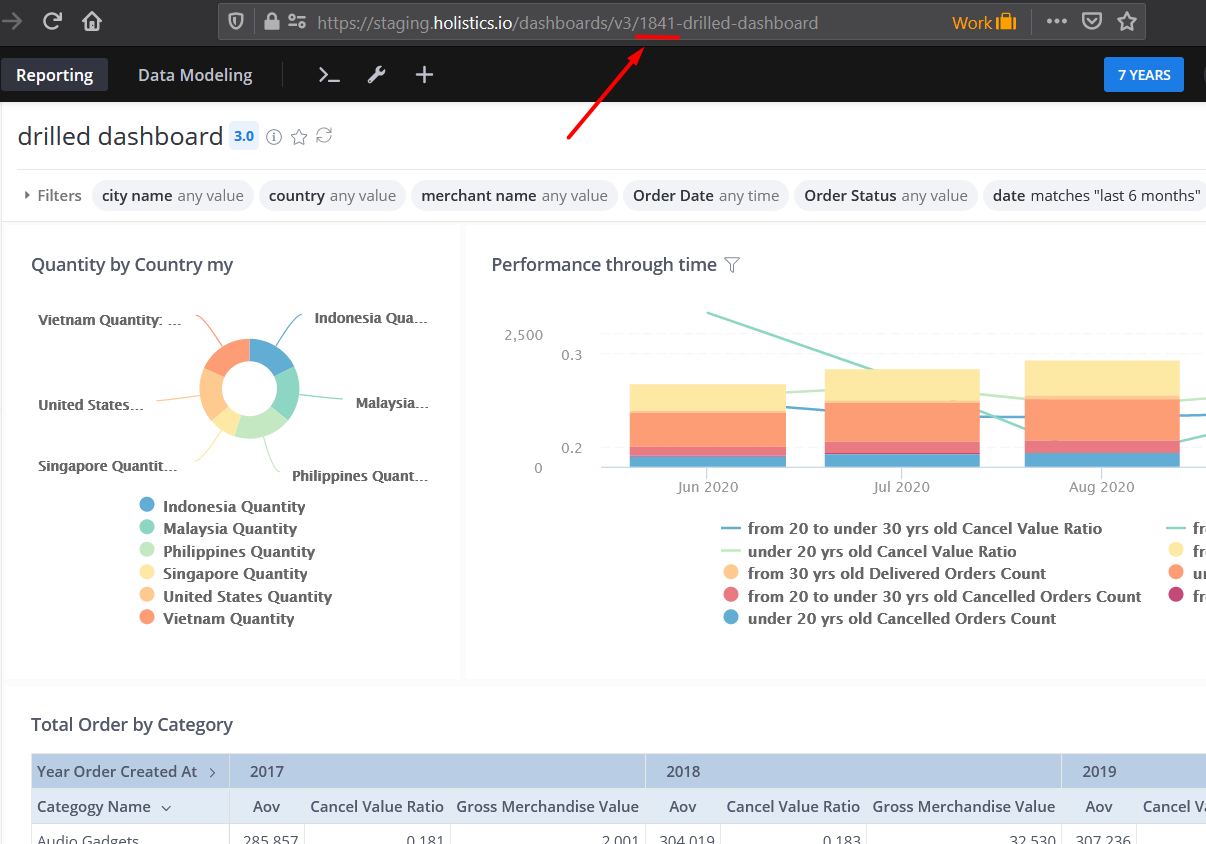
You can get the dashboard ID from its URL:
Override default filter values in your destination dashboard (optional)
If you want to overwrite the default filter values for your destination dashboard, add a filters value nested under the destination dashboard_id with the filter names you want to customize.
drillthroughs = {
	"123": {
		filters: {
			country: {
				default_condition: {
					operator: "is",
					values: ['Vietnam'],
					modifier: null
				}
			}
		}
	},
	"456": {
		# other settings of dashboard 456 go here
	},
	"789": {
		# other settings of dashboard 789 go here
	}
}
In the example above, we set the default country value to "Vietnam" in the destination dashboard by updating the default_condition values. Users can still change the filter to other values when interacting with the dashboard.