White-label Ask AI in embedding
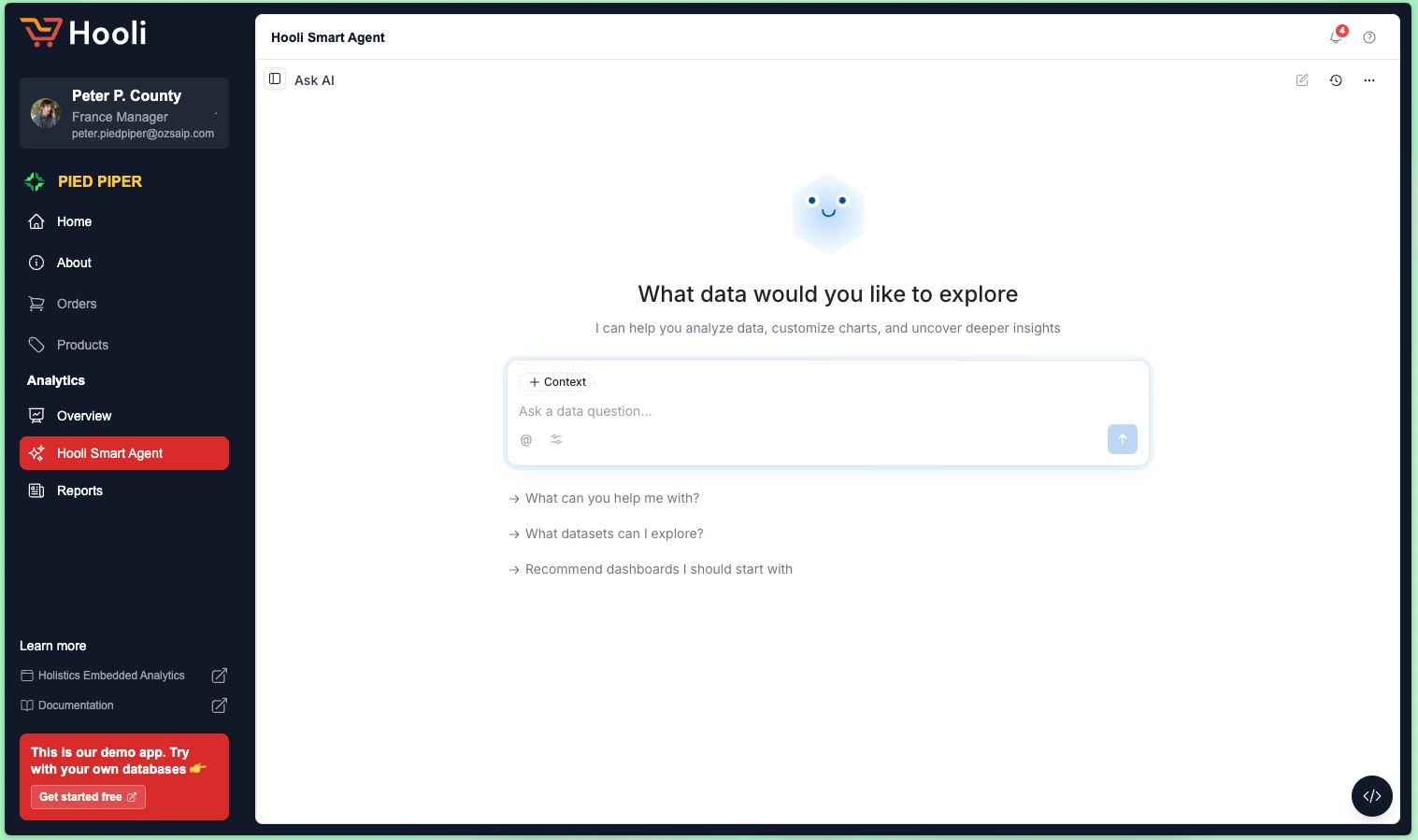
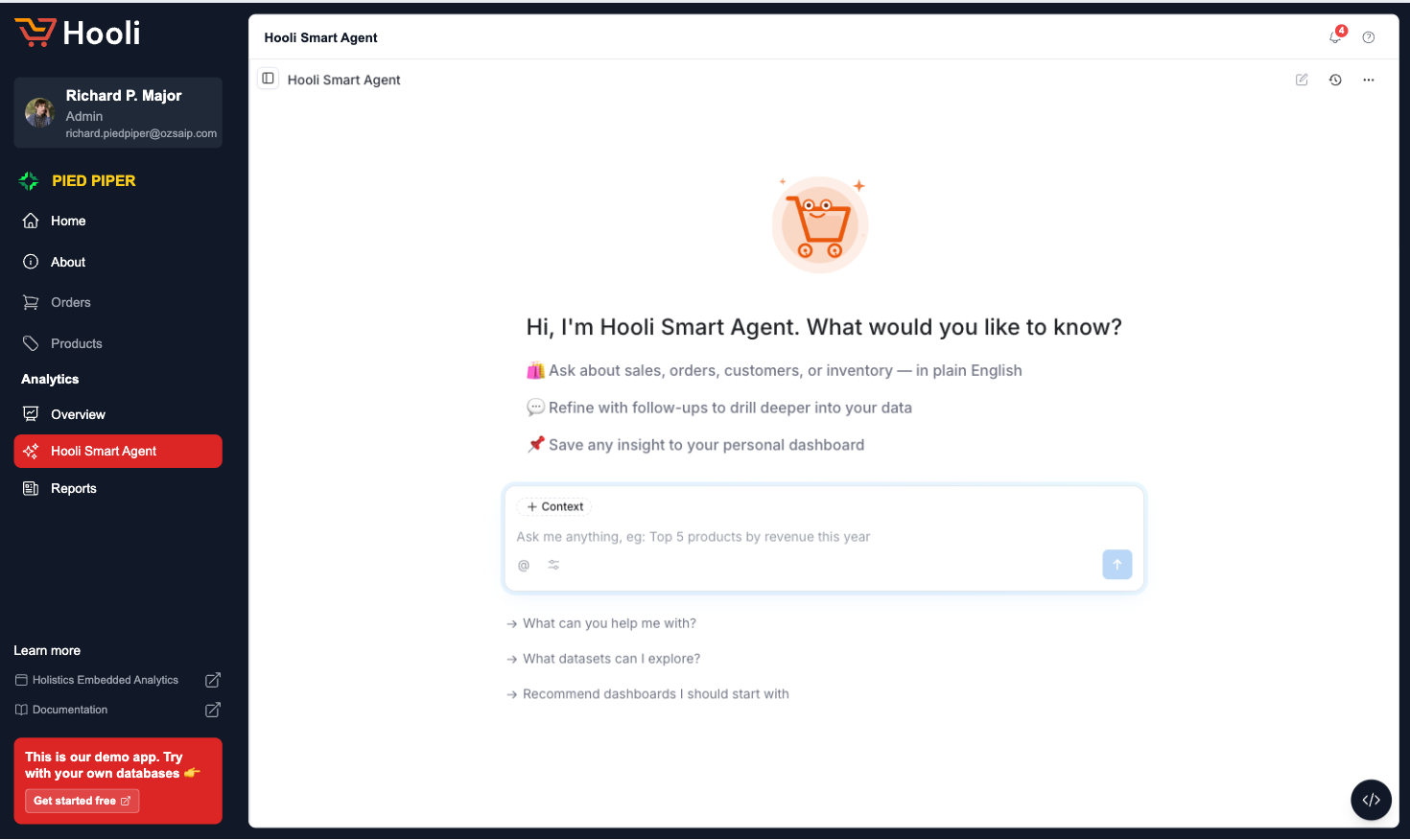
White-labeling Ask AI lets you replace Holistics' default branding with your own so the AI assistant feels like a native part of your product. You can set a custom icon, give the assistant a name, write your own welcome message, and tailor the prompt placeholder text.
Customizations are defined in AML, so they stay version-controlled and can differ per portal.
White-labeling covers the AI assistant only. To match dashboards, charts, and layout to your brand, see Customization & Styling.
Default:
Customized:
What you can customize
Chat page
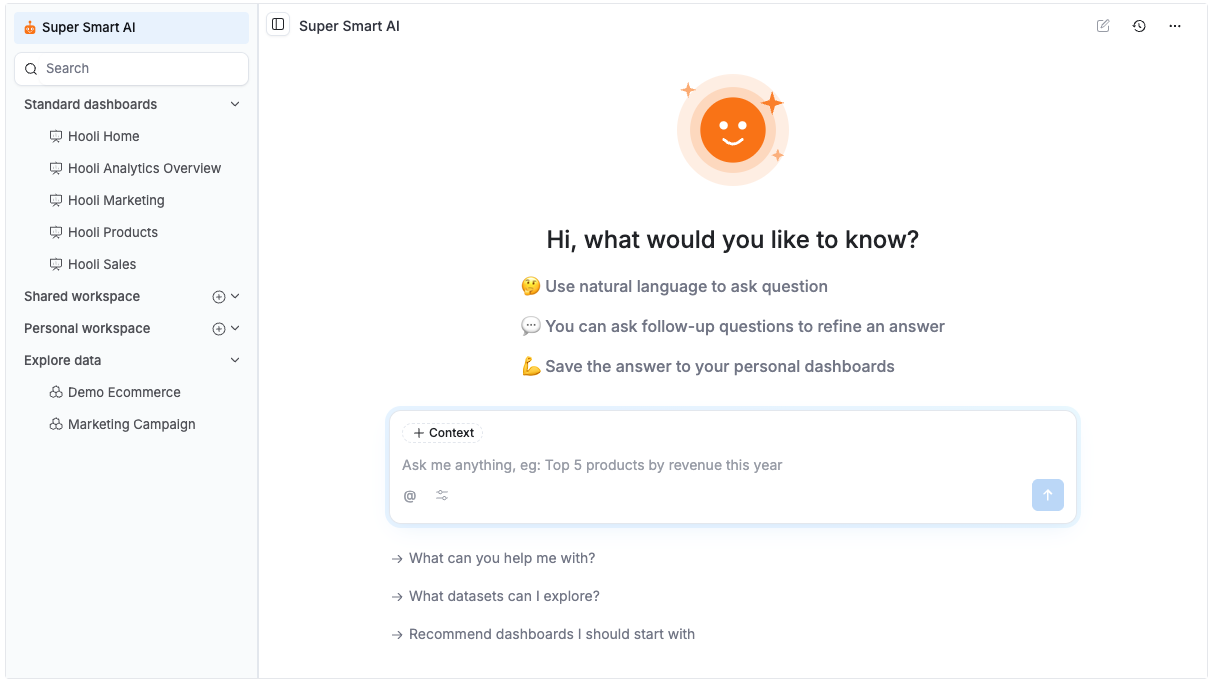
The chat page is where users interact with Ask AI. It appears on the AI page, in dashboards, and in data exploration. You can customize the icon, welcome message, and prompt placeholder.
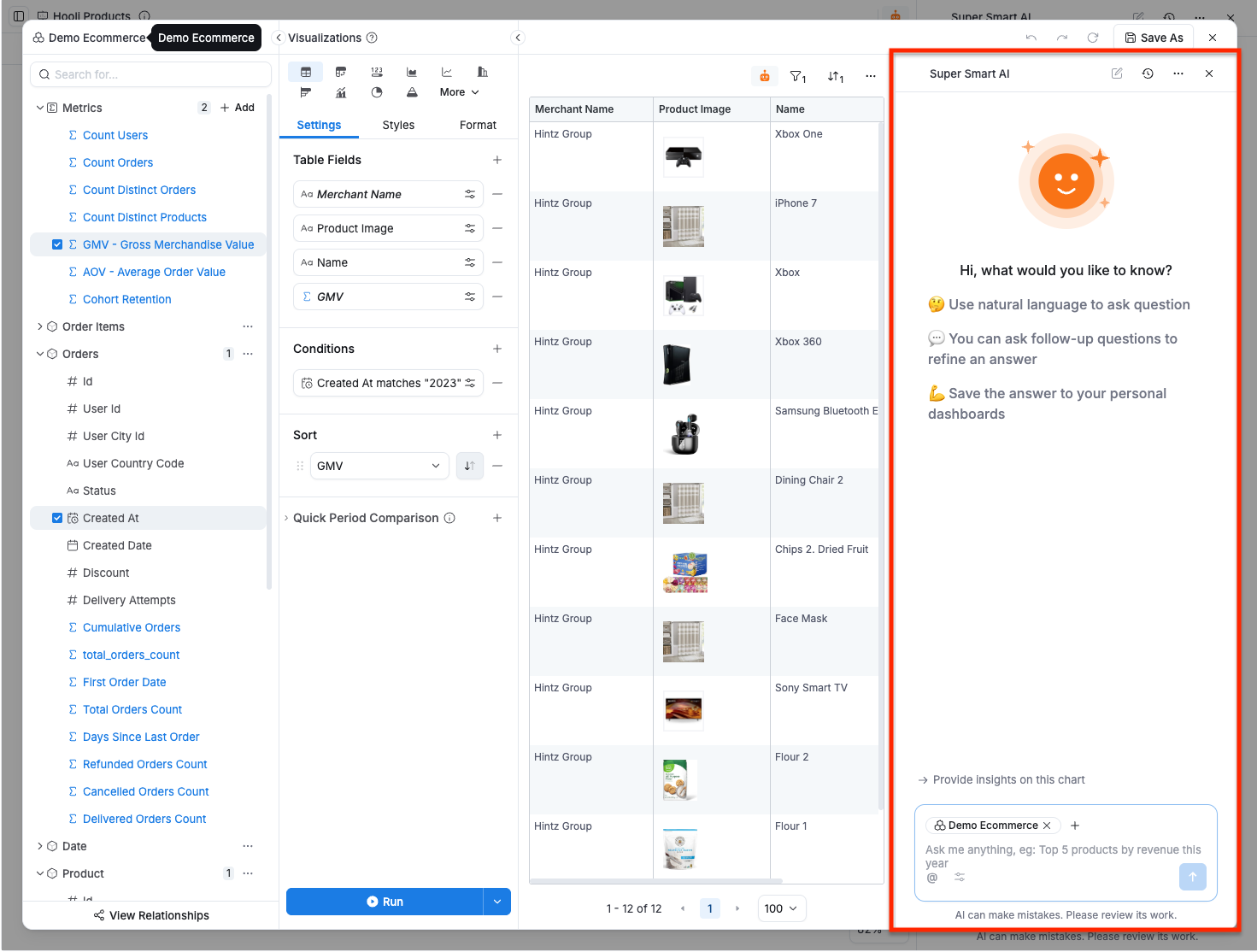
Toolbar
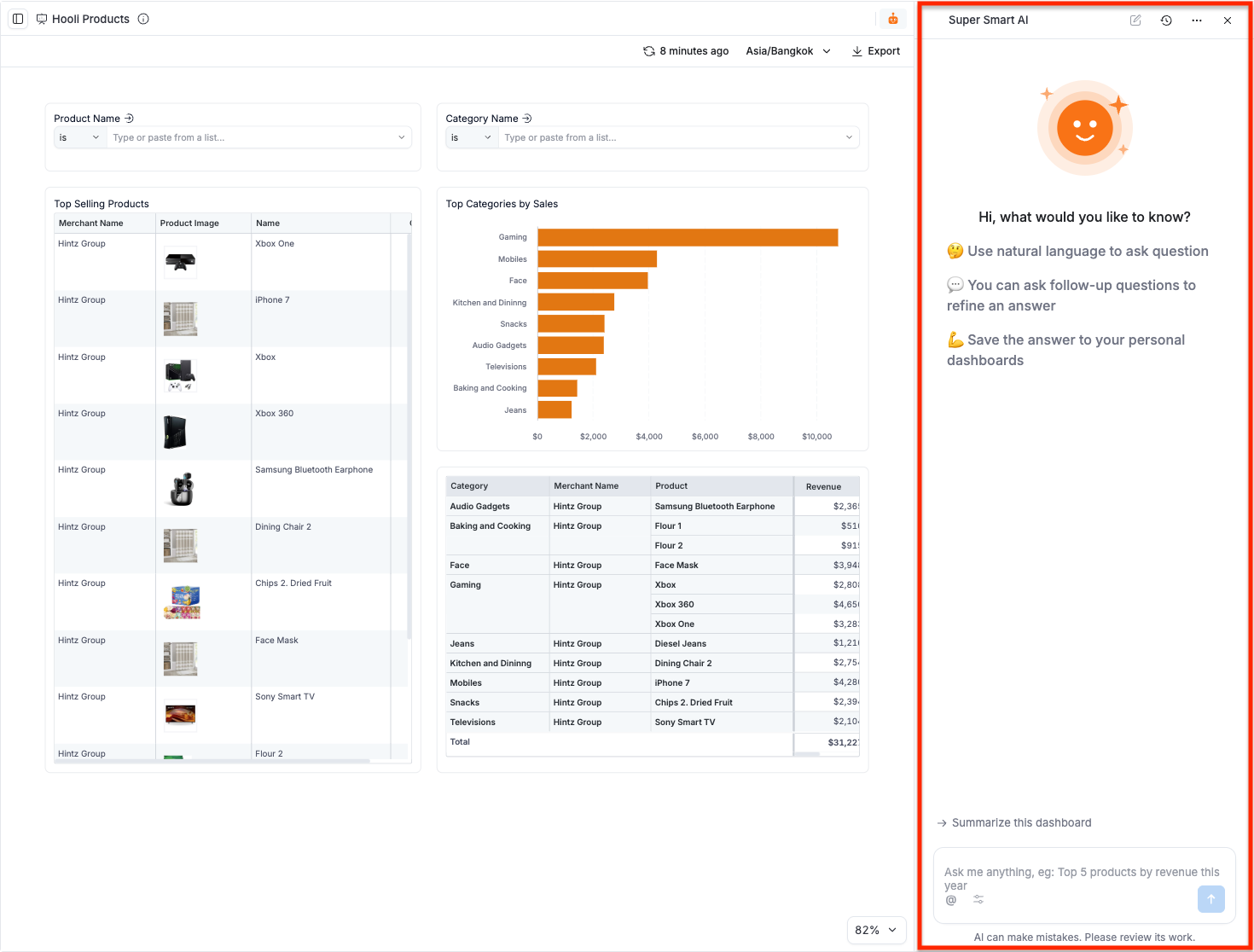
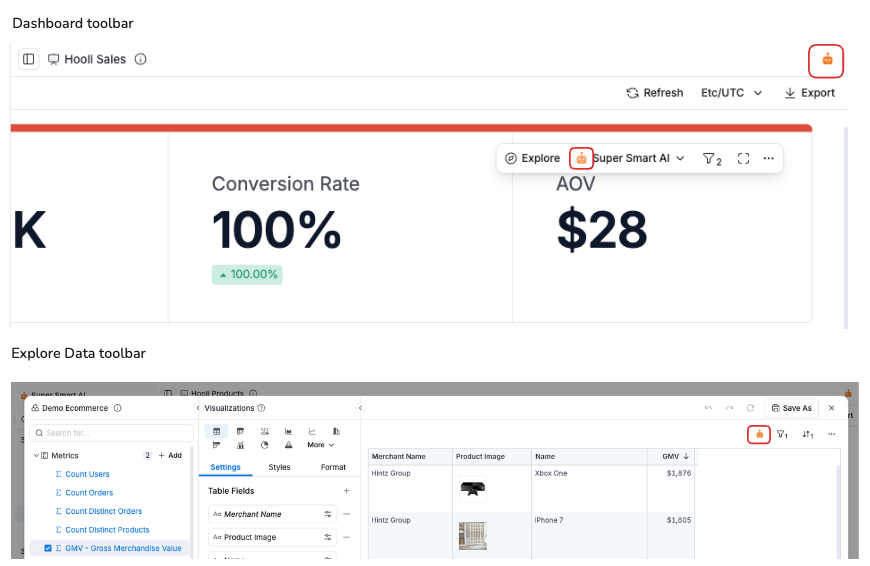
The toolbar button is how users open Ask AI from wherever they are. It appears across dashboards, datasets, and widgets. You can customize the icon of the toolbar button.
Left panel
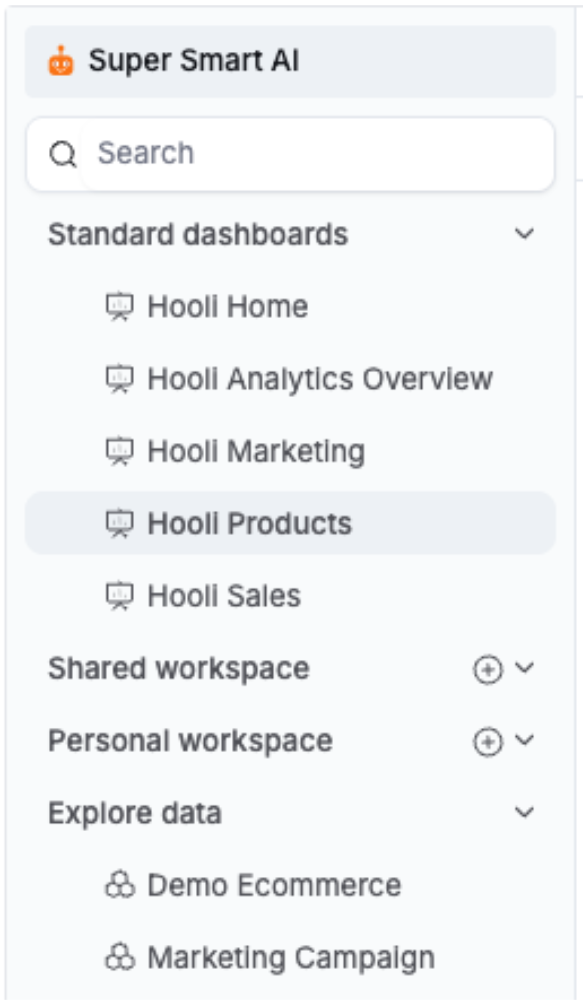
The left panel is the sidebar entry point to Ask AI. You can customize the icon and name of the left panel.
Syntax
Add an ai block to your EmbedPortal definition:
EmbedPortal sales_portal {
  objects: [
    sales_dashboard,
    ecom_dataset,
  ]

  ai {
    customization: EmbedPortalAiCustomization {
      global {
        icon: 'https://cdn.example.com/logo.png'
        assistant_name: 'Ask Hooli'
      }
      chat_page {
        icon: 'https://cdn.example.com/chat-icon.png'
        intro {
          header: 'Hi, what would you like to know?'
          body: 'Ask questions about your data in natural language.'
        }
        prompt_placeholder: ['Ask me anything, eg: Top 5 products by revenue', 'Try: Show monthly revenue trend', 'Try: Which region has the highest sales?']
      }
      toolbar {
        icon: 'https://cdn.example.com/toolbar-icon.png'
      }
      left_panel {
        icon: 'https://cdn.example.com/panel-icon.png'
      }
    }
  }
}
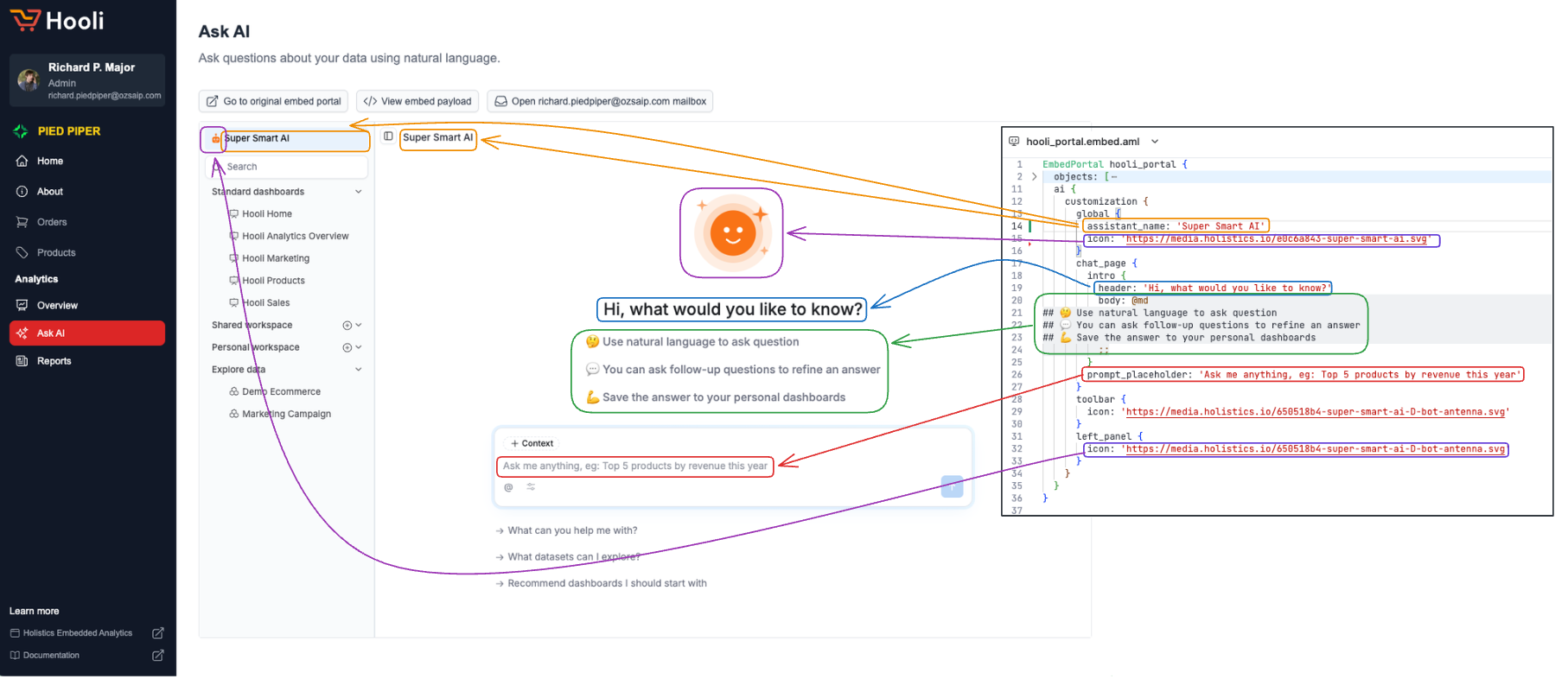
Here's how each property maps to the interface:
Properties reference
All properties are optional. Only set the ones you need:
| Section | Property | Type | Description |
|---|---|---|---|
global | icon | String (URL) | Default AI assistant icon |
assistant_name | String | Custom name for the AI assistant | |
chat_page | icon | String (URL) | Override AI assistant icon for the chat page |
intro.header | String | Chat intro header text | |
intro.body | String | Chat intro body text | |
prompt_placeholder | String or String[] | Placeholder text in the prompt input. When multiple values are provided, they rotate every 3 seconds | |
toolbar | icon | String (URL) | Override AI assistant icon for the toolbar button |
left_panel | icon | String (URL) | Override AI assistant icon for the sidebar |
Icon resolution
You can set a custom icon in four places:
| Property | Where it appears |
|---|---|
global.icon | Default icon for all UI locations |
chat_page.icon | AI page, dashboard chat panel, Explore Data chat panel |
toolbar.icon | AI button in dashboard, dataset, and widget toolbars |
left_panel.icon | Sidebar navigation |
Each UI location resolves its icon with a fallback: per-section icon > global.icon > default Holistics AI icon. This lets you set one icon globally and override specific locations as needed.
For example, with this configuration:
global {
  icon: 'https://cdn.example.com/logo.png'
}
chat_page {
  icon: 'https://cdn.example.com/chat-icon.png'
}
- Chat page uses
chat-icon.png(per-section override) - Toolbar and left panel use
logo.png(fallback toglobal.icon)