19 posts tagged with "enhancement"

View All Tags

โœจ Explore Settings Panel Redesign

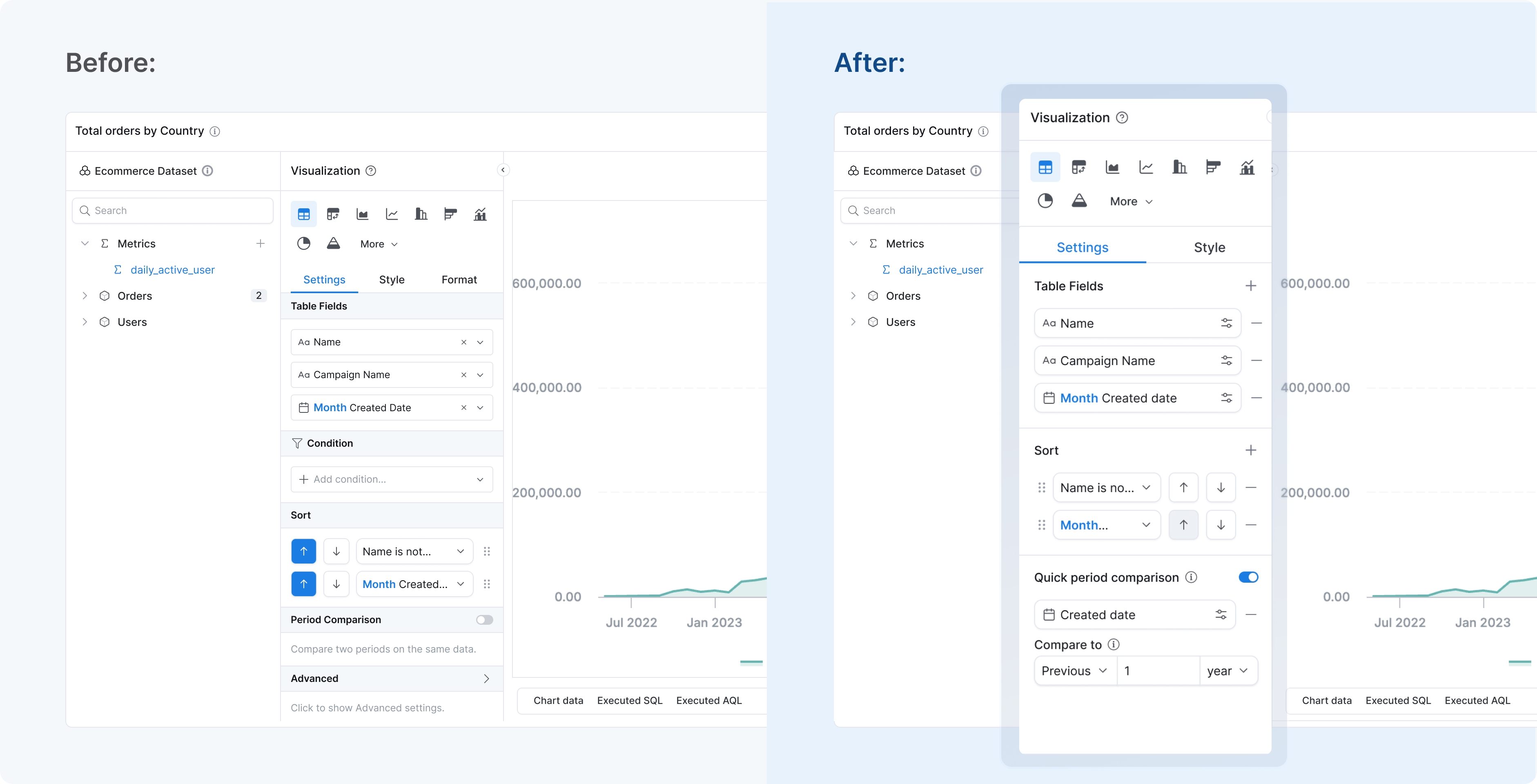
Viz Setting Panel - Before and After

We've redesigned the Explore settings panel with an improved visual hierarchy, making it easier to configure your visualizations.

Previously, the settings panel used older styling that made it harder to scan and find the options you needed. Now you get clearer spacing, better typography, and enhanced contrast - all aligned with the Holistics UI refresh from December 2025.

This is part of our ongoing Explore interface improvements. Soon, you can expect a whole new layout with a redesigned chart picker and collapsible configuration panel.

Learn more: Explore Interface Enhancement

๐Ÿ” Drill-through: 'Any Value' Filters Now Carry Through

Drill-through now respects "any value" filter states from the source dashboard when navigating to a target dashboard.

Previously, drill-through ignored filters set to "any value" (show all) โ€” the target dashboard applied its own defaults, producing unexpectedly narrowed results. Now, "any value" selections carry through as intended, so your target dashboard shows the full dataset you expect.

Learn more: Drill-through

๐Ÿ–ฅ๏ธ Generate canvas dashboards from quick dashboards directly in Reporting

You can now convert quick dashboards to canvas dashboards directly in Reporting โ€” no more being redirected to Development.

Previously, this conversion always navigated you to Development, disrupting your workflow and completely blocking explorers. Generated dashboards also always landed in the public root folder with no choice of destination.

What's newโ€‹

  • Generate in Reporting โ€” when โ€œAllow direct Dashboard Editing in Reportingโ€ is enabled, conversion happens right in Reporting. Personal workspace dashboards always generate in Reporting.
  • Choose where to save โ€” save to Public workspace for team sharing, or Personal workspace for private use.

Learn more: How to generate a canvas dashboard from a quick dashboard

๐Ÿ“ย Simplified Field Description

We are happy to announce a small but meaningful update to your exploration experience: Simplified Field Description.

โ˜”ย The Problemโ€‹

Data exploration can feelย overwhelmingย when you just want to knowย whatย a field is, notย howย it was built.Previously, hovering over a field displayed everything at once:

  • Field Name & Description
  • Field ID & Data Type
  • Complex SQL Logic

For many users, this created aย "wall of technical text"ย that obscured the actual business definition they were looking for.

โญย Whatโ€™s changedโ€‹

We have redesigned how field details are displayed to prioritize clarity

  • Clean by default: Now, when you hover over a field, we only show you the essentialsโ€”the Label, and the Description. This helps you get the context you need immediately, without the noise.
  • Technical details on demand: Don't worry, we haven't removed the technical details! For Analysts and Editors who need to debug logic or check source paths, you can simply click "Show Definition" (or the expand icon) to reveal the full Model Name, Field ID, and Formula/SQL.
Demonstration of before and after of field description

๐Ÿ–ฑ๏ธ Right-Click to Open the Context Menu

Hi team,

Weโ€™ve shipped a small UX improvement that makes it quicker to access settings while editing Canvas dashboards.

๐ŸŒŸ What's Changedโ€‹

Previously, to open a context menu, you had to hunt for the little โ€ฆ button on the component, creating friction while editing on Canvas dashboards.

Now, you can right-click to quickly open the context menu for a page/canvas, tab, or group of blocks.

๐Ÿ” Search for Visualization Block in Reporting

Our search capability has expanded beyond dashboards, allowing you to find visualization blocks by name or description.

๐ŸŒŸ What's newโ€‹

  • Deeper access: Jump straight to the exact visualization youโ€™re looking for, even in large or complex dashboards.
  • Less scrolling, more focus: Find relevant blocks instantly without needing to remember which dashboard they live in.

Visit our documentation to explore all of the search capabilities here.

โšก Saving Canvas Dashboard edits is now much faster, especially after heavy editing

We've shipped a performance improvement that makes saving edits on Canvas Dashboards significantly faster (often 2x faster), especially when youโ€™ve made lots of changes in one editing session.

โš™๏ธ What we changed (how we got the speedup)โ€‹

๐Ÿข Before (slower path)โ€‹

  • We tracked individual user actions during an edit session.
  • Then we generated update code for each action (delete, resize, move, edit, etc.).
  • With lots of interactions, that meant lots of processing โ†’ time-consuming at Save.

โšก After (faster path)โ€‹

  • Instead of caring about every single action, we now compare the dashboard version "before edit session" and "when user clicks save"
  • We then generate the update code once, based on the final difference.
  • Result: much less work during Save, and a noticeably faster saving experience, especially for โ€œheavy editโ€ sessions.

๐Ÿ”– AQL Quick Reference in the AQL Editor

Weโ€™re excited to introduce the AQL Quick Reference to simplify writing AQL. This feature serves as an in-editor reference, offering quick access to AQL functions, operators, and practical examples without switching back and forth between the Holistics and doc pages:

  • In-Place Search: Find AQL info without leaving the editor.
  • Concise Info: Easy-to-understand, bite-size details.
  • Practical Examples: Ready-to-use AQL snippets for seamless coding.

Enhance your productivity with this handy AQL Quick Reference and make AQL coding a breeze ๐Ÿ’ช

Bonus: When reading the docs, there are two cheatsheets that can help you find the functions and operators info quickly:

๐Ÿงจ AQL Error System Improvement

What's Newโ€‹

We're excited to announce a major upgrade to our AQL (Analytics Query Language) experience with our new enhanced Error Handling System. This update transforms how you interact with AQL by providing immediate, clear, and actionable feedback as you write queries.

Key Improvementsโ€‹

  • Static Type-Checking: Errors are now detected while you type, not when you run your query (feedback on relationshiops, joint requirements, proper nestings, etc).
  • Stack Traces: Easily identify where errors originate within complex queries
  • Highlighted Error Locations: Visual indicators show exactly where issues occur
  • Documentation Links: One-click access to relevant documentation for deeper learning

Getting Startedโ€‹

This feature is automatically enabled for all users on AQL-enabled datasets and reports. Simply open the AQL editor and start experiencing the benefits of real-time error feedback.