Permission settings
Introduction
Permission Settings is where you enforce data access control on your embedded dashboard viewers. The mechanism Holistics uses for this is Row-level Permission (RLP).
Row-level permission explained
For example, say you have an embedded dashboard for your multi-national E-commerce company which shows sales for all stores worldwide. Without RLP, no matter which manager signs in and views the report, they all see the same data.
Now the company CEO has decided that each country manager should only see the sales for the stores they manage. RLP lets you restrict data based on the area each manager is responsible for.
By applying RLP on the name field of the model country, whenever your country managers log in, the condition country.name = 'their_country' is applied to all queries generated by the embedded dashboard. This way, they can only see data linked to their country.
General structure of permission settings code
You can generate permission settings code interactively within the Embedded Analytics Sandbox:
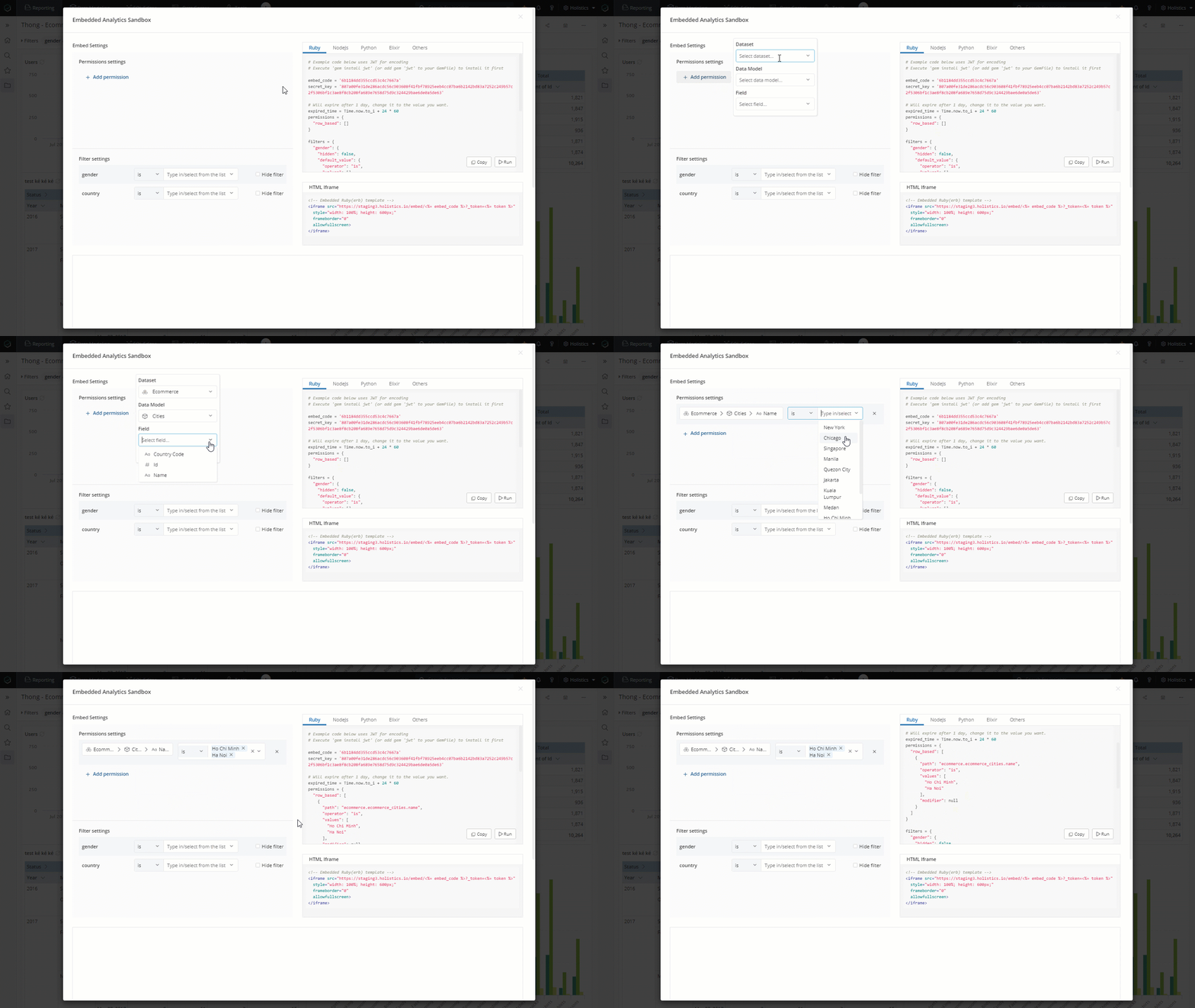
In general, the generated code will have this structure:
permissions = {
	"row_based": [
		{
			"path": {
				"dataset": "dataset_name",
				"model": "model_name",
				"field": "field_name"
			},
			"operator": "expected_operator",
			"modifier": null,
			"values": [
				"your_expected_value"
			]
		}
	]
}
The row_based property is an array of permission rules. Each rule combines path, operator, modifier, and values to construct a condition that restricts data for a particular field.
- path: defines the exact field the condition applies to. Since row-level permission is applied at the dataset level, the path needs to include the dataset, model, and field unique names (unames).
- operator: specifies the comparison type (IS, IS NOT...) for the field.
- modifier (optional): only available for some of the operators in the Date filter (for example, next, last X days/months/years.)
- values: the only values accepted by the field comparison
The model value must match the uname declared after Model in AML. It does not use the AML filename or display label. For example, this file declares sales_orders as the model uname:
Model sales_orders {
  // Model definition
}
Use sales_orders, not sales, in the permission path:
{
  "path": {
    "dataset": "ecommerce",
    "model": "sales_orders",
    "field": "country"
  }
}
The model must also be included in the dataset specified by dataset.
While you can write the embed code from scratch, we recommend using the Embedded Analytics Sandbox to retrieve the exact field path for your RLP settings.
How to restrict data access based on users
Below is sample code for permission settings that ensures:
- General Manager can see data from all countries.
- Vietnam Manager can only see data from
Vietnam. - Consultant can only see stores in
Ha Noi.
country = []
cities = []
country = ['Vietnam']
country = ['Vietnam']
cities = ['Ha Noi']
}
permissions = {
row_based: [
{
path: {
dataset: "ecommerce",
model: "ecommerce_countries",
field: "country_name"
},
operator: 'is',
values: country
},
{
path: {
dataset: "ecommerce",
model: "ecommerce_cities",
field: "city_name"
},
operator: 'is',
values: cities
},
]
}
FAQs
Why do permissions have different datasets from what we originally selected?
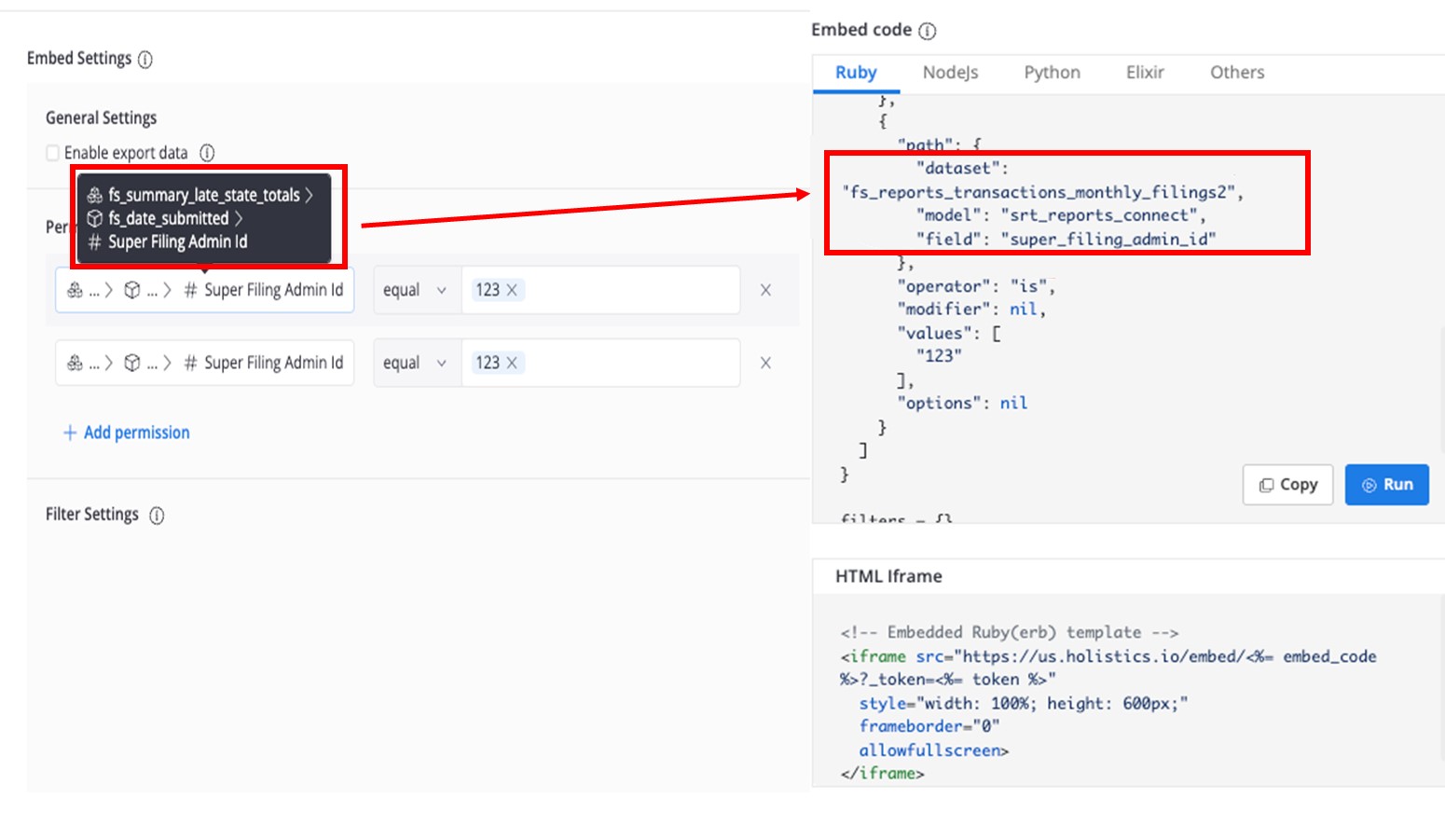
This happens because the dataset was renamed.
- The UI on the left displays the title of the dataset that has been renamed. The code on the right uses the dataset's unique name.
- The dataset's unique name is auto-generated when the dataset is created. We don't update it to avoid breaking existing embed payloads.
What are the differences between permission settings and control settings?
Although it seems that both permission settings and control settings can restrict user's access to data, in reality, they serve two different purposes.
Please read more about the distinction in the Security documentation page.