Self-Serve Dashboard Creation
This is a Beta feature. The documentation and feature may change rapidly. You can request Beta access and try it out.
Introduction
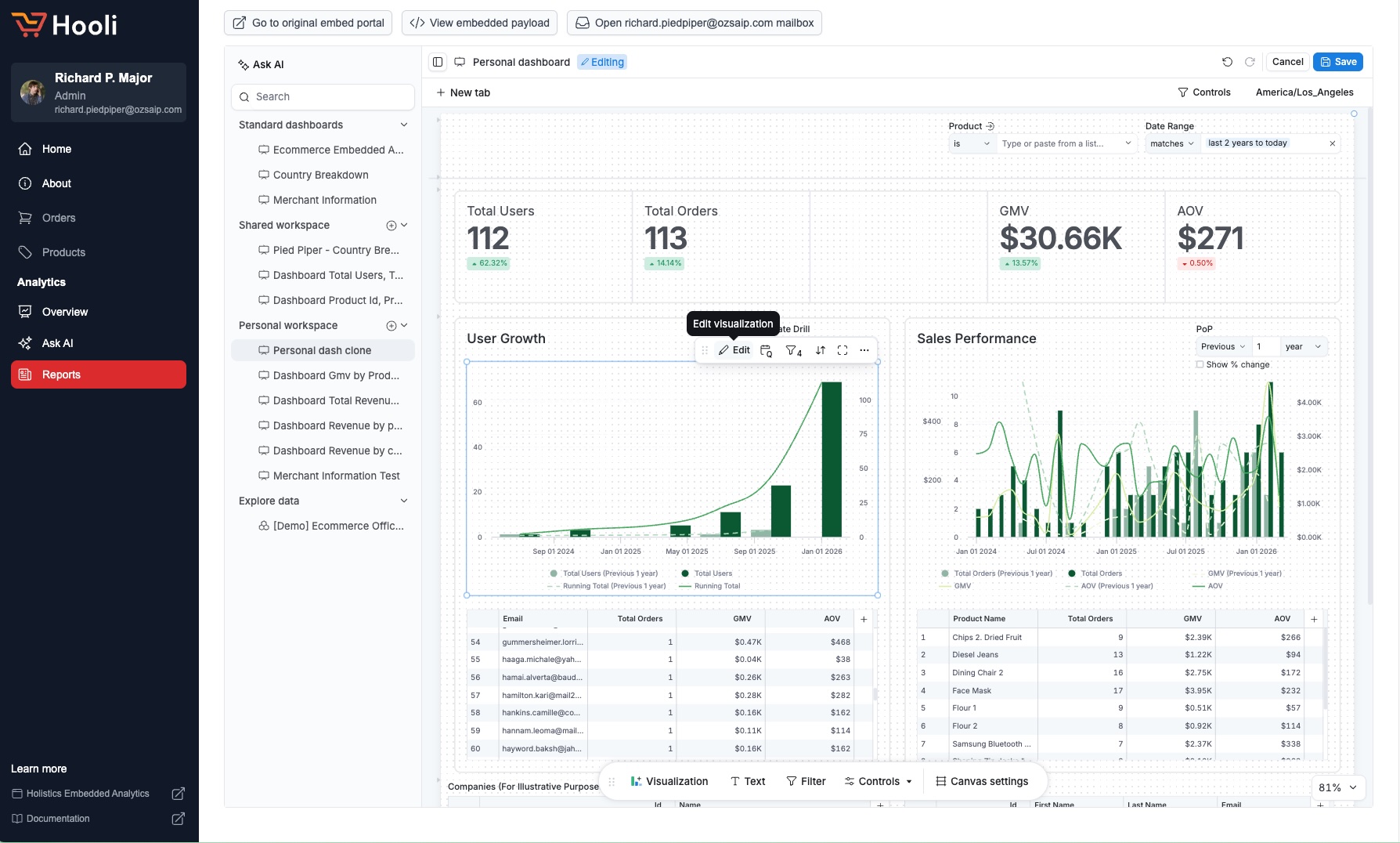
Self-serve dashboard creation lets your embed users to build, save, and manage their own dashboards within your applications. Instead of waiting for your team to create every report, users can explore data and save their insights independently.
How it works
- Embed users explore data using interactive features (data exploration, drill down, etc.)
- When they want to keep their work, they save it to a dashboard
- Dashboards are stored in their personal or shared workspace
Behind the scenes, these dashboards are saved as code files in your Git repository. Administrators can view, audit, or manage these user-generated dashboards. For detailed instructions, see our guide on managing user dashboards.
Setup
This feature is only available with Embed Portal. It is not supported in Single Dashboard embedding.
Step 1: Enable Git integration
User dashboards are saved as code files in your Git repository. To set this up:
- Enable explicit Git integration in Holistics
- If using external Git, ensure write access and disable protected branch restrictions for the branch where dashboards are stored
Step 2: Include datasets in your Embed Portal
Users can only build dashboards from datasets included in your portal. To define what they can explore and build from, add the relevant datasets to your Embed Portal:
EmbedPortal ecommerce_portal {
  objects: [
    sales_dashboard,    // Dashboard users can view
    sales_dataset,      // Dataset users can explore and build from
    products_dataset,   // Another dataset for self-serve
  ],
}
Step 3: Configure user workspaces
Embed users need somewhere to save their dashboards. You can give them a personal workspace, access to a shared workspace, or both.
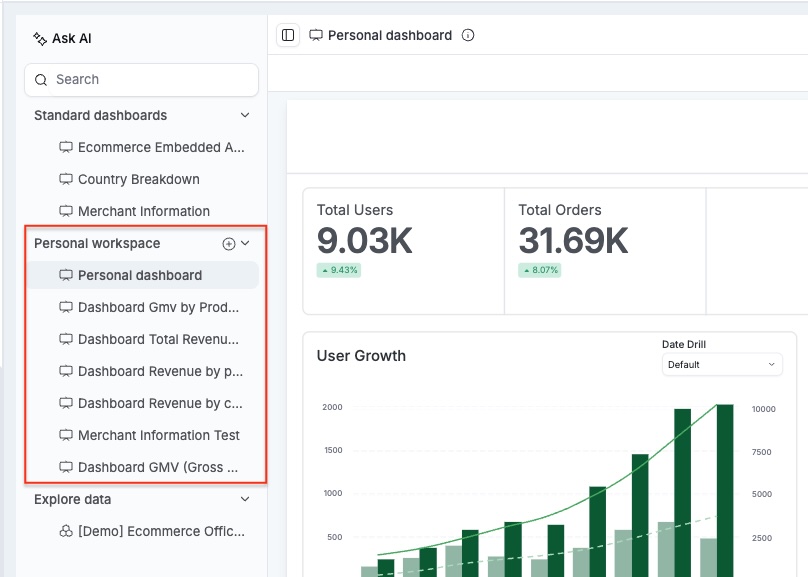
Personal workspace
A private space where each user creates dashboards only they can see.
Best for: B2C applications, individual analytics, personal trackers.
const embed_payload = {
  "embed_user_id": "user_123",

  "permissions": {
    "enable_personal_workspace": true
  }
}
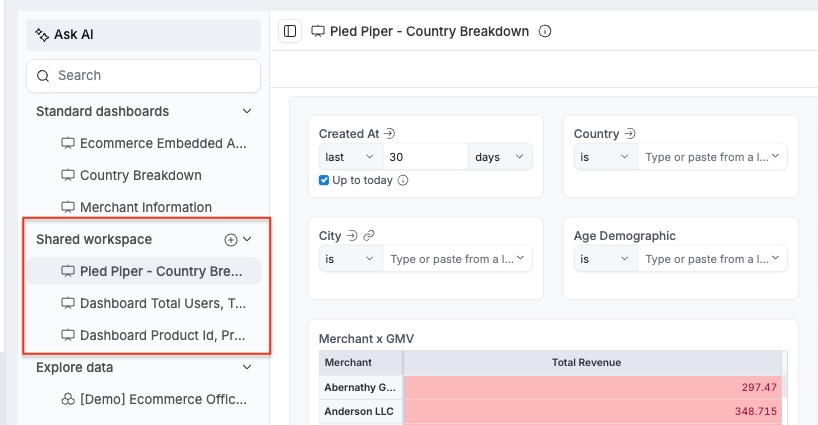
Shared workspace
A collaborative space where team members can view and edit dashboards together.
Best for: B2B applications, team analytics, department dashboards.
const embed_payload = {
  "embed_user_id": "user_123",
  "embed_org_id": "team_alpha",

  "permissions": {
    "org_workspace_role": "editor"  // or "viewer" for read-only
  }
}
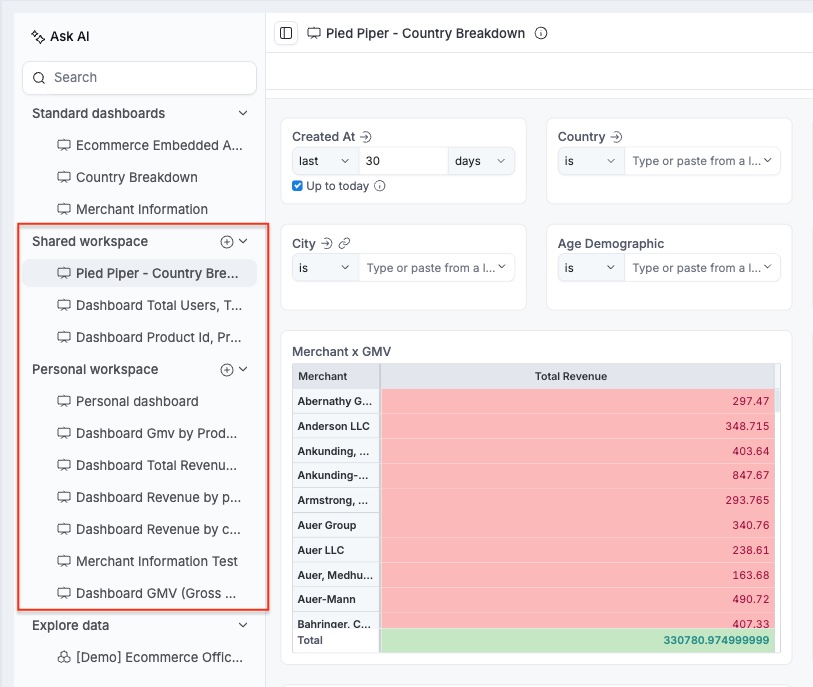
Combining both
Users can have access to both personal and shared workspaces:
const embed_payload = {
  "embed_user_id": "user_123",
  "embed_org_id": "team_alpha",

  "permissions": {
    "enable_personal_workspace": true,
    "org_workspace_role": "editor"
  }
}
For detailed configuration options and user isolation, see Identity & Workspace Settings.
What users can do
Once configured, your users' capabilities are defined by their workspace access and assigned roles:
| Action scope | Personal workspace | Shared workspace (Viewer) | Shared workspace (Editor) |
|---|---|---|---|
| PERSONAL WORKSPACE | |||
| Create, edit, delete dashboards | ✅ | — | — |
| SHARED WORKSPACE | |||
| View dashboards | — | ✅ | ✅ |
| Create, edit, delete dashboards | — | ❌ | ✅ |
For detailed configuration options and user isolation, see Identity & Workspace Settings.
Related resources
- Identity & Workspace Settings - Deep dive on permissions and user isolation
- Interactive Embedding - Enable data exploration features
- Managing User Dashboards - Admin guide for viewing and managing user-created dashboards