Building an analytics Slack chatbot (using Holistics MCP)
Introduction
This document guides you to run your own Slack bot that connects to Holistics MCP server, enabling your team to chat with your Holistics data on Slack.
This guide uses open-source code (https://github.com/tuannvm/slack-mcp-client) as an example to implement the Slack bot.
- This code is not owned or developed by Holistics. Thus, Holistics does not take responsibility for issues related to this code.
- You can implement your own code instead of using it.
Architecture
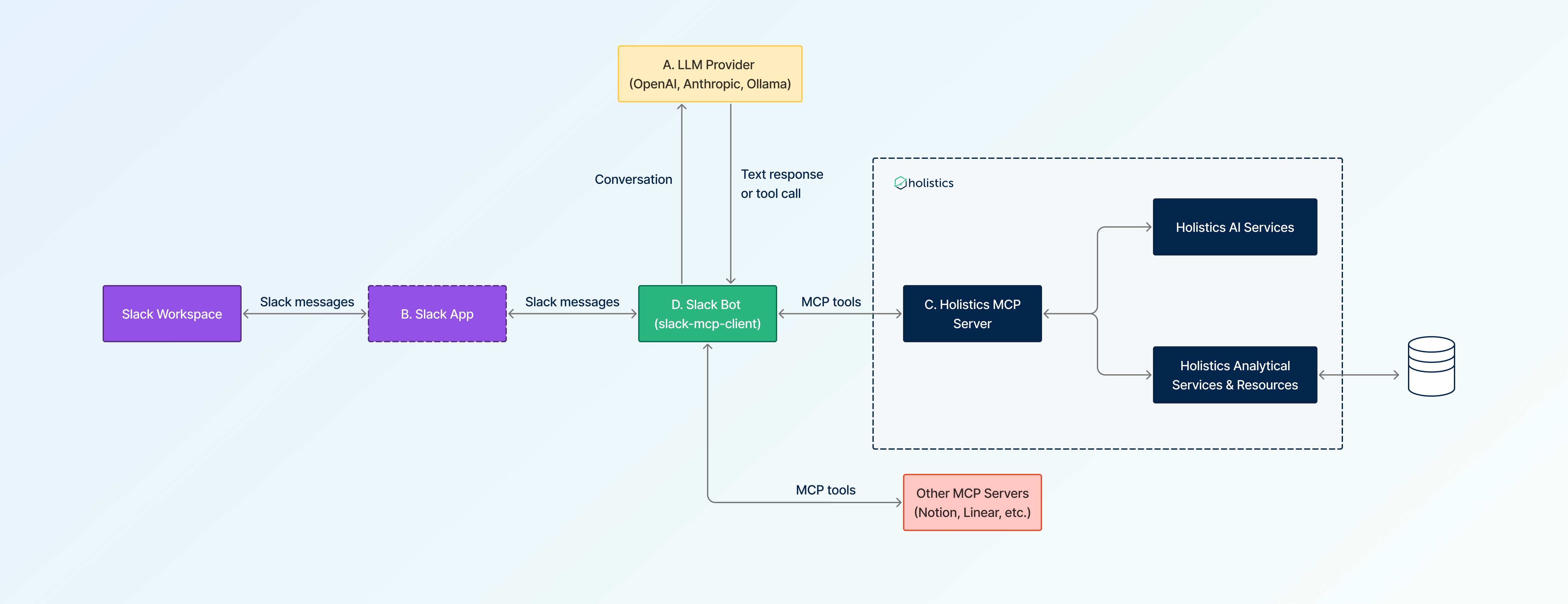
- Slack workspace: The workspace where you and your users will be chatting with the Slack bot.
- Slack App: Slack's configuration for your bot, including how the bot is connected, how the bot appears, what the bot is allowed to do.
- Slack Bot: The bot runtime that listens and responds to Slack messages.
- It uses the LLM from the LLM provider to write responses and prepare tool calls.
- It executes the tool calls on the MCP servers.
- Holistics MCP Server: The server that accepts the Bot's tool call requests to perform analytical tasks on Holistics and return the result to the Bot.
Walkthrough
A. Set up your LLM provider
Obtain an API key from your LLM provider. It will be used to power the bot's ability to chat and use Holistics.
LLM providers supported by slack-mcp-client: OpenAI, Anthropic, Ollama.
B. Create a Slack App for your bot
-
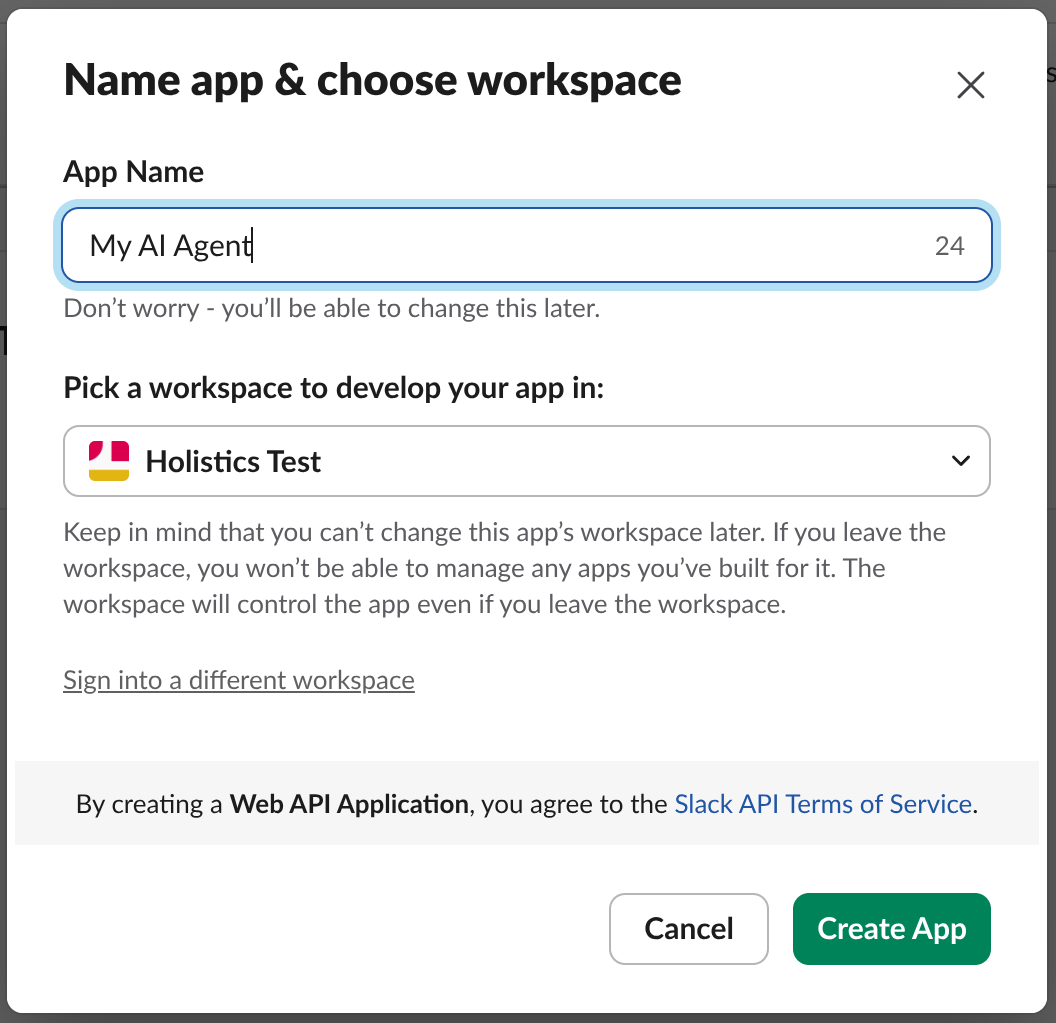
Click Create New App
- You can name it
Holistics AI Agentor even<Your Company> AI Agent(because you can connect the Slack bot to multiple MCP servers, not just Holistics!) - Make sure to choose the Slack workspace where you will use the Slack bot
- You can name it
-
Go to OAuth & Permissions and add these Bot Token Scopes:
app_mentions:readchat:writeim:historyim:readim:writeusers:readusers.profile:readchannels:historygroups:historympim:history
-
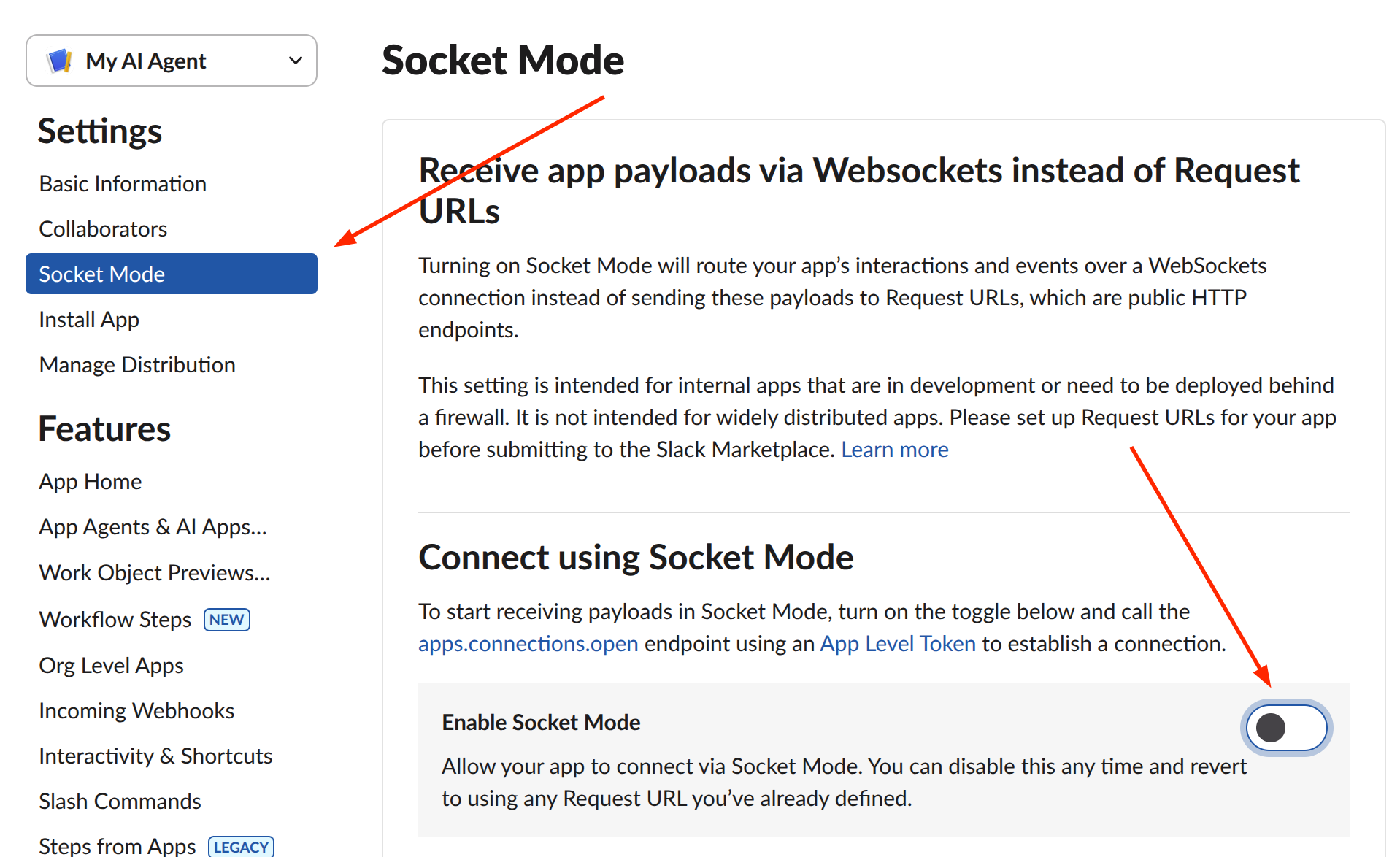
Enable Socket Mode
-
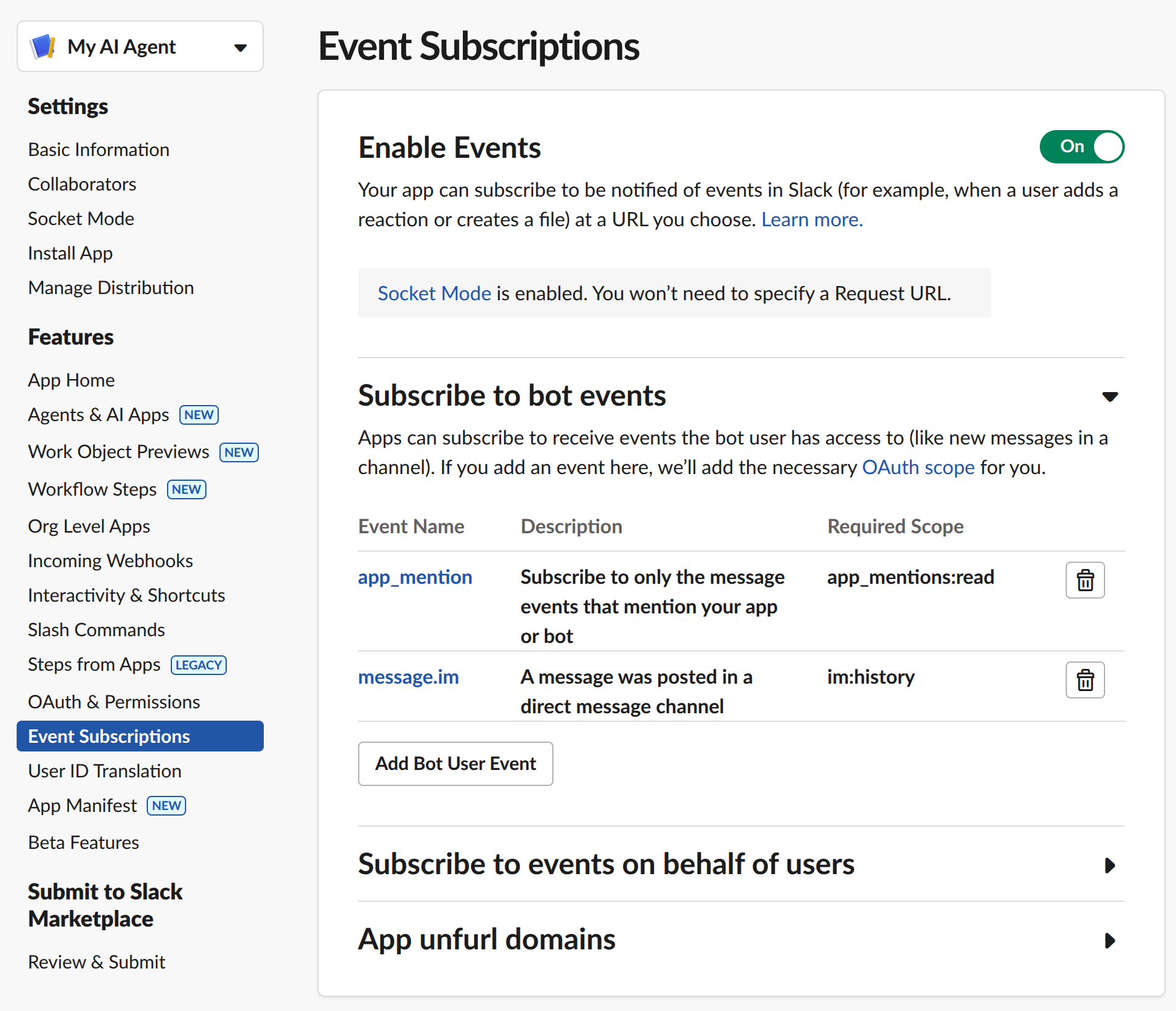
Enable Event Subscriptions and subscribe to these events (make sure to click Save changes):
app_mentionmessages.im
-
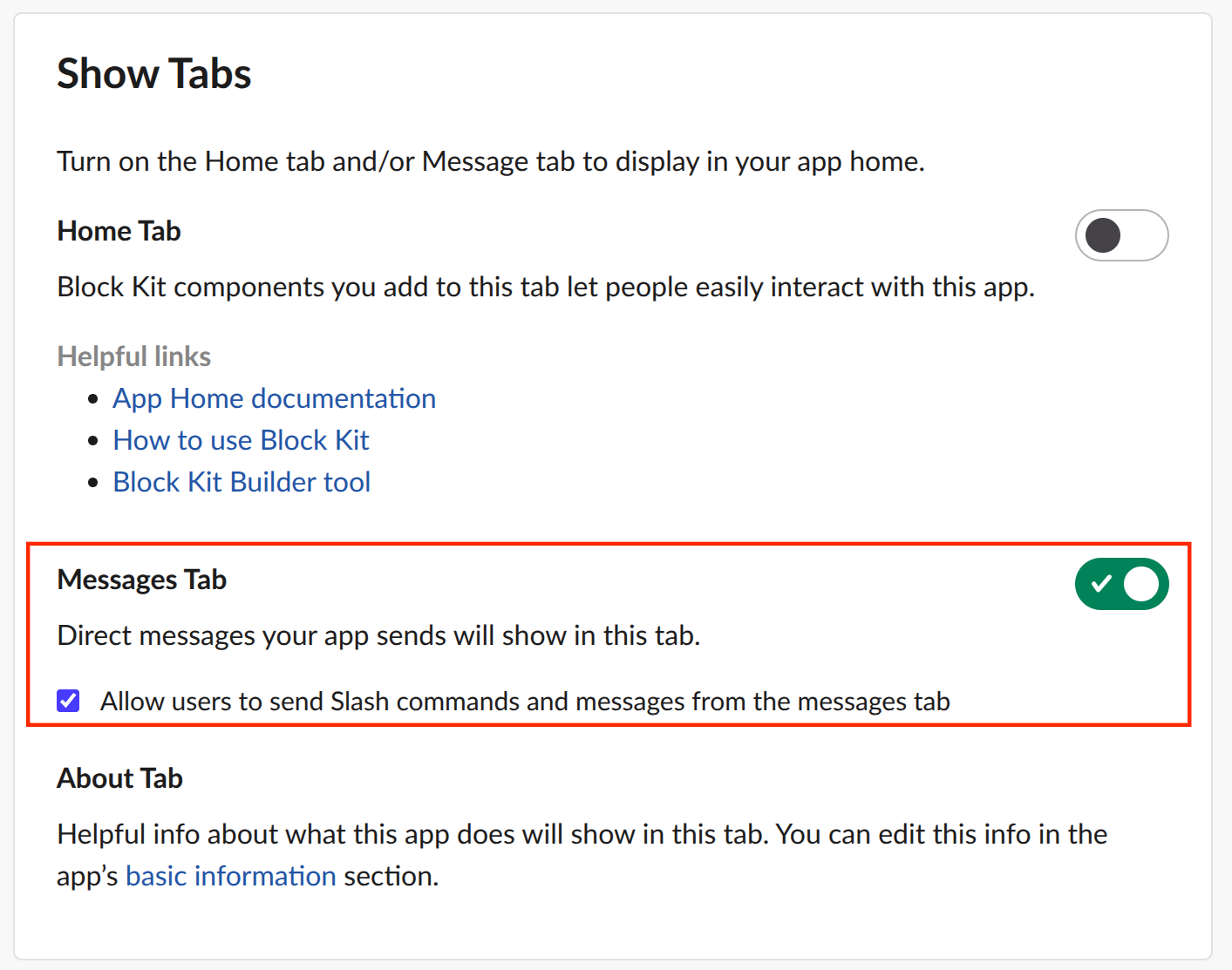
Go to App Home and enable Messages Tab:
-
Go to OAuth & Permissions and click Install to <Your workspace> under OAuth Tokens
-
Obtain Slack tokens:
- Bot token: In OAuth & Permissions tab, under OAuth Tokens
- App-level token: In Basic Information tab, under App-Level Tokens
C. Set up Holistics MCP Server
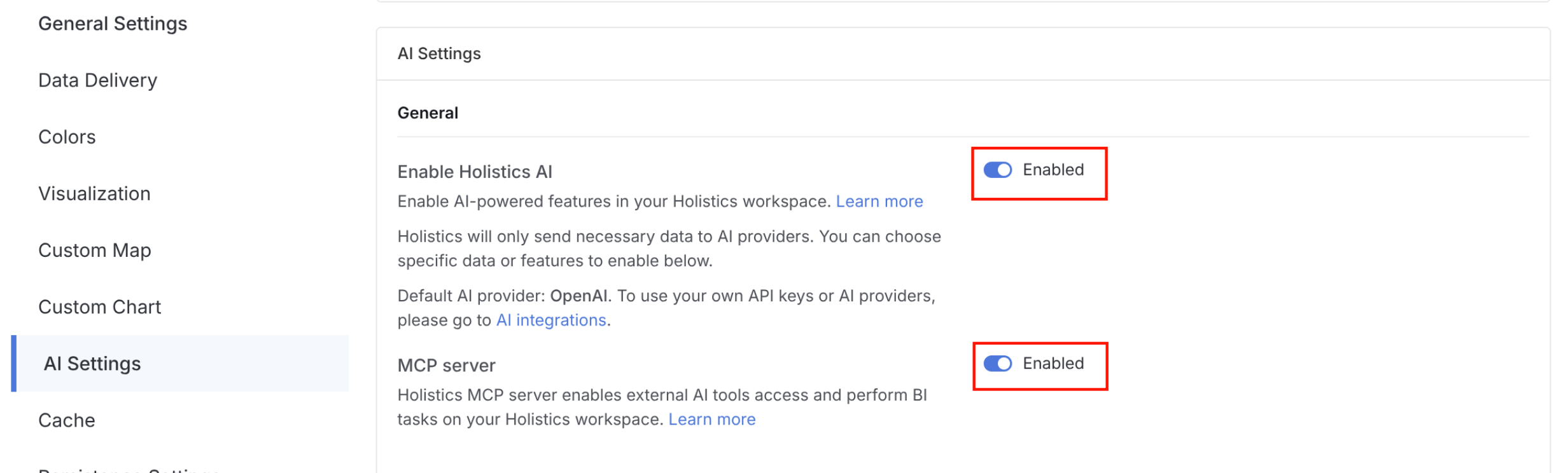
- Enable Holistics AI and MCP server in your Holistics workspace settings
- Obtain a Holistics API key and store it securely. Your Slack bot will use this API key for MCP Server authorization.
D. Set up Slack bot
-
- You can go to https://github.com/tuannvm/slack-mcp-client/releases/latest and download the binary that is compatible with your OS.
-
Create a folder named
slack-botto store your configs. -
Create
config.jsoninsideslack-bot:{"$schema": "https://github.com/tuannvm/slack-mcp-client/blob/main/schema/config-schema.json","version": "2.0","slack": {"botToken": "${SLACK_BOT_TOKEN}","appToken": "${SLACK_APP_TOKEN}"},"llm": {"provider": "openai","useNativeTools": true,"useAgent": true,"customPromptFile": "./prompt.txt","providers": {"openai": {"model": "gpt-4.1","apiKey": "${OPENAI_API_KEY}","temperature": 0.2}}},"mcpServers": {"holistics": {"command": "npx","args": ["-y","mcp-remote","https://mcp-<region>.holistics.io/mcp","--header","X-Holistics-Key:${HOLISTICS_API_KEY}"],"env": {"HOLISTICS_API_KEY": "${HOLISTICS_API_KEY}"}}}}NOTE:
- Make sure to replace
https://mcp-<region>.holistics.io/mcpwith the proper endpoint. - Configure
providersaccording to your LLM provider.
- Make sure to replace
-
Create
.envinsideslack-bot:SLACK_BOT_TOKEN="xoxb..." # from step B.7SLACK_APP_TOKEN="xapp..." # from step B.7OPENAI_API_KEY="..." # from step AHOLISTICS_API_KEY="..." # from step C.2 -
Create
prompt.txtinsideslack-bot:# HolisticsYou have access to the Holistics MCP (Model Context Protocol) tool, which provides powerful data analytics and business intelligence capabilities. Here's how to use it effectively:## When to Use Holistics MCP:- When users ask about business metrics, KPIs, or data analytics.- When users need specific numbers, trends, or insights from company data.- When users request insight information or detailed data.- When users want to explore available datasets or understand data relationships.## Best Practices:1. **Be Specific**: When querying data, be as specific as possible with date ranges, filters, and dimensions.2. **Handle Errors Gracefully**: If the MCP tool returns an error, display the original error message, explain what might have gone wrong and suggest alternatives.3. ALWAYS check the actual dataset names using list_datasets tool.4. Combine answers from multiple datasets if one is not enough.## Response Format:When using the Holistics MCP tool:- ALWAYS include the dataset name (wrapped inside \`\`) in your response.- Clearly state what data you're retrieving.- Present results in a clear, formatted manner.- Include relevant context about the time period, filters applied, and which specific datasets were used.- If it makes sense, you can provide an inline markdown table (inside a markdown quoted block, suitable for Slack formatting) to visualize the result.- If the result has any links, include them in your response.
E. Run and test your Slack bot
Run your slack bot in terminal:
# within slack-bot folder (created in step D.2)
slack-mcp-client
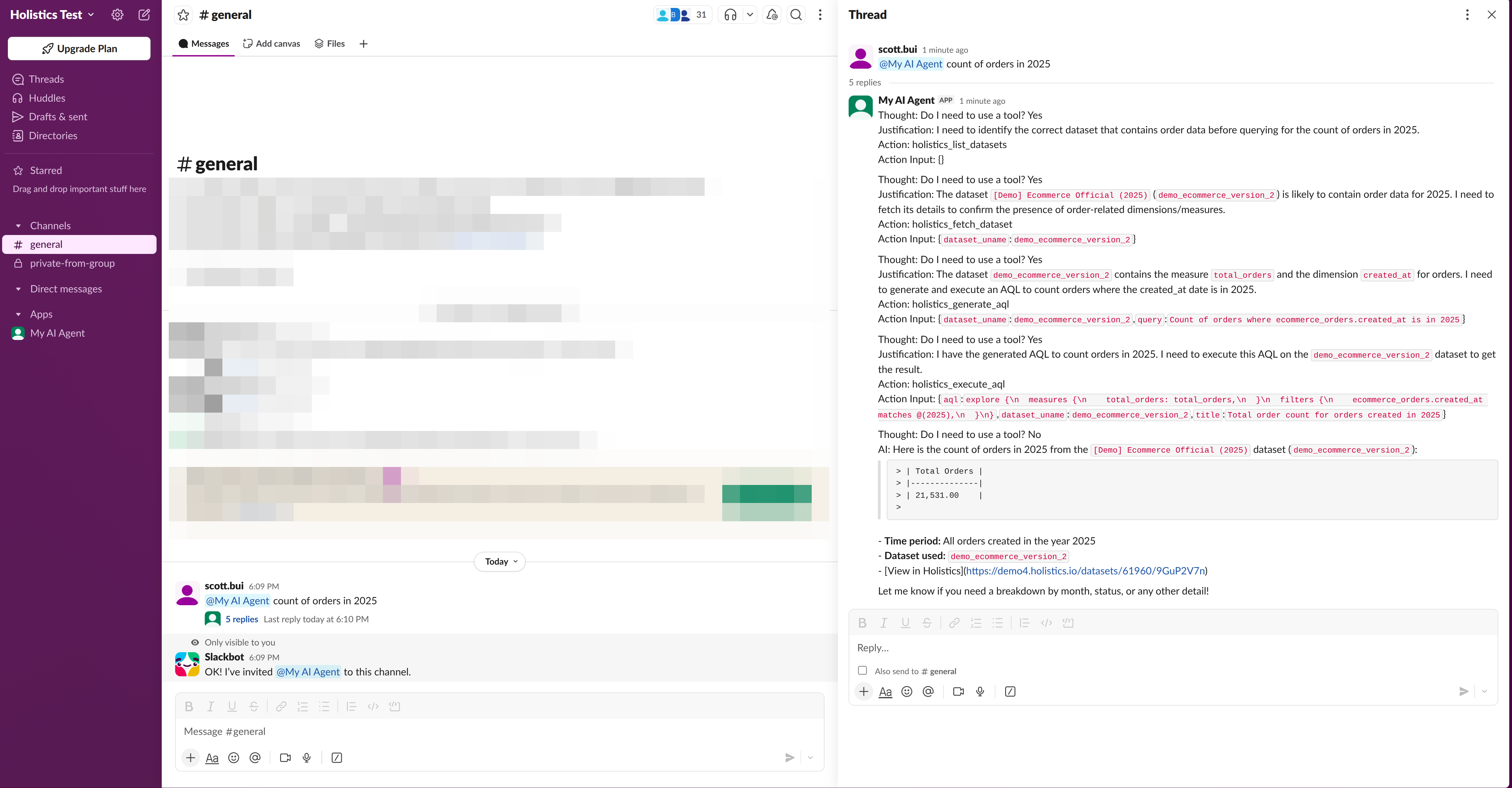
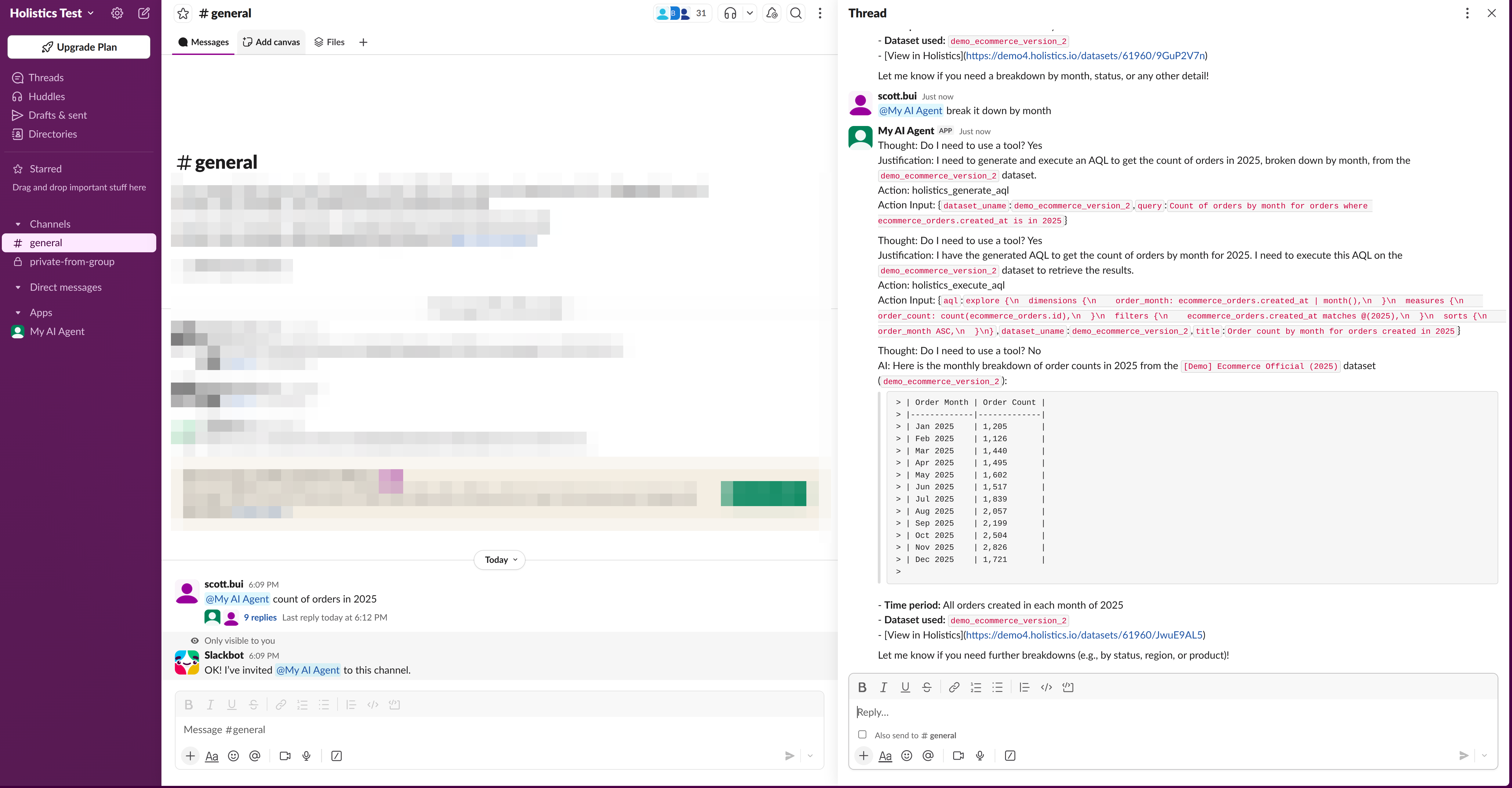
Test by chatting in your Slack workspace:
F. What's next
- Deploy your Slack bot to a server to let it run 24/7
- Customize
prompt.txtto suit your needs better - Connect your Slack bot to other MCP servers (e.g. Notion, Linear, etc.) by configuring
config.json