Multi-environment
Introduction
Managing analytics across development, testing, and production—or across different regions—can be challenging when you need consistent code but isolated data. A multi-environment setup solves this by letting you run multiple Holistics accounts, each connected to its own data source, while keeping your analytics code synchronized through Git.
Use case 1 - Development pipeline: Develop analytics code in a dev environment, test it in UAT, then deploy to production for end-users. Changes get thoroughly tested against isolated data before reaching end-users, reducing the risk of production errors.
Use case 2 - Regional compliance: Keep data isolated across regions (e.g., APAC, EU, US) while using identical analytics code everywhere.
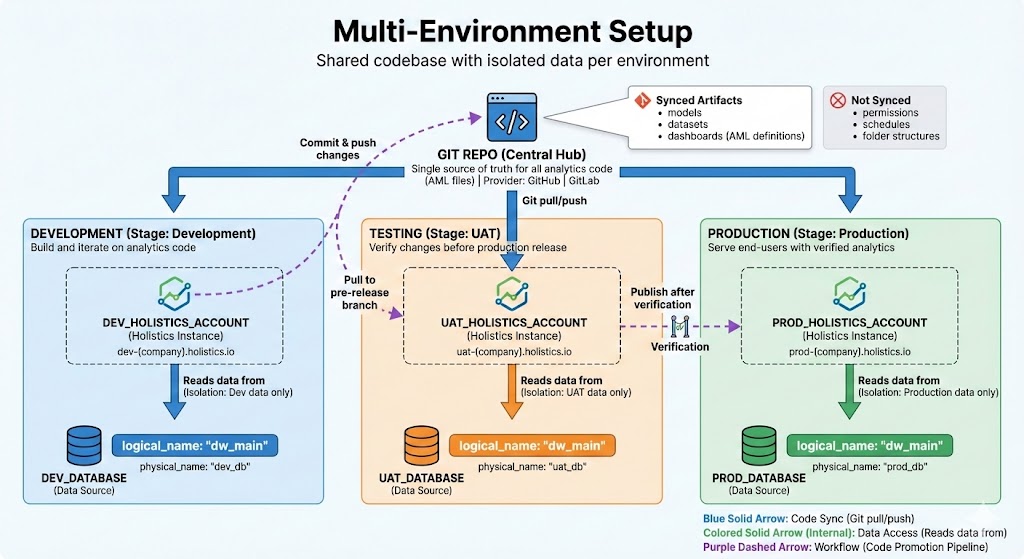
High-level concept
In a multi-environment setup, each stage of your deployment process exists as a separate Holistics account (e.g., dev-your-company.holistics.io, prod-your-company.holistics.io).
-
Shared codebase: All environments connect to the same GitHub/Gitlab repository for code sharing and syncing.
-
Data isolation: Each environment connects to its own dedicated data source (e.g., Dev account connects to
dev_db, Prod account connects toprod_db). -
Consistency via naming: By keeping data source names identical across accounts, both accounts call their connection dw_main), the code remains portable without modification.
Implementation guide
Step 1: Initial account configuration
- Log into each Holistics account, connect your Github/Gitlab repository
- Setup Data Sources: Create data sources using identical names across all accounts.
Step 2: The development workflow (in QA/DEV)
- Create a new branch in the Development tab e.g.
feature/mrr-dashboard - Develop your AML codes such as models, datasets, dashboards, etc.
- Commit and Publish
Step 3: Promotion to production
Once the dashboard is verified in the Dev environment:
- Log in to the Production Environment (e.g.,
prod-your-company.holistics.io). - Choose a pre-release branch e.g.
pre-release - Pull Changes: Click Pull from Production to merge the changes from
masterbranch to thepre-releasebranch - Finally, publish the changes to production
Constraints
What does NOT sync?
Only items defined "as-code" in the Development tab (AML files) are synced via Git. The following items must be configured manually in each environment's Reporting tab:
- Permissions: Sharing settings for folders and dashboards.
- Schedules: Email/Slack data deliveries and alerts.
- Dashboard metadata: Folder structures within the Reporting tab.
Constraints on naming rules
Avoid renaming a dashboard/dataset in the Development (AML) code once it has been published.
Holistics maps the code-name to a Reporting ID internally. If you change dashboard old_name to dashboard new_name:
- Holistics treats this as deleting the old dashboard and creating a new one.
- Result: All existing schedules, permissions, and Embed URLs associated with that dashboard will be deleted.