Connect to ClickHouse
This guide explains how to connect your ClickHouse database (Self-hosted or Cloud) to Holistics.
Prerequisites
Before connecting, ensure you have the following:
- Permissions: You must be an Admin in Holistics to add new Data Sources.
- Network Access: Your ClickHouse server must be accessible from Holistics' IP addresses.
- Database User: We recommend creating a dedicated, read-only user for Holistics rather than using an admin account.
Recommended Privileges
The dedicated user requires SELECT privileges on the tables you wish to query, as well as the system tables (for schema detection).
-- Example: Grant read access to a specific database
GRANT SELECT ON my_database.* TO holistics_user;

-- Grant access to system metadata
GRANT SELECT ON system.* TO holistics_user;
Step 1: Gather Connection Details
To connect to ClickHouse with HTTP(S) you will need this information:
| Parameter | Description |
|---|---|
| Host | The hostname of your ClickHouse server (e.g., mz322.eu-central-1.aws.clickhouse.cloud). |
| Port | 8443 for ClickHouse Cloud (SSL/TLS). 8123 for self-managed instances without SSL. |
| Database Name | The name of the database you want to connect to. The default is usually default. |
| Username | The database user. The default is default. |
| Password | The password for the database user. |
ClickHouse Cloud Users
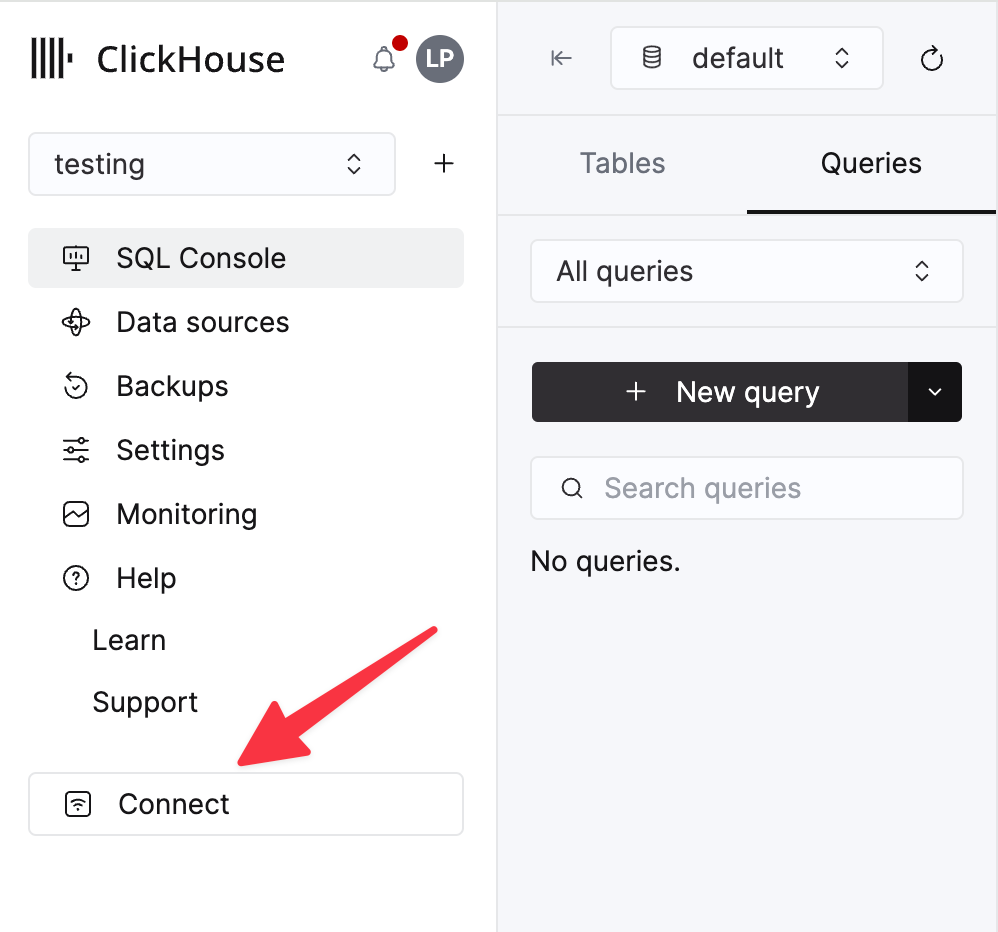
You can find these details by clicking the Connect button in your ClickHouse Cloud console and selecting HTTPS.
Step 2: Configure Network Access
Since Holistics is a cloud-based application, our servers must be able to reach your database. You have two options:
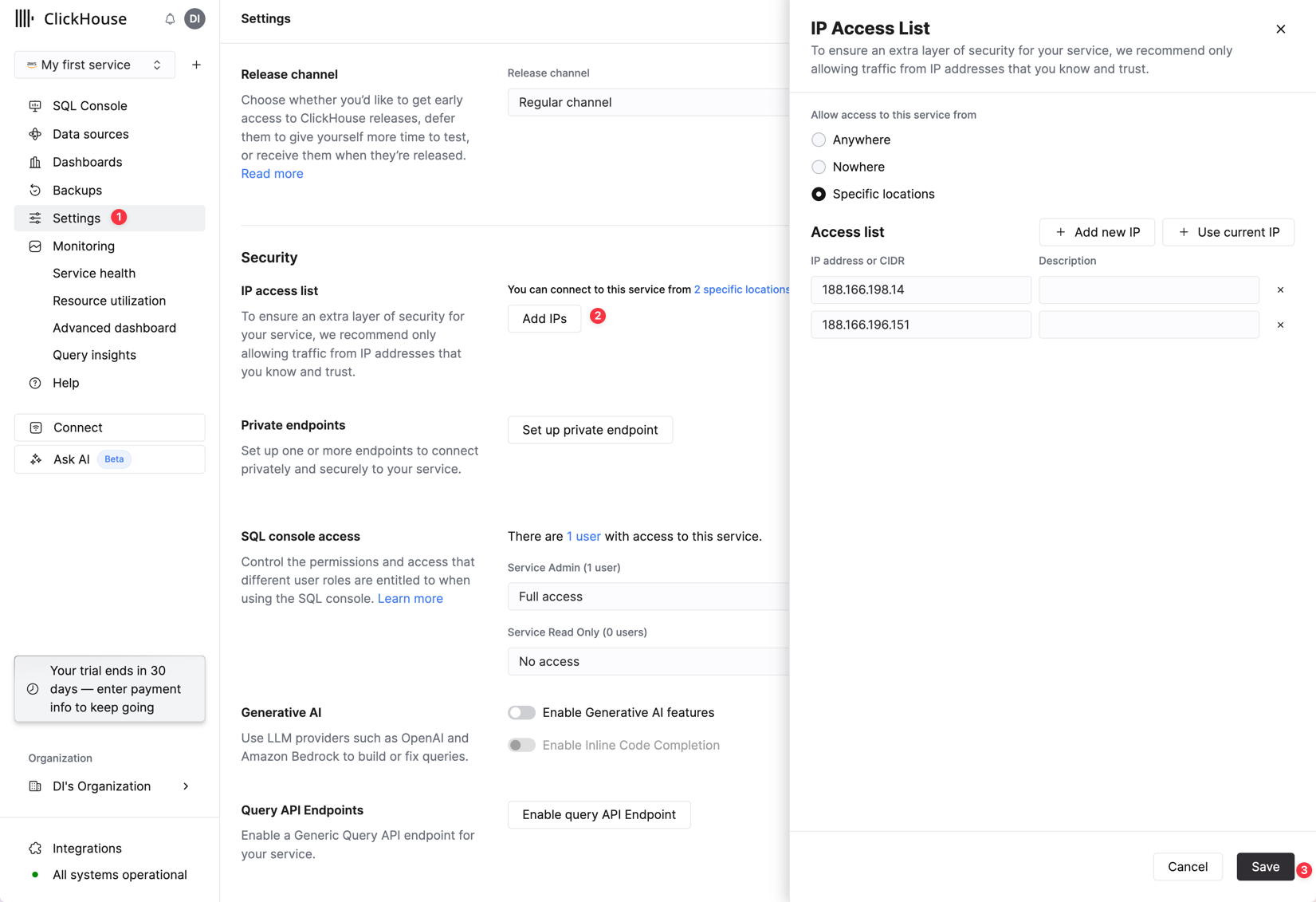
- Direct Connection (Recommended): Allowlist Holistics' IP addresses in your firewall or ClickHouse Cloud IP Access List. You can find our list of IPs in the IP Whitelisting guide.
- Reverse SSH Tunnel: If your database is in a private network (VPC) and cannot be exposed publicly, use a Reverse SSH Tunnel.
Step 3: Add Data Source in Holistics
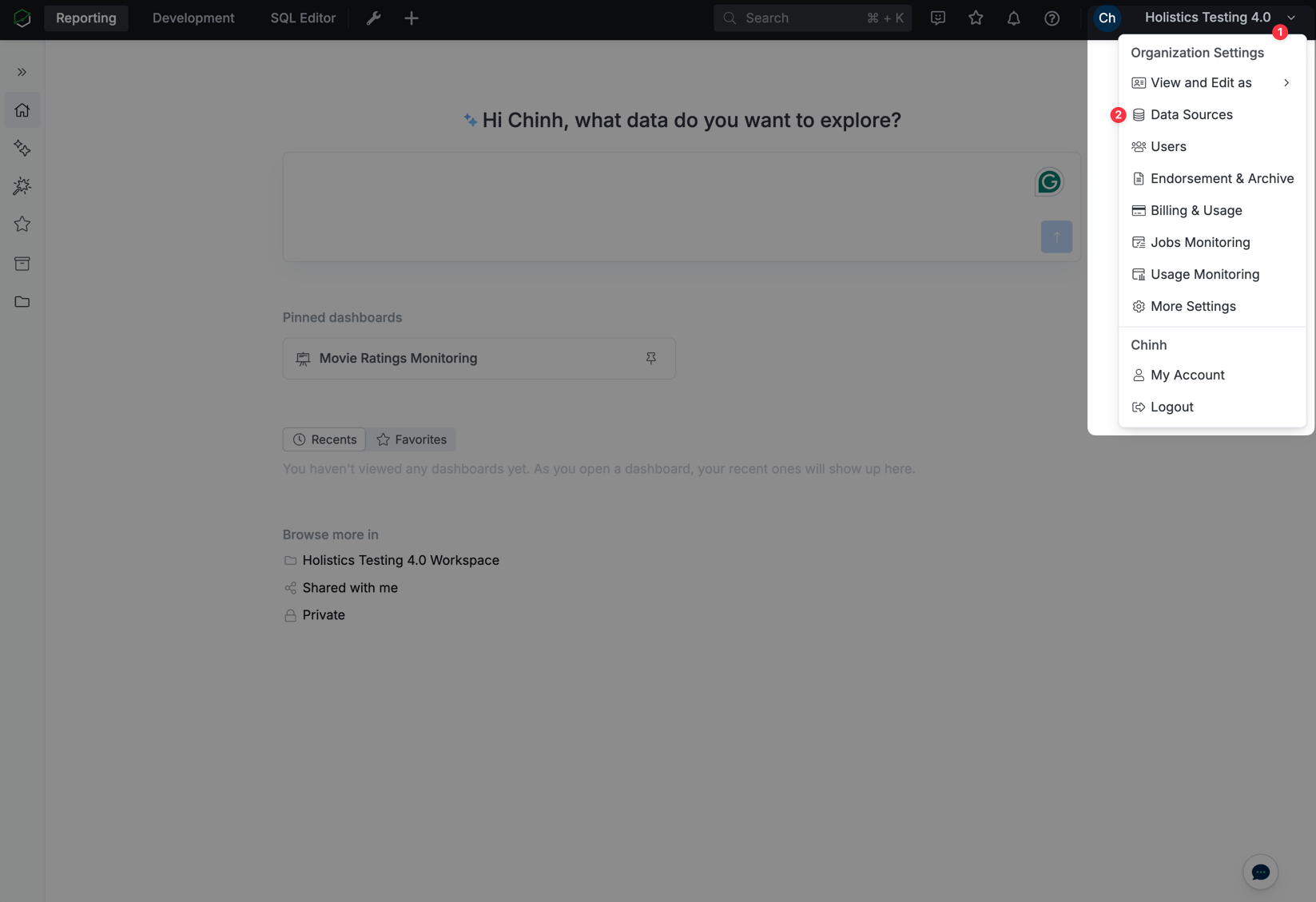
- In Holistics, go to Settings → Data Sources.
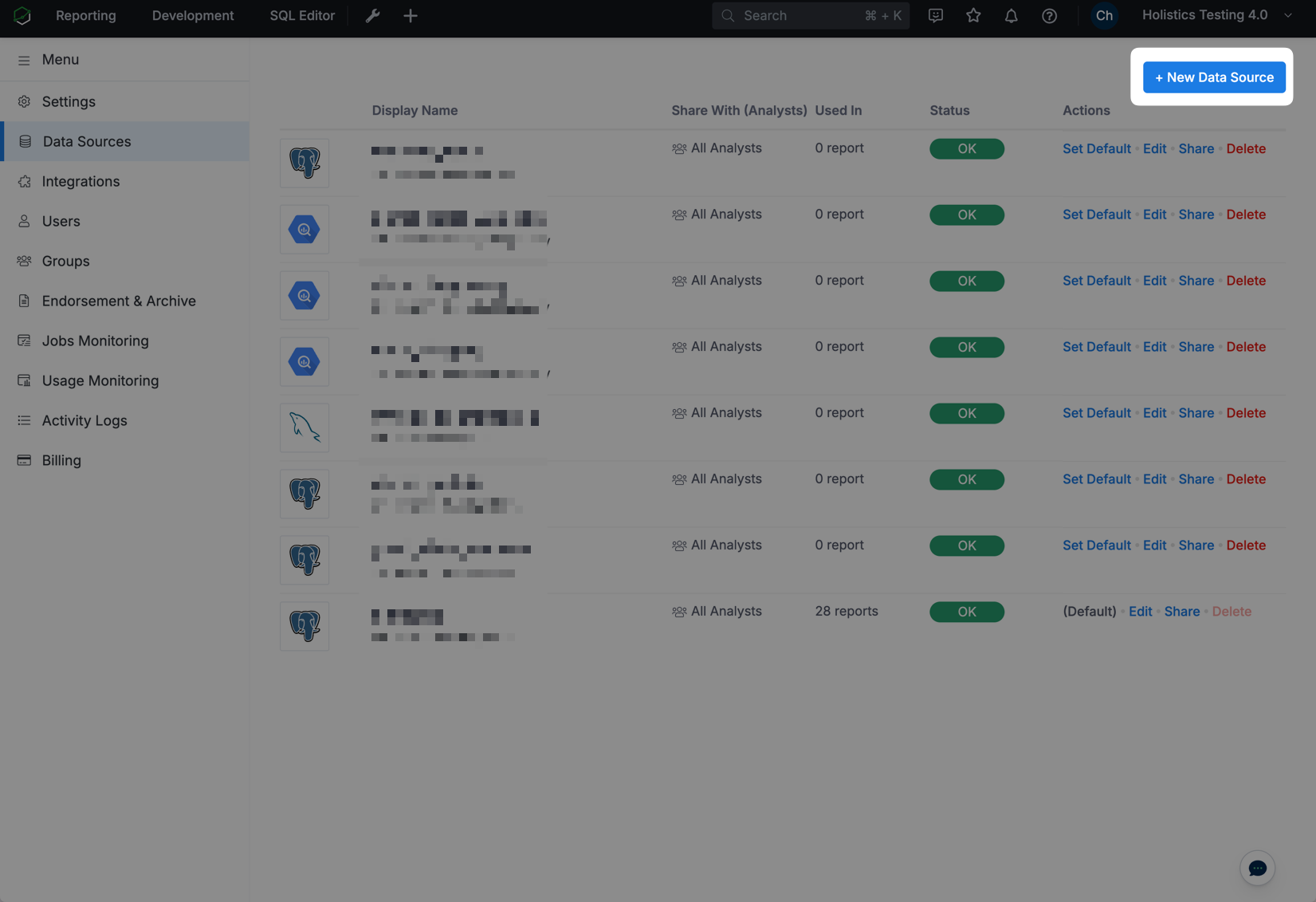
- Click New Data Source and select ClickHouse.
-
Fill in the form with the details gathered in Step 1.
Field Setting Host Your ClickHouse Hostname Port 8443(or8123)Require SSL Toggle ON if using port 8443 (Required for ClickHouse Cloud). Database Name default(or your specific DB)
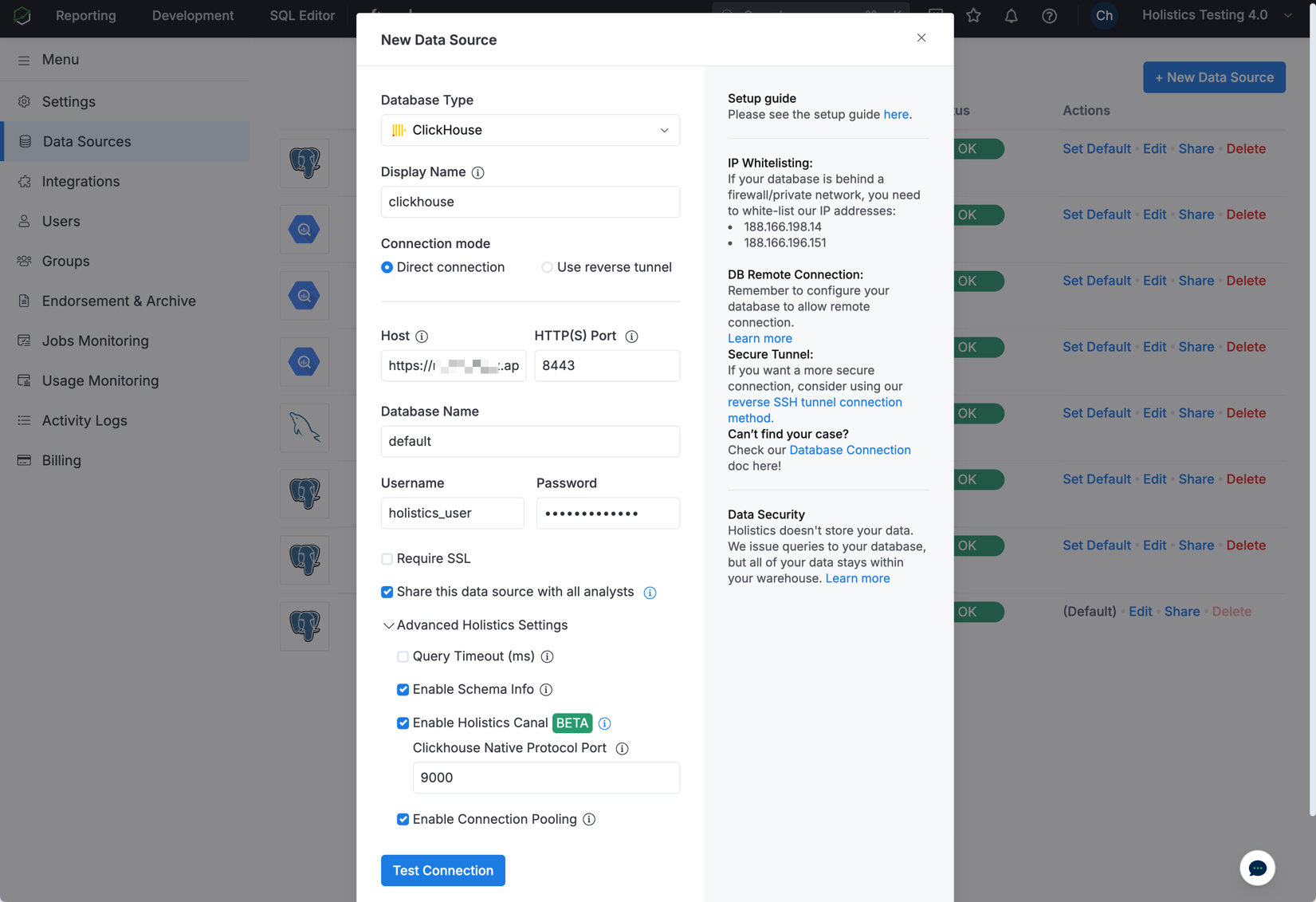
- Click Test Connection.
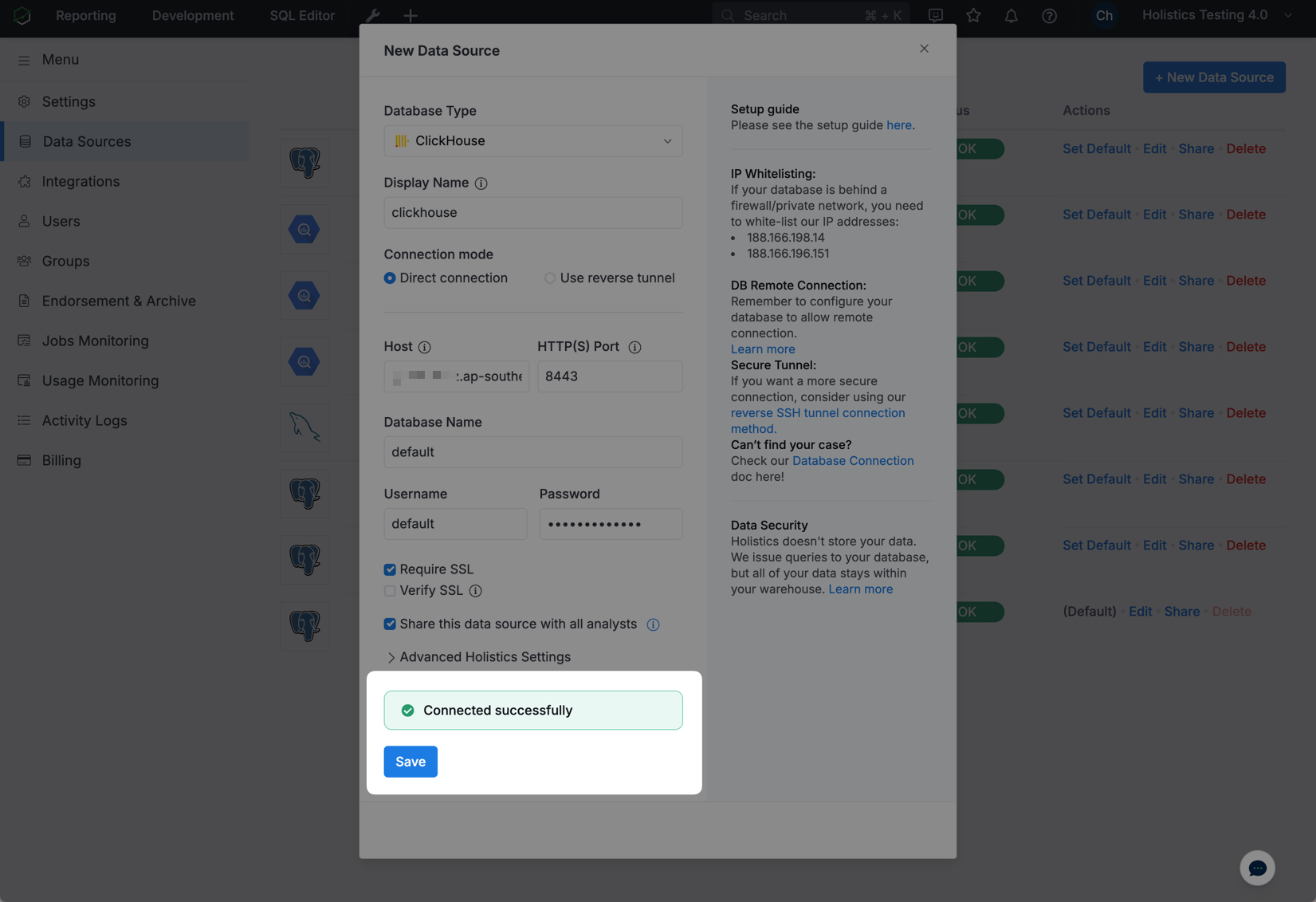
If:
- Success: Click Save.
- Failure: Check your username/password and ensure the Holistics IPs are allowlisted.
Known Limitations
Holistics supports most standard SQL features in ClickHouse, with the following exceptions:
- Nested Data Types: Deeply nested JSON or Array structures may require flattening via query models before visualization.