Embed Portal: persist your setup as code
Introduction
Your backend tells Holistics which dashboards and datasets to show by listing each one by name in the embed payload. This means every embedded object must be kept in sync between your Holistics project and your backend. When the two sides don't match, your production embed breaks and customers see an error instead of their analytics:
- A rename breaks your embed until the backend updates and redeploys
- [HTML node]
- [HTML node]
- [HTML node]
- [HTML node]
- [HTML node]
- [HTML node]
- [HTML node]
- [HTML node]
- [HTML node]
- [HTML node]
- [HTML node]
- [HTML node]
- [HTML node]
- [HTML node]
- [HTML node]
- [HTML node]
- [HTML node]
- [HTML node]
- [HTML node]
- [HTML node]
- [HTML node]
- a-b-before → h-old (refers to)
- a-b-between → ghost (✗ not found)
- b-new → a-h-after (refers to)
- a-b-between-down → c-2
An Embed Portal solves the sync problem. It's an AML file in your Holistics project that lists the dashboards and datasets you want to embed.
Your payload then only needs to reference the portal by name, and everything else in it (viewer identity, permissions, and settings) stays the same. When something changes, you update the portal in Holistics, and your backend doesn't need a redeploy.
- How an Embed Portal solves the sync problem
- Before: Your payload lists every object
- Embed payload objects: { dashboards: ['sales_overview'], datasets: ['ecommerce'], }
- Holistics project
- Your app backend
- Dashboards & datasets sales_overview dashboard ecommerce dataset
- After: Your payload references one Embed Portal
- Holistics project
- Your app backend
- Embed payload + embed_portal: 'customer_portal' - objects: { ... }
- Embed Portal (customer_portal.embed.aml) EmbedPortal customer_portal { objects: [ sales_overview, ecommerce, ] }
- Dashboards & datasets sales_overview dashboard ecommerce dataset
- bp-sales → bo-sales (references)
- bp-ecommerce → bo-ecommerce
- at-sales → ao-sales
- at-ecommerce → ao-ecommerce
- ap-portal → at-portal (references)
Why use an Embed Portal
Beyond removing the sync problem, a portal makes embed changes safer and easier to manage:
- No broken embeds. Holistics validates every reference before you publish, so errors are caught before they reach production.
- No backend redeploys. Add, remove, or rename embedded dashboards and datasets without redeploying your backend.
- Version controlled. Portals live in your Holistics project, so every change is version-controlled alongside your models and dashboards.
- Preview before going live. Test the portal in Development and see exactly what your embed users will get. See Step 2: Preview and publish.
Step 1: Define your Embed Portal
In Development mode, create a new file with the naming convention *.embed.aml, and list the dashboards and datasets you want to embed.
EmbedPortal customer_portal {   // object with a unique name
  objects: [
    sales_overview,    // dashboard
    revenue_trends,    // dashboard
    ecommerce,         // dataset: enables exploration, drill-down, and Ask AI
  ],
}
Objects are unique across your Holistics project, so you only list the names. Holistics detects whether each one is a dashboard or a dataset.
Step 2: Preview and publish
Preview the portal before it reaches production by clicking Preview in the file header. This lets you validate changes, catch broken references, and test the experience your embed users will get.
Once you're satisfied, publish your changes so the portal is available for embedding. See Publishing to production.
Step 3: Reference the Embed Portal from your payload
Replace the objects block in your payload with embed_portal and the portal's name. Everything about the viewer stays in the payload exactly as before.
const payload = {
  objects: {
    dashboards: ['sales_overview', 'revenue_trends'],
    datasets: ['ecommerce'],
  },
  embed_portal: 'customer_portal',

  // viewer identity and permissions stay in the payload
  embed_user_id: 'user_123',
  embed_org_id: 'org_456',
  user_attributes: {
    company_id: [42],
  },
  settings: {
    allow_dashboard_export: true,
  },
  exp: Math.floor(Date.now() / 1000) + 24 * 60 * 60,
};

const token = jwt.sign(payload, embedSecret, { algorithm: 'HS256' });
Your iframe still points at /embed/{embed_key_id}?_token={token} with the same Key ID.
A payload references either a portal or inline objects, not both. If you set embed_portal, leave out objects.dashboards and objects.datasets: a payload that sets both is rejected.
More Embed Portal settings
Besides objects, a portal can set the initial object (the page viewers land on) and white-label the Ask AI assistant.
Initial object
By default, the embed opens on the first dashboard or dataset in objects. Use initial_object to pick a different starting page. It accepts:
-
An object: open a specific dashboard or dataset from
objects.customer_portal.embed.amlEmbedPortal customer_portal {objects: [sales_overview, ecommerce],initial_object: ecommerce} -
'ai': open the Ask AI page (requiressettings.ai.enabled: truein your payload).customer_portal.embed.amlEmbedPortal customer_portal {objects: [sales_overview, ecommerce],initial_object: 'ai'}
Note that you can override this setting for a single link by using a URL path such as /objects/sales_overview or /ai.
White-label Ask AI
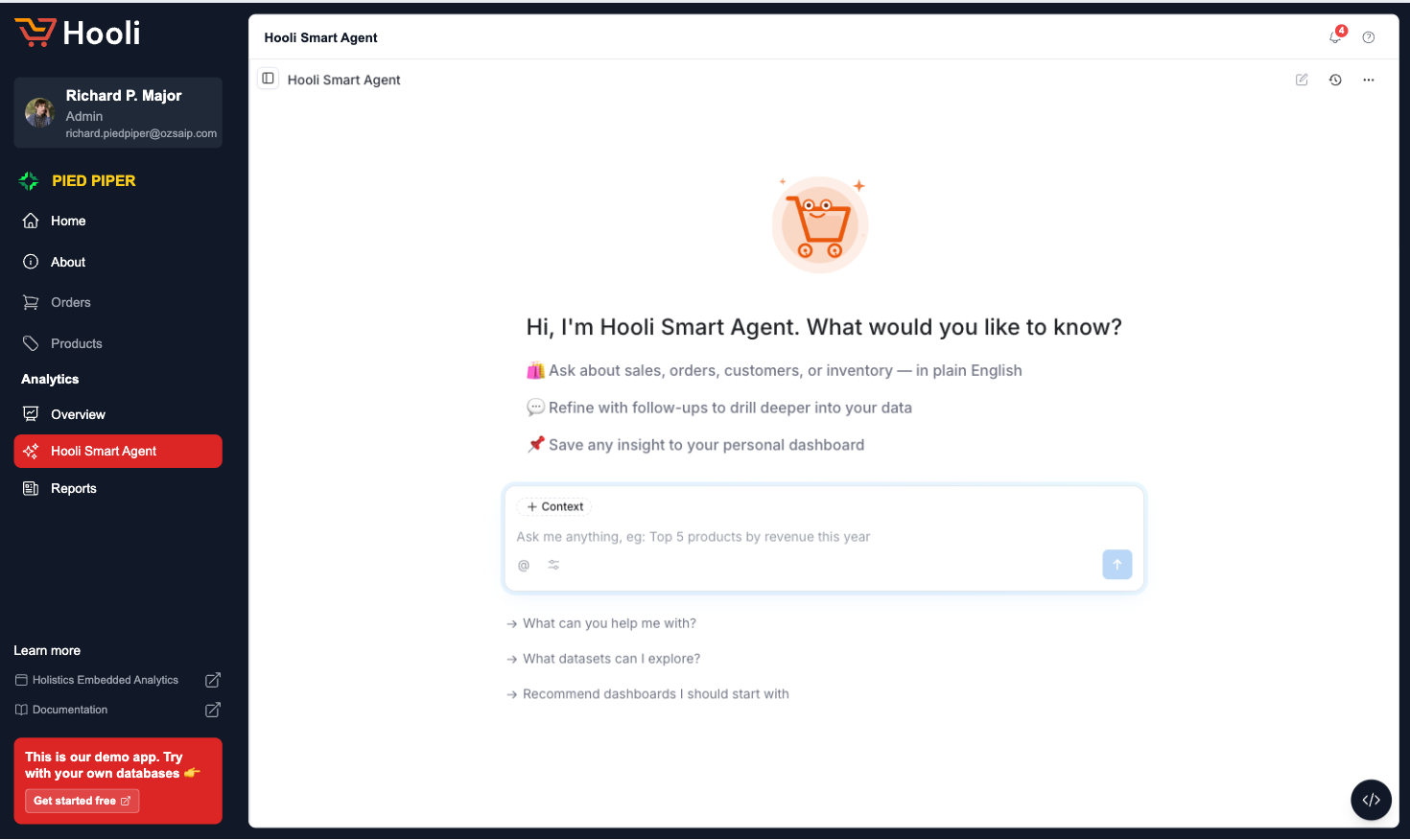
Add an ai block to replace Holistics' default branding with your own: a custom icon, an assistant name, a welcome message, and prompt placeholder text. See White-label Ask AI for every property and where it appears in the interface.
EmbedPortal customer_portal {
  objects: [sales_overview, ecommerce],
  ai {
    customization: EmbedPortalAiCustomization {
      global {
        icon: 'https://cdn.example.com/logo.png'
        assistant_name: 'Ask Hooli'
      }
    }
  }
}
Next steps
- Attribute-based permissions: persist row-level permissions in your datasets and pass only user attributes in the payload
- Dashboards by user role: keep one portal per role and pick it in your backend
- SaaS tiered plans: gate exploration and Ask AI by subscription tier
- Manage user dashboards: where user-built dashboards are stored as code