Visualizations
Turn raw query results into charts, tables, and maps that surface the patterns in your data.
Visualization is the representation of your raw data in graphical form. Holistics supports a wide range of visualization types, from simple tables to fully custom charts, grouped here by the kind of data they're built for.
Start with the library
If you are still deciding what to build, it is usually faster to look at finished work first.
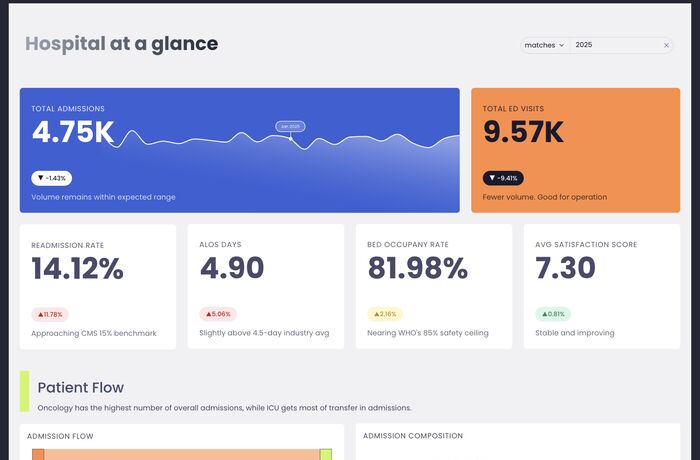
Types of Visualizations
Tables
Tabular and grid-style visualizations for detailed, row-level data and structured breakdowns.


Single value, KPI, and metrics
Compact visualizations for highlighting a single number or tracking it against a goal.


Line, bar, and other charts
The core chart library for trends, distributions, comparisons, and relationships.


Maps
Geospatial visualizations for plotting data across locations and regions.


Dynamic content blocks
Build custom, data-driven content using HTML and Markdown templates.
Custom charts
When the built-in types don't fit, build your own with the custom chart library.
Operations with Visualizations
By default, Holistics displays your report data in a table. While this gives you a full view of your query result, sometimes interesting patterns only show themselves when you give them shapes and colors.

Enforce a custom order for your Visualization's legends

By default, Holistics would sort the legends in your Visualizations alphabetically. Consider this workaround from the Holistics Community to override this behavior.
FAQs
Error: Too many columns, not showing all data
This error happens when you add a field (which contains more than 100 values) to the **Column Field **(of Pivot Table) or Legend Field (of other charts) in the Viz Setting.

Currently, we only support showing a maximum of 100 columns. If the field has more than 100 values, Holistics will visualize a preview of the first 100 columns. It is recommended that you use a column with low cardinality in the Column field or Legend field to reduce visual clutter, which will improve the readability of your chart.